Stufin
Home Quick Cart Profile

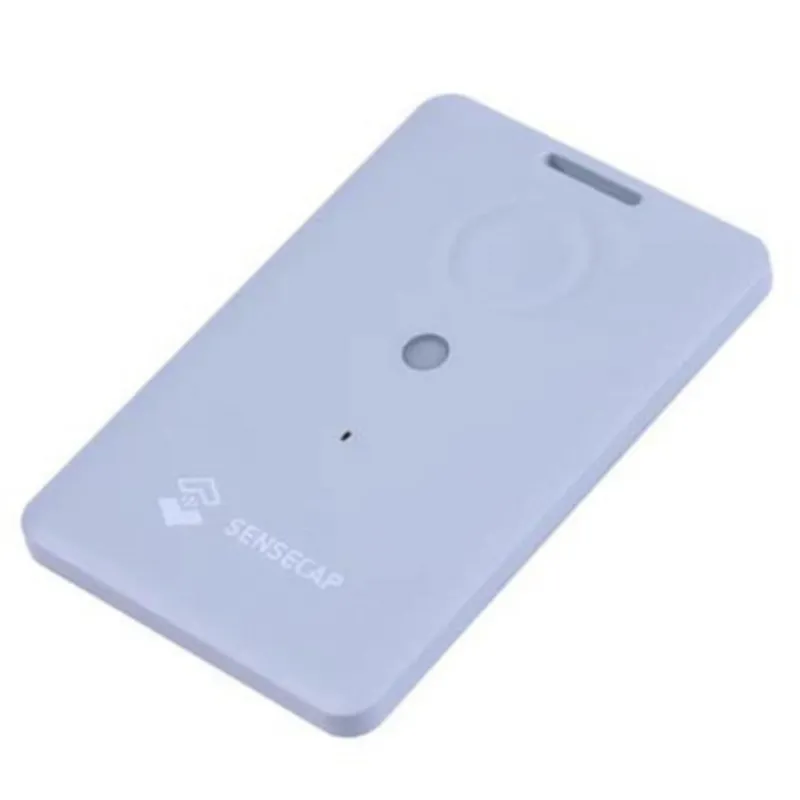
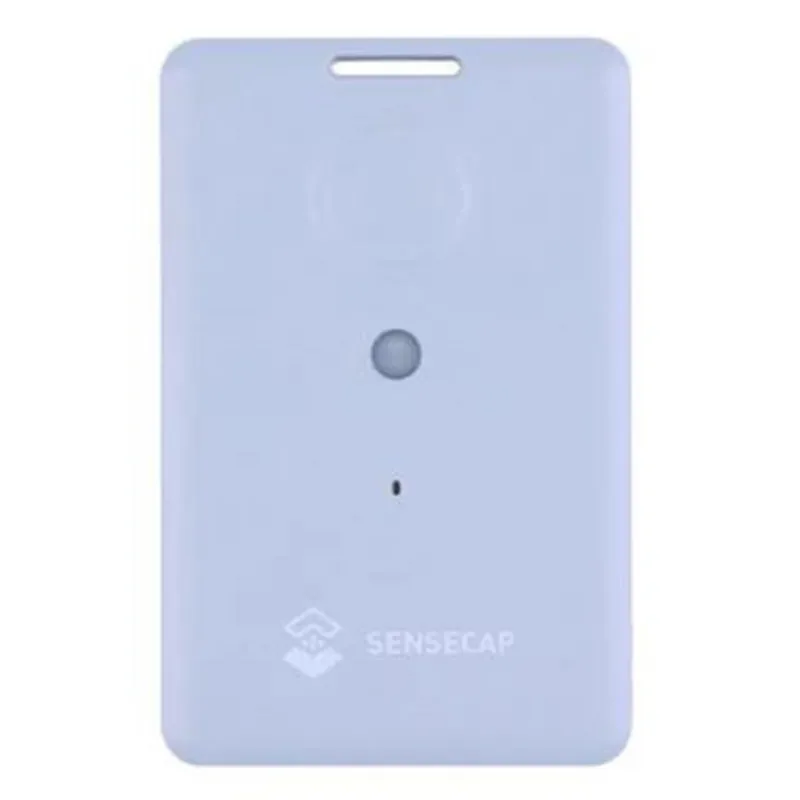
SenseCAP T1000-B LoRaWAN Tracker for Indoor and Outdoor Positioning

Buy Now on Stufin

Frequency Bands

868 MHz (EU) / 915 MHz (US) / 923 MHz (AS)


Communication Protocol

LoRaWAN Class A and C

GPS Accuracy

< 2.5m CEP

Wi-Fi Accuracy< 5m

Battery Life

Up to 5 years (depending on reporting frequency and mode)

Operating Temperature

-20C to 70C

Storage Temperature

-40C to 85C

Dimensions

45 x 30 x 15 mm

Weight

35g

Conclusion

The SenseCAP T1000-B LoRaWAN Tracker for Indoor and Outdoor Positioning is a versatile and powerful IoT component that offers accurate and efficient location tracking and monitoring. Its unique combination of GPS, Wi-Fi, and LoRaWAN technologies makes it an ideal choice for various applications, including asset tracking, logistics, and smart cities.

Pin Configuration

  • SenseCAP T1000-B LoRaWAN Tracker for Indoor and Outdoor Positioning Pinout Guide
  • The SenseCAP T1000-B LoRaWAN Tracker is a compact and versatile device for indoor and outdoor positioning applications. The module features a range of pins that enable connection to various peripherals and sensors. This guide provides a detailed explanation of each pin, along with recommended connection structures.
  • Pinout Diagram:
  • The SenseCAP T1000-B LoRaWAN Tracker has a 15-pin interface, with the following pinout diagram:
  • ```
  • +---------------+
  • | 1 | 2 | 3 | 4 | 5 |
  • +---------------+
  • | 6 | 7 | 8 | 9 | 10 |
  • +---------------+
  • | 11 | 12 | 13 | 14 | 15 |
  • +---------------+
  • ```
  • Pin Descriptions:
  • Below is a detailed explanation of each pin:
  • 1. GND (Ground): This pin is connected to the ground of the power supply. It is essential for proper device operation and noise reduction.
  • Connection: Connect to the negative terminal of the power supply or a common ground point.
  • 2. VIN (Voltage Input): This pin is the power input for the device, typically ranging from 2.5V to 5.5V.
  • Connection: Connect to a suitable power source, such as a battery or a regulated voltage supply.
  • 3. 3V3 (3.3V Output): This pin provides a stable 3.3V output, which can be used to power external components.
  • Connection: Connect to the 3.3V input of external components, such as sensors or microcontrollers.
  • 4. ENA (Enable): This pin is used to enable or disable the device.
  • Connection: Connect to a digital output of a microcontroller or a switch to control the device's power state.
  • 5. RST (Reset): This pin is used to reset the device.
  • Connection: Connect to a digital output of a microcontroller or a push-button to reset the device.
  • 6. UART_TX (UART Transmit): This pin transmits data from the device to an external component, such as a microcontroller.
  • Connection: Connect to the RX (receive) pin of an external component, such as a microcontroller or a serial console.
  • 7. UART_RX (UART Receive): This pin receives data from an external component, such as a microcontroller.
  • Connection: Connect to the TX (transmit) pin of an external component, such as a microcontroller or a serial console.
  • 8. I2C_SDA (I2C Serial Data): This pin is used for I2C communication.
  • Connection: Connect to the SDA pin of an external I2C device, such as a sensor or an interface.
  • 9. I2C_SCL (I2C Serial Clock): This pin is used for I2C communication.
  • Connection: Connect to the SCL pin of an external I2C device, such as a sensor or an interface.
  • 10. DIO1 (Digital Input/Output 1): This pin is a general-purpose digital input/output.
  • Connection: Connect to a digital input or output of an external component, such as a sensor or an interface.
  • 11. DIO2 (Digital Input/Output 2): This pin is a general-purpose digital input/output.
  • Connection: Connect to a digital input or output of an external component, such as a sensor or an interface.
  • 12. GPS_PPS (GPS Pulse Per Second): This pin provides a 1-second pulse signal from the GPS module.
  • Connection: Connect to an external GPS device or a timing circuit.
  • 13. GPS_RX (GPS Receive): This pin receives GPS data from an external GPS device.
  • Connection: Connect to the TX (transmit) pin of an external GPS device.
  • 14. GPS_TX (GPS Transmit): This pin transmits GPS data to an external GPS device.
  • Connection: Connect to the RX (receive) pin of an external GPS device.
  • 15. ANT (Antenna): This pin connects to an external antenna for LoRaWAN communication.
  • Connection: Connect to an external LoRaWAN antenna, following the recommended antenna design and placement guidelines.
  • Connection Structure:
  • When connecting the SenseCAP T1000-B LoRaWAN Tracker to external components, ensure reliable connections by using the following structure:
  • Use breadboard-friendly connectors or wire wrapping for prototyping.
  • Employ a PCB or a custom board for production, following proper soldering and assembly techniques.
  • Use appropriate cables and connectors for LoRaWAN and GPS antennas, ensuring proper impedance matching and signal integrity.
  • Implement proper power supply decoupling and filtering to minimize noise and ensure reliable operation.
  • By following this guide, you can successfully connect and integrate the SenseCAP T1000-B LoRaWAN Tracker into your IoT application, leveraging its advanced positioning capabilities for indoor and outdoor tracking.

Code Examples

SenseCAP T1000-B LoRaWAN Tracker for Indoor and Outdoor Positioning
Overview
The SenseCAP T1000-B is a LoRaWAN-based tracker designed for indoor and outdoor positioning applications. It integrates a GPS module, accelerometer, and temperature sensor, making it suitable for various IoT use cases such as asset tracking, logistics, and industrial monitoring.
Features
LoRaWAN 1.0.3 compliant
 GPS, GLONASS, and Galileo satellite systems support
 Accelerometer for motion detection and gesture recognition
 Temperature sensor for environmental monitoring
 Compact design with IP67 rating for outdoor use
 Battery life up to 5 years (dependent on usage and settings)
Getting Started
To use the SenseCAP T1000-B, you will need:
1. A LoRaWAN gateway or network provider
2. A compatible development board or microcontroller (e.g., Arduino, Raspberry Pi)
3. A programming language of your choice (e.g., C, Python, JavaScript)
Code Examples
### Example 1: Basic LoRaWAN Transmission with GPS Data (Arduino)
This example demonstrates how to send GPS data using the SenseCAP T1000-B and an Arduino board.
```c
#include <LoRaWAN.h>
#include <TinyGPS++.h>
// Define the SenseCAP T1000-B pins
const int lora_reset_pin = 2;
const int lora_ss_pin = 5;
const int gps_rx_pin = 3;
const int gps_tx_pin = 4;
// Create a LoRaWAN object
LoRaWAN lora(lora_reset_pin, lora_ss_pin);
// Create a TinyGPS++ object
TinyGPSPlus gps;
void setup() {
  Serial.begin(9600);
// Initialize the SenseCAP T1000-B
  lora.begin();
  gps.begin(gps_rx_pin, gps_tx_pin);
}
void loop() {
  // Get the current GPS data
  gps.encode();
  float lat = gps.location.lat();
  float lon = gps.location.lng();
  float alt = gps.altitude.meters();
// Create a LoRaWAN packet
  byte packet[16];
  packet[0] = 0x01; // header
  packet[1] = lat >> 16;
  packet[2] = lat >> 8;
  packet[3] = lat;
  packet[4] = lon >> 16;
  packet[5] = lon >> 8;
  packet[6] = lon;
  packet[7] = alt >> 16;
  packet[8] = alt >> 8;
  packet[9] = alt;
// Send the LoRaWAN packet
  lora.sendPacket(packet, 10);
delay(10000); // send every 10 seconds
}
```
### Example 2: Temperature and Motion Detection with JavaScript (Node.js)
This example demonstrates how to read temperature and motion data from the SenseCAP T100-B using a Node.js application.
```javascript
const serialPort = require('serialport');
const SenseCAP = require('./SenseCAP');
// Open the serial port
const port = new serialPort('COM3', {
  baudRate: 9600
});
// Create a SenseCAP object
const sensecap = new SenseCAP(port);
// Read temperature and motion data
setInterval(() => {
  sensecap.getTemperature((temperature) => {
    console.log(`Temperature: ${temperature} C`);
  });
sensecap.getMotion((motion) => {
    console.log(`Motion: ${motion ? 'Detected' : 'Not detected'}`);
  });
}, 1000); // read every 1 second
// SenseCAP class
class SenseCAP {
  constructor(port) {
    this.port = port;
  }
getTemperature(callback) {
    this.port.write('AT+TEMP?
', (err) => {
      if (err) {
        console.error(err);
      } else {
        this.port.readline((line) => {
          const temp = parseFloat(line);
          callback(temp);
        });
      }
    });
  }
getMotion(callback) {
    this.port.write('AT+MOTION?
', (err) => {
      if (err) {
        console.error(err);
      } else {
        this.port.readline((line) => {
          const motion = line.trim() === '1';
          callback(motion);
        });
      }
    });
  }
}
```
Note: These examples are provided as a starting point and may require modifications to fit your specific use case. Please consult the SenseCAP T1000-B datasheet and LoRaWAN documentation for more information on using this component.