

Stufin
Home Quick Cart Profile

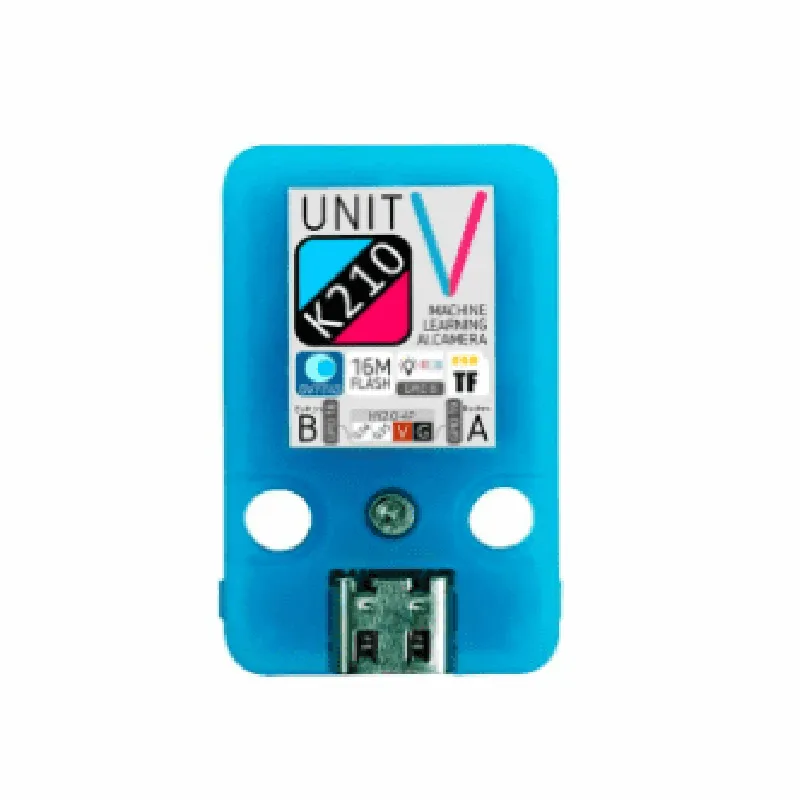
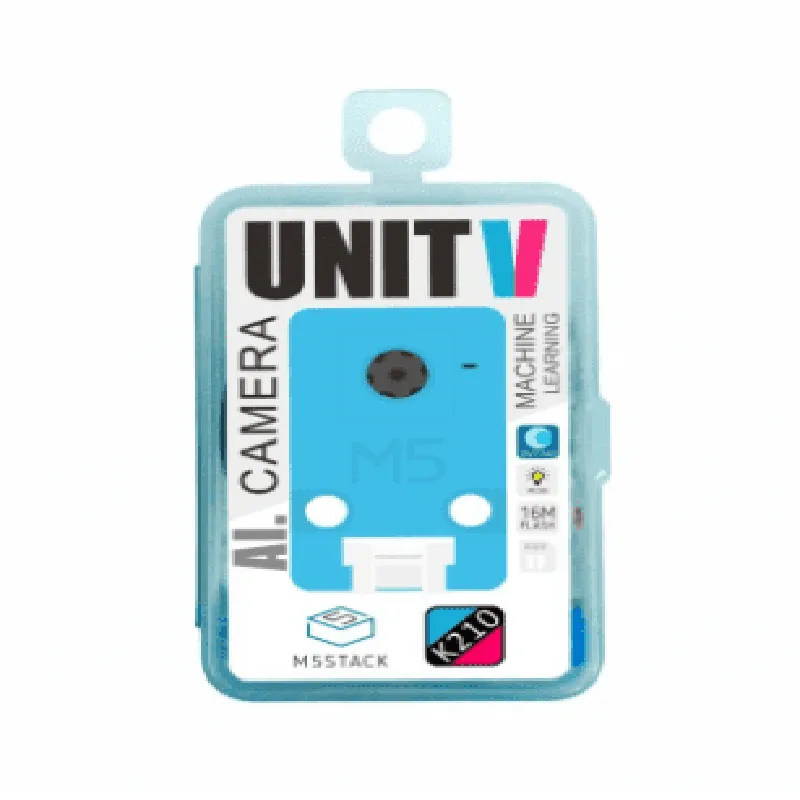
M5Stack UnitV AI Camera (OV7740)

Buy Now on Stufin

Sensor Type

CMOS

Resolution

Up to 640x480 pixels (VGA)

Pixel Size

3.0 m x 3.0 m

Sensitivity Range

1.5 Lux

Frame Rate

Up to 30 fps

Interface

4-pin Grove interface (I2C)

Power

3.3V to 5V

Dimensions

22mm x 22mm x 12mm

Operating Temperature

-20C to 70C

Weight

5g

Applications

The M5Stack UnitV AI Camera (OV7740) is suitable for a wide range of IoT applications, including

Smart home devices

Security and surveillance systems

Robotics and autonomous systems

Industrial inspection and quality control

Wearables and augmented reality devices

Environmental monitoring and tracking systems

Pin Configuration

  • M5Stack UnitV AI Camera (OV7740) Pinout Documentation
  • The M5Stack UnitV AI Camera (OV7740) is a compact and powerful camera module designed for IoT and AI applications. This documentation provides a detailed explanation of the pinout structure and connections for the UnitV AI Camera.
  • Pinout Structure:
  • The UnitV AI Camera has a total of 22 pins, arranged in two rows of 11 pins each. The pins are labeled as follows:
  • Row 1 (left to right):
  • 1. GND (Ground): This pin is connected to the ground of the circuit and is used as a reference point for the camera's power supply.
  • 2. VCC (Power Supply): This pin is connected to the power supply of the circuit, typically 3.3V or 5V.
  • 3. SDA (I2C Data): This pin is used for I2C communication and is connected to the data line of the I2C bus.
  • 4. SCL (I2C Clock): This pin is used for I2C communication and is connected to the clock line of the I2C bus.
  • 5. PWRDN (Power Down): This pin is used to control the power-down mode of the camera. When pulled low, the camera enters power-down mode.
  • 6. RESET (Reset): This pin is used to reset the camera. When pulled low, the camera resets.
  • 7. CSI0_P (Camera Serial Interface 0 - Pixel Clock): This pin is used for camera data transmission and is connected to the pixel clock line of the CSI0 interface.
  • 8. CSI0_N (Camera Serial Interface 0 - Pixel Data): This pin is used for camera data transmission and is connected to the pixel data line of the CSI0 interface.
  • 9. CSI1_P (Camera Serial Interface 1 - Pixel Clock): This pin is used for camera data transmission and is connected to the pixel clock line of the CSI1 interface.
  • 10. CSI1_N (Camera Serial Interface 1 - Pixel Data): This pin is used for camera data transmission and is connected to the pixel data line of the CSI1 interface.
  • 11. LED (LED Indicator): This pin is connected to an external LED indicator, which can be used to indicate camera status or activity.
  • Row 2 (left to right):
  • 12. GND (Ground): This pin is connected to the ground of the circuit and is used as a reference point for the camera's power supply.
  • 13. VSYNC (Vertical Sync): This pin is used for camera data transmission and is connected to the vertical sync signal line.
  • 14. HSYNC (Horizontal Sync): This pin is used for camera data transmission and is connected to the horizontal sync signal line.
  • 15. PCLK (Pixel Clock): This pin is used for camera data transmission and is connected to the pixel clock signal line.
  • 16. D0 (Data Bit 0): This pin is used for camera data transmission and is connected to the data bit 0 line.
  • 17. D1 (Data Bit 1): This pin is used for camera data transmission and is connected to the data bit 1 line.
  • 18. D2 (Data Bit 2): This pin is used for camera data transmission and is connected to the data bit 2 line.
  • 19. D3 (Data Bit 3): This pin is used for camera data transmission and is connected to the data bit 3 line.
  • 20. D4 (Data Bit 4): This pin is used for camera data transmission and is connected to the data bit 4 line.
  • 21. D5 (Data Bit 5): This pin is used for camera data transmission and is connected to the data bit 5 line.
  • 22. D6 (Data Bit 6): This pin is used for camera data transmission and is connected to the data bit 6 line.
  • Connection Guidelines:
  • 1. Connect the GND pin to the ground of your circuit.
  • 2. Connect the VCC pin to the power supply of your circuit (typically 3.3V or 5V).
  • 3. Connect the SDA and SCL pins to the I2C bus of your microcontroller or other I2C devices.
  • 4. Connect the CSI0_P, CSI0_N, CSI1_P, and CSI1_N pins to the CSI interface of your microcontroller or other CSI devices.
  • 5. Connect the VSYNC, HSYNC, and PCLK pins to the corresponding signals on your microcontroller or other camera interface devices.
  • 6. Connect the D0 to D6 pins to the data lines of your microcontroller or other camera interface devices.
  • Note: The M5Stack UnitV AI Camera (OV7740) requires a 3.3V power supply, and the I2C bus should be configured for 3.3V operation. Additionally, ensure that the camera is properly reset and configured before use.
  • By following these connection guidelines and pinout structure, you can successfully integrate the M5Stack UnitV AI Camera (OV7740) into your IoT or AI project.

Code Examples

M5Stack UnitV AI Camera (OV7740) Documentation
Overview
The M5Stack UnitV AI Camera (OV7740) is a compact, high-performance camera module designed for AI and computer vision applications. It is equipped with an OV7740 image sensor, which is a 1/4-inch 0.3-megapixel CMOS sensor. The camera module is compatible with the M5Stack development platform, allowing for easy integration with various IoT projects.
Technical Specifications
Image Sensor: OV7740
 Resolution: 0.3 megapixel (VGA)
 Sensor Size: 1/4 inch
 Pixel Size: 3.0 m x 3.0 m
 Frame Rate: up to 30 fps
 Interface: I2C, SPI
 Power Supply: 3.3V
 Current Consumption: 150 mA (typical)
Code Examples
### Example 1: Basic Camera Operations with UIFlow
The following example demonstrates how to use the M5Stack UnitV AI Camera with UIFlow, a visual programming platform for M5Stack devices.
```python
from m5stack import 
from m5ui import 
import uiflow
# Initialize the camera
camera = unitv_camera.init()
# Set the camera resolution and format
camera.set_resolution(camera.VGA)
camera.set_format(camera.RGB565)
# Take a photo and display it on the M5Stack screen
image = camera.capture()
lcd.image(0, 0, image)
# Release the camera
camera.deinit()
```
This example initializes the camera, sets the resolution and format, takes a photo, displays it on the M5Stack screen, and finally releases the camera.
### Example 2: Object Detection using TensorFlow Lite and MicroPython
The following example demonstrates how to use the M5Stack UnitV AI Camera with TensorFlow Lite and MicroPython for object detection.
```python
import uos
import utime
from machine import I2C
import tflite_runtime.micro as tflite
# Initialize the camera
camera = unitv_camera.init()
# Load the TensorFlow Lite model
model = tflite.load('model.tflite')
# Initialize the I2C bus for communication with the camera
i2c = I2C(0, freq=400000)
while True:
    # Capture an image from the camera
    image = camera.capture()
# Preprocess the image for object detection
    image = image.resize((224, 224))
    image = image.convert('RGB')
    image = image_to_tensor(image)
# Run object detection using the TensorFlow Lite model
    outputs = model.invoke(image)
# Get the detected objects and their probabilities
    objects = get_objects(outputs)
# Print the detected objects
    for obj in objects:
        print(f'Detected object: {obj["label"]} ({obj["probability"]:.2f}%)')
# Wait for 1 second before capturing the next image
    utime.sleep(1)
```
This example initializes the camera, loads a TensorFlow Lite model for object detection, captures images, preprocesses them, runs object detection using the model, and prints the detected objects and their probabilities.
Note: The above examples are for illustrative purposes only and may require modifications to work with your specific use case. Additionally, you may need to install additional libraries or frameworks depending on your development environment.