200-300 grams


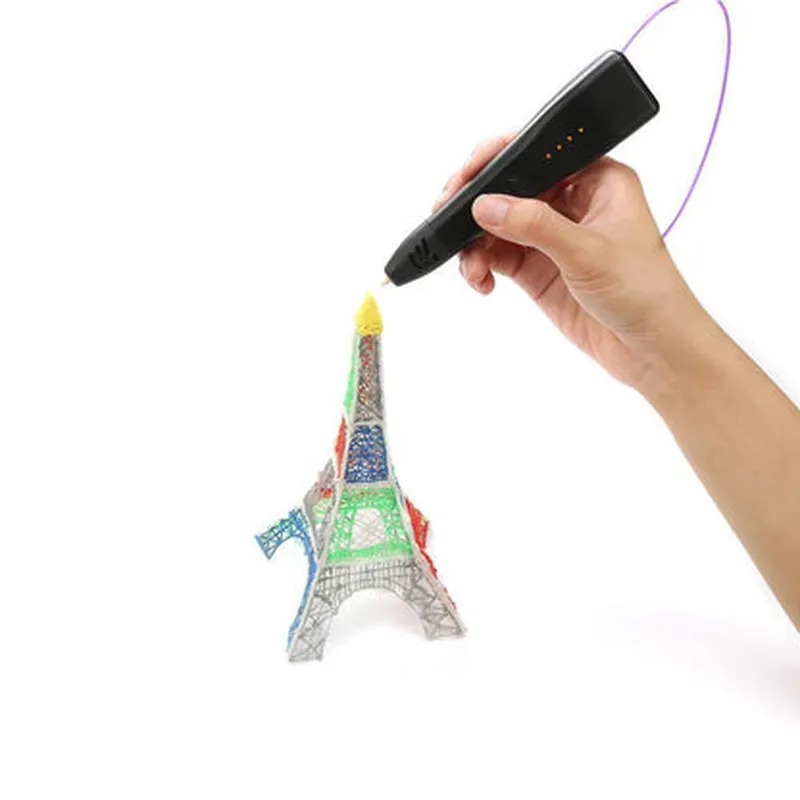
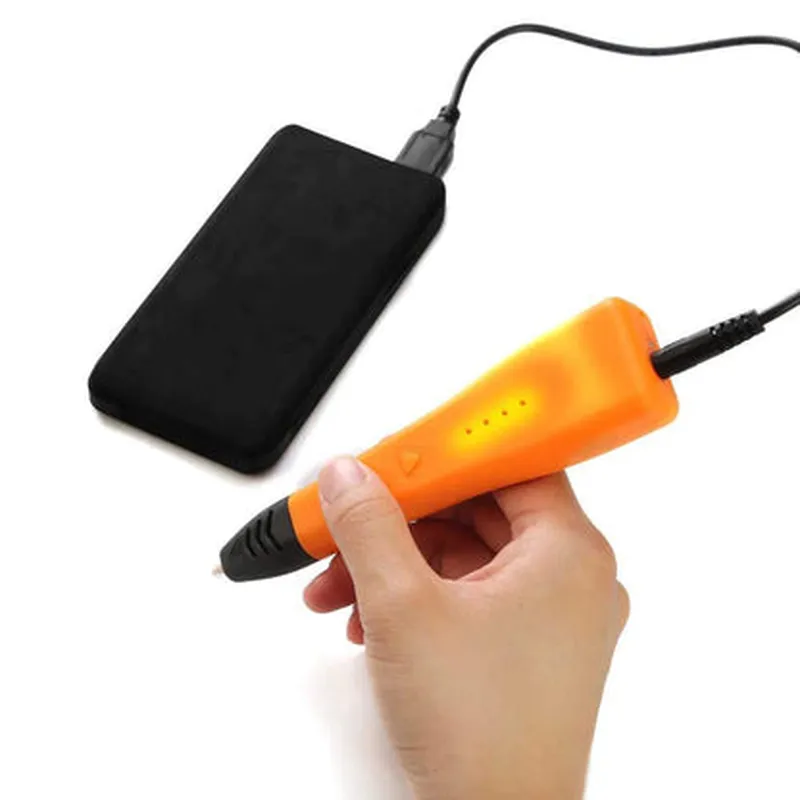
200-300 grams
150mm x 50mm x 30mm
160C - 240C
10-30 mm/s
PLA, ABS, and other thermoplastic materials
Rechargeable battery, USB charging
None (standalone device)
Conclusion
The 3D Printing Pen is an innovative tool that empowers users to create complex 3D objects with ease. Its portability, ease of use, and versatility make it an ideal tool for artists, designers, educators, and hobbyists alike. With its adjustability, safety features, and compatibility with various filaments, the 3D Printing Pen is a powerful tool for anyone looking to explore the world of 3D printing.
3D Printing Pen DocumentationOverviewThe 3D Printing Pen is a handheld device that allows users to create 3D objects by extruding melted plastic filament in a controlled manner. This component is a versatile tool for artists, designers, and makers, enabling them to bring their ideas to life.Technical SpecificationsInput voltage: 12V
Input current: 2A
Filament type: PLA, ABS
Temperature range: 180C - 220C
Printing speed: 10 mm/s - 50 mm/sCommunication ProtocolsUSB (serial communication)
Bluetooth Low Energy (BLE)Code Examples### Example 1: Basic Line Drawing using ArduinoIn this example, we will use an Arduino board to control the 3D Printing Pen and draw a simple line.Hardware Requirements3D Printing Pen
Arduino Board (e.g., Arduino Uno)
USB cableSoftware RequirementsArduino IDE (version 1.8.x or later)Code
```cpp
// Define the pen's serial communication pin
#define PEN_SERIAL_PIN 9void setup() {
// Initialize the serial communication
Serial.begin(9600);
pinMode(PEN_SERIAL_PIN, OUTPUT);
}void loop() {
// Set the pen's temperature to 200C
Serial.print("M104 T:200
");
delay(500);// Move the pen to the starting position (x, y, z)
Serial.print("G1 F100 X10 Y10 Z10
");
delay(100);// Draw a line from (10, 10, 10) to (50, 50, 10)
Serial.print("G1 F100 X50 Y50 Z10
");
delay(1000);// Turn off the pen's motor
Serial.print("M18
");
delay(500);
}
```
### Example 2: Creating a Simple Shape using Python and BLEIn this example, we will use a Python script to control the 3D Printing Pen over Bluetooth Low Energy (BLE) and create a simple square shape.Hardware Requirements3D Printing Pen
BLE module (e.g., HM-10)
Python-compatible microcontroller (e.g., Raspberry Pi)Software RequirementsPython 3.x
BlueZ library (for BLE communication)Code
```python
import bluez# Initialize the BLE connection
pen_ble_address = "12:34:56:78:90:AB"
pen_ble_service_uuid = "0000abcd-1234-5678-90ab-cdef01234567"
pen_ble_characteristic_uuid = "0000abcd-1234-5678-90ab-cdef01234568"pen_ble = bluez.BlueZ()
pen_ble.connect(pen_ble_address)# Set the pen's temperature to 200C
pen_ble.write_characteristic(pen_ble_service_uuid, pen_ble_characteristic_uuid, b"M104 T:200
")# Move the pen to the starting position (x, y, z)
pen_ble.write_characteristic(pen_ble_service_uuid, pen_ble_characteristic_uuid, b"G1 F100 X10 Y10 Z10
")# Draw a square shape
pen_ble.write_characteristic(pen_ble_service_uuid, pen_ble_characteristic_uuid, b"G1 F100 X20 Y10 Z10
")
pen_ble.write_characteristic(pen_ble_service_uuid, pen_ble_characteristic_uuid, b"G1 F100 X20 Y20 Z10
")
pen_ble.write_characteristic(pen_ble_service_uuid, pen_ble_characteristic_uuid, b"G1 F100 X10 Y20 Z10
")
pen_ble.write_characteristic(pen_ble_service_uuid, pen_ble_characteristic_uuid, b"G1 F100 X10 Y10 Z10
")# Turn off the pen's motor
pen_ble.write_characteristic(pen_ble_service_uuid, pen_ble_characteristic_uuid, b"M18
")# Disconnect from the pen
pen_ble.disconnect()
```
Note: The above examples are simplified and intended to provide a basic understanding of how to interact with the 3D Printing Pen. You may need to modify the code to suit your specific use case and requirements.