Stufin
Home Quick Cart Profile

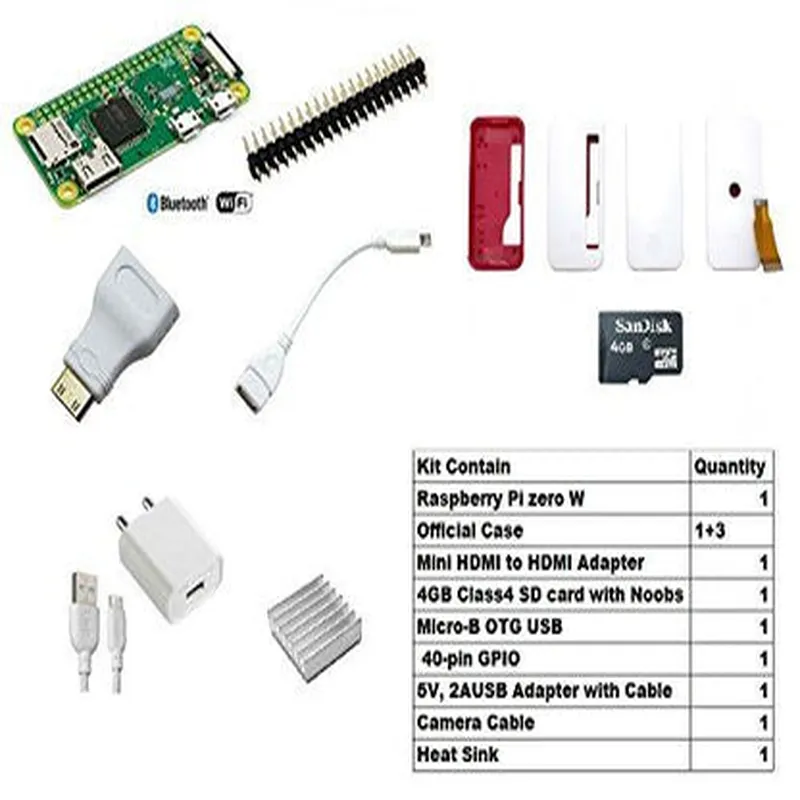
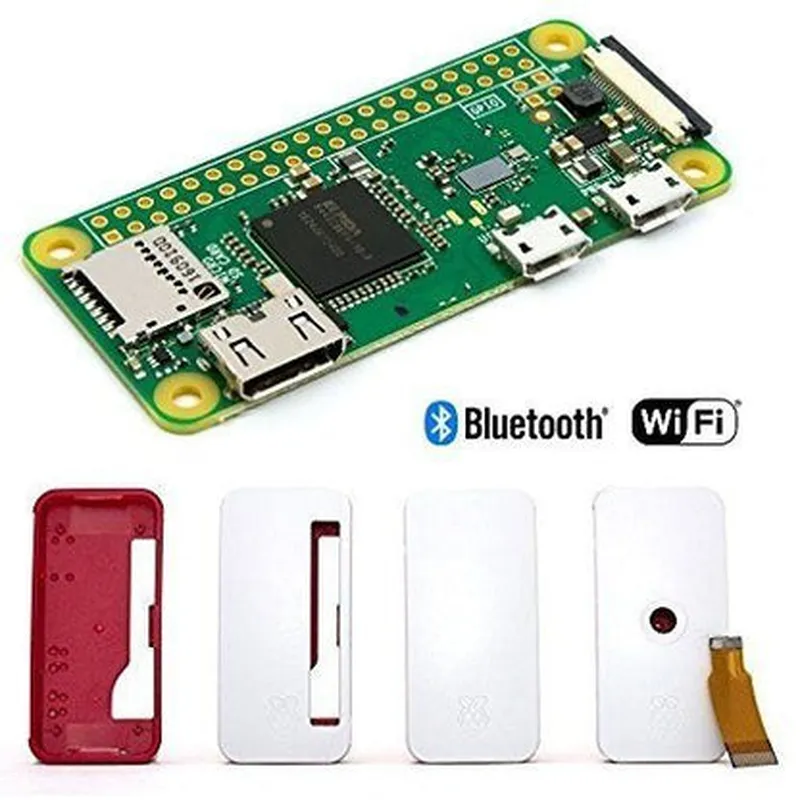
Raspberry Pi Zero Kit

Buy Now on Stufin

CPU

Quad-core Cortex-A7 CPU, 1GHz


RAM

512MB

Storage

MicroSD card slot (supports up to 128GB)

Wireless

802.11 b/g/n wireless LAN

Interfaces

+ Mini-HDMI output

+ Micro-USB port (power and data)

+ USB OTG adapter (device mode)

+ GPIO header (40-pin, compatible with Raspberry Pi)

Power

5V, 2.5A micro-USB power input

Operating System

Raspbian, Ubuntu, Windows 10 IoT, and other compatible OSes

Dimensions

65mm x 30mm x 5mm

Conclusion

The Raspberry Pi Zero Kit is an exceptional choice for IoT enthusiasts, educators, and professionals seeking a compact, affordable, and highly capable single-board computer. With its extensive feature set, versatility, and accessibility, this kit is an excellent platform for a wide range of applications, from prototyping to deployment.

Pin Configuration

  • Raspberry Pi Zero Kit Pinout Guide
  • The Raspberry Pi Zero Kit is a compact and affordable single-board computer that is ideal for IoT projects, robotics, and embedded systems. Understanding the pinout of the Raspberry Pi Zero Kit is essential for connecting peripherals, sensors, and other devices. Here's a detailed explanation of each pin, one by one:
  • GPIO Pins
  • GPIO 0 (Pin 1): GPIO 0 is a general-purpose input/output pin that can be used for digital input/output operations.
  • GPIO 1 (Pin 2): GPIO 1 is a general-purpose input/output pin that can be used for digital input/output operations.
  • GPIO 2 (Pin 3): GPIO 2 is a general-purpose input/output pin that can be used for digital input/output operations.
  • GPIO 3 (Pin 4): GPIO 3 is a general-purpose input/output pin that can be used for digital input/output operations.
  • GPIO 4 (Pin 5): GPIO 4 is a general-purpose input/output pin that can be used for digital input/output operations.
  • GPIO 5 (Pin 6): GPIO 5 is a general-purpose input/output pin that can be used for digital input/output operations.
  • GPIO 6 (Pin 7): GPIO 6 is a general-purpose input/output pin that can be used for digital input/output operations.
  • GPIO 7 (Pin 8): GPIO 7 is a general-purpose input/output pin that can be used for digital input/output operations.
  • GPIO 8 (Pin 9): GPIO 8 is a general-purpose input/output pin that can be used for digital input/output operations.
  • GPIO 9 (Pin 10): GPIO 9 is a general-purpose input/output pin that can be used for digital input/output operations.
  • GPIO 10 (Pin 11): GPIO 10 is a general-purpose input/output pin that can be used for digital input/output operations.
  • GPIO 11 (Pin 12): GPIO 11 is a general-purpose input/output pin that can be used for digital input/output operations.
  • GPIO 12 (Pin 13): GPIO 12 is a general-purpose input/output pin that can be used for digital input/output operations.
  • GPIO 13 (Pin 14): GPIO 13 is a general-purpose input/output pin that can be used for digital input/output operations.
  • GPIO 14 (Pin 15): GPIO 14 is a general-purpose input/output pin that can be used for digital input/output operations.
  • GPIO 15 (Pin 16): GPIO 15 is a general-purpose input/output pin that can be used for digital input/output operations.
  • UART Pins
  • TXD (Pin 8): Transmit data pin for UART communication.
  • RXD (Pin 10): Receive data pin for UART communication.
  • I2C Pins
  • SCL (Pin 5): Clock pin for I2C communication.
  • SDA (Pin 6): Data pin for I2C communication.
  • SPI Pins
  • SCLK (Pin 12): Clock pin for SPI communication.
  • MOSI (Pin 15): Master out slave in pin for SPI communication.
  • MISO (Pin 16): Master in slave out pin for SPI communication.
  • CE0 (Pin 24): Chip select pin for SPI communication.
  • Power Pins
  • 3.3V (Pin 1): 3.3V power supply pin.
  • 5V (Pin 2): 5V power supply pin.
  • GND (Pin 6, 9, 14, 20, 25, 30, 34, and 39): Ground pins for power supply.
  • Other Pins
  • RUN (Pin 26): Run mode pin, used to reset the Raspberry Pi Zero.
  • CAMERA ( Pins 25 and 26): Camera interface pins for connecting a camera module.
  • HAT (Pins 27-40): HAT (Hardware Attached on Top) interface pins for connecting HAT modules.
  • How to Connect the Pins
  • When connecting pins on the Raspberry Pi Zero Kit, follow these guidelines:
  • 1. Use breadboards or PCBs: Connect GPIO pins to breadboards or PCBs to create a stable connection.
  • 2. Use jumper wires: Use jumper wires to connect pins to peripherals, sensors, or other devices.
  • 3. Use level shifters: Use level shifters to convert 5V signals to 3.3V signals when necessary.
  • 4. Use pull-up/pull-down resistors: Use pull-up/pull-down resistors to prevent floating inputs and ensure stable signal levels.
  • 5. Consult the datasheet: Consult the datasheet for specific pin configurations and recommended operating conditions for your peripherals and sensors.
  • 6. Use the correct voltage: Ensure that the voltage supplied to the Raspberry Pi Zero Kit is within the recommended operating range (3.3V to 5V).
  • Remember to handle the Raspberry Pi Zero Kit with care, as the pins are fragile and can be damaged easily. Always follow proper safety precautions when working with electronics.

Code Examples

Raspberry Pi Zero Kit Documentation
Overview
The Raspberry Pi Zero Kit is a compact, low-cost, and highly capable single-board computer (SBC) designed for IoT applications, prototyping, and learning. It is a smaller and more affordable version of the popular Raspberry Pi model, packed with features like Wi-Fi, Bluetooth, and GPIO pins.
Technical Specifications
Processor: Broadcom BCM2835 Cortex-A7 quad-core processor
 RAM: 512 MB
 Storage: microSD card slot
 Operating System: Raspberry Pi OS (32-bit) or other Linux distributions
 Connectivity: Wi-Fi 802.11 b/g/n, Bluetooth 4.0
 GPIO: 40-pin header, compatible with Raspberry Pi accessories
 Power: Micro-USB port for power and data transfer
Code Examples
### Example 1: Blinking an LED using Python and GPIO
This example demonstrates how to use the Raspberry Pi Zero Kit's GPIO pins to control an LED.
Hardware Requirements:
Raspberry Pi Zero Kit
 Breadboard
 LED
 1 k resistor
 Jumper wires
Software Requirements:
Raspberry Pi OS (32-bit)
 Python 3.x installed
Code:
```python
import RPi.GPIO as GPIO
import time
# Set up GPIO mode
GPIO.setmode(GPIO.BCM)
# Define the GPIO pin for the LED
LED_PIN = 17
# Set the LED pin as an output
GPIO.setup(LED_PIN, GPIO.OUT)
while True:
    # Turn the LED on
    GPIO.output(LED_PIN, GPIO.HIGH)
    time.sleep(1)
    # Turn the LED off
    GPIO.output(LED_PIN, GPIO.LOW)
    time.sleep(1)
```
Explanation:
1. Import the `RPi.GPIO` module and set the GPIO mode to BCM (Broadcom numbering).
2. Define the GPIO pin for the LED (in this case, pin 17).
3. Set the LED pin as an output using `GPIO.setup()`.
4. Use a `while` loop to continuously turn the LED on and off using `GPIO.output()` and `time.sleep()`.
### Example 2: Reading Temperature and Humidity using a DHT11 Sensor
This example demonstrates how to use the Raspberry Pi Zero Kit to read temperature and humidity values from a DHT11 sensor.
Hardware Requirements:
Raspberry Pi Zero Kit
 DHT11 temperature and humidity sensor
 Breadboard
 Jumper wires
Software Requirements:
Raspberry Pi OS (32-bit)
 Python 3.x installed
 `Adafruit-DHT` library installed (`pip install Adafruit-DHT`)
Code:
```python
import Adafruit_DHT
# Define the DHT11 sensor pin
DHT_PIN = 4
while True:
    # Read temperature and humidity values
    humidity, temperature = Adafruit_DHT.read_retry(Adafruit_DHT.DHT11, DHT_PIN)
# Print the values
    print(f'Temperature: {temperature:.1f}C | Humidity: {humidity:.1f}%')
# Wait for 1 second before reading again
    time.sleep(1)
```
Explanation:
1. Import the `Adafruit_DHT` module.
2. Define the DHT11 sensor pin (in this case, pin 4).
3. Use a `while` loop to continuously read temperature and humidity values using `Adafruit_DHT.read_retry()`.
4. Print the values using f-strings.
5. Wait for 1 second before reading again using `time.sleep()`.
These examples demonstrate the versatility of the Raspberry Pi Zero Kit and its capabilities in IoT applications, prototyping, and learning.