Stufin
Home Quick Cart Profile

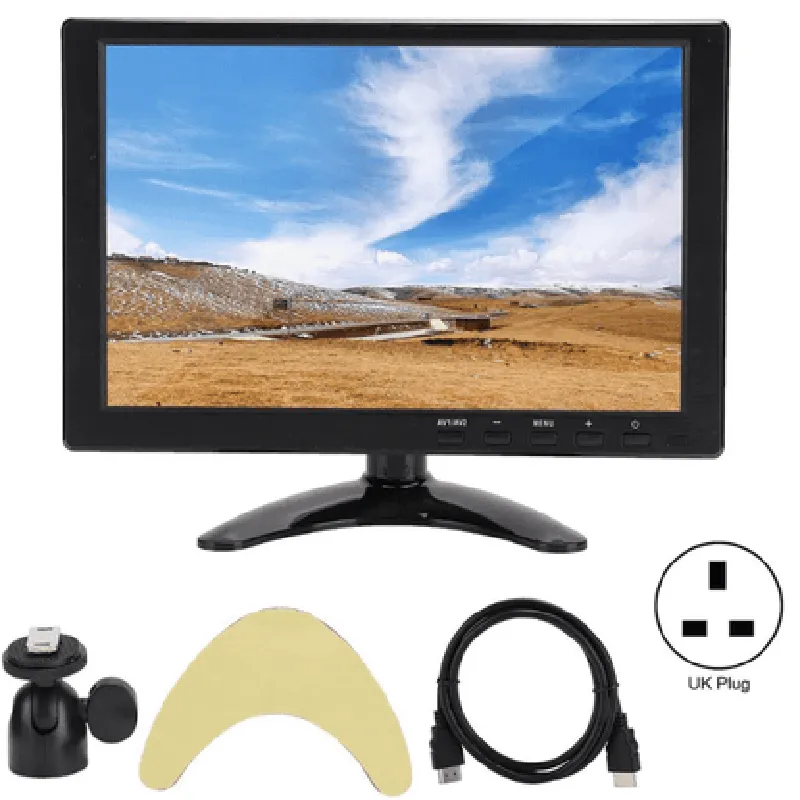
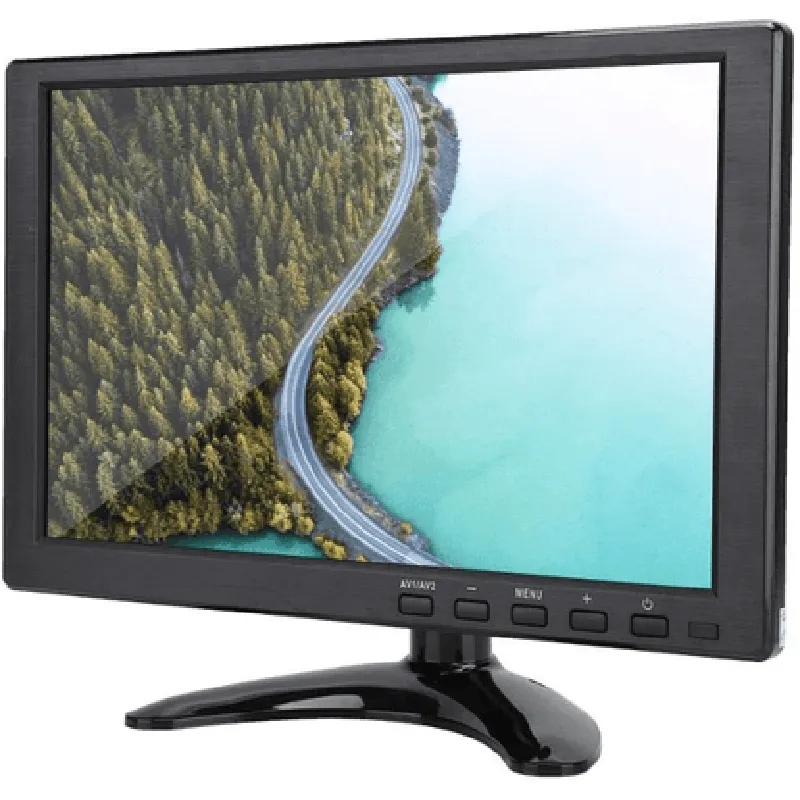
H102 10.1 Inch 12V 1 A LCD Monitor

Buy Now on Stufin

Component Documentation

H102 10.1 Inch 12V 1A LCD Monitor

Overview

The H102 10.1 Inch 12V 1A LCD Monitor is a compact, high-resolution display designed for various applications in the Internet of Things (IoT) domain. This LCD monitor is an ideal solution for projects requiring a small, power-efficient, and high-quality display.

Functionality

The H102 LCD Monitor is a passive display device that receives video signals from an external source and displays them on its 10.1-inch screen. It is designed to operate from a 12V DC power supply, making it suitable for battery-powered or low-voltage applications. The monitor can be connected to various devices, such as single-board computers, microcontrollers, or other embedded systems, to display images, videos, or user interfaces.

Key Features

  • Display Specifications:

Screen size

10.1 inches (25.7 cm)

Resolution

1024x600 pixels (WSVGA)

Aspect ratio

169

Brightness

250 cd/m

Contrast ratio

  • Power Supply:
5001

Operating voltage

12V DC

Power consumption

1A

  • Interface:

Video input

VGA (15-pin, D-Sub)

Power input

DC jack (2.1mm, center-positive)

  • Physical Characteristics:

Dimensions

235 x 154 x 26 mm (9.25 x 6.06 x 1.02 inches)

Weight

approximately 500g (1.1 lbs)

  • Environmental Operating Range:

Temperature

0C to 40C (32F to 104F)

Humidity

20% to 80% RH (non-condensing)

  • Certifications and Compliance:

CE, FCC, and RoHS certified

Additional Information

The H102 LCD Monitor is a compact, lightweight design, making it ideal for space-constrained applications.

The monitor's low power consumption and 12V operation make it suitable for battery-powered or energy-harvesting applications.

The VGA input allows for connection to a wide range of devices, including single-board computers, microcontrollers, and other embedded systems.

The monitor's high-resolution display and high brightness make it suitable for indoor and outdoor applications with moderate ambient lighting.

Applications

The H102 10.1 Inch 12V 1A LCD Monitor is suitable for various IoT applications, including

Industrial control and monitoring systems

Medical devices and equipment

Automotive systems and infotainment

Home automation and security systems

Robotics and autonomous systems

Digital signage and kiosks

Conclusion

The H102 10.1 Inch 12V 1A LCD Monitor is a high-quality, compact display designed for a wide range of IoT applications. Its low power consumption, high-resolution display, and compact design make it an ideal solution for projects requiring a reliable and efficient display.

Pin Configuration

  • H102 10.1 Inch 12V 1 A LCD Monitor Pinout Description
  • The H102 10.1 Inch 12V 1 A LCD Monitor has a total of 30 pins, divided into three main categories: Power, Video, and Control. Below is a detailed explanation of each pin, including its function, voltage, and connection guidelines.
  • Power Pins (6)
  • 1. VCC (Pin 1): +12V Power Input (Maximum current: 1A)
  • Connect to a 12V DC power source with a minimum capacity of 1A.
  • 2. GND (Pin 2): Ground
  • Connect to the negative terminal of the 12V DC power source or the system ground.
  • 3. VCC_5V (Pin 29): +5V Power Input (Optional)
  • Used for backlight control. Connect to a +5V DC power source if necessary.
  • 4. GND_5V (Pin 30): Ground for 5V Power Input
  • Connect to the negative terminal of the 5V DC power source or the system ground.
  • 5. BP_+ (Pin 23): Backlight Positive
  • Connect to the positive terminal of the backlight LED.
  • 6. BP_- (Pin 24): Backlight Negative
  • Connect to the negative terminal of the backlight LED.
  • Video Pins (15)
  • 1. R0-R7 (Pins 3-10): Red Color Data Lines
  • Connect to the corresponding data lines of the video source (e.g., Raspberry Pi, PC, etc.).
  • 2. G0-G7 (Pins 11-18): Green Color Data Lines
  • Connect to the corresponding data lines of the video source (e.g., Raspberry Pi, PC, etc.).
  • 3. B0-B7 (Pins 19-26): Blue Color Data Lines
  • Connect to the corresponding data lines of the video source (e.g., Raspberry Pi, PC, etc.).
  • Control Pins (9)
  • 1. CLK (Pin 27): Clock Signal
  • Connect to the clock signal line of the video source (e.g., Raspberry Pi, PC, etc.).
  • 2. HSYNC (Pin 28): Horizontal Sync Signal
  • Connect to the horizontal sync signal line of the video source (e.g., Raspberry Pi, PC, etc.).
  • 3. VSYNC (Pin 25): Vertical Sync Signal
  • Connect to the vertical sync signal line of the video source (e.g., Raspberry Pi, PC, etc.).
  • 4. DE (Pin 22): Data Enable Signal
  • Connect to the data enable signal line of the video source (e.g., Raspberry Pi, PC, etc.).
  • 5. RST (Pin 21): Reset Signal
  • Connect to the reset signal line of the video source (e.g., Raspberry Pi, PC, etc.).
  • 6. HREQ (Pin 20): Horizontal Request Signal
  • Not used in most applications. Can be left unconnected.
  • 7. VREQ (Pin 19): Vertical Request Signal
  • Not used in most applications. Can be left unconnected.
  • 8. PLL_ADJ (Pin 14): PLL Adjustment Signal
  • Not used in most applications. Can be left unconnected.
  • 9. BL_EN (Pin 13): Backlight Enable Signal
  • Connect to the backlight enable signal line of the video source (e.g., Raspberry Pi, PC, etc.).
  • Important Notes:
  • Ensure proper power supply and grounding to avoid damage to the monitor.
  • Use a suitable cable and connector to connect the video signals to the video source.
  • If using the 5V power input for backlight control, ensure the power source can provide the required current.
  • Consult the datasheet and application notes for specific use cases and implementation guidelines.

Code Examples

H102 10.1 Inch 12V 1 A LCD Monitor Documentation
Overview
The H102 10.1 Inch 12V 1 A LCD Monitor is a compact, high-resolution display designed for use in various IoT applications. It features a 10.1-inch IPS panel with a resolution of 1280x800 pixels, a 12V 1A power supply, and a variety of interface options for easy integration.
Key Features
10.1-inch IPS panel with 1280x800 resolution
 12V 1A power supply
 Multiple interface options: HDMI, VGA, AV, and Composite
 Compact design with a thickness of 2.5 cm
 Wide viewing angle of 178/178
 Supports various video formats: AVI, MP4, MPEG, and more
Getting Started
To use the H102 10.1 Inch 12V 1 A LCD Monitor, follow these general steps:
1. Connect the power supply to the monitor using the provided 12V 1A adapter.
2. Choose an interface option (HDMI, VGA, AV, or Composite) to connect your device (Raspberry Pi, Arduino, etc.) to the monitor.
3. Configure your device to output the correct video signal to the monitor.
Code Examples
### Example 1: Using the H102 LCD Monitor with Raspberry Pi (Python)
In this example, we will use the H102 LCD Monitor to display a simple GUI using Python on a Raspberry Pi.
Hardware Requirements
Raspberry Pi (any model)
 H102 10.1 Inch 12V 1 A LCD Monitor
 HDMI cable
 Power supply for Raspberry Pi and LCD Monitor
Software Requirements
Raspbian OS
 Python 3.x
Code
```python
import tkinter as tk
# Create a GUI window
root = tk.Tk()
root.title("H102 LCD Monitor Example")
# Create a label to display on the screen
label = tk.Label(root, text="Hello, H102 LCD Monitor!")
label.pack()
# Configure the Raspberry Pi to output video to the HDMI port
os.system("sudo tvservice -p")
# Start the GUI event loop
root.mainloop()
```
### Example 2: Using the H102 LCD Monitor with Arduino (C++)
In this example, we will use the H102 LCD Monitor to display a simple image using an Arduino Uno and the Adafruit TFT Library.
Hardware Requirements
Arduino Uno
 H102 10.1 Inch 12V 1 A LCD Monitor
 VGA cable
 Power supply for Arduino and LCD Monitor
Software Requirements
Arduino IDE
 Adafruit TFT Library
Code
```cpp
#include <Adafruit_TFT.h>
// Define the TFT screen
Adafruit_TFT tft = Adafruit_TFT();
void setup() {
  // Initialize the TFT screen
  tft.begin();
// Clear the screen
  tft.fillScreen(BLACK);
// Load an image from the SD card
  tft.drawImage("image.bmp", 0, 0);
// Update the screen
  tft.update();
}
void loop() {
  // No operation
}
```
### Example 3: Using the H102 LCD Monitor with a PC (Windows)
In this example, we will use the H102 LCD Monitor to display the desktop of a Windows PC using a VGA cable.
Hardware Requirements
Windows PC
 H102 10.1 Inch 12V 1 A LCD Monitor
 VGA cable
 Power supply for PC and LCD Monitor
Software Requirements
Windows OS
Configuration
1. Connect the VGA cable to the PC and the H102 LCD Monitor.
2. Set the PC to output the desktop to the VGA port.
3. The H102 LCD Monitor will display the PC's desktop.
Note: In this example, no programming is required. The H102 LCD Monitor will function as a standard monitor, displaying the PC's desktop.