Up to 4 tera-operations per second (TOPS)


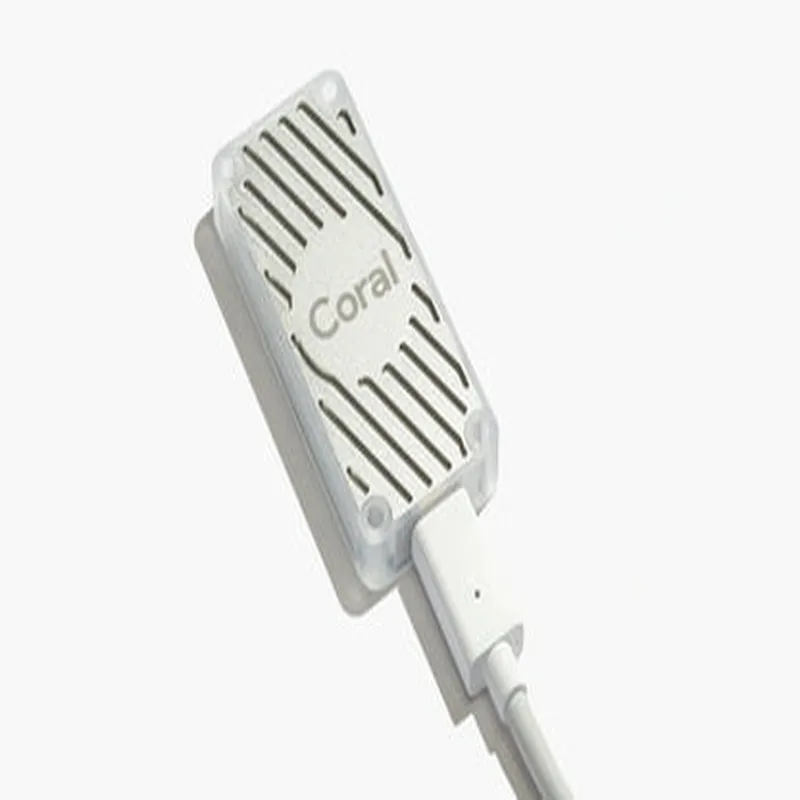
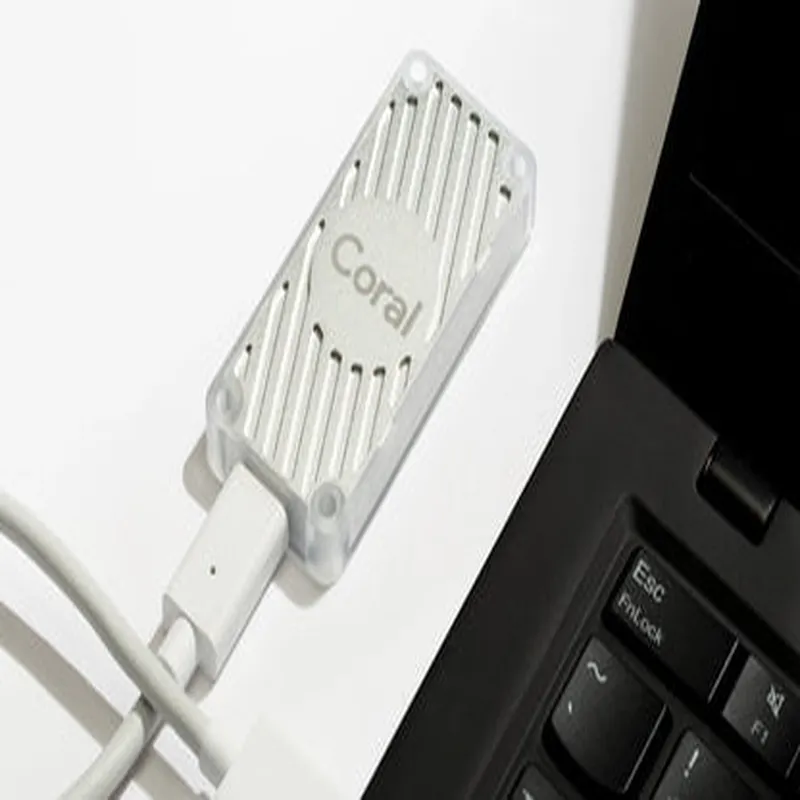
Up to 4 tera-operations per second (TOPS)
8GB of on-device storage for model storage and caching
2W typical, 3W maximum
0C to 40C
65mm x 30mm x 10mm
20g
Applications
| The Coral USB Accelerator is suitable for a wide range of applications, including |
Accelerate ML inference tasks on edge devices, such as smart cameras, robots, and industrial equipment.
Enhance robotic systems with ML-powered perception, navigation, and control capabilities.
Accelerate ML tasks on resource-constrained IoT devices, such as smart home appliances and wearables.
Rapidly prototype and develop ML-based projects using the Coral USB Accelerator as a proof-of-concept device.
Conclusion
The Coral USB Accelerator is a powerful, compact, and power-efficient device that enables rapid development and deployment of ML models on edge devices. Its open-source software, low power consumption, and compact design make it an ideal solution for a wide range of applications, from edge AI to robotics and IoT devices.
Coral USB Accelerator DocumentationOverview
The Coral USB Accelerator is a compact, low-power USB peripheral that enables efficient machine learning (ML) inference at the edge. It is designed to accelerate TensorFlow Lite (TFLite) models, allowing developers to integrate AI capabilities into various IoT projects.Technical SpecificationsUSB 2.0 interface
Supports TensorFlow Lite (TFLite) models
Peak performance: 4 trillion operations per second (TOPS)
Power consumption: <2W
Operating temperature: 0C to 50C
Dimensions: 45mm x 17.5mm x 9.5mmGetting Started
To use the Coral USB Accelerator, you'll need:1. A Coral USB Accelerator module
2. A USB-enabled device (e.g., PC, Raspberry Pi, or Android device)
3. TensorFlow Lite (TFLite) model files
4. Coral API and libraries (available for various platforms)Code Examples### Example 1: Image Classification using Python on Raspberry PiThis example demonstrates how to use the Coral USB Accelerator with Python on a Raspberry Pi to classify images using a TFLite model.Hardware Requirements:Raspberry Pi (any version)
Coral USB Accelerator module
USB cable
Camera module (e.g., Raspberry Pi Camera v2)Software Requirements:Raspbian OS
Coral API and libraries for Python
TensorFlow Lite (TFLite) model file (e.g., mobilenet_v1_1.0_224.tflite)Code:
```python
import numpy as np
import cv2
from edgetpu.detection_engine import DetectionEngine# Load the TFLite model
model_path = 'path/to/mobilenet_v1_1.0_224.tflite'
engine = DetectionEngine(model_path)# Load the image
img = cv2.imread('image.jpg')# Preprocess the image
input_data = np.expand_dims(img, axis=0)# Run inference on the Coral USB Accelerator
output = engine.RunInference(input_data)# Get the classification results
scores = output[0][0]['scores']
classes = output[0][0]['classes']
print('Classification results:')
for i in range(5):
print(f' {classes[i]}: {scores[i]}')
```
### Example 2: Object Detection using C++ on UbuntuThis example demonstrates how to use the Coral USB Accelerator with C++ on Ubuntu to perform object detection using a TFLite model.Hardware Requirements:Ubuntu-enabled PC
Coral USB Accelerator module
USB cableSoftware Requirements:Coral API and libraries for C++
TensorFlow Lite (TFLite) model file (e.g., ssd_mobilenet_v2_coco.tflite)Code:
```c
#include <edgetpu_api.h>
#include <image_data.h>int main() {
// Load the TFLite model
std::string model_path = "path/to/ssd_mobilenet_v2_coco.tflite";
edgetpu::EdgeTpuContext ctx;
ctx.LoadModel(model_path);// Load the image
cv::Mat img = cv::imread("image.jpg");// Preprocess the image
edgetpu::ImageData input_data;
input_data.set_from_mat(img);// Run inference on the Coral USB Accelerator
edgetpu::InferenceResult output;
ctx.RunInference(input_data, &output);// Get the object detection results
const auto& detections = output.detections();
for (const auto& detection : detections) {
std::cout << " Detected object: " << detection.label() << std::endl;
std::cout << " Score: " << detection.score() << std::endl;
std::cout << " Bounding box: (" << detection.x_min() << ", " << detection.y_min() << ", " << detection.x_max() << ", " << detection.y_max() << ")" << std::endl;
}return 0;
}
```
These examples demonstrate the basic usage of the Coral USB Accelerator for image classification and object detection tasks. For more advanced use cases and customization, please refer to the Coral API documentation and TensorFlow Lite guides.