ESP32 Dual-Core 32-bit LX6


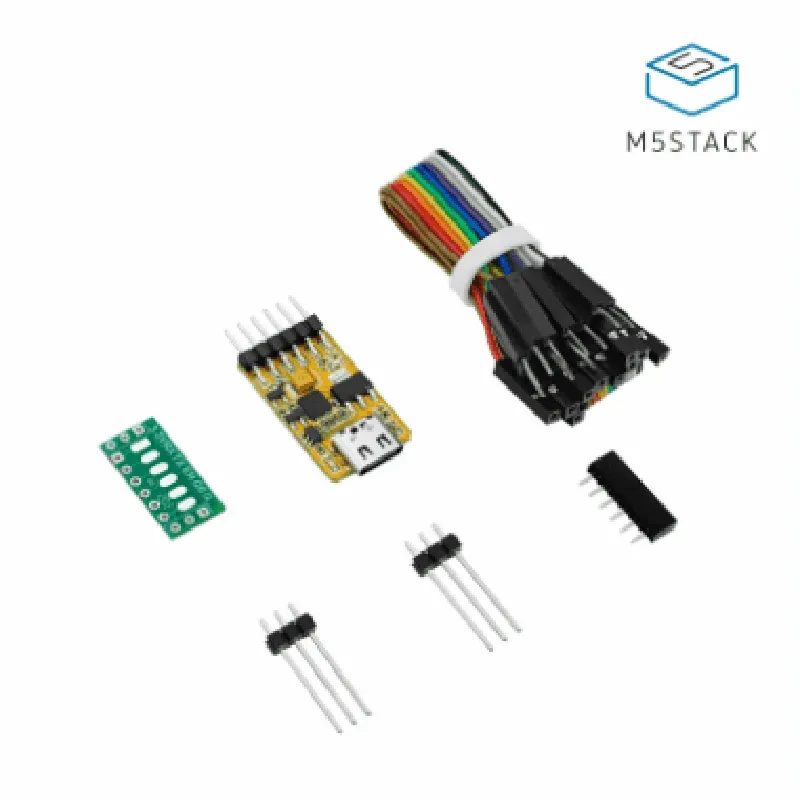
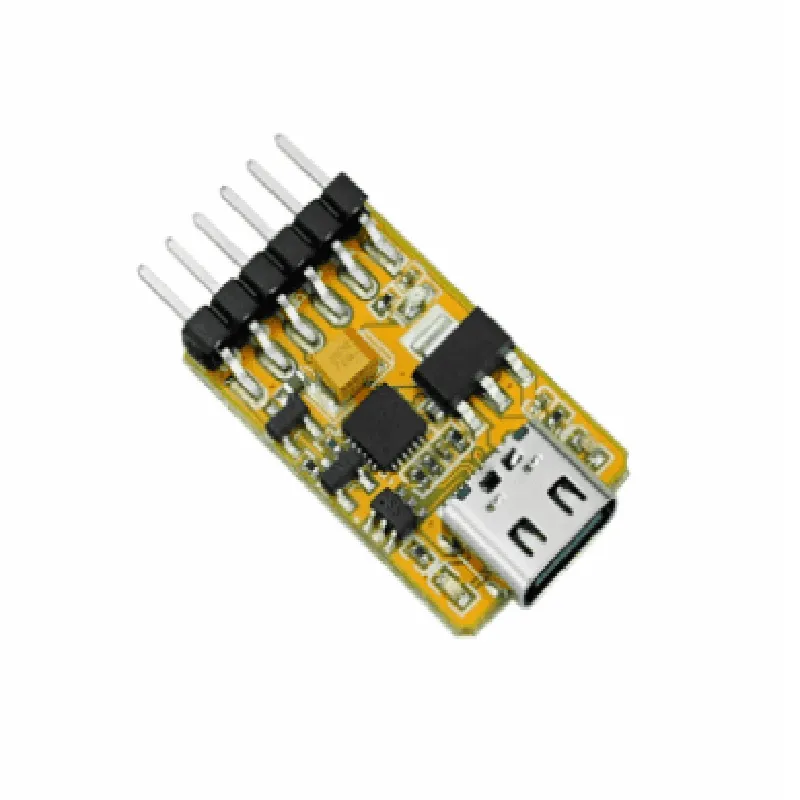
ESP32 Dual-Core 32-bit LX6
80 MHz to 240 MHz
4MB
520KB
| Wi-Fi | 802.11 b/g/n |
4.2
USB-C
3.3V
Access to ESP32's GPIO pins
54mm x 22mm x 12mm
20g
Applications
| The M5 Stack ESP32 Downloader Kit is suitable for a wide range of IoT projects, including |
Conclusion
The M5 Stack ESP32 Downloader Kit is a powerful and versatile development board designed for IoT projects. With its compact design, flash and debug capability, and support for Arduino and microPython programming languages, this kit is an ideal choice for developers, hobbyists, and makers looking to create innovative IoT solutions.
M5 Stack ESP32 Downloader Kit DocumentationOverviewThe M5 Stack ESP32 Downloader Kit is a compact, all-in-one solution for flashing and debugging ESP32-based microcontrollers. This kit is designed to provide an easy and efficient way to upload code to ESP32 modules, making it an ideal choice for IoT development, prototyping, and production.ComponentsThe M5 Stack ESP32 Downloader Kit includes:1 x ESP32 Module ( xtensa lx6 dual-core 32-bit microprocessor)
1 x USB-to-UART Bridge (CH340G)
1 x 3.3V Power Supply
1 x Download Button
1 x Status LEDConnecting the KitTo connect the M5 Stack ESP32 Downloader Kit to your computer:1. Connect the micro-USB cable to the kit's USB port.
2. Connect the other end of the micro-USB cable to your computer.Software RequirementsTo use the M5 Stack ESP32 Downloader Kit, you will need:A serial terminal software (e.g., Serial Monitor in Arduino IDE, PuTTY, or Tera Term)
A programming software (e.g., Arduino IDE, ESP-IDF, or PlatformIO)Code Examples### Example 1: Blinking LED using Arduino IDEIn this example, we will use the Arduino IDE to flash a simple "Blink" sketch to the ESP32 module using the M5 Stack ESP32 Downloader Kit.Hardware RequirementsM5 Stack ESP32 Downloader Kit
Breadboard
LED
Resistor (1 k)Code
```c
const int ledPin = 2; // GPIO 2void setup() {
pinMode(ledPin, OUTPUT);
}void loop() {
digitalWrite(ledPin, HIGH);
delay(1000);
digitalWrite(ledPin, LOW);
delay(1000);
}
```
Steps1. Connect the LED to GPIO 2 on the ESP32 module through a breadboard and a 1 k resistor.
2. Open the Arduino IDE and select "ESP32 Dev Module" as the board.
3. Select the correct serial port (usually /dev/ttyUSB0 on Linux or COM3 on Windows).
4. Upload the code using the "Upload" button or press Ctrl+U.
5. Press the download button on the M5 Stack ESP32 Downloader Kit to start the upload process.
6. The LED should start blinking.### Example 2: Wi-Fi Connection using ESP-IDFIn this example, we will use the ESP-IDF framework to connect the ESP32 module to a Wi-Fi network using the M5 Stack ESP32 Downloader Kit.Hardware RequirementsM5 Stack ESP32 Downloader KitCode
```c
#include <WiFi.h>const char ssid = "your_wifi_ssid";
const char password = "your_wifi_password";void setup() {
Serial.begin(115200);
WiFi.begin(ssid, password);
while (WiFi.status() != WL_CONNECTED) {
delay(1000);
Serial.println("Connecting to WiFi...");
}
Serial.println("Connected to WiFi");
Serial.println("IP address: ");
Serial.println(WiFi.localIP());
}void loop() {
delay(1000);
}
```
Steps1. Open the ESP-IDF framework and create a new project.
2. Configure the project to use the ESP32 module.
3. Add the Wi-Fi library to the project.
4. Edit the code to include your Wi-Fi credentials.
5. Compile and upload the code using the ESP-IDF tools.
6. Press the download button on the M5 Stack ESP32 Downloader Kit to start the upload process.
7. The ESP32 module should connect to the Wi-Fi network and print the IP address to the serial terminal.Please note that these examples are just a starting point, and you can modify the code to suit your specific use cases.