Original Arduino Micro without Headers


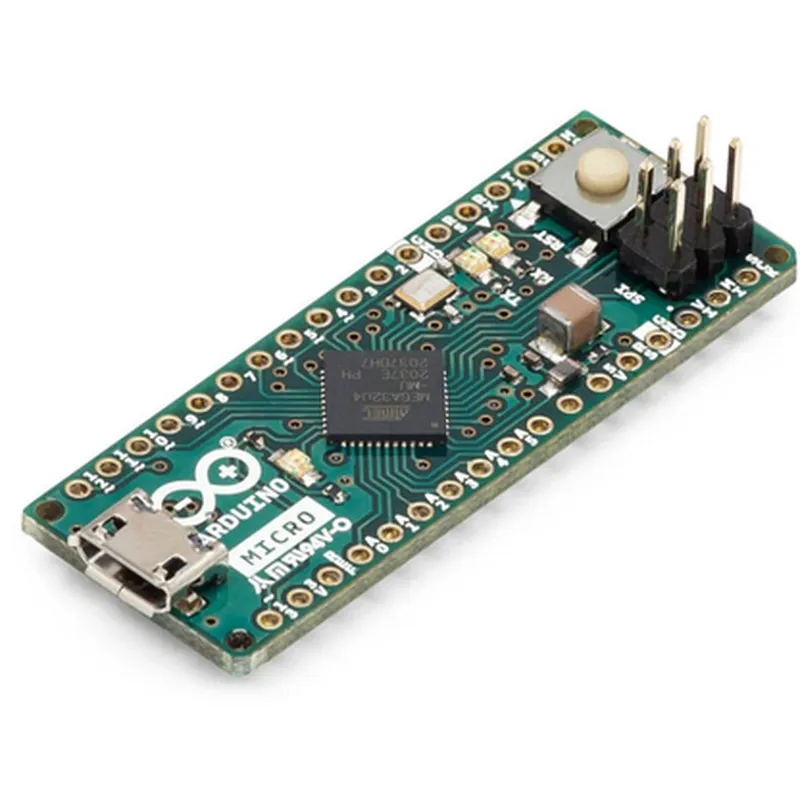
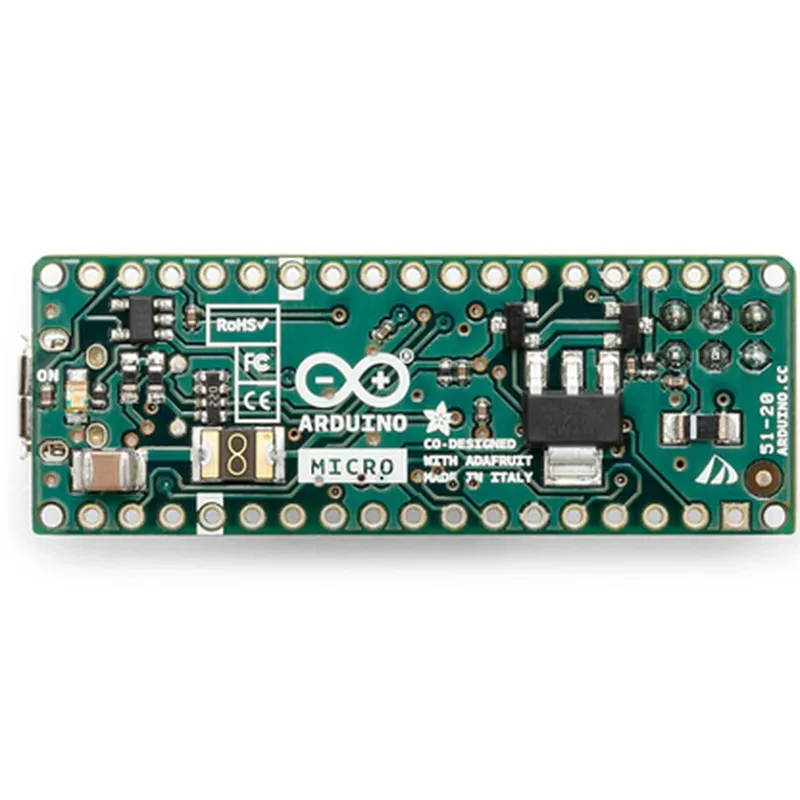
Original Arduino Micro without Headers
Microcontrollers
The Original Arduino Micro without Headers is a compact, open-source microcontroller board based on the ATMega328P microprocessor. This board is a popular choice among hobbyists, students, and professionals alike due to its ease of use, versatility, and affordability. The absence of headers makes it ideal for projects where space is limited, and a more customized approach is required.
| The Arduino Micro without Headers is a microcontroller board that can read inputs from various sensors, perform computations, and control outputs to interact with the physical world. It can be used to create a wide range of projects, including |
Robotics and automation systems
Home automation and IoT devices
Wearable electronics and accessories
Interactive art installations and exhibits
Prototyping and proof-of-concept designs
### Microcontroller
| ATMega328P microprocessor | 8-bit AVR microcontroller with 32KB of flash memory, 2KB of SRAM, and 1KB of EEPROM |
16MHz
### Input/Output
| Digital I/O Pins | 20 (14 digital, 6 analog) |
| 6 (ADC resolution | 10-bit) |
6
1 (RX/TX)
1
| I2C | 1 |
### Power
5V
7-12V (recommended), 6-20V (limits)
30mA (average)
### Memory
32KB
2KB
1KB
### Communication
UART, SPI, I2C
Onboard USB-to-TTL serial converter (ATmega16U2)
### Board Features
48.3 mm x 18.1 mm (1.9" x 0.7")
12g (0.43 oz)
FR4, 1.6 mm thick
2 (2.7 mm diameter)
Highly versatile and adaptable to various projects
Compact size and low weight make it ideal for wearable electronics and IoT devices
Open-source platform with a large community of developers and users
Easy to program using the Arduino Integrated Development Environment (IDE)
Limited processing power and memory compared to more advanced microcontrollers
No built-in Wi-Fi or Ethernet capabilities (require additional modules)
Requires additional headers or jumper wires for connections (due to the absence of pre-mounted headers)
By understanding the features, functionality, and limitations of the Original Arduino Micro without Headers, you can unlock the full potential of this versatile microcontroller board and unleash your creativity in the world of IoT and electronics.
Original Arduino Micro without HeadersThe Original Arduino Micro without Headers is a compact, microcontroller-based board that is part of the Arduino family of boards. It is a popular choice for IoT projects due to its small size, low power consumption, and ease of use.Technical Specifications:Microcontroller: ATmega32U4
Operating Voltage: 5V
Input Voltage: 6-20V
Digital I/O Pins: 20
Analog Input Pins: 12
PWM Pins: 7
UART: 1
SPI: 1
I2C: 1
Flash Memory: 32KB
SRAM: 2.5KB
EEPROM: 1KBGetting StartedBefore you start using the Original Arduino Micro without Headers, make sure to solder the headers onto the board according to your specific needs. You can use the Arduino Integrated Development Environment (IDE) to program the board.Code Examples:### Example 1: Blinking LEDIn this example, we will use the Original Arduino Micro without Headers to blink an LED connected to digital pin 13.```c++
const int ledPin = 13; // choose the pin for the LED
int ledState = LOW; // initialize the LED statevoid setup() {
pinMode(ledPin, OUTPUT); // set the pin as an output
}void loop() {
digitalWrite(ledPin, ledState); // set the LED state
ledState = !ledState; // toggle the LED state
delay(1000); // wait for 1 second
}
```### Example 2: Reading Analog InputIn this example, we will use the Original Arduino Micro without Headers to read the value of a potentiometer connected to analog input pin A0.```c++
const int potPin = A0; // choose the pin for the potentiometervoid setup() {
Serial.begin(9600); // initialize the serial communication
}void loop() {
int sensorValue = analogRead(potPin); // read the sensor value
Serial.print("Sensor value: ");
Serial.println(sensorValue); // print the sensor value
delay(100); // wait for 100ms
}
```### Example 3: Communicating with an I2C DeviceIn this example, we will use the Original Arduino Micro without Headers to communicate with an I2C device, such as a temperature sensor.```c++
#include <Wire.h> // include the I2C libraryconst int tempSensorAddress = 0x1A; // I2C address of the temperature sensorvoid setup() {
Wire.begin(); // initialize the I2C bus
Serial.begin(9600); // initialize the serial communication
}void loop() {
Wire.beginTransmission(tempSensorAddress); // start the I2C transmission
Wire.write(0x00); // send the register address
Wire.endTransmission(); // end the I2C transmission
Wire.requestFrom(tempSensorAddress, 2); // request 2 bytes of data
if (Wire.available() == 2) {
int tempHigh = Wire.read(); // read the high byte
int tempLow = Wire.read(); // read the low byte
float temperature = (tempHigh << 8 | tempLow) / 256.0; // calculate the temperature
Serial.print("Temperature: ");
Serial.print(temperature); // print the temperature
Serial.println("C"); // print the unit
}
delay(1000); // wait for 1 second
}
```These examples demonstrate the basic usage of the Original Arduino Micro without Headers in various contexts. You can use this board to create a wide range of IoT projects, from simple automation tasks to complex sensor-based systems.