Stufin
Home Quick Cart Profile

Atal Tinkering Lab Package 1 (P1) - Electronics Development, Robotics, Internet of Things, and Sensors

Buy Now on Stufin

Pin Configuration

  • Atal Tinkering Lab Package 1 (P1) - Electronics Development, Robotics, Internet of Things, and Sensors
  • Pinout Description
  • The Atal Tinkering Lab Package 1 (P1) is a comprehensive kit designed for electronics development, robotics, IoT, and sensor-based projects. The kit includes various components, including a microcontroller board, sensors, and other modules. This documentation provides a detailed description of the pins on the microcontroller board, which is the central component of the kit.
  • Microcontroller Board Pinout:
  • The microcontroller board has a total of 34 pins, divided into digital, analog, and power pins. Here is a point-by-point description of each pin:
  • Digital Pins (0-13)
  • 1. D0 (TX): Serial transmission pin, used for serial communication.
  • 2. D1 (RX): Serial reception pin, used for serial communication.
  • 3. D2: Digital input/output pin, can be used for GPIO or as an interrupt pin.
  • 4. D3: Digital input/output pin, can be used for GPIO or as an interrupt pin.
  • 5. D4: Digital input/output pin, can be used for GPIO or as an interrupt pin.
  • 6. D5: Digital input/output pin, can be used for GPIO or as an interrupt pin.
  • 7. D6: Digital input/output pin, can be used for GPIO or as an interrupt pin.
  • 8. D7: Digital input/output pin, can be used for GPIO or as an interrupt pin.
  • 9. D8: Digital input/output pin, can be used for GPIO or as an interrupt pin.
  • 10. D9: Digital input/output pin, can be used for GPIO or as an interrupt pin.
  • 11. D10: Digital input/output pin, can be used for GPIO or as an interrupt pin.
  • 12. D11: Digital input/output pin, can be used for GPIO or as an interrupt pin.
  • 13. D12: Digital input/output pin, can be used for GPIO or as an interrupt pin.
  • 14. D13 (LED): Digital input/output pin, connected to an onboard LED, can be used as a status indicator.
  • Analog Pins (A0-A5)
  • 15. A0: Analog input pin, can be used to read analog voltage levels.
  • 16. A1: Analog input pin, can be used to read analog voltage levels.
  • 17. A2: Analog input pin, can be used to read analog voltage levels.
  • 18. A3: Analog input pin, can be used to read analog voltage levels.
  • 19. A4: Analog input pin, can be used to read analog voltage levels.
  • 20. A5: Analog input pin, can be used to read analog voltage levels.
  • Power Pins
  • 21. VIN: Input voltage pin, used to power the microcontroller board (6-12V).
  • 22. VCC: Regulated voltage output pin, provides a stable 5V supply.
  • 23. GND: Ground pin, used as a reference point for the microcontroller board.
  • 24. 3V3: Regulated voltage output pin, provides a stable 3.3V supply.
  • Communication Pins
  • 25. SCL (I2C Clock): I2C clock pin, used for I2C communication.
  • 26. SDA (I2C Data): I2C data pin, used for I2C communication.
  • 27. SCK (SPI Clock): SPI clock pin, used for SPI communication.
  • 28. MISO (SPI Master In Slave Out): SPI master in slave out pin, used for SPI communication.
  • 29. MOSI (SPI Master Out Slave In): SPI master out slave in pin, used for SPI communication.
  • 30. SS (SPI Slave Select): SPI slave select pin, used for SPI communication.
  • Miscellaneous Pins
  • 31. reset: Reset pin, used to reset the microcontroller board.
  • 32. ADC: Analog-to-digital converter pin, used for analog-to-digital conversion.
  • 33. DAC: Digital-to-analog converter pin, used for digital-to-analog conversion.
  • 34. Battery: Battery voltage monitoring pin, used to monitor the battery level.
  • Connecting the Pins:
  • When connecting the pins, ensure that you follow proper connections and avoid short circuits. Here are some general guidelines:
  • Digital pins can be connected directly to GPIO pins on other modules or components.
  • Analog pins can be connected to analog sensors or modules.
  • Power pins should be connected to a suitable power source, such as a battery or a wall adapter.
  • Communication pins (I2C, SPI, UART) should be connected to corresponding pins on other modules or components.
  • Ground pins should be connected to a common ground point to ensure proper operation.
  • Remember to consult the datasheet for specific components and modules in your project to ensure correct pin connections.

Code Examples

Atal Tinkering Lab Package 1 (P1) - Electronics Development, Robotics, Internet of Things, and Sensors
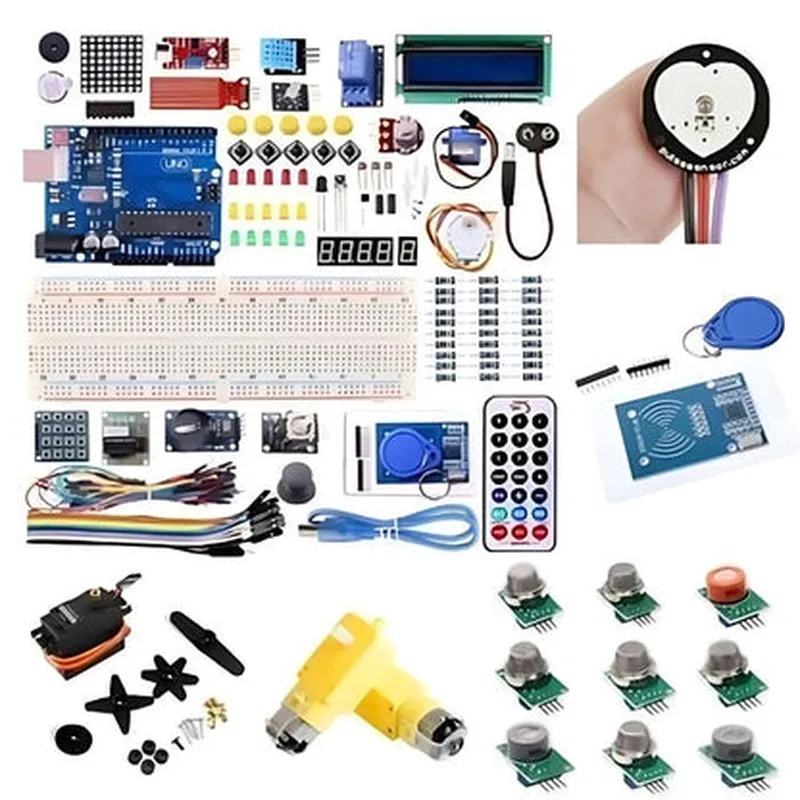
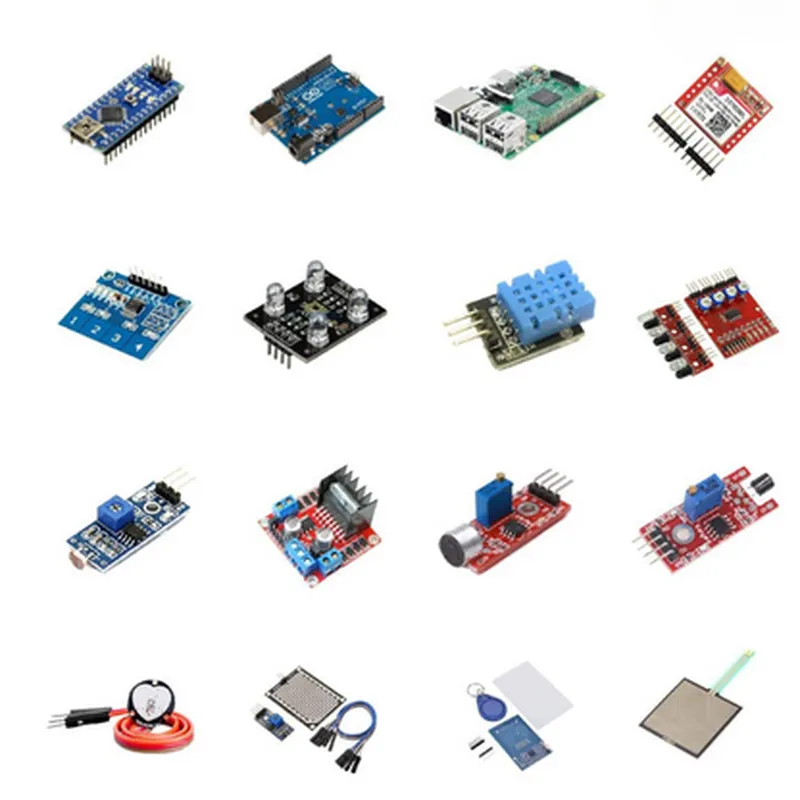
The Atal Tinkering Lab Package 1 (P1) is a comprehensive kit designed for students and enthusiasts to explore the world of electronics development, robotics, Internet of Things (IoT), and sensors. This package includes a range of components and modules, allowing users to build and program innovative projects.
Components Included:
Microcontroller Board (e.g., Arduino Uno or equivalent)
 Breadboard and Jumper Wires
 LEDs, Resistors, and Capacitors
 Sensors (Light, Temperature, Ultrasonic)
 Robotics Modules (Motor Driver, DC Motors)
 IoT Modules (Wi-Fi, Bluetooth)
 Power Supply and Battery Holder
Code Examples:
### Example 1: LED Blinking using Arduino Uno
In this example, we will demonstrate how to use the Microcontroller Board (Arduino Uno) to blink an LED on and off.
Hardware Requirements:
Arduino Uno Board
 LED
 Resistor (220)
 Breadboard and Jumper Wires
Code:
```c
const int ledPin = 13;  // Pin 13 for LED
void setup() {
  pinMode(ledPin, OUTPUT);  // Set LED pin as output
}
void loop() {
  digitalWrite(ledPin, HIGH);  // Turn LED on
  delay(1000);  // Wait for 1 second
  digitalWrite(ledPin, LOW);  // Turn LED off
  delay(1000);  // Wait for 1 second
}
```
Explanation:
We define the LED pin as digital output pin 13.
 In the `setup()` function, we set the LED pin as an output using `pinMode()`.
 In the `loop()` function, we use `digitalWrite()` to turn the LED on and off with a 1-second delay between each state.
### Example 2: Temperature Sensor using DS18B20
In this example, we will demonstrate how to use the Temperature Sensor (DS18B20) to read temperature values.
Hardware Requirements:
DS18B20 Temperature Sensor
 Breadboard and Jumper Wires
 Microcontroller Board (Arduino Uno)
Code:
```c
#include <DS18B20.h>
DS18B20 ds18b20(2);  // Pin 2 for DS18B20
void setup() {
  Serial.begin(9600);
}
void loop() {
  int tempC = ds18b20.getTemperature();
  Serial.print("Temperature: ");
  Serial.print(tempC);
  Serial.println(" C");
  delay(1000);
}
```
Explanation:
We include the DS18B20 library.
 We define the DS18B20 object, specifying Pin 2 as the data pin.
 In the `setup()` function, we initialize the serial communication.
 In the `loop()` function, we use the `getTemperature()` function to read the temperature value in Celsius and print it to the serial monitor.
### Example 3: Wi-Fi Connectivity using ESP8266
In this example, we will demonstrate how to use the IoT Module (ESP8266) to connect to a Wi-Fi network.
Hardware Requirements:
ESP8266 Wi-Fi Module
 Microcontroller Board (Arduino Uno)
 Breadboard and Jumper Wires
Code:
```c
#include <WiFi.h>
const char ssid = "your_wifi_ssid";  // Replace with your Wi-Fi SSID
const char password = "your_wifi_password";  // Replace with your Wi-Fi password
void setup() {
  Serial.begin(9600);
  WiFi.begin(ssid, password);
  while (WiFi.status() != WL_CONNECTED) {
    delay(1000);
    Serial.println("Connecting to Wi-Fi...");
  }
  Serial.println("Connected to Wi-Fi");
  Serial.println("IP address: ");
  Serial.println(WiFi.localIP());
}
void loop() {
  // Your IoT project code here
}
```
Explanation:
We include the WiFi library.
 We define the Wi-Fi SSID and password.
 In the `setup()` function, we initialize the serial communication and connect to the Wi-Fi network using `WiFi.begin()`.
 We use a `while` loop to wait until the Wi-Fi connection is established.
 Once connected, we print the IP address to the serial monitor.
 In the `loop()` function, you can add your IoT project code to interact with the Wi-Fi connection.
These examples demonstrate the versatility of the Atal Tinkering Lab Package 1 (P1) and its components. By combining these modules and sensors, you can create innovative projects in electronics development, robotics, IoT, and sensors.