

Stufin
Home Quick Cart Profile

Arduino IOT Bundle

Buy Now on Stufin

Component Name

Arduino IoT Bundle

Overview

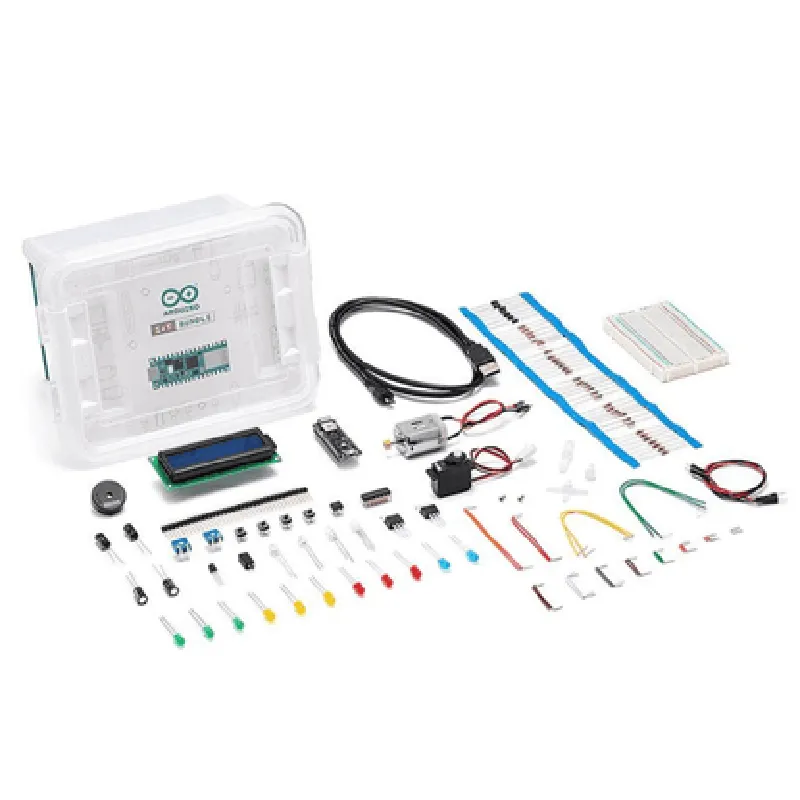
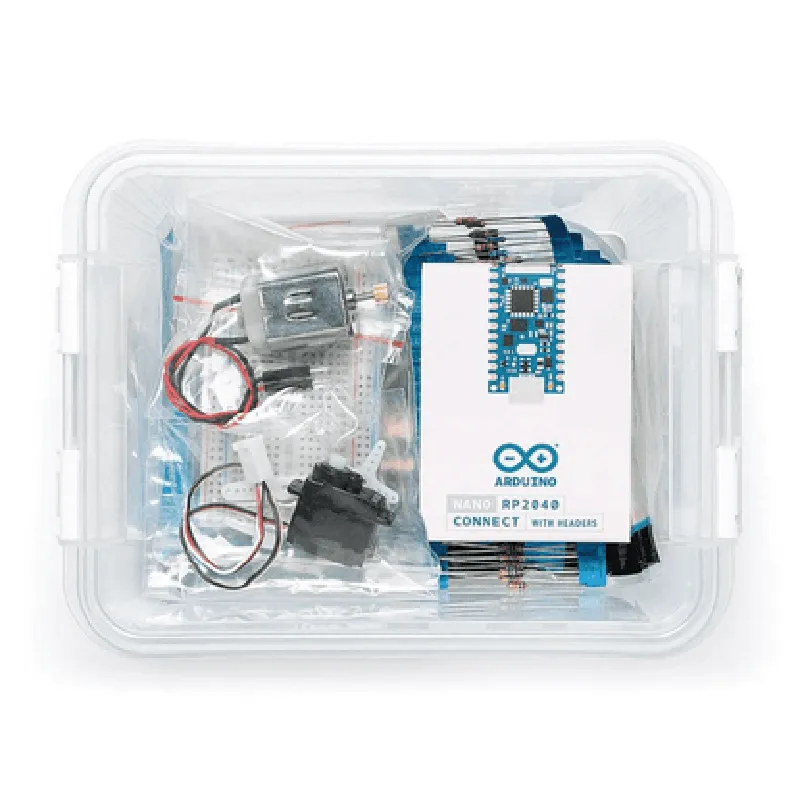
The Arduino IoT Bundle is a comprehensive starter kit designed to facilitate the development of Internet of Things (IoT) projects. This bundle combines the popular Arduino boards with essential components and tools, enabling users to create innovative IoT solutions with ease.

The Arduino IoT Bundle typically includes the following components

  • Arduino Board: The bundle includes a compatible Arduino board, such as the Arduino Uno Wi-Fi Rev2 or Arduino Nano 33 IoT, which serves as the brain of the IoT project. These boards are equipped with built-in Wi-Fi or cellular connectivity, enabling seamless communication with the internet.
  • Wi-Fi Module: The bundle may include a separate Wi-Fi module, such as the ESP-12E or ESP32, which provides reliable and high-speed internet connectivity. This module can be used in conjunction with the Arduino board or as a standalone component.
  • Sensors and Modules: The IoT Bundle often includes a selection of sensors and modules, such as:

Temperature and humidity sensors (e.g., DHT11 or BME280)

Motion and gesture sensors (e.g., MPU-6050 or APDS-9960)

Environmental sensors (e.g., air quality or gas sensors)

Relay modules for controlling external devices

  • Power Supply: The bundle may include a power supply unit, such as a battery holder or a wall adapter, to ensure a stable power source for the project.
  • Jumper Wires and Breadboard: The bundle typically includes jumper wires and a breadboard, which facilitate easy prototyping and connection of components.
  • Documentation and Software: The Arduino IoT Bundle often comes with comprehensive documentation, including tutorials, example projects, and software libraries, to help users get started with their IoT projects.

Key Features

  • Wireless Connectivity: The bundle enables seamless communication with the internet via Wi-Fi or cellular connectivity, making it ideal for IoT applications.
  • Sensors and Modules: The included sensors and modules provide a range of functionalities, allowing users to monitor and interact with their environment.
  • Flexibility and Customization: The Arduino IoT Bundle offers a high degree of customization, enabling users to tailor their projects to specific requirements.
  • Easy Prototyping: The bundle includes jumper wires and a breadboard, making it easy to prototype and test IoT projects.
  • Comprehensive Documentation: The accompanying documentation and software libraries ensure a smooth learning curve and rapid development.

Applications

  • Home Automation: Create smart home systems that control lighting, temperature, and security.
  • Industrial Automation: Monitor and optimize industrial processes, equipment, and facilities.
  • Wearables and Health Monitoring: Develop wearable devices that track vital signs, fitness, and environmental parameters.
  • Environmental Monitoring: Build systems that monitor and report on air quality, weather, and other environmental factors.
  • IoT Prototyping: Use the bundle as a starting point for exploring innovative IoT ideas and proof-of-concepts.

Arduino Board

Depends on the specific board included (e.g., Arduino Uno Wi-Fi Rev232-bit AVR microcontroller, 2.4GHz Wi-Fi, USB interface)
Wi-Fi ModuleDepends on the specific module included (e.g., ESP-12E: 2.4GHz Wi-Fi, 802.11 b/g/n)

Sensors and Modules

Depends on the specific components included (e.g., DHT11Temperature and humidity sensor, 2% accuracy)

Power Supply

Depends on the specific power supply unit included (e.g., battery holder2x AA batteries, 3V to 5V output)

Getting Started

  • Familiarize yourself with the Arduino board and its capabilities.
  • Connect the Wi-Fi module (if separate) to the Arduino board.
  • Choose a sensor or module and connect it to the Arduino board.
  • Write a simple sketch to test the sensor or module.
  • Explore the provided documentation and software libraries to learn more about the bundle's capabilities.
To get started with the Arduino IoT Bundle, users can follow these steps

By following these steps, users can quickly develop innovative IoT solutions with the Arduino IoT Bundle.

Pin Configuration

  • Arduino IoT Bundle Pinout Explanation
  • The Arduino IoT Bundle is a comprehensive set of components designed to facilitate IoT development. At the core of this bundle is the Arduino Board, which features a range of pins that allow users to connect various sensors, actuators, and communication modules. Here's a detailed explanation of each pin on the Arduino Board:
  • Digital Pins (0-13)
  • 1. Digital Pin 0 (RX): Receive pin for serial communication. This pin is used to receive data from a serial device, such as a GPS module or a Bluetooth module.
  • 2. Digital Pin 1 (TX): Transmit pin for serial communication. This pin is used to transmit data to a serial device.
  • 3. Digital Pin 2: General-purpose digital input/output pin.
  • 4. Digital Pin 3: General-purpose digital input/output pin. This pin is also used as an interrupt pin.
  • 5. Digital Pin 4: General-purpose digital input/output pin.
  • 6. Digital Pin 5: General-purpose digital input/output pin. This pin is also used as an SPI (Serial Peripheral Interface) clock pin.
  • 7. Digital Pin 6: General-purpose digital input/output pin.
  • 8. Digital Pin 7: General-purpose digital input/output pin.
  • 9. Digital Pin 8: General-purpose digital input/output pin.
  • 10. Digital Pin 9: General-purpose digital input/output pin. This pin is also used as an SPI data out pin.
  • 11. Digital Pin 10: General-purpose digital input/output pin. This pin is also used as an SPI chip select pin.
  • 12. Digital Pin 11: General-purpose digital input/output pin. This pin is also used as an SPI data in pin.
  • 13. Digital Pin 12: General-purpose digital input/output pin.
  • 13. Digital Pin 13: General-purpose digital input/output pin. This pin is also used as an LED indicator pin.
  • Analog Pins (A0-A5)
  • 1. Analog Pin A0: Analog input pin. This pin can read analog voltage levels between 0 and 5V.
  • 2. Analog Pin A1: Analog input pin. This pin can read analog voltage levels between 0 and 5V.
  • 3. Analog Pin A2: Analog input pin. This pin can read analog voltage levels between 0 and 5V.
  • 4. Analog Pin A3: Analog input pin. This pin can read analog voltage levels between 0 and 5V.
  • 5. Analog Pin A4: Analog input pin. This pin can read analog voltage levels between 0 and 5V.
  • 6. Analog Pin A5: Analog input pin. This pin can read analog voltage levels between 0 and 5V.
  • Power Pins
  • 1. VIN: External power supply pin. This pin is used to connect an external power source, such as a battery or a wall adapter.
  • 2. 3.3V: 3.3V regulated power output pin. This pin provides a stable 3.3V power supply for external devices.
  • 3. 5V: 5V regulated power output pin. This pin provides a stable 5V power supply for external devices.
  • 4. GND: Ground pin. This pin is used as a reference point for the board's power supply and should be connected to the ground of the external power source.
  • Other Pins
  • 1. AREF: Analog reference pin. This pin is used to set an external analog reference voltage for the board's analog-to-digital converter (ADC).
  • 2. Reset: Reset pin. This pin is used to reset the board. Connecting this pin to ground will reset the board.
  • Pin Connection Structure
  • When connecting pins on the Arduino IoT Bundle, follow these guidelines:
  • Digital Pins: Use jumper wires or breadboard-friendly connectors to connect digital pins to sensors, actuators, or communication modules.
  • Analog Pins: Use jumper wires or breadboard-friendly connectors to connect analog pins to sensors or other analog devices.
  • Power Pins: Use a jumper wire to connect the VIN pin to an external power source. Use the 3.3V and 5V pins to power external devices, and connect the GND pin to the ground of the external power source.
  • Other Pins: Use a jumper wire to connect the AREF pin to an external analog reference voltage source, if required. Use a push-button or a jumper wire to connect the Reset pin to ground, if required.
  • Remember to always check the pinout diagram and datasheet for the specific Arduino Board and components you are using to ensure correct connections.

Code Examples

Arduino IoT Bundle Documentation
The Arduino IoT Bundle is a comprehensive kit that combines the popular Arduino board with various modules and sensors, enabling users to create innovative IoT projects. This bundle includes the Arduino Board, Wi-Fi Module, Sensor Modules (e.g., Temperature, Humidity, and Light), and a Breadboard.
Technical Specifications:
Arduino Board: ATmega328P Microcontroller, 14 digital I/O pins, 6 analog input pins, 16 MHz clock speed
 Wi-Fi Module: ESP8266, 802.11 b/g/n, supports Wi-Fi Direct and Soft AP
 Sensor Modules:
	+ Temperature: DS18B20, 0.5C accuracy, -55C to 125C range
	+ Humidity: DHT11, 5% RH accuracy, 20-80% RH range
	+ Light: BH1750FVI, 0-65535 lux range
 Breadboard: 400 tie-points, suitable for prototyping and development
Code Examples:
These examples demonstrate how to use the Arduino IoT Bundle in various contexts:
Example 1: Wi-Fi Connected Temperature Monitoring
This example shows how to connect the Arduino Board to a Wi-Fi network and send temperature data to a remote server using the Wi-Fi Module and Temperature Sensor.
```c++
#include <WiFi.h>
#include <DHT.h>
// Wi-Fi credentials
const char ssid = "your_wifi_ssid";
const char password = "your_wifi_password";
// Temperature sensor pin
#define DHTPIN 2
DHT dht(DHTPIN, DHT11);
WiFiClient client;
void setup() {
  Serial.begin(9600);
  dht.begin();
  WiFi.begin(ssid, password);
  while (WiFi.status() != WL_CONNECTED) {
    delay(1000);
    Serial.println("Connecting to WiFi...");
  }
  Serial.println("Connected to WiFi");
  Serial.println("Initializing temperature sensor...");
}
void loop() {
  float tempC = dht.readTemperature();
  if (isnan(tempC)) {
    Serial.println("Error reading temperature!");
  } else {
    Serial.print("Temperature: ");
    Serial.print(tempC);
    Serial.println("C");
    client.println("GET /update?temperature=" + String(tempC) + " HTTP/1.1");
    client.println("Host: your_remote_server.com");
    client.println();
  }
  delay(10000);
}
```
Example 2: IoT-Based Lighting Automation
This example demonstrates how to use the Light Sensor and Arduino Board to control an LED strip based on ambient lighting conditions.
```c++
#include <BH1750.h>
// Light sensor pin
#define LIGHT_PIN A0
BH1750 lightSensor;
void setup() {
  Serial.begin(9600);
  lightSensor.begin();
  pinMode(LED_PIN, OUTPUT);
}
void loop() {
  uint16_t lux = lightSensor.readLightLevel();
  Serial.print("Light Level: ");
  Serial.print(lux);
  Serial.println(" lux");
  if (lux < 100) {
    // Dim the LED strip if ambient light is low
    analogWrite(LED_PIN, 128);
  } else {
    // Turn off the LED strip if ambient light is sufficient
    analogWrite(LED_PIN, 0);
  }
  delay(500);
}
```
Example 3: Humidity and Temperature Monitoring with Cloud Integration
This example shows how to use the Humidity and Temperature Sensors to send data to a cloud-based IoT platform using the Wi-Fi Module.
```c++
#include <WiFi.h>
#include <DHT.h>
#include <HTTPClient.h>
// Wi-Fi credentials
const char ssid = "your_wifi_ssid";
const char password = "your_wifi_password";
// Temperature and humidity sensor pins
#define DHTPIN 2
DHT dht(DHTPIN, DHT11);
WiFiClient client;
HTTPClient http;
void setup() {
  Serial.begin(9600);
  dht.begin();
  WiFi.begin(ssid, password);
  while (WiFi.status() != WL_CONNECTED) {
    delay(1000);
    Serial.println("Connecting to WiFi...");
  }
  Serial.println("Connected to WiFi");
  Serial.println("Initializing temperature and humidity sensors...");
}
void loop() {
  float tempC = dht.readTemperature();
  float humid = dht.readHumidity();
  if (isnan(tempC) || isnan(humid)) {
    Serial.println("Error reading temperature or humidity!");
  } else {
    Serial.print("Temperature: ");
    Serial.print(tempC);
    Serial.println("C");
    Serial.print("Humidity: ");
    Serial.print(humid);
    Serial.println("%");
    http.begin("http://your_cloud_iot_platform.com/update");
    http.addHeader("Content-Type", "application/json");
    String jsonData = "{""temperature"": " + String(tempC) + ", ""humidity"": " + String(humid) + "}";
    http.POST(jsonData);
    int httpCode = http.responseStatusCode();
    Serial.println("HTTP Response Code: " + String(httpCode));
  }
  delay(30000);
}
```
These examples demonstrate the versatility of the Arduino IoT Bundle and its potential applications in various IoT projects.