256x360 pixels


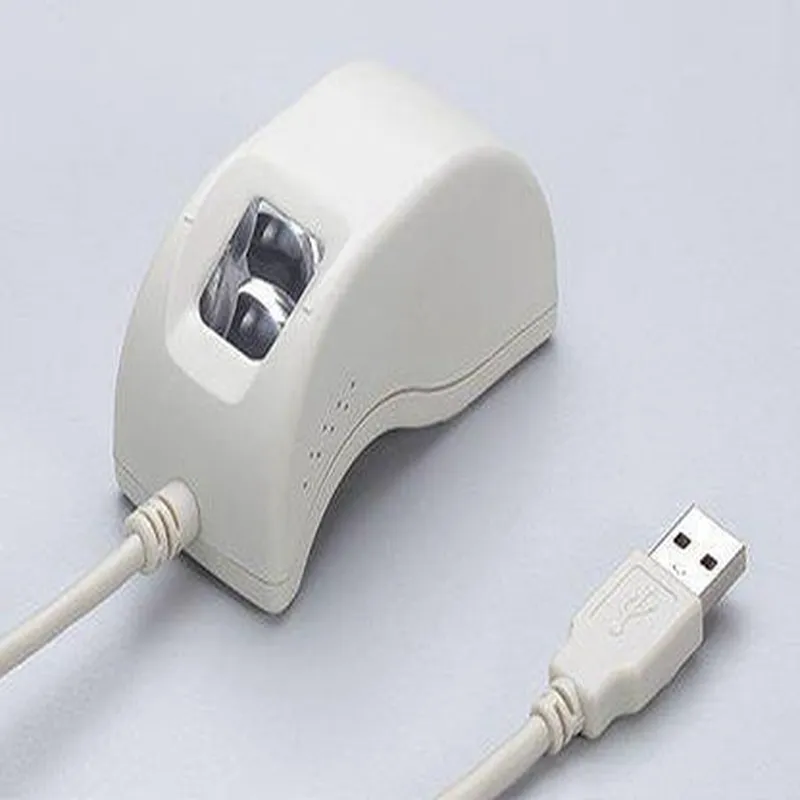

256x360 pixels
500 dpi
<1 second
<2 seconds
| False Acceptance Rate (FAR) | <0.001% |
| False Rejection Rate (FRR) | <1% |
<100 mA (average)
-20C to 60C
-40C to 85C
20% to 80% non-condensing
Applications
| The FM220U Finger Print Scanner is suitable for a wide range of IoT applications, including |
Access control systems
Smart home automation systems
Security devices and alarm systems
Identity verification and authentication systems
Industrial automation and control systems
Medical and healthcare devices
Conclusion
The FM220U Finger Print Scanner is a high-performance, compact, and reliable biometric module designed for integration into various IoT applications. Its advanced algorithm, high-resolution image sensor, and fast processing capabilities make it an ideal solution for secure and efficient fingerprint-based authentication and identification.
FM220U Finger Print Scanner DocumentationOverviewThe FM220U Finger Print Scanner is a high-performance fingerprint recognition module designed for various applications, including IoT devices, access control systems, and identity verification systems. This module features a compact design, high accuracy, and fast recognition speed.Technical SpecificationsFingerprint sensor: Optical sensor
Resolution: 508 dpi
Image size: 256x288 pixels
Scan time: <1 second
Storage capacity: 1000 fingerprint templates
Communication interface: UART (TTL level), USB (optional)
Power supply: 5V DC, 150mA
Operating temperature: -20C to 60C
Dimensions: 36mm x 36mm x 12mmCode Examples### Example 1: Basic Fingerprint Enrollment and Verification using ArduinoIn this example, we will demonstrate how to enroll a new fingerprint and verify it using the FM220U Finger Print Scanner with an Arduino board.Hardware RequirementsFM220U Finger Print Scanner
Arduino Board (e.g., Arduino Uno)
Breadboard and jumper wiresSoftware RequirementsArduino IDE (version 1.8.x or later)Code
```c++
#include <SoftwareSerial.h>#define FM220U_RX 2 // RX pin for FM220U
#define FM220U_TX 3 // TX pin for FM220USoftwareSerial fm220u(FM220U_RX, FM220U_TX);void setup() {
Serial.begin(9600);
fm220u.begin(57600); // default baud rate for FM220U
}void loop() {
// Enroll a new fingerprint
Serial.println("Place your finger on the scanner...");
delay(2000);
fm220u.write(0x01, 0x00); // send enroll command
fm220u.write(0x02, 0x00); // send enroll data packet
fm220u.write(0x03, 0x00); // send enroll data packet
fm220u.write(0x04, 0x00); // send enroll data packet// Wait for enrollment to complete
delay(2000);// Verify the enrolled fingerprint
Serial.println("Place your finger on the scanner again...");
delay(2000);
fm220u.write(0x05, 0x00); // send verify command
fm220u.write(0x02, 0x00); // send verify data packet// Read the verification result
int result = fm220u.read();
if (result == 0x00) {
Serial.println("Verification successful!");
} else {
Serial.println("Verification failed!");
}delay(2000);
}
```
### Example 2: Fingerprint Authentication using Python and Raspberry PiIn this example, we will demonstrate how to use the FM220U Finger Print Scanner with a Raspberry Pi to implement fingerprint-based authentication.Hardware RequirementsFM220U Finger Print Scanner
Raspberry Pi (e.g., Raspberry Pi 4)
Breadboard and jumper wiresSoftware RequirementsPython 3.x
pyserial library (install using `pip install pyserial`)Code
```python
import serial
import time# Initialize the serial connection
ser = serial.Serial('/dev/ttyUSB0', 57600) # adjust the serial port and baud rate accordinglydef enroll_fingerprint():
print("Place your finger on the scanner...")
time.sleep(2)
ser.write(b'x01x00') # send enroll command
ser.write(b'x02x00') # send enroll data packet
ser.write(b'x03x00') # send enroll data packet
ser.write(b'x04x00') # send enroll data packet# Wait for enrollment to complete
time.sleep(2)def verify_fingerprint():
print("Place your finger on the scanner again...")
time.sleep(2)
ser.write(b'x05x00') # send verify command
ser.write(b'x02x00') # send verify data packet# Read the verification result
result = ser.read()
if result == b'x00x00':
print("Verification successful!")
else:
print("Verification failed!")# Enroll a new fingerprint
enroll_fingerprint()# Verify the enrolled fingerprint
verify_fingerprint()
```
Note: In both examples, you will need to modify the serial port and baud rate settings according to your specific setup. Additionally, this is just a basic demonstration of the FM220U Finger Print Scanner's capabilities, and you may need to implement additional error handling and security measures for a production-ready application.