Stufin
Home Quick Cart Profile

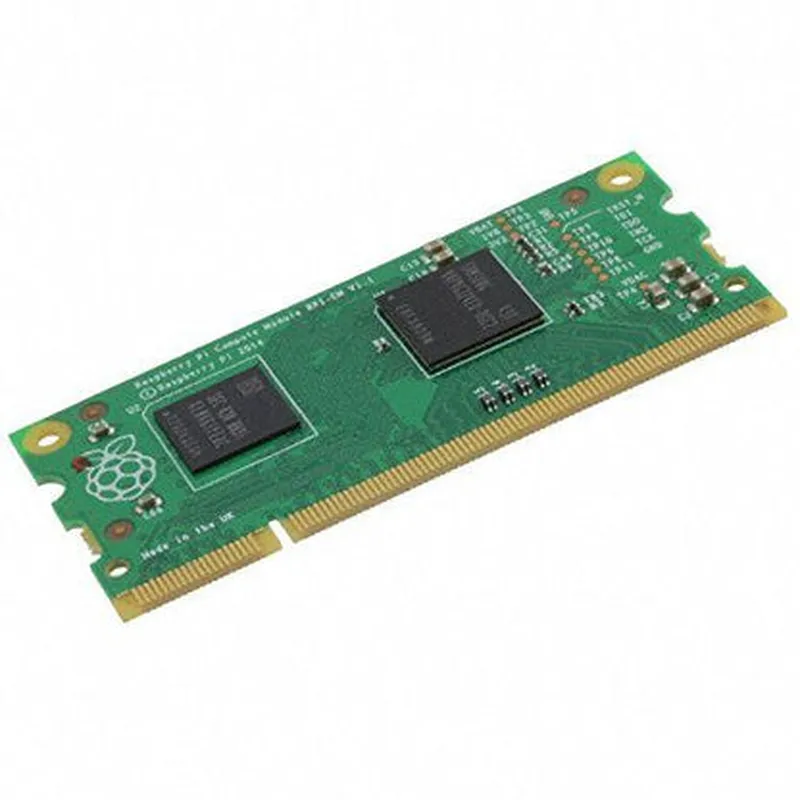
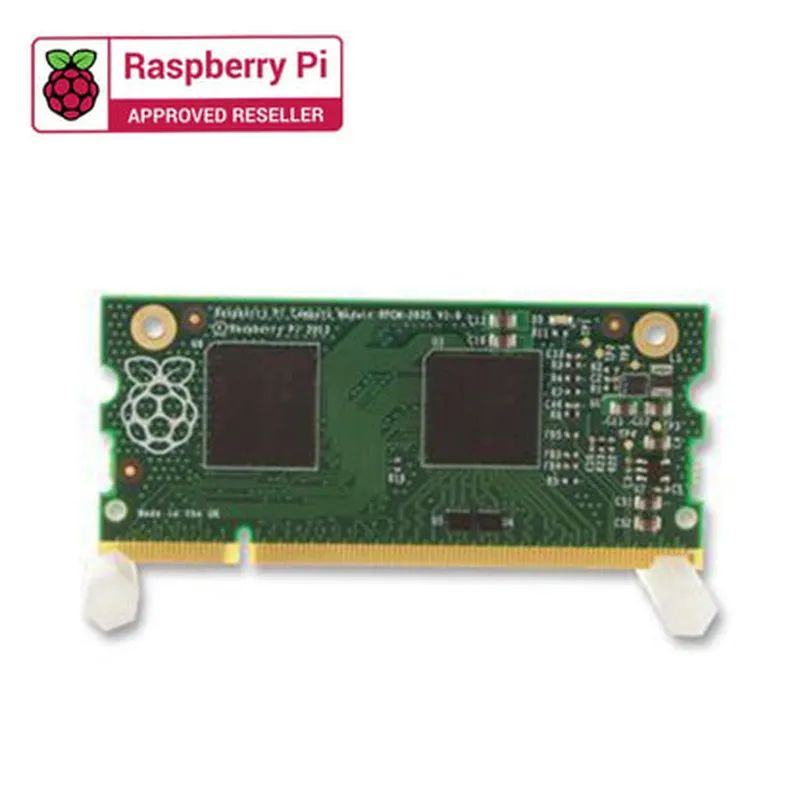
Raspberry Pi Compute Module 3 V1.1

Buy Now on Stufin

Dimensions

67.6mm x 31mm x 4.7mm


Weight

Approximately 6g

Operating Temperature

0C to 50C

Storage Temperature

-20C to 80C

Electrical Specifications

Power Consumption

Typical300mA @ 5V ( idle), Max: 1.5A @ 5V (full load)

Power Supply

5V DC, via micro-USB or external power input

I/O Voltage1.8V/3.3V

The Raspberry Pi Compute Module 3 V1.1 is a powerful and flexible computing module that provides a complete system solution for a wide range of applications. Its compact form factor, high-performance CPU, and advanced peripherals make it an ideal choice for IoT devices, industrial automation systems, and custom embedded systems.

Pin Configuration

  • Raspberry Pi Compute Module 3 V1.1 Pinout
  • The Raspberry Pi Compute Module 3 V1.1 is a System-on-Module (SoM) designed for industrial and commercial applications. It features a Broadcom BCM2837B0 Cortex-A53 quad-core processor, 1GB LPDDR2 SDRAM, and 4GB eMMC flash storage. The module has a 200-pin SODIMM connector, which provides access to various interfaces and peripherals. Here's a detailed explanation of each pin, grouped by function:
  • Power Pins (1-6)
  • 1. 3V3: 3.3V power input
  • 2. VIN: Input voltage (5V recommended)
  • 3. GND: Ground
  • 4. 3V3: 3.3V power input ( duplicate for convenience)
  • 5. VIN: Input voltage (5V recommended, duplicate for convenience)
  • 6. GND: Ground ( duplicate for convenience)
  • Reset and Boot Mode Pins (7-10)
  • 7. RUN: Run mode input (active low, connects to a button or a CPU reset signal)
  • 8. BOOT: Boot mode select (high for USB boot, low for eMMC boot)
  • 9. MS: Master mode select (high for system controller, low for SD card)
  • 10. RESET: Reset input (active low)
  • USB Pins (11-24)
  • 11. USB_D+: USB data plus
  • 12. USB_D-: USB data minus
  • 13. USB_ID: USB ID pin (used for USB device identification)
  • 14. USB_VBUS: USB power (5V)
  • 15. USB_DP: USB data plus
  • 16. USB_DM: USB data minus
  • 17. USB_RCV: USB receiver detect
  • 18. USB.oc: USB overcurrent detection
  • 19. USB_SRP: USB session request protocol
  • 20. USB_VBUS: USB power (5V, duplicate for convenience)
  • 21. USB_ID: USB ID pin (used for USB device identification, duplicate for convenience)
  • 22. USB_oc: USB overcurrent detection (duplicate for convenience)
  • 23. USB_SRP: USB session request protocol (duplicate for convenience)
  • 24. USB_RCV: USB receiver detect (duplicate for convenience)
  • LAN Pins (25-36)
  • 25. LAN_TX+: LAN transmit data plus
  • 26. LAN_TX-: LAN transmit data minus
  • 27. LAN_RX+: LAN receive data plus
  • 28. LAN_RX-: LAN receive data minus
  • 29. LAN_CLK125M: LAN clock signal (125 MHz)
  • 30. LAN_COL: LAN collision detect
  • 31. LAN_CRSDV: LAN carrier sense and data valid
  • 32. LAN_TRST: LAN transmit reset
  • 33. LAN_RXER: LAN receive error
  • 34. LAN_TXEN: LAN transmit enable
  • 35. LAN_CRS: LAN carrier sense
  • 36. LAN_CLK125M: LAN clock signal (125 MHz, duplicate for convenience)
  • HDMI Pins (37-48)
  • 37. HDMI_CLK: HDMI clock signal
  • 38. HDMI_D0: HDMI data channel 0
  • 39. HDMI_D1: HDMI data channel 1
  • 40. HDMI_D2: HDMI data channel 2
  • 41. HDMI_CEC: HDMI consumer electronics control
  • 42. HDMI_SDA: HDMI I2C data
  • 43. HDMI_SCL: HDMI I2C clock
  • 44. HDMI_HPD: HDMI hot plug detect
  • 45. HDMI_INT: HDMI interrupt
  • 46. HDMI_CLK: HDMI clock signal (duplicate for convenience)
  • 47. HDMI_CEC: HDMI consumer electronics control (duplicate for convenience)
  • 48. HDMI_HPD: HDMI hot plug detect (duplicate for convenience)
  • Camera Pins (49-52)
  • 49. CAM_PWDN: Camera power down
  • 50. CAM_CLK: Camera clock signal
  • 51. CAM_D0: Camera data channel 0
  • 52. CAM_D1: Camera data channel 1
  • Display Pins (53-60)
  • 53. DISP_CLK: Display clock signal
  • 54. DISP_EN: Display enable
  • 55. DISP_R0: Display red data channel 0
  • 56. DISP_G0: Display green data channel 0
  • 57. DISP_B0: Display blue data channel 0
  • 58. DISP_R1: Display red data channel 1
  • 59. DISP_G1: Display green data channel 1
  • 60. DISP_B1: Display blue data channel 1
  • I2C Pins (61-64)
  • 61. I2C_SDA: I2C data
  • 62. I2C_SCL: I2C clock
  • 63. I2C_SDA: I2C data (duplicate for convenience)
  • 64. I2C_SCL: I2C clock (duplicate for convenience)
  • SPI Pins (65-72)
  • 65. SPI_CS0: SPI chip select 0
  • 66. SPI_CLK: SPI clock signal
  • 67. SPI_MOSI: SPI master output slave input
  • 68. SPI_MISO: SPI master input slave output
  • 69. SPI_CS1: SPI chip select 1
  • 70. SPI_CS2: SPI chip select 2
  • 71. SPI_CLK: SPI clock signal (duplicate for convenience)
  • 72. SPI_CS0: SPI chip select 0 (duplicate for convenience)
  • UART Pins (73-76)
  • 73. UART_TXD: UART transmit data
  • 74. UART_RXD: UART receive data
  • 75. UART_CTS: UART clear to send
  • 76. UART_RTS: UART request to send
  • GPIO Pins (77-200)
  • The remaining pins (77-200) are general-purpose input/output (GPIO) pins, which can be configured for various functions such as digital inputs, digital outputs, analog-to-digital converters, and more.
  • Important Notes:
  • The pinout diagram may vary depending on the specific Raspberry Pi Compute Module 3 V1.1 revision and the carrier board design.
  • Ensure proper signal integrity and impedance matching when designing your carrier board.
  • Refer to the official Raspberry Pi documentation and datasheets for more detailed information on pin characteristics, electrical specifications, and usage guidelines.
  • Remember to carefully consider the electrical characteristics, voltage levels, and signal timing when designing your project or product based on the Raspberry Pi Compute Module 3 V1.1.

Code Examples

Raspberry Pi Compute Module 3 V1.1 Documentation
Overview
The Raspberry Pi Compute Module 3 V1.1 is a system-on-module (SoM) that combines the functionality of the Raspberry Pi 3 Model B with a more compact and flexible form factor. This module is designed for industrial and commercial applications, providing a cost-effective and highly capable solution for IoT projects.
Key Features
Broadcom BCM2837B0 quad-core Cortex-A53 processor
 1GB, 2GB, or 4GB LPDDR2 SDRAM
 4GB or 8GB eMMC flash storage
 Dual-band 802.11ac wireless LAN and Bluetooth 4.2
 PCIe interface for custom peripherals
 HDMI and camera interfaces
 Supports Raspbian OS and other Linux distributions
Programming Languages
The Raspberry Pi Compute Module 3 V1.1 can be programmed using various languages, including Python, C, C++, and Java.
Code Examples
Here are a few code examples to demonstrate the usage of the Raspberry Pi Compute Module 3 V1.1 in different contexts:
### Example 1: Python Script for LED Blinking
This example demonstrates how to control an LED connected to GPIO pin 17 on the Raspberry Pi Compute Module 3 V1.1 using Python:
```python
import RPi.GPIO as GPIO
import time
# Set up GPIO pin 17 as an output
GPIO.setmode(GPIO.BCM)
GPIO.setup(17, GPIO.OUT)
while True:
    # Turn the LED on
    GPIO.output(17, GPIO.HIGH)
    time.sleep(1)
    # Turn the LED off
    GPIO.output(17, GPIO.LOW)
    time.sleep(1)
```
### Example 2: C Code for Reading Temperature Sensor Data
This example demonstrates how to read temperature data from a DS18B20 digital temperature sensor connected to the Raspberry Pi Compute Module 3 V1.1 using C:
```c
#include <stdio.h>
#include <wiringPi.h>
#define PIN 4 // GPIO pin 4
int main() {
    wiringPiSetup();
    pinMode(PIN, INPUT);
while (1) {
        // Read temperature data from the DS18B20 sensor
        float temp = getTempData(PIN);
        printf("Temperature: %0.2fC
", temp);
        delay(1000);
    }
    return 0;
}
float getTempData(int pin) {
    // Initialize the temperature data
    float temp = 0.0;
// Send the temperature conversion command
    digitalWrite(pin, LOW);
    delay(1);
    digitalWrite(pin, HIGH);
    delay(750);
// Read the temperature data
    temp = readTempData(pin);
return temp;
}
float readTempData(int pin) {
    // Read the temperature data from the sensor
    int val = 0;
    for (int i = 0; i < 12; i++) {
        val <<= 1;
        if (digitalRead(pin) == HIGH) {
            val |= 1;
        }
    }
// Convert the temperature data to Celsius
    float temp = val  0.0625;
return temp;
}
```
### Example 3: Java Code for FTP Server
This example demonstrates how to create an FTP server on the Raspberry Pi Compute Module 3 V1.1 using Java:
```java
import java.io.IOException;
import java.nio.file.Files;
import java.nio.file.Paths;
import org.apache.ftpserver.FtpServer;
import org.apache.ftpserver.FtpServerFactory;
import org.apache.ftpserver.listener.ListenerFactory;
import org.apache.ftpserver.usermanager.PropertiesUserManagerFactory;
public class FTPServer {
    public static void main(String[] args) throws IOException {
        // Create an FTP server factory
        FtpServerFactory serverFactory = new FtpServerFactory();
// Set up the user manager
        PropertiesUserManagerFactory userManagerFactory = new PropertiesUserManagerFactory();
        serverFactory.setUserManager(userManagerFactory.createUserManager());
// Set up the FTP server
        FtpServer server = serverFactory.createServer();
// Start the FTP server
        server.start();
    }
}
```
These examples demonstrate the versatility of the Raspberry Pi Compute Module 3 V1.1 and its potential applications in various IoT projects.