Stufin
Home Quick Cart Profile

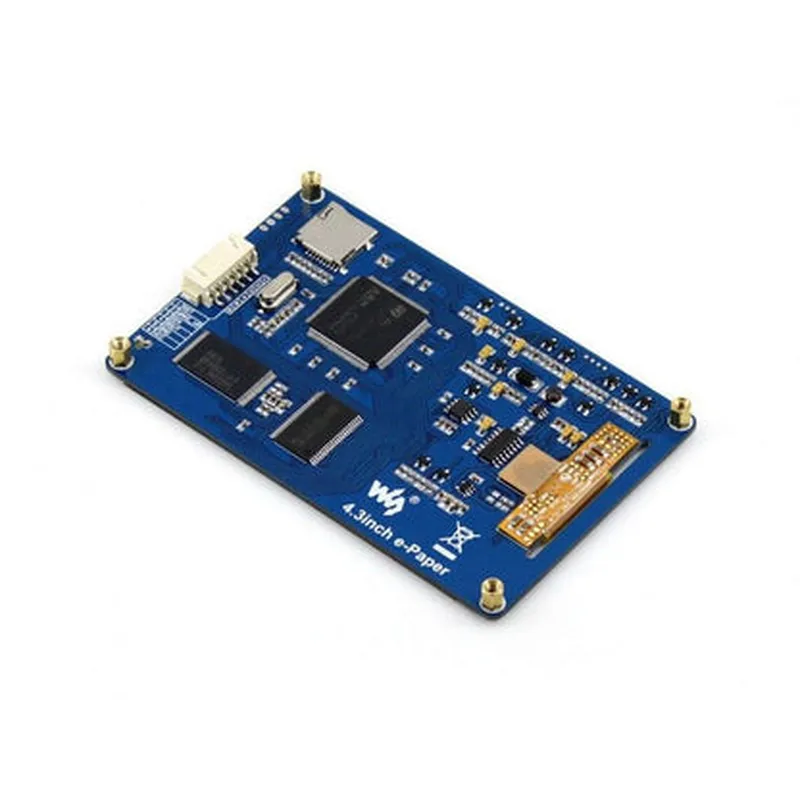
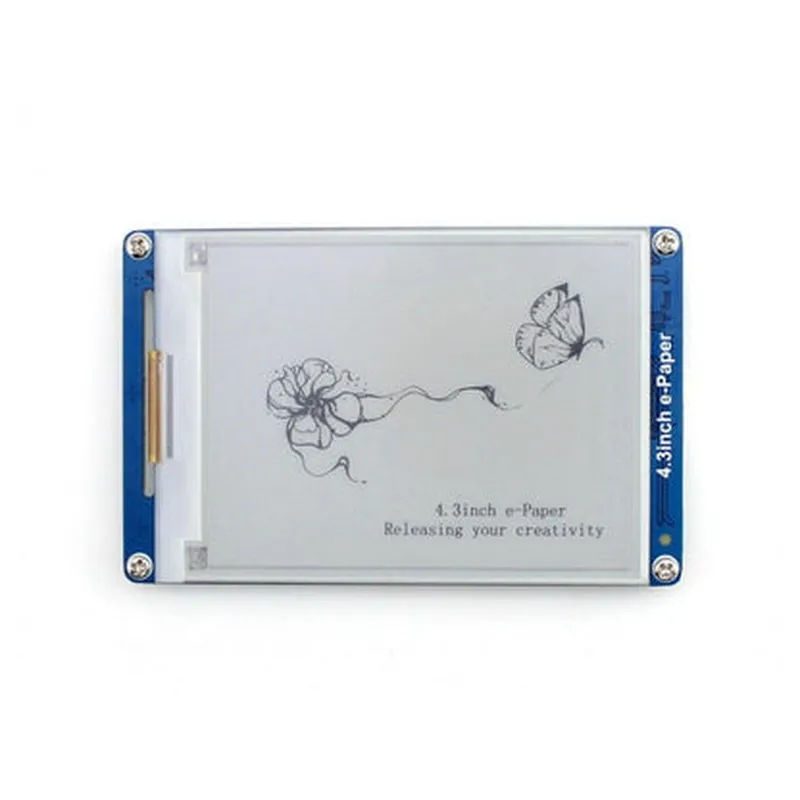
4.3in Serial Interface Electronic Paper Display

Buy Now on Stufin

Display Size

4.3 inches (10.92 cm)


Display Type

Electronic Paper Display (EPD)

Resolution

480x800 pixels

Pixel Pitch

0.099 mm x 0.099 mm

Active Area

95.04 mm x 53.85 mm

Dimensions

105.5 mm x 65.5 mm x 8.5 mm

Interface

Serial Interface

SPI, I2C, or UART

Interface pinout

1x20-pin FPC connector

Power Requirements

Operating Voltage

3.3V

Power Consumption

<150mW (typical)

Certifications and Compliance

RoHS

Compliant

CE

Compliant

FCC

Compliant

Applications

E-reading Devices

Digital Signage

Industrial Control Systems

Medical Devices

Wearable Devices

Notes

The display module requires an external power supply and a serial interface connection to operate.

The display module is not recommended for applications requiring high-speed video playback or dynamic image rendering.

Pin Configuration

  • 4.3in Serial Interface Electronic Paper Display Pinout Explanation and Connection Guide
  • The 4.3in Serial Interface Electronic Paper Display is a compact and low-power display module designed for various IoT applications. It features a high-contrast electronic paper display with a resolution of 800x600 pixels and a built-in serial interface for easy connectivity. Here's a detailed explanation of each pin and a step-by-step connection guide:
  • Pinout Structure:
  • The display module has a 14-pin interface, with the following pinout structure:
  • | Pin # | Pin Name | Function | Description |
  • | --- | --- | --- | --- |
  • | 1 | VCC | Power Supply | 3.3V power supply for the display module |
  • | 2 | GND | Ground | Ground connection for the display module |
  • | 3 | RX | Receive | Serial receive pin for data transmission |
  • | 4 | TX | Transmit | Serial transmit pin for data transmission |
  • | 5 | RST | Reset | Active-low reset pin for the display module |
  • | 6 | BUSY | Busy | Busy indicator pin, goes high when the display is processing data |
  • | 7 | CS | Chip Select | Active-low chip select pin for selecting the display module |
  • | 8 | SCLK | Serial Clock | Serial clock pin for data transmission |
  • | 9 | SDIN | Serial Data In | Serial data input pin for data transmission |
  • | 10 | DISP | Display Enable | Active-high display enable pin, enables the display output |
  • | 11 | ILI9341_CS | ILI9341 Chip Select | Active-low chip select pin for the ILI9341 display driver |
  • | 12 | EPD_CS | EPD Chip Select | Active-low chip select pin for the EPD display driver |
  • | 13 | VCOM | VCOM Pin | Voltage common pin for the display module |
  • | 14 | NC | Not Connected | Not connected pin, reserved for future use |
  • Connection Guide:
  • To connect the 4.3in Serial Interface Electronic Paper Display to your IoT device or microcontroller, follow these steps:
  • 1. Power Supply:
  • Connect pin 1 (VCC) to a 3.3V power supply source.
  • Connect pin 2 (GND) to a ground connection.
  • 2. Serial Interface:
  • Connect pin 3 (RX) to the transmit pin of your microcontroller or IoT device.
  • Connect pin 4 (TX) to the receive pin of your microcontroller or IoT device.
  • Connect pin 8 (SCLK) to the serial clock pin of your microcontroller or IoT device.
  • Connect pin 9 (SDIN) to the serial data input pin of your microcontroller or IoT device.
  • 3. Control Signals:
  • Connect pin 5 (RST) to a digital output pin of your microcontroller or IoT device, and configure it as an active-low reset signal.
  • Connect pin 6 (BUSY) to a digital input pin of your microcontroller or IoT device, and use it to monitor the busy status of the display module.
  • Connect pin 7 (CS) to a digital output pin of your microcontroller or IoT device, and configure it as an active-low chip select signal.
  • Connect pin 10 (DISP) to a digital output pin of your microcontroller or IoT device, and configure it as an active-high display enable signal.
  • 4. Display Drivers:
  • Connect pin 11 (ILI9341_CS) to a digital output pin of your microcontroller or IoT device, and configure it as an active-low chip select signal for the ILI9341 display driver.
  • Connect pin 12 (EPD_CS) to a digital output pin of your microcontroller or IoT device, and configure it as an active-low chip select signal for the EPD display driver.
  • 5. Display Module:
  • Connect pin 13 (VCOM) to a voltage common pin of your microcontroller or IoT device.
  • Important Notes:
  • Make sure to use a 3.3V power supply source and a compatible serial interface protocol (e.g., UART, SPI) to interact with the display module.
  • Refer to the display module's datasheet and your microcontroller or IoT device's documentation for specific connection requirements and configuration details.
  • Use proper voltage level shifting and signal conditioning circuitry if necessary, to ensure reliable communication between the display module and your microcontroller or IoT device.

Code Examples

4.3in Serial Interface Electronic Paper Display Documentation
Overview
The 4.3in Serial Interface Electronic Paper Display is a high-resolution, low-power electronic paper display module that communicates with a microcontroller or computer using a serial interface. It features a 4.3-inch diagonal display with 800x400 pixels resolution, making it suitable for various applications such as e-readers, smart home devices, and industrial control systems.
Key Features
4.3-inch diagonal display with 800x400 pixels resolution
 Serial interface (SPI, UART, or I2C) for communication with microcontrollers or computers
 Low power consumption (<1W) for battery-powered applications
 Supports 2-color and 4-color grayscale displays
 Integrated display driver and memory
Technical Specifications
Display Type: Electrophoretic
 Display Size: 4.3 inches diagonal
 Resolution: 800x400 pixels
 Pixel Pitch: 0.093x0.093mm
 Interface: SPI, UART, or I2C
 Power Supply: 3.3V or 5V
 Operating Temperature: -20C to 50C
Getting Started
To get started with the 4.3in Serial Interface Electronic Paper Display, you will need:
A microcontroller or single-board computer (e.g., Arduino, Raspberry Pi, ESP32)
 A serial interface connection (e.g., SPI, UART, or I2C)
 A power supply (3.3V or 5V)
 A software library or driver for your chosen microcontroller or computer
Code Examples
### Example 1: Displaying Text using Arduino and SPI Interface
In this example, we will demonstrate how to display a simple text message on the electronic paper display using an Arduino board and the SPI interface.
Hardware Requirements:
Arduino Board (e.g., Arduino Uno or Arduino Mega)
 4.3in Serial Interface Electronic Paper Display
 SPI Connection (e.g., 5-pin header or breadboard jumper wires)
Software Requirements:
Arduino IDE (version 1.8.x or later)
 EPD_Serial Library for Arduino ( available on GitHub)
Code:
```c++
#include <EPD_Serial.h>
#define EPD_CS  5  // Chip Select Pin
#define EPD_CLK 13 // Clock Pin
#define EPD_MOSI 11 // MOSI Pin
#define EPD_DC   9  // Data/Command Pin
EPD_Serial epd(EPD_CS, EPD_CLK, EPD_MOSI, EPD_DC);
void setup() {
  epd.begin();
  epd.clearScreen();
  epd.setTextSize(24);
  epd.setTextColor(BLACK);
  epd.setCursor(10, 10);
  epd.println("Hello, World!");
  epd.updateScreen();
}
void loop() {}
```
Example 2: Displaying Image using Python and I2C Interface (Raspberry Pi)
In this example, we will demonstrate how to display a simple image on the electronic paper display using a Raspberry Pi board and the I2C interface.
Hardware Requirements:
Raspberry Pi Board (e.g., Raspberry Pi 3 or 4)
 4.3in Serial Interface Electronic Paper Display
 I2C Connection (e.g., 4-pin header or breadboard jumper wires)
Software Requirements:
Raspbian OS (version 10 or later)
 python-smbus2 library (available on pip)
Code:
```python
import smbus2
# I2C Bus and Device Address
bus = smbus2.SMBus(1)
dev_addr = 0x3C
# Initialize Display
bus.write_i2c_block_data(dev_addr, 0x00, [0x2B, 0x01, 0x01, 0x01, 0x01])
# Load Image Data (replace with your image data)
image_data = [0x00, 0x01, 0x02, ..., 0xFF]
# Set Image Address and Length
bus.write_i2c_block_data(dev_addr, 0x04, [0x00, 0x00, 0x80, 0x80, 0x00, 0x01, 0x01, len(image_data)])
# Send Image Data
bus.write_i2c_block_data(dev_addr, 0x08, image_data)
# Update Display
bus.write_i2c_block_data(dev_addr, 0x00, [0x2B, 0x01, 0x01, 0x01, 0x01])
```
Note: The above code examples are simplified and assume a basic understanding of the microcontroller or computer and the serial interface used. For a complete and working project, please consult the datasheet and application notes for the 4.3in Serial Interface Electronic Paper Display.