

Stufin
Home Quick Cart Profile

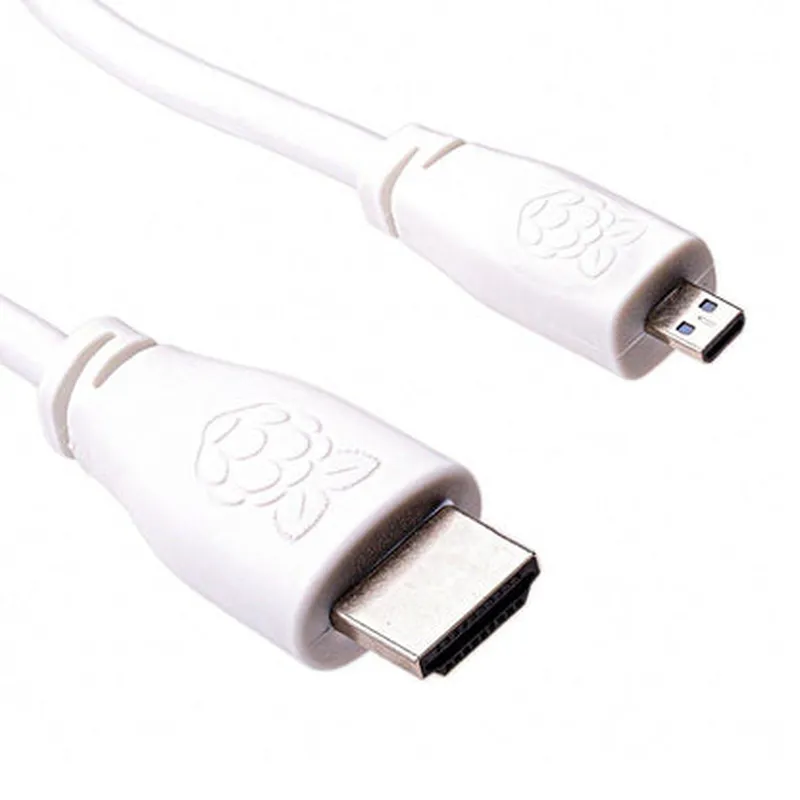
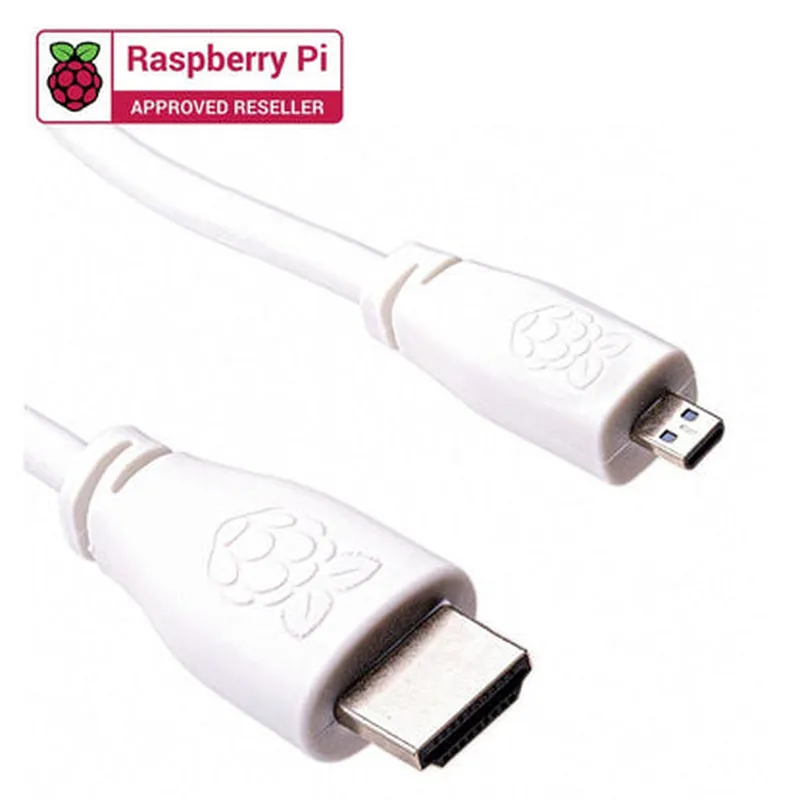
Raspberry Pi Official Micro-HDMI to Standard HDMI Cable (1 Meter)

Buy Now on Stufin

Cable Length

1 meter

Connectors

Micro-HDMI (male) to Standard HDMI (male)

Resolution Support

Up to 4K at 30Hz

Audio Support

Multi-channel audio, including Dolby TrueHD and DTS-HD Master Audio

Bandwidth

Up to 18 Gbps

Compliance

HDMI 2.0

Conclusion

The Raspberry Pi Official Micro-HDMI to Standard HDMI Cable is a reliable and high-quality cable solution for connecting your Raspberry Pi board to HDMI displays. With its official Raspberry Pi certification, high-quality construction, and support for high-definition video and audio, this cable is an ideal choice for users looking to connect their Raspberry Pi to a display device.

Pin Configuration

  • Raspberry Pi Official Micro-HDMI to Standard HDMI Cable (1 Meter) Pinout Guide
  • The Raspberry Pi Official Micro-HDMI to Standard HDMI Cable is a high-quality cable designed specifically for connecting Raspberry Pi boards to standard HDMI devices. This cable features a micro-HDMI connector on one end and a standard HDMI connector on the other. Here's a detailed breakdown of the pins on both connectors and how to connect them:
  • Micro-HDMI Connector (Raspberry Pi End)
  • The micro-HDMI connector has 19 pins, arranged in two rows of 9 and 10 pins, respectively. Here's the pinout for each pin:
  • Row 1 (9 pins):
  • 1. GROUND (GND): Provides a common ground reference for the HDMI signal.
  • 2. HDMI_CLK_P (Clock+): Carries the HDMI clock signal.
  • 3. HDMI_CLK_N (Clock-): Carries the inverted HDMI clock signal.
  • 4. HDMI0_D2_P (Data 2+): Carries the second HDMI data channel.
  • 5. HDMI0_D2_N (Data 2-): Carries the inverted second HDMI data channel.
  • 6. HDMI0_D1_P (Data 1+): Carries the first HDMI data channel.
  • 7. HDMI0_D1_N (Data 1-): Carries the inverted first HDMI data channel.
  • 8. HDMI0_D0_P (Data 0+): Carries the zeroth HDMI data channel.
  • 9. HDMI0_D0_N (Data 0-): Carries the inverted zeroth HDMI data channel.
  • Row 2 (10 pins):
  • 10. HDMI_CECP (CEC Power): Carries the Consumer Electronics Control (CEC) power signal.
  • 11. HDMI_SCL (I2C Clock): Carries the I2C clock signal for device control.
  • 12. HDMI_SDA (I2C Data): Carries the I2C data signal for device control.
  • 13. HDMI_HPD (Hot Plug Detect): Detects when a device is hot-plugged into the HDMI port.
  • 14. GROUND (GND): Provides an additional ground reference for the HDMI signal.
  • 15. HDMIShield: Connects to the HDMI shield for electromagnetic interference (EMI) reduction.
  • 16. _UNUSED_: Not used in this cable.
  • 17. UNUSED_: Not used in this cable.
  • 18. UNUSED_: Not used in this cable.
  • 19. UNUSED_: Not used in this cable.
  • Standard HDMI Connector (Display End)
  • The standard HDMI connector has 19 pins, arranged in two rows of 9 and 10 pins, respectively. Here's the pinout for each pin:
  • Row 1 (9 pins):
  • 1. GROUND (GND): Provides a common ground reference for the HDMI signal.
  • 2. HDMI_CLK_P (Clock+): Carries the HDMI clock signal.
  • 3. HDMI_CLK_N (Clock-): Carries the inverted HDMI clock signal.
  • 4. HDMI_D2_P (Data 2+): Carries the second HDMI data channel.
  • 5. HDMI_D2_N (Data 2-): Carries the inverted second HDMI data channel.
  • 6. HDMI_D1_P (Data 1+): Carries the first HDMI data channel.
  • 7. HDMI_D1_N (Data 1-): Carries the inverted first HDMI data channel.
  • 8. HDMI_D0_P (Data 0+): Carries the zeroth HDMI data channel.
  • 9. HDMI_D0_N (Data 0-): Carries the inverted zeroth HDMI data channel.
  • Row 2 (10 pins):
  • 10. HDMI_CECP (CEC Power): Carries the Consumer Electronics Control (CEC) power signal.
  • 11. HDMI_SCL (I2C Clock): Carries the I2C clock signal for device control.
  • 12. HDMI_SDA (I2C Data): Carries the I2C data signal for device control.
  • 13. HDMI_HPD (Hot Plug Detect): Detects when a device is hot-plugged into the HDMI port.
  • 14. GROUND (GND): Provides an additional ground reference for the HDMI signal.
  • 15. HDMIShield: Connects to the HDMI shield for electromagnetic interference (EMI) reduction.
  • 16. UNUSED_: Not used in this cable.
  • 17. UNUSED_: Not used in this cable.
  • 18. UNUSED_: Not used in this cable.
  • 19. UNUSED_: Not used in this cable.
  • Connecting the Pins:
  • To connect the pins, simply insert the micro-HDMI connector into the corresponding port on your Raspberry Pi, and the standard HDMI connector into the corresponding port on your display device. Ensure the connectors are securely seated to prevent signal degradation or damage to the devices.
  • When connecting the cable, make sure to align the pins correctly, taking care not to bend or damage the pins. The cable is designed to work with Raspberry Pi boards and standard HDMI devices, providing a reliable and high-quality connection for transmitting audio and video signals.

Code Examples

Raspberry Pi Official Micro-HDMI to Standard HDMI Cable (1 Meter) Documentation
Overview
The Raspberry Pi Official Micro-HDMI to Standard HDMI Cable is a high-quality cable designed specifically for use with Raspberry Pi boards, allowing users to connect their Raspberry Pi to a standard HDMI display or projector. This 1-meter cable provides a reliable and convenient way to extend the HDMI output of your Raspberry Pi, making it ideal for a wide range of applications, from prototyping to production environments.
Technical Specifications
Length: 1 meter (3.3 feet)
 Connector Type: Micro-HDMI (Type-D) to Standard HDMI (Type-A)
 Resolution: Supports up to 4K @ 30Hz
 Compatibility: Compatible with all Raspberry Pi models, including Raspberry Pi 4, Raspberry Pi 3, and earlier models
Using the Cable with Raspberry Pi
To use the Raspberry Pi Official Micro-HDMI to Standard HDMI Cable, simply connect the micro-HDMI end to your Raspberry Pi and the standard HDMI end to your display or projector.
Code Examples
Here are a few code examples demonstrating how to use the Raspberry Pi Official Micro-HDMI to Standard HDMI Cable in different contexts:
Example 1: Displaying Video on an HDMI Display using Python
In this example, we'll use the Raspberry Pi's HDMI output to display a video on a connected display using the `omxplayer` library in Python.
```
import subprocess
# Play a video file using omxplayer
subprocess.run(["omxplayer", "-o", "hdmi", "path/to/video.mp4"])
```
Example 2: Setting up a Raspberry Pi as a Media Center with Kodi
In this example, we'll use the Raspberry Pi Official Micro-HDMI to Standard HDMI Cable to connect our Raspberry Pi to a TV, and then set up Kodi as a media center.
First, install Kodi on your Raspberry Pi:
```
sudo apt-get update
sudo apt-get install kodi
```
Next, configure Kodi to use the HDMI output:
```
sudo nano /etc/kodi/kodi.cfg
```
Add the following lines to the configuration file:
```
display_hdmi_mode=1080p
```
Save and exit the file, then restart Kodi:
```
sudo service kodi restart
```
Your Raspberry Pi should now be set up as a media center, with video outputting to your TV through the HDMI cable.
These examples demonstrate the versatility and ease of use of the Raspberry Pi Official Micro-HDMI to Standard HDMI Cable. With its high-quality construction and compatibility with all Raspberry Pi models, this cable is an essential component for any project requiring HDMI output.