Stufin
Home Quick Cart Profile

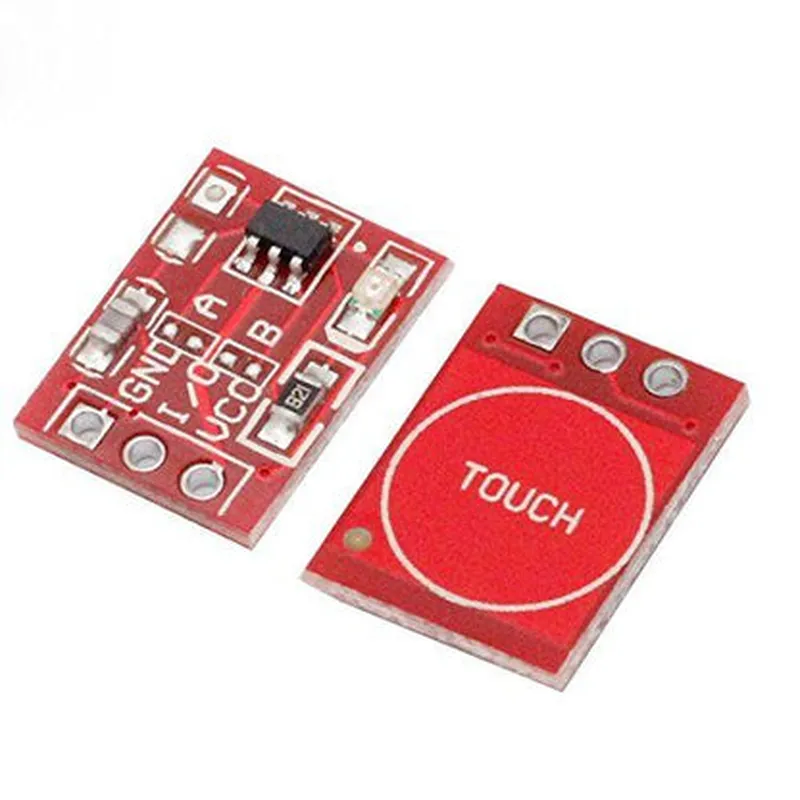
TTP223 Touch Switch Module

Buy Now on Stufin

Note

The module requires a 10nF capacitor between the VCC and GND pins to ensure stable operation.

Conclusion

The TTP223 Touch Switch Module is a compact, low-power, and highly sensitive capacitive touch switch module suitable for a wide range of applications in IoT and embedded systems. Its high sensitivity, low power consumption, and excellent noise immunity make it an ideal choice for designing touch-sensitive interfaces in various applications.

Pin Configuration

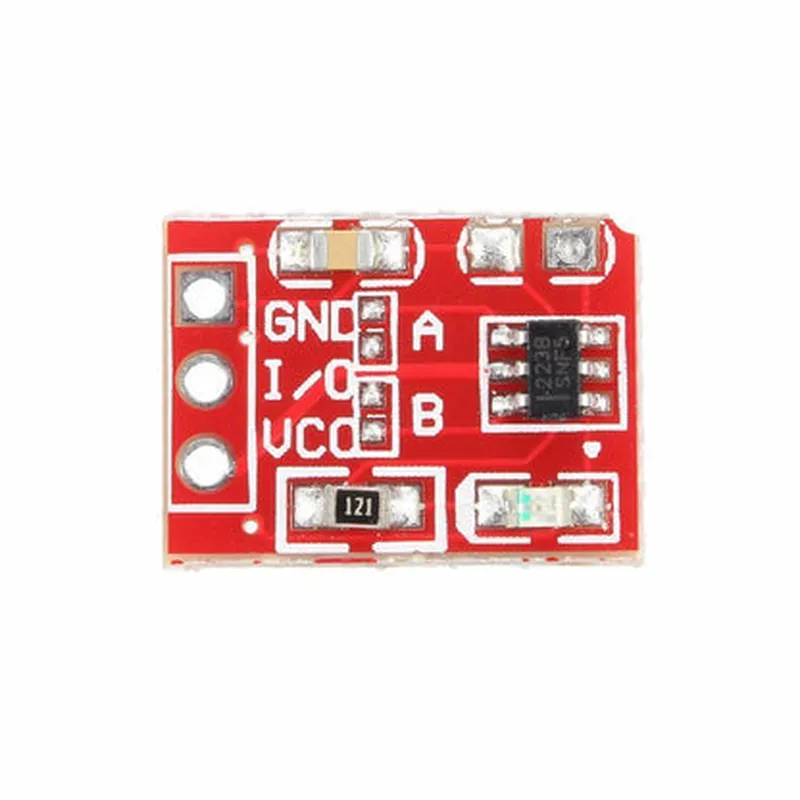
  • TTP223 Touch Switch Module Pinout and Connection Guide
  • The TTP223 Touch Switch Module is a popular capacitive touch sensor module widely used in various IoT and electronics projects. It features a simple and compact design, making it easy to integrate into DIY projects and prototypes. Here's a detailed explanation of the pins on the TTP223 module, along with a step-by-step connection guide:
  • Pinout:
  • 1. VCC (Power Supply):
  • Pin Type: Power Input
  • Description: Provides power supply to the module, typically in the range of 2.0V to 5.5V.
  • Connection: Connect to a suitable power source (e.g., an Arduino or Raspberry Pi board, or a battery).
  • 2. GND (Ground):
  • Pin Type: Ground
  • Description: Ground connection for the module.
  • Connection: Connect to the ground pin of the power source or a common ground point in your circuit.
  • 3. OUT (Output):
  • Pin Type: Digital Output
  • Description: The output pin provides a digital signal (HIGH or LOW) indicating the touch sensor's state.
  • Connection: Connect to a digital input pin on your microcontroller (e.g., Arduino or Raspberry Pi) to read the touch sensor's state.
  • Typical Connection Structure:
  • To connect the TTP223 Touch Switch Module to an Arduino or Raspberry Pi board, follow these steps:
  • Arduino Connection:
  • Connect the VCC pin of the TTP223 module to the 5V pin on the Arduino board.
  • Connect the GND pin of the TTP223 module to the GND pin on the Arduino board.
  • Connect the OUT pin of the TTP223 module to any digital input pin on the Arduino board (e.g., D2, D3, etc.).
  • Raspberry Pi Connection:
  • Connect the VCC pin of the TTP223 module to the 3.3V pin on the Raspberry Pi board.
  • Connect the GND pin of the TTP223 module to the GND pin on the Raspberry Pi board.
  • Connect the OUT pin of the TTP223 module to any GPIO pin on the Raspberry Pi board (e.g., GPIO 17, GPIO 23, etc.).
  • Important Notes:
  • Make sure to use a suitable power supply for the TTP223 module, as excessive voltage can damage the module.
  • The TTP223 module is-sensitive to noise and interference, so ensure that the connections are clean and well-insulated.
  • The OUT pin of the TTP223 module is an open-drain output, which means it can only sink current. You may need to add a pull-up resistor to the OUT pin if your microcontroller requires a push-pull output.
  • By following these connection guidelines, you can easily integrate the TTP223 Touch Switch Module into your IoT projects and take advantage of its capacitive touch sensor capabilities.

Code Examples

TTP223 Touch Switch Module Documentation
Overview
The TTP223 Touch Switch Module is a popular, low-cost, and easy-to-use capacitive touch sensor module designed for a variety of applications, including IoT projects, robotics, and interactive devices. This module allows users to create touch-based interfaces without the need for physical buttons or switches.
Pinout and Connections
The TTP223 Touch Switch Module typically has the following pinout:
VCC: Power supply (3.3V or 5V)
 GND: Ground
 OUT: Digital output signal (HIGH or LOW)
Technical Specifications
Operating voltage: 3.3V to 5V
 Operating current: 1mA to 10mA
 Sensitivity: Adjustable via an onboard potentiometer
 Output type: Digital (HIGH or LOW)
 Response time: 60ms to 120ms
Code Examples
### Example 1: Basic Touch Detection with Arduino
This example demonstrates how to use the TTP223 Touch Switch Module to detect touches and toggle an LED on and off using an Arduino board.
```c++
const int ledPin = 13;  // choose the pin for the LED
const int touchPin = 2; // choose the pin for the TTP223 module
void setup() {
  pinMode(ledPin, OUTPUT);
  pinMode(touchPin, INPUT);
}
void loop() {
  int touchState = digitalRead(touchPin);
  if (touchState == HIGH) {
    digitalWrite(ledPin, HIGH); // turn the LED on
  } else {
    digitalWrite(ledPin, LOW); // turn the LED off
  }
  delay(50);
}
```
### Example 2: Touch-Based Button Press with Raspberry Pi (Python)
This example shows how to use the TTP223 Touch Switch Module to detect touches and simulate a button press using a Raspberry Pi and Python.
```python
import RPi.GPIO as GPIO
import time
# set up GPIO mode
GPIO.setmode(GPIO.BCM)
# define the pin for the TTP223 module
touch_pin = 17
# set up the touch pin as an input
GPIO.setup(touch_pin, GPIO.IN, pull_up_down=GPIO.PUD_UP)
while True:
  if GPIO.input(touch_pin) == GPIO.LOW:
    print("Touch detected!")
    # simulate a button press (e.g., send a signal to a microcontroller)
    # ...
  time.sleep(0.1)
```
### Example 3: Debounced Touch Detection with ESP32 (MicroPython)
This example demonstrates how to use the TTP223 Touch Switch Module to detect touches with debouncing using an ESP32 board and MicroPython.
```python
import machine
import utime
# define the pin for the TTP223 module
touch_pin = machine.Pin(32, machine.Pin.IN, machine.Pin.PULL_UP)
def debounce(pin):
  last_state = machine.Pin.IN
  current_state = machine.Pin.IN
  while True:
    current_state = pin.value()
    if last_state != current_state:
      last_state = current_state
      utime.sleep_ms(50)  # debounce time
    if current_state == 0:
      return True
  return False
while True:
  if debounce(touch_pin):
    print("Touch detected!")
    # take action based on the touch event
    # ...
  utime.sleep_ms(10)
```
These examples demonstrate the basic usage of the TTP223 Touch Switch Module and can be modified to fit various IoT applications.