Stufin
Home Quick Cart Profile

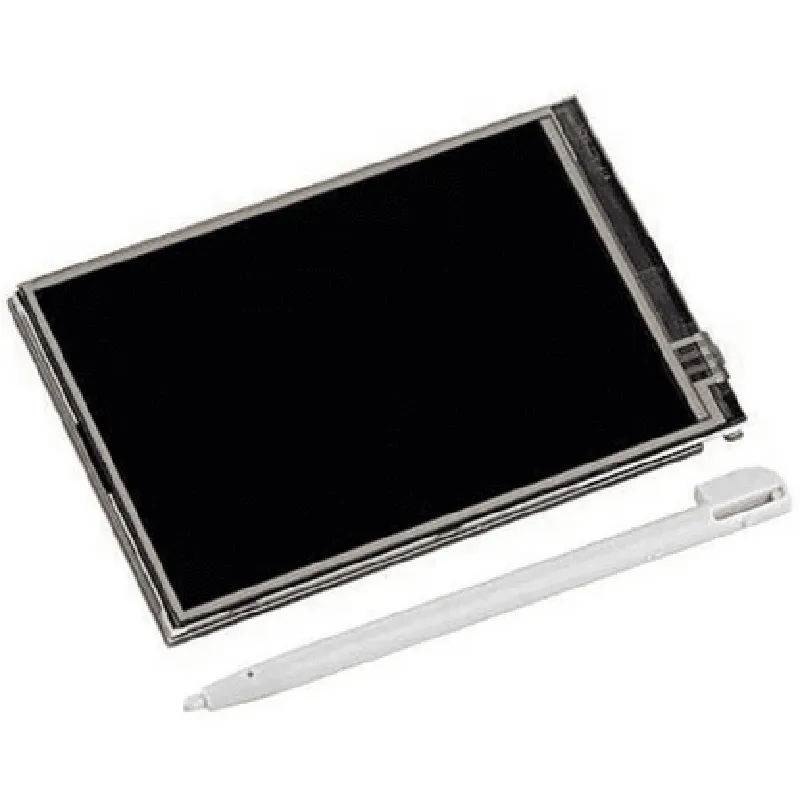
3.5in LCD Display for Raspberry Pi

Buy Now

Component Name

3.5in LCD Display for Raspberry Pi

Overview

The 3.5in LCD Display for Raspberry Pi is a compact, high-quality touchscreen display designed specifically for use with the Raspberry Pi single-board computer. This display module provides a convenient and space-saving solution for building interactive IoT projects, prototyping, and proof-of-concept designs.

Functionality

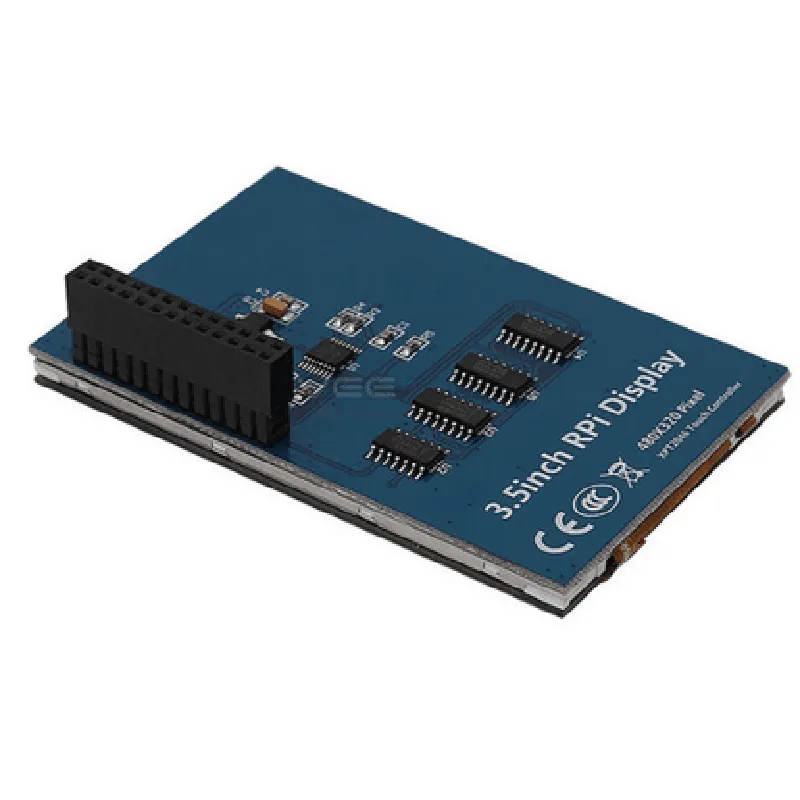
The 3.5in LCD Display for Raspberry Pi is a plug-and-play solution that connects directly to the Raspberry Pi's GPIO header. The display module is powered by the Raspberry Pi, eliminating the need for an external power supply. The display functions as a standard HDMI output, allowing users to view the Raspberry Pi's graphical user interface, terminal output, and interactive applications.

Key Features

  • Display Specifications:

Screen size

3.5 inches (89mm) diagonal

Resolution

480x320 pixels

Aspect ratio

43

Backlight

LED backlight with adjustable brightness

Viewing angle

80 ( horizontal), 60 (vertical)

  • Touchscreen Capability:

Resistive touchscreen technology

Supports single-touch input

Compatible with most Raspberry Pi operating systems

  • Raspberry Pi Compatibility:

Compatible with Raspberry Pi 2, 3, 3 B+, 3 A+, and 4 models

Directly connects to the Raspberry Pi's GPIO header

  • Power Management:

Powered by the Raspberry Pi's 5V power supply

Low power consumption

approximately 250mA

  • Additional Features:

Supports HDMI audio output

Includes a 2x20-pin GPIO header for connecting other peripherals

Optional

supports USB connection for data transfer and power supply

  • Dimensions and Mounting:

Display module dimensions

56.5mm x 98mm x 12.5mm

Mounting options

screw holes for securing to a case or enclosure

  • Operating Environment:

Operating temperature

0C to 50C

Storage temperature

-20C to 60C

Relative humidity

20% to 80%

Technical Specifications

Display controller

SSD1289

Touchscreen controller

XPT-2046

Interface

GPIO, HDMI

Power consumption

250mA (typical), 300mA (maximum)

Certifications

CE, FCC, RoHS compliant

Getting Started

To get started with the 3.5in LCD Display for Raspberry Pi, simply connect the display module to the Raspberry Pi's GPIO header, power on the Raspberry Pi, and configure the display settings in the operating system. The display is plug-and-play, and most Raspberry Pi operating systems will automatically detect and configure the display. For more information, refer to the manufacturer's documentation and online resources.

Pin Configuration

  • 3.5in LCD Display for Raspberry Pi Pinout Guide
  • The 3.5in LCD Display for Raspberry Pi is a compact and convenient display module designed to work seamlessly with Raspberry Pi boards. This guide provides a detailed explanation of the display's pinout, helping you to connect it to your Raspberry Pi correctly.
  • Pinout Structure:
  • The 3.5in LCD Display has a 40-pin GPIO connector, which aligns with the Raspberry Pi's GPIO pinout. The pins are divided into several categories, including power, ground, interface, and backlight control.
  • Pin by Pin Explanation:
  • 1. VCC (Pin 1)
  • Function: Power Supply (3.3V or 5V)
  • Description: Connect to a suitable power source, either 3.3V or 5V, depending on your Raspberry Pi's power requirements.
  • Raspberry Pi Connection: VCC (Pin 1 or 17)
  • 2. GND (Pins 2, 4, 6, 9, 14, 17, 20, 25, 30, 34, 39)
  • Function: Ground
  • Description: These pins provide a common ground connection for the display and Raspberry Pi.
  • Raspberry Pi Connection: Any GND pin (e.g., Pin 2, 4, 6, etc.)
  • 3. SCL (Pin 5)
  • Function: I2C Clock
  • Description: Part of the I2C interface, carrying the clock signal for communication between the display and Raspberry Pi.
  • Raspberry Pi Connection: SCL (Pin 5)
  • 4. SDA (Pin 6)
  • Function: I2C Data
  • Description: Part of the I2C interface, carrying the data signal for communication between the display and Raspberry Pi.
  • Raspberry Pi Connection: SDA (Pin 6)
  • 5. RST (Pin 13)
  • Function: Reset
  • Description: Used to reset the display controller. Typically not used with Raspberry Pi.
  • Raspberry Pi Connection: Not connected
  • 6. BL (Pin 18)
  • Function: Backlight Control
  • Description: Controls the backlight of the LCD display. Connect to a GPIO pin on the Raspberry Pi to enable backlight control.
  • Raspberry Pi Connection: Any GPIO pin (e.g., Pin 18, 23, etc.)
  • 7. D0-D15 (Pins 7-22)
  • Function: 16-bit Data Bus
  • Description: Carries the 16-bit data signal from the Raspberry Pi to the display controller.
  • Raspberry Pi Connection: GPIO pins 7-22 (matching the Raspberry Pi's GPIO pinout)
  • 8. CS (Pin 24)
  • Function: Chip Select
  • Description: Selects the display controller for data transmission. Typically not used with Raspberry Pi.
  • Raspberry Pi Connection: Not connected
  • 9. RD (Pin 26)
  • Function: Read Strobe
  • Description: Used for reading data from the display controller. Typically not used with Raspberry Pi.
  • Raspberry Pi Connection: Not connected
  • 10. WR (Pin 27)
  • Function: Write Strobe
  • Description: Used for writing data to the display controller. Typically not used with Raspberry Pi.
  • Raspberry Pi Connection: Not connected
  • Connecting the Pins:
  • When connecting the 3.5in LCD Display to your Raspberry Pi, ensure that the pins are aligned correctly and securely connected. Here's a suggested connection structure:
  • Connect VCC (Pin 1) to a suitable power source on the Raspberry Pi (e.g., Pin 1 or 17).
  • Connect GND pins (Pins 2, 4, 6, etc.) to any available GND pin on the Raspberry Pi (e.g., Pin 2, 4, 6, etc.).
  • Connect SCL (Pin 5) to SCL (Pin 5) on the Raspberry Pi.
  • Connect SDA (Pin 6) to SDA (Pin 6) on the Raspberry Pi.
  • Connect BL (Pin 18) to any available GPIO pin on the Raspberry Pi (e.g., Pin 18, 23, etc.).
  • Connect D0-D15 (Pins 7-22) to the corresponding GPIO pins on the Raspberry Pi (Pins 7-22).
  • By following this pinout guide, you should be able to connect your 3.5in LCD Display to your Raspberry Pi correctly and start developing your IoT projects.

Code Examples

3.5in LCD Display for Raspberry Pi Documentation
Overview
The 3.5in LCD Display for Raspberry Pi is a compact and high-resolution display module designed specifically for the Raspberry Pi single-board computer. This display module features a 3.5-inch TFT LCD screen with a resolution of 320x480 pixels, making it an ideal component for building interactive projects and devices.
Technical Specifications
Display Size: 3.5 inches
 Resolution: 320x480 pixels
 Interface: SPI
 Power Supply: 5V
 Compatible with Raspberry Pi models: Raspberry Pi 2, 3, and 4
Getting Started
To get started with the 3.5in LCD Display for Raspberry Pi, you'll need to:
1. Connect the display module to the Raspberry Pi using the provided ribbon cable.
2. Install the necessary libraries and drivers on your Raspberry Pi.
3. Write code to interact with the display module using the installed libraries.
Code Examples
### Example 1: Displaying an Image using Python
In this example, we'll use the `pygame` library to display an image on the 3.5in LCD Display.
Code:
```python
import pygame
import os
# Initialize pygame
pygame.init()
# Set the display mode
pygame.display.set_mode((320, 480))
# Load the image
image = pygame.image.load('image.jpg')
# Blit the image onto the screen
screen = pygame.display.get_surface()
screen.blit(image, (0, 0))
# Update the display
pygame.display.flip()
# Wait for 5 seconds
pygame.time.wait(5000)
# Quit pygame
pygame.quit()
```
Note: Make sure to replace `image.jpg` with the path to your desired image file.
### Example 2: Displaying Text using Python
In this example, we'll use the `pygame` library to display text on the 3.5in LCD Display.
Code:
```python
import pygame
import os
# Initialize pygame
pygame.init()
# Set the display mode
pygame.display.set_mode((320, 480))
# Set the font
font = pygame.font.SysFont('Arial', 24)
# Render the text
text_surface = font.render('Hello, World!', True, (255, 255, 255))
# Blit the text onto the screen
screen = pygame.display.get_surface()
screen.blit(text_surface, (50, 50))
# Update the display
pygame.display.flip()
# Wait for 5 seconds
pygame.time.wait(5000)
# Quit pygame
pygame.quit()
```
### Example 3: Creating a GUI using Tkinter
In this example, we'll use the `tkinter` library to create a simple GUI on the 3.5in LCD Display.
Code:
```python
import tkinter as tk
# Create a tkinter window
window = tk.Tk()
# Set the window size
window.geometry('320x480')
# Create a label
label = tk.Label(window, text='Hello, World!')
label.pack()
# Create a button
button = tk.Button(window, text='Click me!')
button.pack()
# Run the GUI event loop
window.mainloop()
```
Note: These code examples assume that you have the necessary libraries and drivers installed on your Raspberry Pi. Make sure to follow the manufacturer's instructions for installing the necessary software.