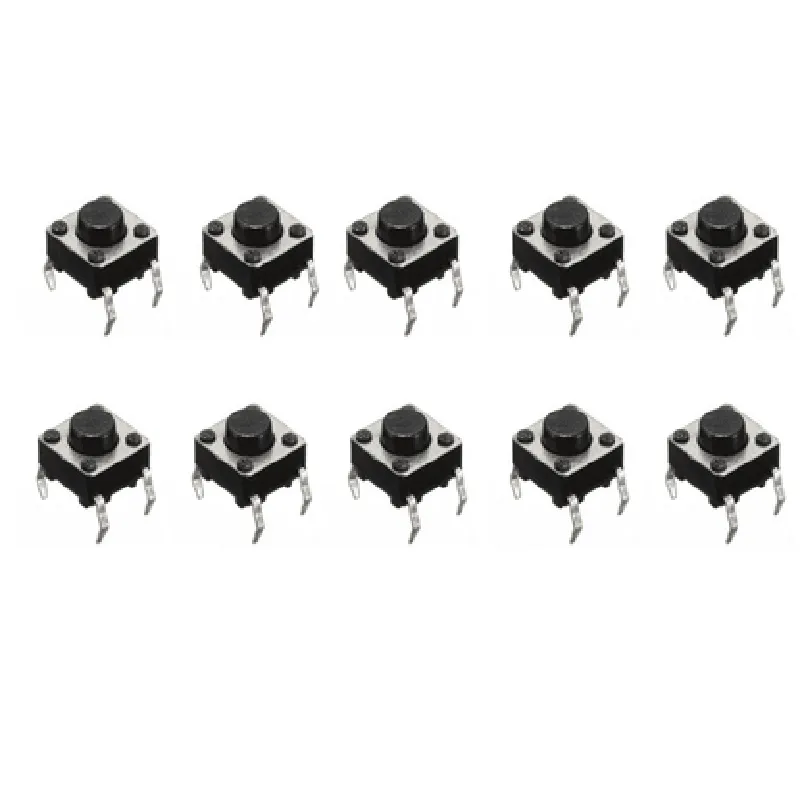
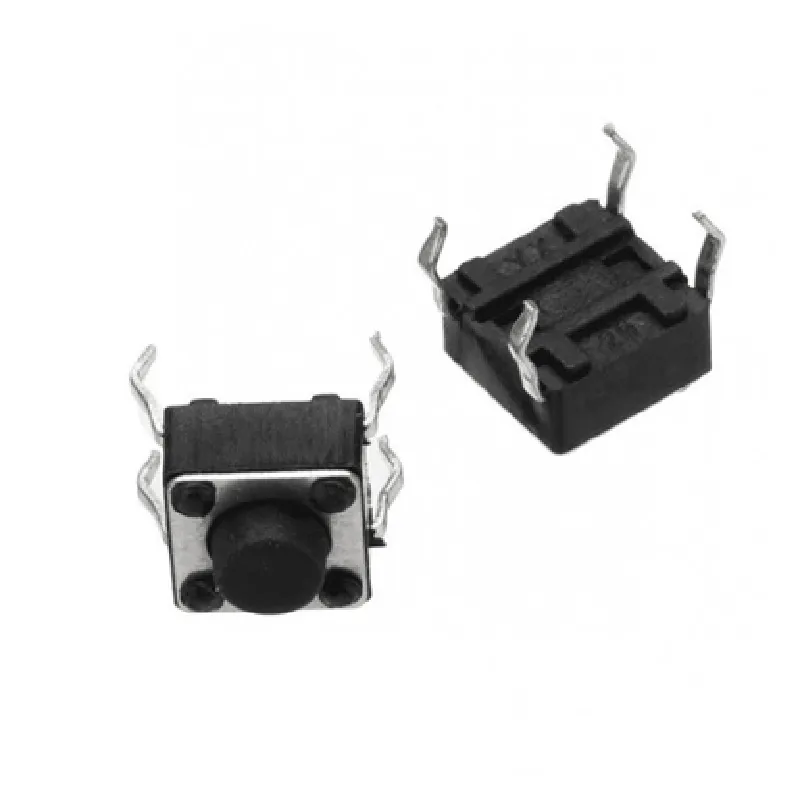
Component Documentation: 4-Pins DIP Momentary Square Tactile Push Button Switch
The 4-Pins DIP Momentary Square Tactile Push Button Switch is a compact, surface-mountable switch designed for use in a variety of IoT applications. This switch features a momentary action, meaning it only closes the circuit when the button is pressed and returns to its open state when released. The switch has four pins, making it suitable for use in circuits that require a common ground or voltage connection.
The switch has a standard DIP (Dual In-Line Package) pinout, with the following connections:
Pin 1: NO (Normally Open) - connected to the load or output circuit
 Pin 2: COM (Common) - connected to ground or voltage source
 Pin 3: COM (Common) - connected to ground or voltage source
 Pin 4: NC (Normally Closed) - not used in momentary mode, but can be used as an additional output in alternate applications
Electrical Characteristics
Operating voltage: 12V DC
 Contact resistance: 50m max
 Switching current: 100mA max
 Operating life: 100,000 cycles min
Example 1: Basic Switch Debouncing using Arduino
In this example, we'll use the switch to control an LED on an Arduino board. We'll also implement a simple debouncing mechanism to prevent multiple triggers from a single button press.
```c++
const int buttonPin = 2;  // Connect switch NO pin to Arduino digital pin 2
const int ledPin = 13;   // Connect LED to Arduino digital pin 13
int buttonState = 0;      // Variable to store button state
int lastButtonState = 0;  // Variable to store last button state
int debounceDelay = 50;  // Debounce delay in milliseconds
void setup() {
  pinMode(buttonPin, INPUT);
  pinMode(ledPin, OUTPUT);
}
void loop() {
  int reading = digitalRead(buttonPin);
  if (reading != lastButtonState) {
    lastButtonState = reading;
    if (reading == HIGH) {
      // Button pressed, turn on LED
      digitalWrite(ledPin, HIGH);
    } else {
      // Button released, turn off LED
      digitalWrite(ledPin, LOW);
    }
    delay(debounceDelay);
  }
}
```
Example 2: Using the Switch with a Raspberry Pi to Trigger a Python Script
In this example, we'll use the switch to trigger a Python script on a Raspberry Pi. We'll connect the switch to a GPIO pin on the Raspberry Pi and use the RPi.GPIO library to read the switch state.
```python
import RPi.GPIO as GPIO
import time
# Set up GPIO pin as input
GPIO.setmode(GPIO.BCM)
button_pin = 17
GPIO.setup(button_pin, GPIO.IN, pull_up_down=GPIO.PUD_UP)
def trigger_script():
    print("Button pressed! Triggering script...")
    # Add your script code here
try:
    while True:
        if GPIO.input(button_pin) == GPIO.LOW:
            trigger_script()
            time.sleep(0.5)  # Debounce delay
except KeyboardInterrupt:
    GPIO.cleanup()
```
Example 3: Using the Switch with an ESP32 Board to Send an HTTP Request
In this example, we'll use the switch to send an HTTP request to a server using an ESP32 board. We'll connect the switch to a digital pin on the ESP32 and use the WiFi client library to send the request.
```c++
#include <WiFi.h>
#include <HTTPClient.h>
const char ssid = "your_wifi_ssid";
const char password = "your_wifi_password";
const char serverUrl = "http://example.com/switch_trigger";
WiFiClient client;
HTTPClient http;
void setup() {
  Serial.begin(115200);
  WiFi.begin(ssid, password);
  while (WiFi.status() != WL_CONNECTED) {
    delay(1000);
    Serial.println("Connecting to WiFi...");
  }
  Serial.println("Connected to WiFi");
  Serial.println("Initializing switch...");
  pinMode(32, INPUT);  // Connect switch NO pin to ESP32 digital pin 32
}
void loop() {
  int buttonState = digitalRead(32);
  if (buttonState == LOW) {
    Serial.println("Button pressed! Sending request...");
    http.begin(client, serverUrl);
    int httpResponseCode = http.GET();
    if (httpResponseCode > 0) {
      Serial.println("Request sent successfully!");
    } else {
      Serial.println("Error sending request:");
      Serial.println(http.errorString(httpResponseCode));
    }
    delay(500);  // Debounce delay
  }
}
```
Remember to modify the code examples to fit your specific use case and IoT application.