Stufin
Home Quick Cart Profile

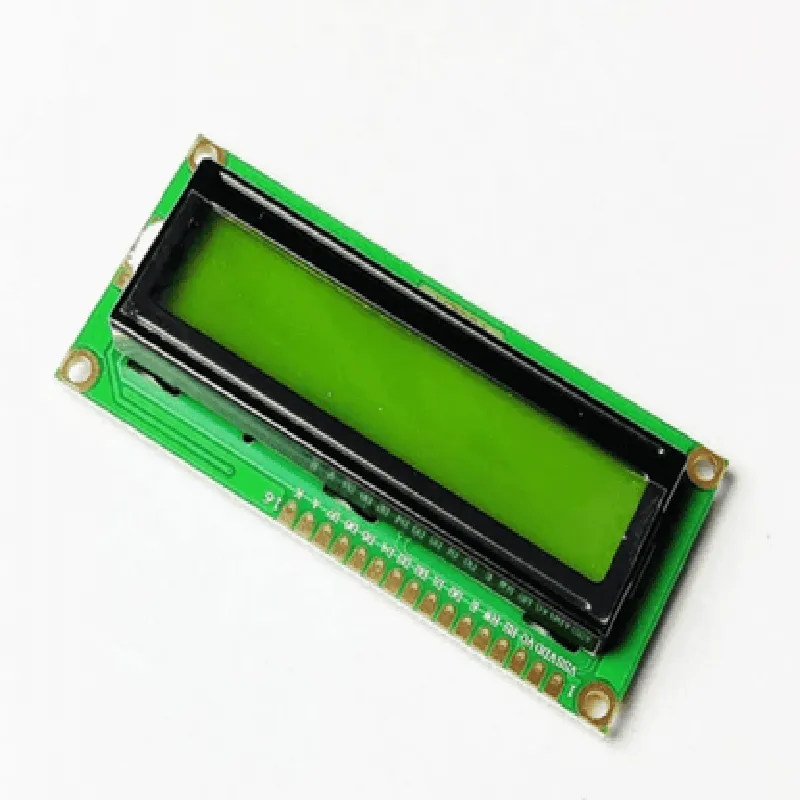
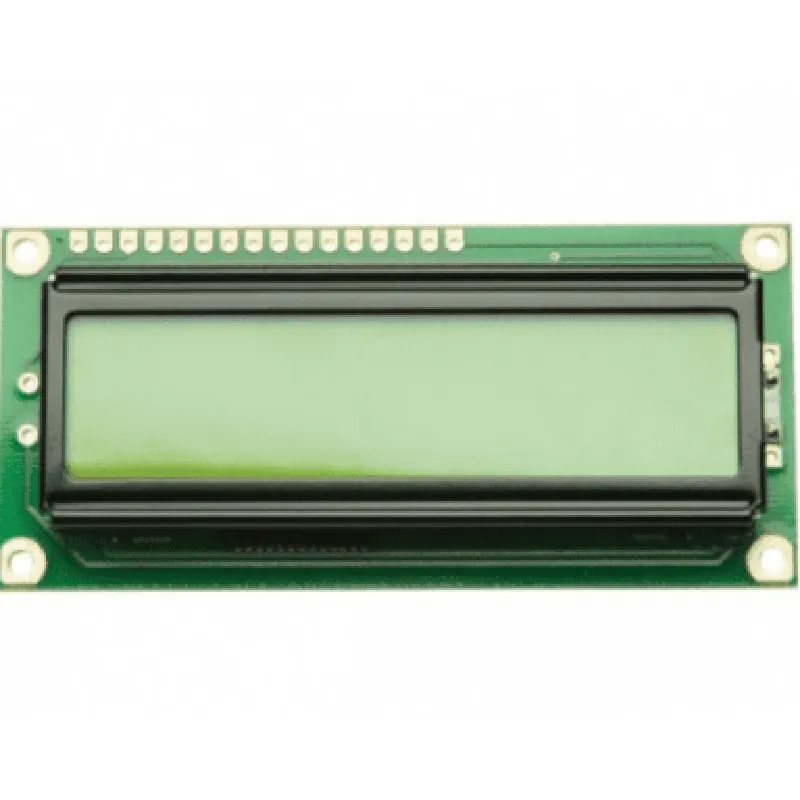
Original JHD 16x2 LCD Display- Green

Buy Now on Stufin

Component Name

Original JHD 16x2 LCD Display - Green


Description

The Original JHD 16x2 LCD Display - Green is a compact, high-contrast liquid crystal display (LCD) module designed for use in a wide range of applications, including robotics, automation, and Internet of Things (IoT) projects. This module features a 16x2 character display, providing a total of 32 characters that can be used to display alphanumeric data, symbols, and custom characters.
Functionality

The JHD 16x2 LCD Display - Green is designed to operate as a output device, receiving data from a microcontroller or other control unit and displaying it on its screen. The module can be used to display a variety of data, including

Alphanumeric characters (letters and numbers)

Symbols and custom characters

Status messages and errors

Sensor readings and measurements

Menu options and selections

Key Features

  • Display Size: The module features a 16x2 character display, with a total of 32 characters that can be displayed at once.
  • Display Type: The display is a liquid crystal display (LCD) with a green backlight, providing high contrast and visibility in various lighting conditions.
  • Character Set: The module supports a standard 5x8 dot matrix character set, allowing for the display of alphanumeric characters, symbols, and custom characters.
  • Interface: The module uses a standard HD44780U-compatible interface, allowing for easy connection to a wide range of microcontrollers and control units.
  • Power Supply: The module operates on a single 5V power supply, making it suitable for use with a variety of power sources.
  • Dimensions: The module measures 80x36x12mm, making it compact and easy to integrate into a variety of projects and designs.
  • Operating Temperature: The module operates within a temperature range of -20C to 70C, making it suitable for use in a wide range of environmental conditions.
  • Viewing Angle: The display features a 60 viewing angle, allowing for clear visibility from a range of angles.

Applications

The Original JHD 16x2 LCD Display - Green is suitable for use in a wide range of applications, including
Robotics and automation projects

IoT devices and sensors

Industrial control systems

Medical devices and equipment

Security systems and alarms

Educational projects and prototypes

Notes

The module requires a 5V power supply and a compatible interface to operate.

The display is not backlit, but features a high-contrast LCD screen for clear visibility.

The module is designed for indoor use and may not be suitable for outdoor applications or extreme environmental conditions.

Pin Configuration

  • Original JHD 16x2 LCD Display- Green Pinout Explanation
  • The Original JHD 16x2 LCD Display- Green is a widely used LCD module in IoT and embedded system projects. It has a 16-pin interface, which can be connected to a microcontroller or other devices to display alphanumeric characters and symbols. Here's a detailed explanation of each pin:
  • Pinout Structure:
  • The 16-pin LCD module can be divided into three categories: Power Supply, Control Signals, and Data Bus.
  • Power Supply Pins:
  • 1. VSS (Pin 1): Ground pin, connected to the ground of the power supply and microcontroller.
  • 2. VCC (Pin 2): Power supply pin, typically connected to a 5V power source.
  • Control Signal Pins:
  • 3. VEE (Pin 3): Contrast adjustment pin, connected to a variable resistor or a potentiometer to adjust the display contrast.
  • 4. V0 (Pin 4): Display on/off control pin, typically connected to a digital output of the microcontroller to turn the display on or off.
  • 5. RS (Pin 5): Register Select pin, selects the type of data being sent to the LCD (instruction or data). A low level (0) selects instruction, and a high level (1) selects data.
  • 6. RW (Pin 6): Read/Write pin, determines the direction of data transfer. A low level (0) allows writing to the LCD, and a high level (1) allows reading from the LCD.
  • 7. EN (Pin 7): Enable pin, enables data transfer between the microcontroller and the LCD. A high-level (1) enables data transfer, and a low level (0) disables it.
  • Data Bus Pins:
  • 8. D0 (Pin 8): Data bit 0, one of the 8-bit data bus lines used for transmitting data to the LCD.
  • 9. D1 (Pin 9): Data bit 1, one of the 8-bit data bus lines used for transmitting data to the LCD.
  • 10. D2 (Pin 10): Data bit 2, one of the 8-bit data bus lines used for transmitting data to the LCD.
  • 11. D3 (Pin 11): Data bit 3, one of the 8-bit data bus lines used for transmitting data to the LCD.
  • 12. D4 (Pin 12): Data bit 4, one of the 8-bit data bus lines used for transmitting data to the LCD.
  • 13. D5 (Pin 13): Data bit 5, one of the 8-bit data bus lines used for transmitting data to the LCD.
  • 14. D6 (Pin 14): Data bit 6, one of the 8-bit data bus lines used for transmitting data to the LCD.
  • 15. D7 (Pin 15): Data bit 7, one of the 8-bit data bus lines used for transmitting data to the LCD.
  • 16. A (Pin 16): Backlight Anode pin, connected to the positive terminal of the backlight LED (if available).
  • Connection Structure:
  • When connecting the LCD module to a microcontroller or other devices, ensure the following:
  • Connect VSS (Pin 1) to the ground of the power supply and microcontroller.
  • Connect VCC (Pin 2) to the 5V power source.
  • Connect VEE (Pin 3) to a variable resistor or potentiometer for contrast adjustment.
  • Connect V0 (Pin 4) to a digital output of the microcontroller to control the display on/off.
  • Connect RS (Pin 5), RW (Pin 6), and EN (Pin 7) to the corresponding digital outputs of the microcontroller.
  • Connect the data bus pins (D0-D7, Pins 8-15) to the corresponding digital outputs of the microcontroller.
  • If the LCD module has a backlight, connect the A (Pin 16) to the positive terminal of the backlight LED.
  • Remember to check the datasheet of the specific LCD module and microcontroller being used, as pin assignments may vary. Additionally, ensure proper voltage and current ratings are respected to avoid damaging the components.

Code Examples

Original JHD 16x2 LCD Display - Green
Overview
The Original JHD 16x2 LCD Display is a popular alphanumeric display module designed for a wide range of applications, including robotics, automation, and IoT projects. This module features a 16x2 character display, which means it can display 16 characters per line, with a total of 2 lines. The display is backlit with a green LED, making it easy to read in various lighting conditions.
Technical Specifications
Display Type: ST7066U
 Display Size: 16x2 characters
 Backlight: Green LED
 Interface: HD44780U compatible
 Operating Voltage: 5V
 Operating Current: 1mA ( typical), 2mA (max)
 Dimension: 80x36x14mm
Arduino Example
The following example demonstrates how to use the Original JHD 16x2 LCD Display with an Arduino board. This example will display a simple message on the LCD screen.
Hardware Requirements
Original JHD 16x2 LCD Display
 Arduino Board (e.g., Arduino Uno)
 Breadboard
 Jumper wires
Software Requirements
Arduino IDE (version 1.8.x or higher)
Code Example
```c
#include <LiquidCrystal.h>
// Initialize the LCD library
LiquidCrystal_I2C lcd(0x27, 16, 2); // Set the LCD address, columns, and rows
void setup() {
  // Initialize the LCD
  lcd.init();
  lcd.backlight();
  
  // Print a message on the LCD
  lcd.setCursor(0, 0);
  lcd.print("Hello, World!");
  lcd.setCursor(0, 1);
  lcd.print("JHD 16x2 LCD");
}
void loop() {
  // No operation
}
```
Raspberry Pi Example (using Python)
The following example demonstrates how to use the Original JHD 16x2 LCD Display with a Raspberry Pi board. This example will display a simple message on the LCD screen using Python.
Hardware Requirements
Original JHD 16x2 LCD Display
 Raspberry Pi Board (e.g., Raspberry Pi 4)
 Breadboard
 Jumper wires
Software Requirements
Raspbian OS (version 10 or higher)
 Python 3.x
Code Example
```python
import RPi.GPIO as GPIO
import time
# Set up the GPIO library
GPIO.setmode(GPIO.BCM)
# Define the LCD pins
LCD_RS = 7
LCD_EN = 8
LCD_D4 = 25
LCD_D5 = 24
LCD_D6 = 23
LCD_D7 = 18
# Initialize the LCD pins
GPIO.setup(LCD_RS, GPIO.OUT)
GPIO.setup(LCD_EN, GPIO.OUT)
GPIO.setup(LCD_D4, GPIO.OUT)
GPIO.setup(LCD_D5, GPIO.OUT)
GPIO.setup(LCD_D6, GPIO.OUT)
GPIO.setup(LCD_D7, GPIO.OUT)
# Define the LCD initialization function
def lcd_init():
    GPIO.output(LCD_RS, GPIO.HIGH)
    GPIO.output(LCD_EN, GPIO.HIGH)
    time.sleep(0.05)
    GPIO.output(LCD_EN, GPIO.LOW)
    time.sleep(0.05)
# Define the LCD print function
def lcd_print(message, line):
    if line == 0:
        GPIO.output(LCD_RS, GPIO.LOW)
        GPIO.output(LCD_D4, GPIO.LOW)
        GPIO.output(LCD_D5, GPIO.LOW)
        GPIO.output(LCD_D6, GPIO.LOW)
        GPIO.output(LCD_D7, GPIO.LOW)
    else:
        GPIO.output(LCD_RS, GPIO.HIGH)
        GPIO.output(LCD_D4, GPIO.LOW)
        GPIO.output(LCD_D5, GPIO.LOW)
        GPIO.output(LCD_D6, GPIO.LOW)
        GPIO.output(LCD_D7, GPIO.LOW)
    
    for char in message:
        GPIO.output(LCD_D4, (char >> 4) & 1)
        GPIO.output(LCD_D5, (char >> 5) & 1)
        GPIO.output(LCD_D6, (char >> 6) & 1)
        GPIO.output(LCD_D7, (char >> 7) & 1)
        GPIO.output(LCD_EN, GPIO.HIGH)
        time.sleep(0.01)
        GPIO.output(LCD_EN, GPIO.LOW)
# Initialize the LCD
lcd_init()
# Print a message on the LCD
lcd_print("Hello, World!", 0)
lcd_print("JHD 16x2 LCD", 1)
# Clean up
GPIO.cleanup()
```
Note: In the Raspberry Pi example, you need to adjust the pin numbers according to your specific setup. Additionally, make sure to install the `RPi.GPIO` library if you haven't already.