Arduino 16X2 LCD Keypad Shield


Arduino 16X2 LCD Keypad Shield
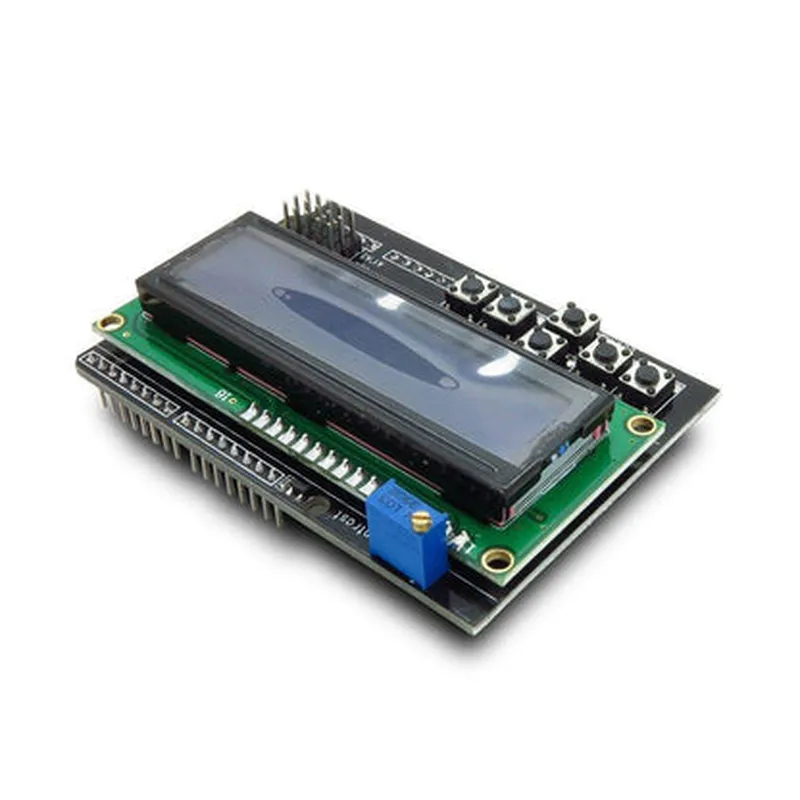
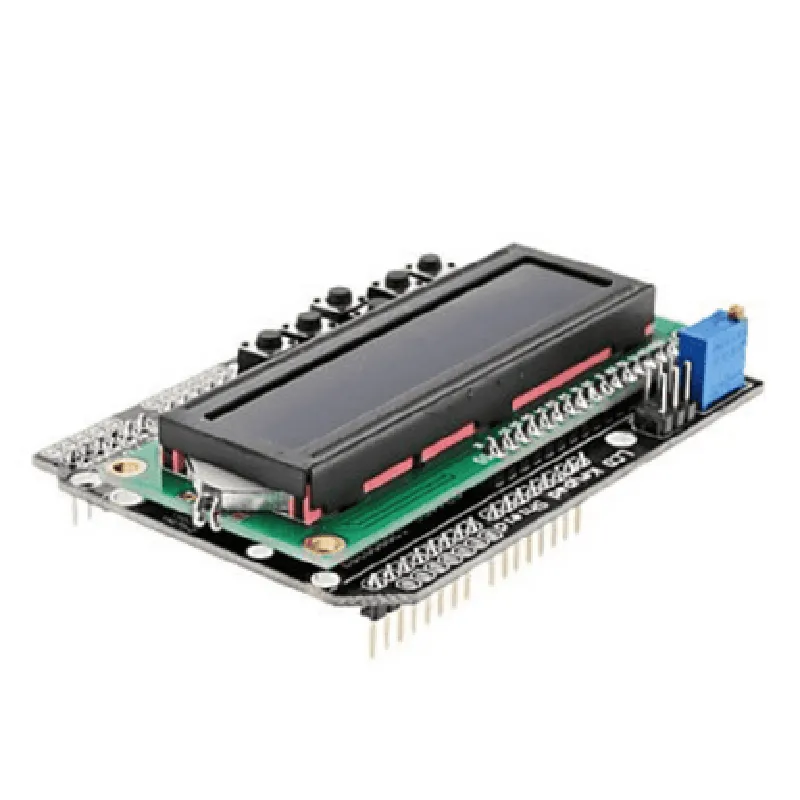
The Arduino 16X2 LCD Keypad Shield is a versatile and user-friendly expansion board designed for Arduino development boards. This shield combines a 16-character x 2-line LCD display with a 5-key keypad, providing a convenient and compact interface for users to interact with their Arduino projects.
The Arduino 16X2 LCD Keypad Shield is designed to simplify the process of adding a user interface to your Arduino projects. The shield features a 16-character x 2-line LCD display that can display alphanumeric characters, allowing users to view information, status, or messages related to their project. The 5-key keypad provides a simple and intuitive way for users to input commands, navigate through menus, or adjust settings.
16-character x 2-line display
White backlight for better visibility
Supports English and Japanese characters
Adjustable contrast and brightness control
5-key keypad with distinct buttons for Up, Down, Left, Right, and Enter
Tactile and clicky buttons for precise feedback
Debouncing circuitry to prevent multiple key presses
Compatible with most Arduino development boards, including Uno, Mega, and Due
Stackable design allows for combining with other shields
Simplifies the process of adding a user interface to Arduino projects
Easy-to-use library and example code provided for quick integration
Low power consumption, ideal for battery-powered projects
Compact design with a PCB size of 65mm x 53mm
Mounting holes for secure attachment to Arduino boards
| + Display Type | STN Positive LCD |
| + Resolution | 16 characters x 2 lines |
| + Operating Temperature | -20C to 70C |
| + Number of Keys | 5 |
| + Key Switch Type | Tactile |
| + Operating Life | 100,000 cycles |
| + operating Voltage | 5V |
| + Current Consumption | 50mA (typical), 100mA (max) |
| + PCB Size | 65mm x 53mm |
| + Thickness | 1.6mm |
| The Arduino 16X2 LCD Keypad Shield is an ideal component for a wide range of projects, including |
Interactive projects, such as home automation systems
Robotics and robotic arms
Weather stations and environmental monitoring systems
Remote control systems and transmitters
Educational projects and prototyping
The Arduino 16X2 LCD Keypad Shield offers a convenient and user-friendly way to add a simple yet effective user interface to your Arduino projects. With its compact design, ease of use, and versatility, this shield is an excellent addition to any Arduino enthusiast's toolkit.
Arduino 16X2 LCD Keypad Shield DocumentationOverviewThe Arduino 16X2 LCD Keypad Shield is a versatile module that combines a 16x2 character LCD display with a 5-button keypad, allowing users to create interactive projects with ease. This shield is specifically designed for Arduino boards and provides a convenient way to add a user interface to your projects.Pinouts and ConnectionsThe shield has the following pinouts and connections:LCD Display: Connects to digital pins 4, 5, 6, 7, 8, 9, and 10 of the Arduino board.
Keypad: Connects to digital pins 2, 3, 4, 5, and 6 of the Arduino board.Library and InstallationTo use the Arduino 16X2 LCD Keypad Shield, you'll need to install the `LiquidCrystal` library and the `Keypad` library. You can install these libraries using the Arduino Library Manager or by downloading them from the internet.Code Examples### Example 1: Displaying Text on the LCD and Reading Keypad InputThis example demonstrates how to display text on the LCD display and read input from the keypad.```cpp
#include <LiquidCrystal.h>
#include <Keypad.h>// Define the LCD display pins
const int rs = 12, en = 11, d4 = 5, d5 = 4, d6 = 3, d7 = 2;
LiquidCrystal_I2C lcd(rs, en, d4, d5, d6, d7);// Define the keypad pins
const int rowPins[] = { 6, 7, 8, 9 };
const int colPins[] = { 2, 3, 4, 5 };
char keys[] = { '1', '2', '3', 'A', '4', '5', '6', 'B', '7', '8', '9', 'C', '', '0', '#', 'D' };
Keypad keypad = Keypad(makeKeymap(keys), rowPins, colPins, 4, 4);void setup() {
lcd.begin(16, 2); // Initialize the LCD display
lcd.setCursor(0, 0); // Set the cursor to the top-left corner
lcd.print("Keypad Input:"); // Display a message on the LCD
}void loop() {
char key = keypad.getKey(); // Read a key press from the keypad
if (key) {
lcd.setCursor(0, 1); // Set the cursor to the second line
lcd.print(key); // Display the pressed key on the LCD
}
delay(50); // Wait for 50ms before checking again
}
```### Example 2: Creating a Simple Calculator using the Keypad and LCDThis example demonstrates how to create a simple calculator using the keypad and LCD display.```cpp
#include <LiquidCrystal.h>
#include <Keypad.h>// Define the LCD display pins
const int rs = 12, en = 11, d4 = 5, d5 = 4, d6 = 3, d7 = 2;
LiquidCrystal_I2C lcd(rs, en, d4, d5, d6, d7);// Define the keypad pins
const int rowPins[] = { 6, 7, 8, 9 };
const int colPins[] = { 2, 3, 4, 5 };
char keys[] = { '1', '2', '3', '+', '4', '5', '6', '-', '7', '8', '9', '', '0', '#', '/', '=' };
Keypad keypad = Keypad(makeKeymap(keys), rowPins, colPins, 4, 4);float num1, num2, result;
char operation;void setup() {
lcd.begin(16, 2); // Initialize the LCD display
lcd.setCursor(0, 0); // Set the cursor to the top-left corner
lcd.print("Simple Calculator"); // Display a message on the LCD
}void loop() {
char key = keypad.getKey(); // Read a key press from the keypad
if (key == '=' || key == '+' || key == '-' || key == '' || key == '/') {
operation = key;
lcd.setCursor(0, 1); // Set the cursor to the second line
lcd.print("Enter num2:"); // Display a message on the LCD
} else if (key >= '0' && key <= '9') {
if (operation == 0) {
num1 = num1 10 + (key - '0');
lcd.setCursor(0, 1); // Set the cursor to the second line
lcd.print(num1, 2); // Display the number on the LCD
} else {
num2 = num2 10 + (key - '0');
lcd.setCursor(8, 1); // Set the cursor to the second line
lcd.print(num2, 2); // Display the number on the LCD
}
} else if (key == '=') {
switch (operation) {
case '+':
result = num1 + num2;
break;
case '-':
result = num1 - num2;
break;
case '':
result = num1 num2;
break;
case '/':
result = num1 / num2;
break;
}
lcd.setCursor(0, 0); // Set the cursor to the top-left corner
lcd.print("Result:"); // Display a message on the LCD
lcd.setCursor(7, 0); // Set the cursor to the top-right corner
lcd.print(result, 2); // Display the result on the LCD
}
delay(50); // Wait for 50ms before checking again
}
```### Example 3: Creating a Menu System using the Keypad and LCDThis example demonstrates how to create a simple menu system using the keypad and LCD display.```cpp
#include <LiquidCrystal.h>
#include <Keypad.h>// Define the LCD display pins
const int rs = 12, en = 11, d4 = 5, d5 = 4, d6 = 3, d7 = 2;
LiquidCrystal_I2C lcd(rs, en, d4, d5, d6, d7);// Define the keypad pins
const int rowPins[] = { 6, 7, 8, 9 };
const int colPins[] = { 2, 3, 4, 5 };
char keys[] = { '1', '2', '3', 'A', '4', '5', '6', 'B', '7', '8', '9', 'C', '', '0', '#', 'D' };
Keypad keypad = Keypad(makeKeymap(keys), rowPins, colPins, 4, 4);int menuIndex = 0;void setup() {
lcd.begin(16, 2); // Initialize the LCD display
lcd.setCursor(0, 0); // Set the cursor to the top-left corner
lcd.print("Menu System"); // Display a message on the LCD
}void loop() {
char key = keypad.getKey(); // Read a key press from the keypad
if (key == 'A' || key == 'B' || key == 'C' || key == 'D') {
menuIndex = key - 'A';
lcd.setCursor(0, 1); // Set the cursor to the second line
switch (menuIndex) {
case 0:
lcd.print("Option 1"); // Display the selected option on the LCD
break;
case 1:
lcd.print("Option 2"); // Display the selected option on the LCD
break;
case 2:
lcd.print("Option 3"); // Display the selected option on the LCD
break;
case 3:
lcd.print("Option 4"); // Display the selected option on the LCD
break;
}
}
delay(50); // Wait for 50ms before checking again
}
```These examples demonstrate the basic usage of the Arduino 16X2 LCD Keypad Shield. You can customize and expand upon these examples to create more complex projects that utilize the shield's capabilities.