JHD 128x64 Graphic LCD - Blue Backlight


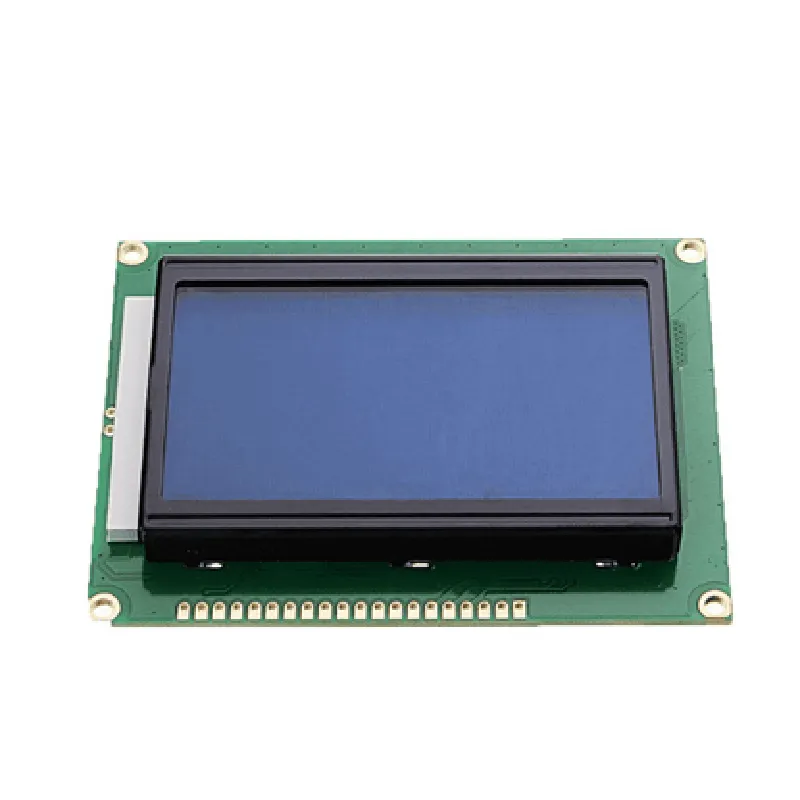
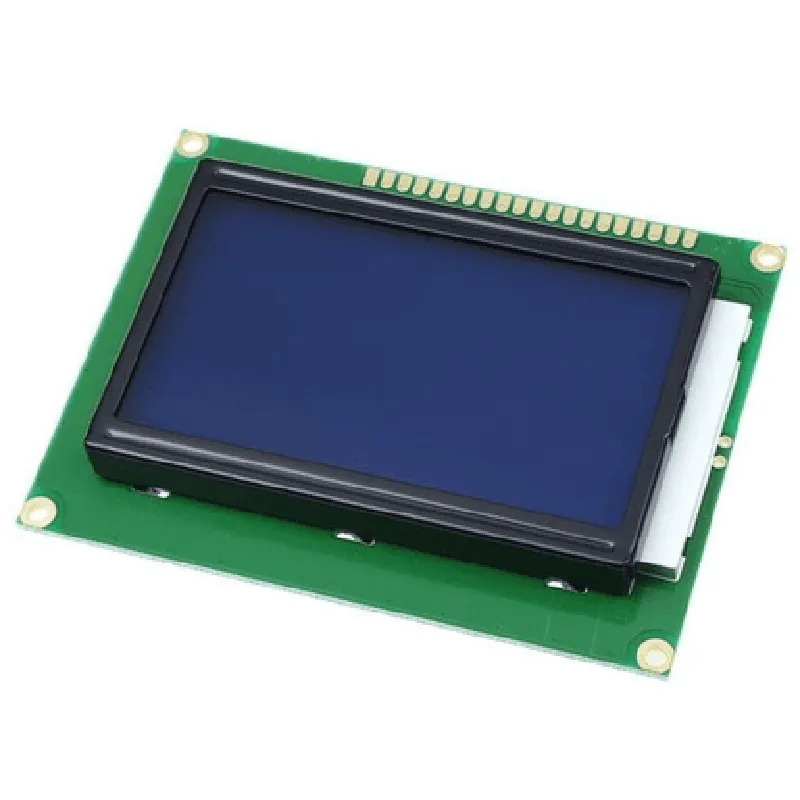
JHD 128x64 Graphic LCD - Blue Backlight
Display Modules
The JHD 128x64 Graphic LCD with Blue Backlight is a compact and versatile display module designed for use in various embedded systems, industrial control applications, and IoT devices. This graphic LCD module features a high-resolution 128x64 pixel display, a built-in blue backlight, and a robust set of interfaces for seamless integration with microcontrollers and other electronic components.
| The JHD 128x64 Graphic LCD is designed to display graphical and textual information in a compact form factor, making it an ideal choice for a wide range of applications, including |
Industrial control systems
Medical devices
Home appliances
IoT devices
Robotics and automation
Gaming and entertainment systems
### Display Specifications
128x64 pixels
Graphic LCD (STN, Positive)
2.7 inches (diagonal)
60 (left and right), 40 (up and down)
| 10 | 1 |
20 ms
### Backlight Specifications
Blue
100 cd/m
10,000 hours (minimum)
### Interface and Communication
8-bit parallel interface
supports 8080/6800 compatible interfaces
up to 2 MHz
### Power and Operating Conditions
5V
120 mA (maximum)
-20C to 70C
-30C to 80C
### Mechanical Characteristics
74.5 mm x 42.5 mm x 13.0 mm
approximately 35 grams
Through-hole mounting with 1.0 mm pitch
### Additional Features
| Built-in controller | ST7565R or equivalent |
Supports graphics and text display
Supports adjustable contrast and brightness
Overall, the JHD 128x64 Graphic LCD with Blue Backlight provides a high-quality display solution for a wide range of applications, offering excellent visibility, low power consumption, and ease of integration with various electronic systems.
JHD 128x64 Graphic LCD - Blue Backlight DocumentationOverviewThe JHD 128x64 Graphic LCD - Blue Backlight is a compact, high-contrast liquid crystal display designed for a variety of applications, including automotive, industrial, and consumer electronics. This display module features a 128x64 pixel resolution, blue backlight, and a standard ST7066U controller/driver. It communicates with external devices via a 4-bit or 8-bit parallel interface.Technical SpecificationsDisplay Size: 1.5 inches
Resolution: 128x64 pixels
Display Mode: STN (Super Twisted Nematic)
Backlight: Blue LED
Interface: 4-bit or 8-bit parallel
Controller/Driver: ST7066U
Operating Temperature: -20C to 70C
Storage Temperature: -30C to 80CConnection DiagramThe JHD 128x64 Graphic LCD - Blue Backlight module has the following pinout:| Pin | Function |
| --- | --- |
| 1 | VCC (5V) |
| 2 | VEE (GND) |
| 3 | Vo (Contrast Voltage) |
| 4 | RS (Register Select) |
| 5 | RW (Read/Write) |
| 6 | EN (Enable) |
| 7-10 | DB4-DB7 (Data Bus) |
| 11-14 | DB0-DB3 (Data Bus) |
| 15 | BLK (Backlight Control) |Code Examples### Example 1: Basic Initialization and Display with ArduinoThis example demonstrates how to initialize the JHD 128x64 Graphic LCD - Blue Backlight module and display a simple string using an Arduino board.```c++
#include <Arduino.h>#define LCD_RS 12
#define LCD_RW 11
#define LCD_EN 10
#define LCD_DB4 5
#define LCD_DB5 4
#define LCD_DB6 3
#define LCD_DB7 2
#define LCD_BACKLIGHT 9void setup() {
// Initialize LCD pins as outputs
pinMode(LCD_RS, OUTPUT);
pinMode(LCD_RW, OUTPUT);
pinMode(LCD_EN, OUTPUT);
pinMode(LCD_DB4, OUTPUT);
pinMode(LCD_DB5, OUTPUT);
pinMode(LCD_DB6, OUTPUT);
pinMode(LCD_DB7, OUTPUT);
pinMode(LCD_BACKLIGHT, OUTPUT);// Initialize LCD
lcdInit();
lcdClear();
lcdBacklight(true);// Display a string
lcdPrint("Hello, World!");
}void loop() {
// Do nothing
}void lcdInit() {
// Initialize LCD controller
digitalWrite(LCD_RS, LOW);
digitalWrite(LCD_RW, LOW);
digitalWrite(LCD_EN, LOW);
delayMicroseconds(20);digitalWrite(LCD_EN, HIGH);
delayMicroseconds(20);
digitalWrite(LCD_EN, LOW);
delayMicroseconds(20);// Function set: 8-bit interface, 2 lines, 5x7 dots
lcdCmd(0x38);
// Display on, cursor off
lcdCmd(0x0C);
// Clear display
lcdCmd(0x01);
}void lcdClear() {
// Clear display
lcdCmd(0x01);
delayMicroseconds(2000);
}void lcdBacklight(boolean state) {
digitalWrite(LCD_BACKLIGHT, state ? HIGH : LOW);
}void lcdPrint(String str) {
for (int i = 0; i < str.length(); i++) {
lcdChar(str[i]);
}
}void lcdCmd(byte cmd) {
digitalWrite(LCD_RS, LOW);
digitalWrite(LCD_RW, LOW);
digitalWrite(LCD_EN, LOW);
lcdWrite(cmd);
digitalWrite(LCD_EN, HIGH);
delayMicroseconds(2);
digitalWrite(LCD_EN, LOW);
}void lcdChar(byte ch) {
digitalWrite(LCD_RS, HIGH);
digitalWrite(LCD_RW, LOW);
digitalWrite(LCD_EN, LOW);
lcdWrite(ch);
digitalWrite(LCD_EN, HIGH);
delayMicroseconds(2);
digitalWrite(LCD_EN, LOW);
}void lcdWrite(byte data) {
digitalWrite(LCD_DB4, (data >> 4) & 0x01);
digitalWrite(LCD_DB5, (data >> 5) & 0x01);
digitalWrite(LCD_DB6, (data >> 6) & 0x01);
digitalWrite(LCD_DB7, (data >> 7) & 0x01);
delayMicroseconds(2);
}
```### Example 2: Custom Graphics with Raspberry Pi (Python)This example demonstrates how to initialize the JHD 128x64 Graphic LCD - Blue Backlight module and display a custom graphic using a Raspberry Pi board with Python.```python
import RPi.GPIO as GPIO
import time# Configure GPIO library
GPIO.setmode(GPIO.BCM)# Define LCD pins
LCD_RS = 17
LCD_RW = 23
LCD_EN = 24
LCD_DB4 = 4
LCD_DB5 = 5
LCD_DB6 = 6
LCD_DB7 = 7
LCD_BACKLIGHT = 12# Initialize LCD pins as outputs
GPIO.setup(LCD_RS, GPIO.OUT)
GPIO.setup(LCD_RW, GPIO.OUT)
GPIO.setup(LCD_EN, GPIO.OUT)
GPIO.setup(LCD_DB4, GPIO.OUT)
GPIO.setup(LCD_DB5, GPIO.OUT)
GPIO.setup(LCD_DB6, GPIO.OUT)
GPIO.setup(LCD_DB7, GPIO.OUT)
GPIO.setup(LCD_BACKLIGHT, GPIO.OUT)# Initialize LCD controller
GPIO.output(LCD_RS, GPIO.LOW)
GPIO.output(LCD_RW, GPIO.LOW)
GPIO.output(LCD_EN, GPIO.LOW)
time.sleep(0.02)GPIO.output(LCD_EN, GPIO.HIGH)
time.sleep(0.02)
GPIO.output(LCD_EN, GPIO.LOW)
time.sleep(0.02)# Function set: 8-bit interface, 2 lines, 5x7 dots
lcdCmd(0x38)
# Display on, cursor off
lcdCmd(0x0C)
# Clear display
lcdCmd(0x01)# Create a custom graphic (5x7 pixels)
graphic = [
0x00, 0x00, 0x00, 0x00, 0x00,
0x00, 0x18, 0x18, 0x18, 0x00,
0x00, 0x18, 0x0C, 0x18, 0x00,
0x00, 0x18, 0x06, 0x18, 0x00,
0x00, 0x18, 0x18, 0x18, 0x00,
0x00, 0x00, 0x00, 0x00, 0x00
]# Display the graphic
for i in range(0, 5):
lcdCmd(0x80 + i)
for j in range(0, 5):
lcdData(graphic[i 5 + j])# Define LCD commands and data functions
def lcdCmd(cmd):
GPIO.output(LCD_RS, GPIO.LOW)
GPIO.output(LCD_RW, GPIO.LOW)
lcdWrite(cmd)
GPIO.output(LCD_EN, GPIO.HIGH)
time.sleep(0.002)
GPIO.output(LCD_EN, GPIO.LOW)def lcdData(data):
GPIO.output(LCD_RS, GPIO.HIGH)
GPIO.output(LCD_RW, GPIO.LOW)
lcdWrite(data)
GPIO.output(LCD_EN, GPIO.HIGH)
time.sleep(0.002)
GPIO.output(LCD_EN, GPIO.LOW)def lcdWrite(data):
GPIO.output(LCD_DB4, (data >> 4) & 0x01)
GPIO.output(LCD_DB5, (data >> 5) & 0x01)
GPIO.output(LCD_DB6, (data >> 6) & 0x01)
GPIO.output(LCD_DB7, (data >> 7) & 0x01)
time.sleep(0.002)# Backlight control
GPIO.output(LCD_BACKLIGHT, GPIO.HIGH)# Clean up
GPIO.cleanup()
```These examples demonstrate the basic usage of the JHD 128x64 Graphic LCD - Blue Backlight module in different contexts. You can modify and expand upon these examples to suit your specific application requirements.