Stufin
Home Quick Cart Profile

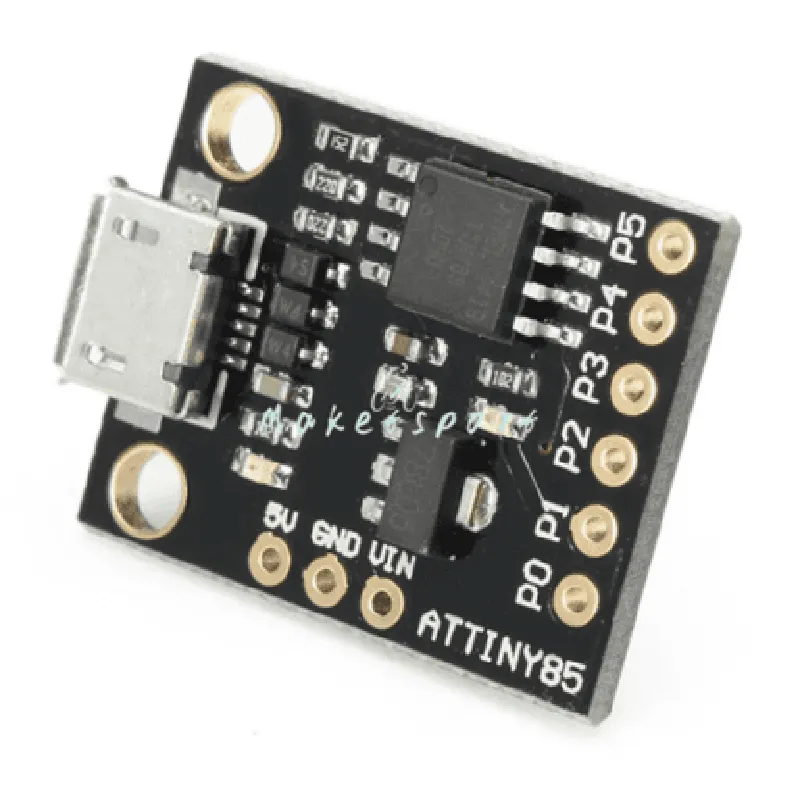
ATTiny85 USB Development Board

Buy Now on Stufin

Component Description

ATTiny85 USB Development Board

Overview

The ATTiny85 USB Development Board is a compact, versatile, and user-friendly microcontroller board based on the popular ATTiny85 microcontroller. This board is designed to provide an easy-to-use platform for developing and prototyping USB-based projects, allowing users to create innovative IoT devices, robots, and other interactive systems.

Key Features

  • Microcontroller: The board is powered by the ATTiny85, an 8-bit AVR microcontroller with 8KB of flash memory, 512 bytes of SRAM, and 512 bytes of EEPROM.
  • USB Interface: The board features a built-in USB interface, which enables communication with computers and other USB devices.
  • Programming: The ATTiny85 can be programmed using a variety of programming languages, including C, Arduino, and AVR-GCC.
  • GPIO Pins: The board provides 6 digital I/O pins, 3 of which are PWM-capable, allowing for a wide range of sensor and actuator connections.
  • Power Options: The board can be powered via USB or an external power source (2.1mm DC jack), making it suitable for battery-powered and mains-powered applications.
  • On-Board Components: The board includes a 16MHz crystal oscillator, a 3.3V voltage regulator, and a reset button.

Functionality

The ATTiny85 USB Development Board is designed to facilitate the development of a wide range of projects, including

USB peripherals, such as keyboards, mice, and joysticks

IoT devices, such as sensors, actuators, and remote monitoring systems

Robots and robotic arms

Interactive art installations and exhibits

Home automation systems

Wearable devices and accessories

Technical Specifications

Microcontroller

ATTiny85

Operating Frequency

16MHz

Flash Memory

8KB

SRAM

512 bytes

EEPROM

512 bytes

USB Interface

USB 1.1/2.0 compatible

GPIO Pins

6 digital I/O pins (3 PWM-capable)

Power Options

USB or external power source (2.1mm DC jack)

Operating Voltage

3.3V or 5V (depending on power source)

Dimensions

25.4mm x 17.8mm x 5.1mm (1 inch x 0.7 inch x 0.2 inch)

Weight

approximately 10 grams

Development Tools and Resources

IDE

Arduino, AVR-GCC, and other compatible development environments

Programming Languages

C, Arduino, and AVR-GCC

Libraries and Frameworks

USB libraries and frameworks, such as V-USB and USBasp

Documentation

Comprehensive documentation, including datasheets, user manuals, and tutorials

Target Audience

The ATTiny85 USB Development Board is suitable for a wide range of users, including

Hobbyists and makers

Students and educators

Professionals and engineers

Researchers and developers

IoT enthusiasts and entrepreneurs

Pin Configuration

  • ATTiny85 USB Development Board Pinout Guide
  • The ATTiny85 USB Development Board is a compact and versatile IoT component that combines the ATTiny85 microcontroller with a USB interface. This guide provides a detailed explanation of each pin on the board, helping you understand their functions and how to connect them correctly.
  • Pinout Diagram:
  • Before we dive into the pin-by-pin explanation, here is the pinout diagram of the ATTiny85 USB Development Board:
  • ```
  • +---------------+
  • | 1 | 2 | 3 | 4 |
  • | VCC | RST | PB5 | GND |
  • +---------------+
  • | 5 | 6 | 7 | 8 |
  • | PB3 | PB4 | PB0 | PB1 |
  • +---------------+
  • | 9 | 10 | 11 | 12 |
  • | PB2 | DI- | DI+ | VUSB |
  • +---------------+
  • ```
  • Pin-by-Pin Explanation:
  • Here's a detailed explanation of each pin on the ATTiny85 USB Development Board:
  • 1. VCC (Pin 1): Power supply pin. Connect to a 5V power source to power the board.
  • 2. RST (Pin 2): Reset pin. Connect to a reset button or a pulled-up resistor to reset the microcontroller.
  • 3. PB5 (Pin 3): General-purpose digital I/O pin. Can be used as an input or output.
  • 4. GND (Pin 4): Ground pin. Connect to a ground (0V) point in your circuit.
  • 5. PB3 (Pin 5): General-purpose digital I/O pin. Can be used as an input or output.
  • 6. PB4 (Pin 6): General-purpose digital I/O pin. Can be used as an input or output.
  • 7. PB0 (Pin 7): General-purpose digital I/O pin. Can be used as an input or output.
  • 8. PB1 (Pin 8): General-purpose digital I/O pin. Can be used as an input or output.
  • 9. PB2 (Pin 9): General-purpose digital I/O pin. Can be used as an input or output.
  • 10. DI- (Pin 10): USB data minus (D-) pin. Connect to a USB data cable (white wire).
  • 11. DI+ (Pin 11): USB data plus (D+) pin. Connect to a USB data cable (green wire).
  • 12. VUSB (Pin 12): USB power (VUSB) pin. Connect to a USB power cable (red wire).
  • Connection Structure:
  • When connecting the pins, follow these guidelines:
  • Connect VCC (Pin 1) to a 5V power source.
  • Connect RST (Pin 2) to a reset button or a pulled-up resistor.
  • Connect GND (Pin 4) to a ground (0V) point in your circuit.
  • Connect the general-purpose digital I/O pins (PB0 to PB5) to your desired peripherals, such as sensors, LEDs, or buttons.
  • Connect the USB pins (DI-, DI+, and VUSB) to a USB data cable and a USB power cable.
  • Important Notes:
  • Make sure to handle the ATTiny85 microcontroller with care, as it is a sensitive electronic component.
  • Use a suitable power supply to avoid damaging the board.
  • Connect the pins correctly to avoid short circuits or damage to the board.
  • Refer to the datasheet and documentation of the ATTiny85 microcontroller for more information on programming and usage.
  • By following this guide, you should be able to connect and utilize the pins on the ATTiny85 USB Development Board for your IoT projects.

Code Examples

ATTiny85 USB Development Board Documentation
Overview
The ATTiny85 USB Development Board is a compact, low-cost, and versatile microcontroller board based on the ATTiny85 chip. It features a built-in USB interface, making it an ideal choice for developing USB-based projects. This documentation provides an overview of the board's features, technical specifications, and code examples to get you started with using the ATTiny85 USB Development Board in various contexts.
Features
Microcontroller: ATTiny85
 Operating Voltage: 5V
 Input Voltage: 7-12V
 USB Interface: Built-in USB 2.0 interface
 GPIO Pins: 6 digital I/O pins
 Analog Pins: 4 analog input pins
 Flash Memory: 8KB
 SRAM: 512B
 EEPROM: 512B
 Clock Speed: 16.5MHz
Code Examples
### Example 1: USB Serial Communication
In this example, we will use the ATTiny85 USB Development Board as a USB serial device to send and receive data to/from a computer.
Hardware Requirements
ATTiny85 USB Development Board
 USB cable
 Computer with USB port
Software Requirements
Arduino IDE (version 1.8.x or later)
 USBtinyISP driver (for Windows, macOS, or Linux)
Code
```c
#include <TinyUSB.h>
void setup() {
  // Initialize USB serial communication
  Serial.begin(9600);
}
void loop() {
  // Send "Hello, World!" to the computer
  Serial.println("Hello, World!");
  delay(1000);
}
```
Explanation
In this example, we use the Arduino IDE to program the ATTiny85 chip. The `TinyUSB` library is used to initialize the USB serial communication. In the `setup()` function, we set the serial communication speed to 9600 bps. In the `loop()` function, we send the string "Hello, World!" to the computer using the `Serial.println()` function.
### Example 2: Blinking LED with USB-Controlled Frequency
In this example, we will use the ATTiny85 USB Development Board to control the frequency of a blinking LED using a USB command from a computer.
Hardware Requirements
ATTiny85 USB Development Board
 LED
 220 resistor
 Breadboard
 Jumper wires
Software Requirements
Arduino IDE (version 1.8.x or later)
 USBtinyISP driver (for Windows, macOS, or Linux)
Code
```c
#include <TinyUSB.h>
const int ledPin = 0;  // LED connected to digital pin 0
int frequency = 1;  // Initial frequency (1 Hz)
void setup() {
  // Initialize USB serial communication
  Serial.begin(9600);
  pinMode(ledPin, OUTPUT);
}
void loop() {
  // Check for incoming USB command
  if (Serial.available() > 0) {
    char cmd = Serial.read();
    if (cmd == 'F') {
      // Set frequency from USB command
      frequency = Serial.parseInt();
    }
  }
  
  // Blink LED with controlled frequency
  digitalWrite(ledPin, HIGH);
  delay(frequency  1000);
  digitalWrite(ledPin, LOW);
  delay(frequency  1000);
}
```
Explanation
In this example, we use the Arduino IDE to program the ATTiny85 chip. The `TinyUSB` library is used to initialize the USB serial communication. We define the LED pin as digital output and set the initial frequency to 1 Hz. In the `loop()` function, we check for incoming USB commands. If a command is received, we parse the frequency value and update the blinking frequency accordingly. The LED is then blinked at the controlled frequency using the `digitalWrite()` and `delay()` functions.
These examples demonstrate the versatility of the ATTiny85 USB Development Board in various contexts, from simple serial communication to more complex USB-controlled applications. With its compact size, low cost, and built-in USB interface, this board is an ideal choice for a wide range of IoT projects.