Stufin
Home Quick Cart Profile

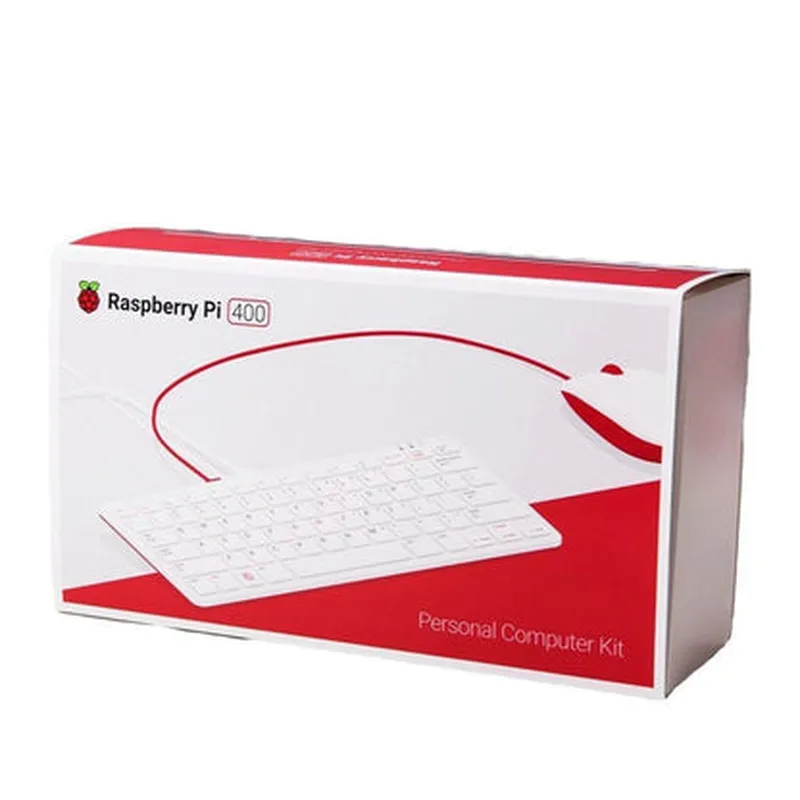
Raspberry Pi 400 Official Kit

Buy Now on Stufin

MicroSD card slot

Supports up to 1TB of storage for operating systems, applications, and data

### Connectivity and Interfaces

Dual-band 802.11ac wirelessOffers reliable and fast wireless connectivity
Bluetooth 5.0Enables connections to devices, such as keyboards, mice, and speakers

Gigabit Ethernet

Provides a wired network connection

2x USB 3.0 portsSupports high-speed data transfer and device connections
1x USB 2.0 portSuitable for low-speed devices, such as keyboards and mice
HDMI 2.0 portOutputs 4K video at 60 Hz, with support for multi-monitor setups
3.5mm audio jackOutputs audio to speakers or headphones

### Power and Miscellaneous

Power over Ethernet (PoE) supportEnables power delivery over Ethernet cables

Operating temperature range

-20C to 50C (-4F to 122F), making it suitable for industrial and outdoor applications

Dimensions

286 mm x 122 mm x 23 mm (11.3 in x 4.8 in x 0.9 in), including the keyboard

### Bundle Components

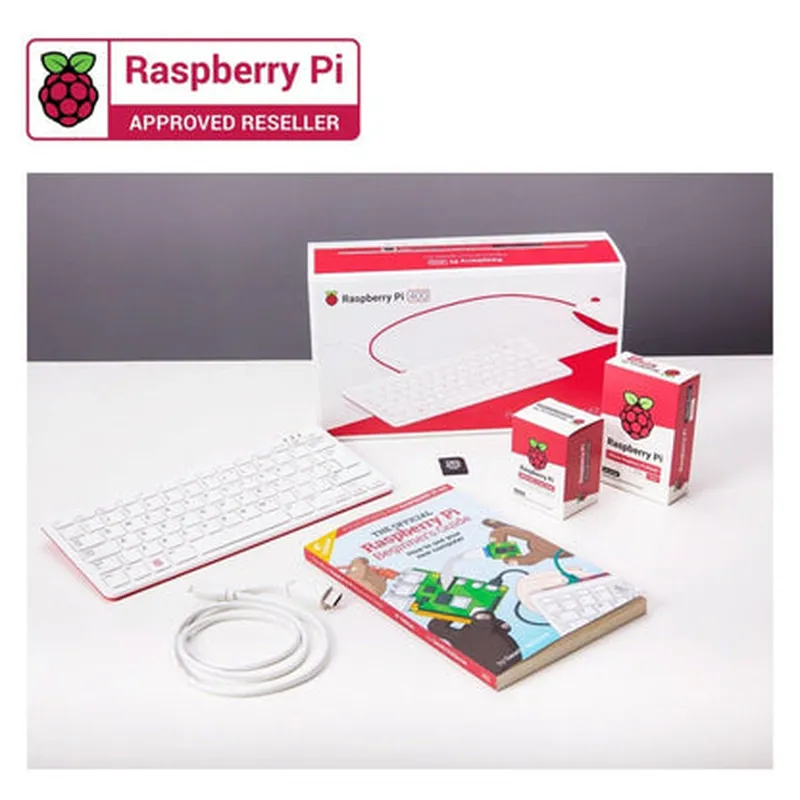
Raspberry Pi 400 board

Official Raspberry Pi keyboard

MicroSD card with Raspberry Pi OS

Power supply

User guide and documentation

Target Applications

--------------------

The Raspberry Pi 400 Official Kit is ideal for

IoT and robotics projects

Home automation systems

Media centers and retro game consoles

Industrial control systems

Educational institutions and STEM programs

Hobbyist projects and prototyping

Conclusion

--------------

The Raspberry Pi 400 Official Kit offers a comprehensive solution for users seeking a compact, powerful, and affordable single-board computer. Its versatility, ease of use, and extensive range of features make it an excellent choice for a wide range of applications, from simple projects to complex industrial deployments.

Pin Configuration

  • Raspberry Pi 400 Official Kit Pinout Guide
  • The Raspberry Pi 400 Official Kit is a compact and powerful single-board computer that offers a range of GPIO (General Purpose Input/Output) pins for interacting with external devices and peripherals. Here is a detailed explanation of each pin on the Raspberry Pi 400, broken down into categories for easy understanding:
  • Power Pins
  • 1. Pin 1: 3.3V Power
  • Provides a stable 3.3V DC power output for external devices.
  • Maximum current draw: 50mA.
  • 2. Pin 2: 5V Power
  • Provides a stable 5V DC power output for external devices.
  • Maximum current draw: 1A (limited by the USB input current).
  • 3. Pin 6: Ground
  • A common ground reference point for allGPIO pins.
  • GPIO Pins
  • 4. Pin 7: GPIO 4 (SDA)
  • A digital input/output pin that can be used for I2C communication (SDA = Serial Data Line).
  • 5. Pin 8: GPIO 14 (TXD)
  • A digital input/output pin that can be used for UART (TXD = Transmit Data) communication.
  • 6. Pin 9: GPIO 15 (RXD)
  • A digital input/output pin that can be used for UART (RXD = Receive Data) communication.
  • 7. Pin 10: GPIO 17
  • A digital input/output pin that can be used for general-purpose I/O operations.
  • 8. Pin 11: GPIO 18
  • A digital input/output pin that can be used for general-purpose I/O operations.
  • 9. Pin 12: GPIO 21 (SCL)
  • A digital input/output pin that can be used for I2C communication (SCL = Serial Clock Line).
  • 10. Pin 13: GPIO 22
  • A digital input/output pin that can be used for general-purpose I/O operations.
  • 11. Pin 14: GPIO 23
  • A digital input/output pin that can be used for general-purpose I/O operations.
  • 12. Pin 15: GPIO 24
  • A digital input/output pin that can be used for general-purpose I/O operations.
  • 13. Pin 16: GPIO 10 (MOSI)
  • A digital input/output pin that can be used for SPI (MOSI = Master Out Slave In) communication.
  • 14. Pin 17: GPIO 11 (SCLK)
  • A digital input/output pin that can be used for SPI (SCLK = Serial Clock) communication.
  • 15. Pin 18: GPIO 25
  • A digital input/output pin that can be used for general-purpose I/O operations.
  • 16. Pin 19: GPIO 8 (CE0)
  • A digital input/output pin that can be used for SPI (CE0 = Chip Enable 0) communication.
  • 17. Pin 20: GPIO 7 (CE1)
  • A digital input/output pin that can be used for SPI (CE1 = Chip Enable 1) communication.
  • Additional Pins
  • 21. Pin 21: 3.3V Power ( alternate )
  • An alternate 3.3V DC power output for external devices.
  • 22. Pin 22: 5V Power ( alternate )
  • An alternate 5V DC power output for external devices.
  • 23. Pin 23: Ground ( alternate )
  • An alternate common ground reference point for allGPIO pins.
  • 24. Pin 24: ID_SD ( reserved )
  • A reserved pin for potential future use.
  • 25. Pin 25: ID_SC ( reserved )
  • A reserved pin for potential future use.
  • Connecting the Pins
  • When connecting external devices to the Raspberry Pi 400, make sure to follow these guidelines:
  • Use a suitable connector or header to connect to the GPIO pins.
  • Ensure the pinouts match the device's documentation or datasheet.
  • Use resistors or voltage dividers when necessary to prevent voltage damage.
  • Avoid connecting multiple devices to the same GPIO pin without proper isolation or buffering.
  • Always refer to the Raspberry Pi 400 documentation and the device's documentation for specific connection requirements.
  • Remember to handle the Raspberry Pi 400 and external devices with care to prevent damage from electrostatic discharge, physical shock, or incorrect connections.

Code Examples

Raspberry Pi 400 Official Kit Documentation
Overview
The Raspberry Pi 400 Official Kit is a compact, all-in-one computer built into a keyboard. It is a powerful and versatile device that can be used for a wide range of applications, from basic computing to advanced IoT projects.
Technical Specifications
CPU: Broadcom BCM2711C0 quad-core Cortex-A72 (ARM v8) 64-bit SoC @ 1.8GHz
 RAM: 4GB LPDDR4-400
 Storage: 16GB eMMC Flash storage
 Operating System: Raspberry Pi OS (based on Linux)
 Connectivity: Dual-band 802.11ac wireless, Bluetooth 5.0, Gigabit Ethernet, USB 3.0, HDMI
 Power consumption: 5V, 3A
Code Examples
### Example 1: Basic Python Script for GPIO Control
In this example, we will use the Raspberry Pi 400 to control an LED connected to one of the GPIO pins.
Hardware Requirements:
Raspberry Pi 400 Official Kit
 LED
 Resistor (1k)
 Breadboard
 Jumper wires
Software Requirements:
Raspberry Pi OS (latest version)
 Python 3.x installed
Code:
```python
import RPi.GPIO as GPIO
import time
# Set up GPIO mode
GPIO.setmode(GPIO.BCM)
# Set up the LED pin as an output
GPIO.setup(17, GPIO.OUT)
try:
    while True:
        # Turn the LED on
        GPIO.output(17, GPIO.HIGH)
        time.sleep(1)
# Turn the LED off
        GPIO.output(17, GPIO.LOW)
        time.sleep(1)
except KeyboardInterrupt:
    # Clean up GPIO on exit
    GPIO.cleanup()
```
Explanation:
This code uses the RPi.GPIO library to control the GPIO pins on the Raspberry Pi 400. We set up the LED pin (GPIO 17) as an output and use a loop to toggle the LED on and off every second.
### Example 2: IoT-based Weather Station using Python and API
In this example, we will use the Raspberry Pi 400 to create a basic weather station that retrieves weather data from an API and displays it on an LCD screen.
Hardware Requirements:
Raspberry Pi 400 Official Kit
 LCD screen (16x2)
 Breadboard
 Jumper wires
 Internet connection
Software Requirements:
Raspberry Pi OS (latest version)
 Python 3.x installed
 `requests` library installed
 `py_lcd` library installed (for LCD screen control)
Code:
```python
import requests
import py_lcd
# Set up the LCD screen
lcd = py_lcd.LCD(0x27, 16, 2)
# API endpoint for weather data
api_url = "http://api.openweathermap.org/data/2.5/weather"
# API key (replace with your own)
api_key = "YOUR_API_KEY"
try:
    while True:
        # Retrieve weather data from API
        response = requests.get(api_url, params={"q": "London,UK", "appid": api_key})
        data = response.json()
# Extract temperature and humidity from data
        temp = data["main"]["temp"]
        humidity = data["main"]["humidity"]
# Display weather data on LCD screen
        lcd.clear()
        lcd.print("Temp: {:.1f}C".format(temp - 273.15))
        lcd.print("Humidity: {:.0f}%".format(humidity))
# Wait 10 seconds before updating again
        time.sleep(10)
except KeyboardInterrupt:
    # Clean up LCD screen on exit
    lcd.clear()
```
Explanation:
This code uses the `requests` library to retrieve weather data from the OpenWeatherMap API. We then use the `py_lcd` library to control the LCD screen and display the temperature and humidity data. The code runs in an infinite loop, updating the LCD screen every 10 seconds.
These examples demonstrate the versatility and ease of use of the Raspberry Pi 400 Official Kit in various IoT contexts.