

Stufin
Home Quick Cart Profile

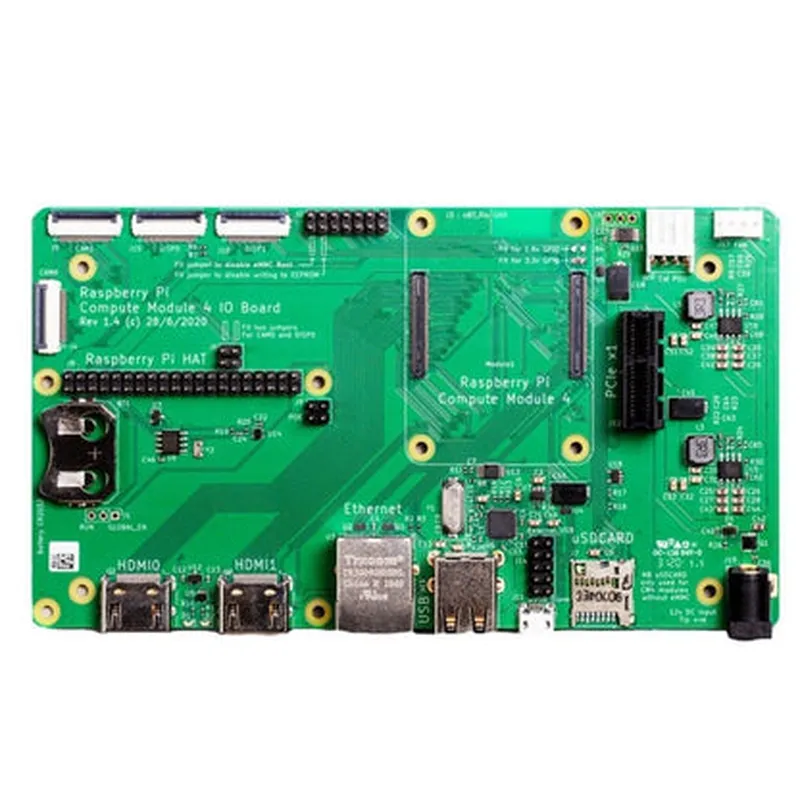
Raspberry Pi Compute Module 4 IO Board

Buy Now on Stufin

Operating Temperature

0C to 50C

Power Supply

5V DC (via DC power jack or USB)

Power Consumption

Typical 1.5W ( idle), Max 3.5W ( max performance)

Dimensions

120mm x 80mm x 20mm (4.7" x 3.1" x 0.8")

Software Support

The Raspberry Pi Compute Module 4 IO Board supports a range of operating systems, including

Raspberry Pi OS (official OS)

Ubuntu

Windows 10 IoT Enterprise

Yocto Project

Custom Linux distributions

Typical Applications

  • IoT Projects
  • Robotics
  • Industrial Automation
  • AI and Machine Learning
  • Media Centers
  • Digital Signage
  • Home Automation
  • Wearable Electronics

The Raspberry Pi Compute Module 4 IO Board is an ideal development platform for engineers, makers, and innovators working on a wide range of projects that require a high-performance, feature-rich, and cost-effective system-on-module solution.

Pin Configuration

  • Raspberry Pi Compute Module 4 IO Board Pinout Guide
  • The Raspberry Pi Compute Module 4 IO Board is a breakout board for the Raspberry Pi Compute Module 4, providing access to all the GPIO pins and other interfaces. Here is a detailed explanation of each pin on the IO Board, structured point by point:
  • GPIO Pins ( GPIO0 - GPIO27 )
  • GPIO0 (Pin 1): GPIO pin 0, can be used as a general-purpose input/output pin.
  • GPIO1 (Pin 2): GPIO pin 1, can be used as a general-purpose input/output pin.
  • GPIO2 (Pin 3): GPIO pin 2, can be used as a general-purpose input/output pin.
  • GPIO3 (Pin 4): GPIO pin 3, can be used as a general-purpose input/output pin.
  • GPIO4 (Pin 5): GPIO pin 4, can be used as a general-purpose input/output pin.
  • GPIO5 (Pin 6): GPIO pin 5, can be used as a general-purpose input/output pin.
  • GPIO6 (Pin 7): GPIO pin 6, can be used as a general-purpose input/output pin.
  • GPIO7 (Pin 8): GPIO pin 7, can be used as a general-purpose input/output pin.
  • GPIO8 (Pin 9): GPIO pin 8, can be used as a general-purpose input/output pin.
  • GPIO9 (Pin 10): GPIO pin 9, can be used as a general-purpose input/output pin.
  • GPIO10 (Pin 11): GPIO pin 10, can be used as a general-purpose input/output pin.
  • GPIO11 (Pin 12): GPIO pin 11, can be used as a general-purpose input/output pin.
  • GPIO12 (Pin 13): GPIO pin 12, can be used as a general-purpose input/output pin.
  • GPIO13 (Pin 14): GPIO pin 13, can be used as a general-purpose input/output pin.
  • GPIO14 (Pin 15): GPIO pin 14, can be used as a general-purpose input/output pin. Also, it's the TXD (Transmit) pin for the UART interface.
  • GPIO15 (Pin 16): GPIO pin 15, can be used as a general-purpose input/output pin. Also, it's the RXD (Receive) pin for the UART interface.
  • GPIO16 (Pin 17): GPIO pin 16, can be used as a general-purpose input/output pin.
  • GPIO17 (Pin 18): GPIO pin 17, can be used as a general-purpose input/output pin.
  • GPIO18 (Pin 19): GPIO pin 18, can be used as a general-purpose input/output pin.
  • GPIO19 (Pin 20): GPIO pin 19, can be used as a general-purpose input/output pin.
  • GPIO20 (Pin 21): GPIO pin 20, can be used as a general-purpose input/output pin.
  • GPIO21 (Pin 22): GPIO pin 21, can be used as a general-purpose input/output pin.
  • GPIO22 (Pin 23): GPIO pin 22, can be used as a general-purpose input/output pin.
  • GPIO23 (Pin 24): GPIO pin 23, can be used as a general-purpose input/output pin.
  • GPIO24 (Pin 25): GPIO pin 24, can be used as a general-purpose input/output pin.
  • GPIO25 (Pin 26): GPIO pin 25, can be used as a general-purpose input/output pin.
  • GPIO26 (Pin 27): GPIO pin 26, can be used as a general-purpose input/output pin.
  • GPIO27 (Pin 28): GPIO pin 27, can be used as a general-purpose input/output pin.
  • Other Interfaces
  • GND (Pins 29, 30, 39, 40): Ground pins, used for making connections to the ground plane.
  • 3.3V Power (Pins 31, 32): 3.3V power pins, used to power external devices or modules.
  • 5V Power (Pins 33, 34): 5V power pins, used to power external devices or modules.
  • USB Host (Pins 35-38): USB Host interface, used to connect USB devices.
  • HDMI (Pins 41-46): HDMI interface, used to connect displays or monitors.
  • Camera (Pins 47, 48): Camera interface, used to connect Raspberry Pi cameras.
  • Display (Pins 49, 50): Display interface, used to connect displays or monitors.
  • SD Card (Pins 51-54): SD Card interface, used to connect SD cards.
  • Connecting the Pins
  • To connect the pins on the Raspberry Pi Compute Module 4 IO Board, follow these general steps:
  • 1. Identify the pin: Determine which pin you want to connect to, based on the pinout diagram above.
  • 2. Choose the correct cable: Select a suitable cable or connector that matches the pin type (e.g., GPIO, power, signal).
  • 3. Connect the cable: Carefully connect the cable to the corresponding pin on the IO Board.
  • 4. Verify the connection: Double-check the connection to ensure it is secure and correct.
  • When working with the GPIO pins, it's essential to use the correct pin numbering scheme, which is based on the GPIO number (e.g., GPIO 14 is pin 15).
  • Remember to follow proper safety precautions when working with electrical connections, and consult the official Raspberry Pi documentation for more detailed information on using the Compute Module 4 IO Board.

Code Examples

Raspberry Pi Compute Module 4 IO Board Documentation
Overview
The Raspberry Pi Compute Module 4 IO Board is a development board designed for prototyping and testing IoT projects using the Raspberry Pi Compute Module 4. It provides a convenient way to access the Compute Module's I/O signals, making it easier to develop and test projects.
Features
Compatible with Raspberry Pi Compute Module 4
 Breakout for all GPIO, HDMI, USB, and Ethernet interfaces
 2x20-pin header for accessing GPIO signals
 Power supply and reset switches
 USB-C for-power delivery and data transfer
 MicroSD card slot for Compute Module storage
Code Examples
### Example 1: GPIO Input/Output using Python
This example demonstrates how to use the Raspberry Pi Compute Module 4 IO Board to read and write digital signals using Python.
Hardware Requirements:
Raspberry Pi Compute Module 4
 Raspberry Pi Compute Module 4 IO Board
 Breadboard and jumper wires
 LED and resistor for output testing
 Button or switch for input testing
Python Code:
```python
import RPi.GPIO as GPIO
# Set up GPIO library
GPIO.setmode(GPIO.BCM)
# Define input and output pins
input_pin = 17
output_pin = 23
# Set up input pin as input
GPIO.setup(input_pin, GPIO.IN, pull_up_down=GPIO.PUD_UP)
# Set up output pin as output
GPIO.setup(output_pin, GPIO.OUT)
while True:
    # Read input pin state
    input_state = GPIO.input(input_pin)
    print(f"Input pin state: {input_state}")
# Toggle output pin state
    output_state = GPIO.output(output_pin, not GPIO.input(output_pin))
    print(f"Output pin state: {output_state}")
# Wait for 1 second
    time.sleep(1)
```
This code reads the state of an input pin (e.g., a button press) and toggles the state of an output pin (e.g., an LED) based on the input state.
### Example 2: HDMI Display using Raspberry Pi OS
This example demonstrates how to use the Raspberry Pi Compute Module 4 IO Board to display output on an HDMI monitor using the Raspberry Pi OS.
Hardware Requirements:
Raspberry Pi Compute Module 4
 Raspberry Pi Compute Module 4 IO Board
 HDMI monitor
 HDMI cable
 Power supply for the Compute Module
Raspberry Pi OS Configuration:
1. Insert the microSD card into the Compute Module 4 IO Board.
2. Connect the HDMI monitor to the HDMI port on the IO Board.
3. Power on the Compute Module 4.
4. Configure the Raspberry Pi OS to use the HDMI output:
```bash
sudo raspi-config
```
Select "Interfacing Options" and then "HDMI" to enable HDMI output.
5. Restart the Compute Module 4:
```
sudo reboot
```
The Raspberry Pi OS will now display on the HDMI monitor.
These examples demonstrate the flexibility and versatility of the Raspberry Pi Compute Module 4 IO Board in various IoT project contexts.