Stufin
Home Quick Cart Profile

34 Experiments Electronics Kit


Buy Now on Stufin

Component Name

34 Experiments Electronics Kit
Description

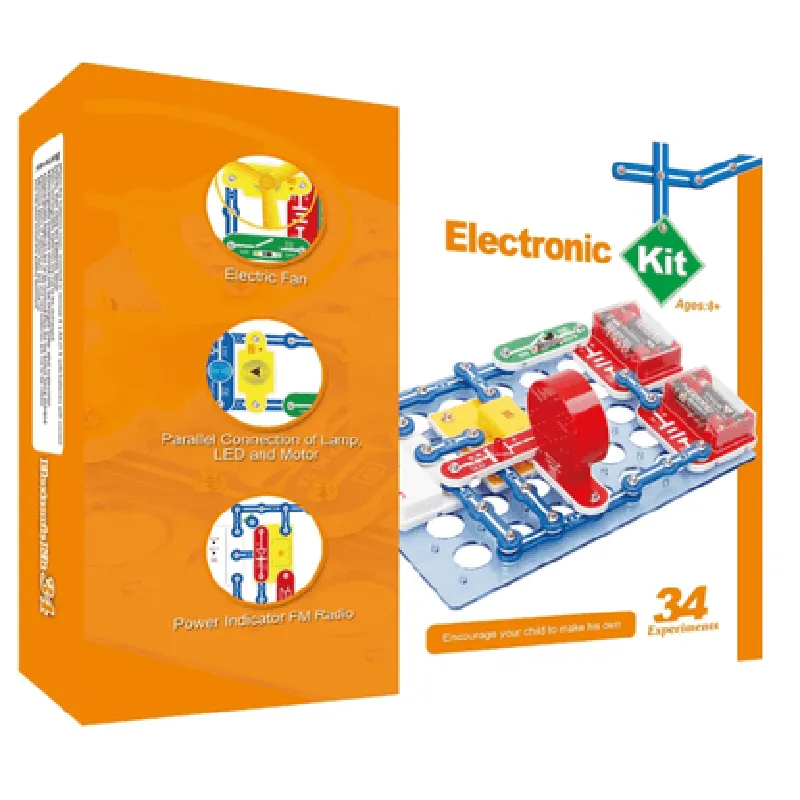
The 34 Experiments Electronics Kit is a comprehensive, hands-on learning platform designed for beginners and hobbyists to explore the world of electronics and IoT. This kit provides a unique opportunity to learn and experiment with various electronic components, circuits, and projects, making it an ideal tool for educational institutions, makerspaces, and individuals interested in electronics and DIY projects.
Functionality

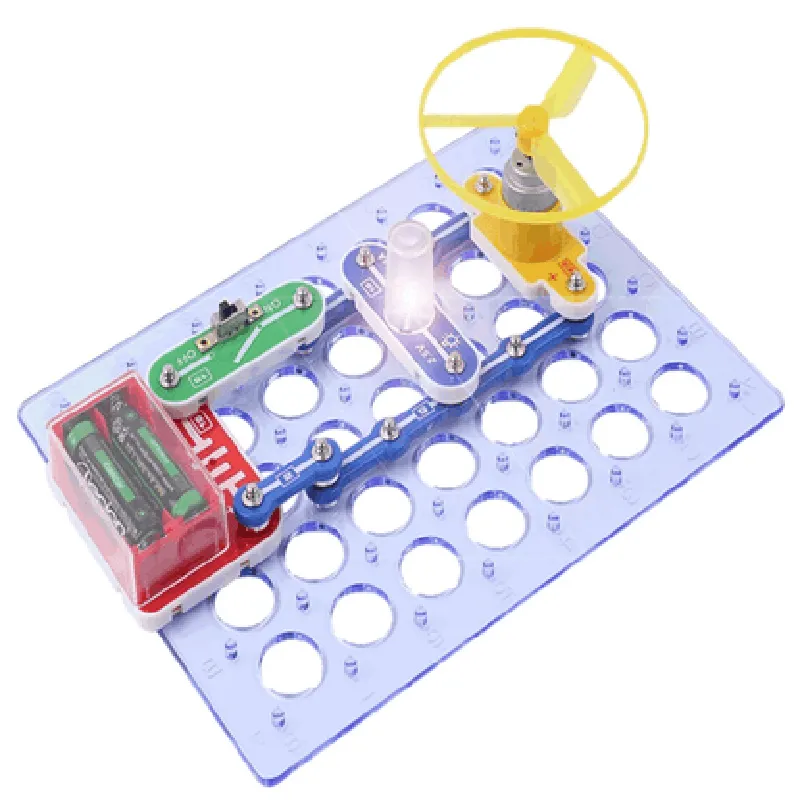
The 34 Experiments Electronics Kit is designed to facilitate a wide range of experiments and projects, covering basic electronics, circuit analysis, and IoT applications. The kit includes a variety of components, modules, and tools, allowing users to build and test different projects, from simple circuits to complex IoT devices.

Key Features

  • Components and Modules:

Resistors (10 values)

Capacitors (10 values)

Diodes (1N4007, 1N4148, Zener)

Transistors (NPN, PNP)

LEDs (5 colors)

Breadboard

Jumper wires

Power supply module (3.3V, 5V, 9V)

Microcontroller module (Arduino-compatible)

Sensor modules (temperature, light, sound, motion)

  • Tools and Accessories:

Solderless breadboard

Multimeter

Wire stripper

Pliers

Screwdriver

USB cable

CD with tutorials, datasheets, and project ideas

  • Experiment Guide:
  • IoT Capabilities:
  • A comprehensive guidebook with 34 experiments and projects, covering topics such as
    + Basic electronicsresistors, capacitors, diodes, transistors
    + Digital electronicslogic gates, flip-flops, counters
    + MicrocontrollersArduino, programming, and interactions with sensors and actuators
    + IoT applicationsWi-Fi, Bluetooth, and sensor integration

    Optional Wi-Fi and Bluetooth modules for IoT connectivity

    Compatibility with popular IoT platforms and development boards

    • Educational Value:

    Developed in collaboration with educators and experts in the field

    Aligns with STEM education standards and guidelines

    Suitable for students, teachers, and hobbyists of all levels

    • Ease of Use:

    Color-coded components and modules for easy identification

    Well-organized packaging and storage case

    Clear, step-by-step instructions and tutorials

    • Power Supply:

    USB-powered, with optional battery holder for portable projects

    On-board voltage regulator for stable power supply

Operating voltage

3.3V, 5V, 9V

Maximum current

500mA

Dimensions

340mm x 220mm x 60mm (13.4" x 8.7" x 2.4")

Weight

1.5kg (3.3lbs)

Ideal Users

Students (high school, college, university)

Teachers and educators

Hobbyists and DIY enthusiasts

Makers and inventors

IoT developers and professionals

By providing a comprehensive and diverse set of components, modules, and tools, the 34 Experiments Electronics Kit offers a unique learning experience, empowering users to explore, create, and innovate in the exciting world of electronics and IoT.

Pin Configuration

  • 34 Experiments Electronics Kit Pinout Guide
  • The 34 Experiments Electronics Kit is a comprehensive learning tool for IoT enthusiasts, hobbyists, and students. This kit includes a variety of components, including sensors, LEDs, resistors, and more. In this documentation, we will explore the pinouts of each component in the kit, providing a detailed explanation of each pin's function and how to connect them.
  • Component 1: Microcontroller Module (e.g., Arduino Uno Compatible)
  • Pin 1: Vin (Input Voltage): This pin is used to supply an external power source to the microcontroller. Typically, a voltage range of 7-12V is recommended.
  • Pin 2: GND (Ground): This pin provides a common ground connection for the microcontroller and other components.
  • Pin 3: Digital Pin 13: A digital input/output pin used for various applications, such as LED control, sensor reading, and communication.
  • Pin 4: Digital Pin 12: A digital input/output pin used for various applications, such as LED control, sensor reading, and communication.
  • Pin 5: Digital Pin 11: A digital input/output pin used for various applications, such as LED control, sensor reading, and communication.
  • Pin 6: Digital Pin 10: A digital input/output pin used for various applications, such as LED control, sensor reading, and communication.
  • Pin 7: Digital Pin 9: A digital input/output pin used for various applications, such as LED control, sensor reading, and communication.
  • Pin 8: Digital Pin 8: A digital input/output pin used for various applications, such as LED control, sensor reading, and communication.
  • Pin 9: Analog Input A0: An analog input pin used to read analog signals from sensors, such as potentiometers or thermistors.
  • Pin 10: Analog Input A1: An analog input pin used to read analog signals from sensors, such as potentiometers or thermistors.
  • Pin 11: Analog Input A2: An analog input pin used to read analog signals from sensors, such as potentiometers or thermistors.
  • Pin 12: Analog Input A3: An analog input pin used to read analog signals from sensors, such as potentiometers or thermistors.
  • Pin 13: Analog Input A4: An analog input pin used to read analog signals from sensors, such as potentiometers or thermistors.
  • Pin 14: Analog Input A5: An analog input pin used to read analog signals from sensors, such as potentiometers or thermistors.
  • Pin 15: Digital Pin 0 (RX): A digital input/output pin used for serial communication, typically used for receiving data.
  • Pin 16: Digital Pin 1 (TX): A digital input/output pin used for serial communication, typically used for transmitting data.
  • Pin 17: Reset (RST): A pin used to reset the microcontroller, usually connected to a push-button or a jumper.
  • Component 2: Breadboard
  • Power Bus (+): The positive power bus provides a common voltage supply to the components connected to the breadboard.
  • Power Bus (-): The negative power bus provides a common ground connection for the components connected to the breadboard.
  • Columns: The breadboard columns are used to connect components, with each column being electrically connected.
  • Component 3: LEDs (5 pcs)
  • Anode (+): The positive leg of the LED, typically the longer leg.
  • Cathode (-): The negative leg of the LED, typically the shorter leg.
  • Component 4: Resistors (10 pcs, 1 k each)
  • Two terminals: Resistors have two terminals, which can be connected in series or in parallel to other components.
  • Component 5: Capacitors (5 pcs, 100nF each)
  • Two terminals: Capacitors have two terminals, which can be connected in series or in parallel to other components.
  • Component 6: Breadboard Jumper Wires (20 pcs)
  • Male ends: The male ends of the jumper wires are used to connect to the breadboard or other components.
  • Female ends: The female ends of the jumper wires are used to connect to the microcontroller or other components.
  • Component 7: Photodiode
  • Anode (+): The positive leg of the photodiode.
  • Cathode (-): The negative leg of the photodiode.
  • Component 8: Thermistor
  • Two terminals: The thermistor has two terminals, which can be connected to an analog input pin on the microcontroller.
  • Component 9: Variable Resistor (Potentiometer)
  • Three terminals: The potentiometer has three terminals: the center terminal is the wiper, and the two outer terminals are the fixed resistors.
  • Component 10: Button
  • Two terminals: The button has two terminals, which can be connected to a digital input pin on the microcontroller.
  • Component 11: Buzzer
  • Two terminals: The buzzer has two terminals, which can be connected to a digital output pin on the microcontroller.
  • Component 12: 9V Battery Holder
  • Positive terminal (+): The positive terminal of the battery holder, connected to the Vin pin on the microcontroller.
  • Negative terminal (-): The negative terminal of the battery holder, connected to the GND pin on the microcontroller.
  • Connecting the Components
  • When connecting the components, ensure that you follow these general guidelines:
  • When connecting components to the breadboard, make sure to align the legs of the components with the breadboard columns.
  • Use jumper wires to connect components to the microcontroller or other components.
  • Make sure to connect the power supply to the Vin pin on the microcontroller and the GND pin to the negative power bus on the breadboard.
  • Use the datasheet of each component to determine the correct pin connections.
  • By following these guidelines, you can successfully connect the components in the 34 Experiments Electronics Kit and start exploring the world of IoT and electronics.

Code Examples

34 Experiments Electronics Kit Documentation
Overview
The 34 Experiments Electronics Kit is a comprehensive electronics kit designed for beginners and hobbyists to explore the world of electronics and microcontrollers. The kit includes a variety of components, such as resistors, capacitors, LEDs, sensors, and a microcontroller board, enabling users to build and experiment with various electronic projects.
Components Included
Microcontroller board (e.g., Arduino Uno or similar)
 Breadboard
 Jumper wires
 Resistors (various values)
 Capacitors (various values)
 LEDs (various colors)
 Sensors (e.g., temperature, light, sound)
 Potentiometer
 Button switches
 Buzzer
Code Examples
### Example 1: Blinking LED with Button Control
In this example, we will use the 34 Experiments Electronics Kit to create a simple circuit that blinks an LED when a button is pressed.
Hardware Connection
Connect the microcontroller board to the breadboard
 Connect the LED to digital pin 13 of the microcontroller board
 Connect the button switch to digital pin 2 of the microcontroller board
 Connect the resistor (1k) between the button switch and GND
Code
```c
const int ledPin = 13;  // choose the pin for the LED
const int buttonPin = 2;  // choose the pin for the button
void setup() {
  pinMode(ledPin, OUTPUT);
  pinMode(buttonPin, INPUT);
}
void loop() {
  int buttonState = digitalRead(buttonPin);
  if (buttonState == HIGH) {
    digitalWrite(ledPin, HIGH);
  } else {
    digitalWrite(ledPin, LOW);
  }
  delay(50); // wait for 50ms
}
```
### Example 2: Temperature Measurement with LCD Display
In this example, we will use the 34 Experiments Electronics Kit to create a simple temperature measurement system using a temperature sensor and an LCD display.
Hardware Connection
Connect the microcontroller board to the breadboard
 Connect the temperature sensor (e.g., TMP36) to analog pin A0 of the microcontroller board
 Connect the LCD display to the microcontroller board (using the provided LCD connector)
Code
```c
#include <LiquidCrystal.h> // include the LCD library
const int tempPin = A0;  // choose the pin for the temperature sensor
const int lcdRS = 12;  // choose the pin for the LCD RS
const int lcdEN = 11;  // choose the pin for the LCD EN
const int lcdD4 = 5;  // choose the pin for the LCD D4
const int lcdD5 = 4;  // choose the pin for the LCD D5
const int lcdD6 = 3;  // choose the pin for the LCD D6
const int lcdD7 = 2;  // choose the pin for the LCD D7
LiquidCrystal_I2C lcd(lcdRS, lcdEN, lcdD4, lcdD5, lcdD6, lcdD7);
void setup() {
  lcd.begin(20, 4); // set up the LCD with 20 columns and 4 rows
}
void loop() {
  int tempReading = analogRead(tempPin);
  float temperature = (tempReading  5.0 / 1024.0 - 0.5)  100.0;
  lcd.setCursor(0, 0); // set the cursor to the first row
  lcd.print("Temperature: ");
  lcd.setCursor(1, 0); // set the cursor to the second row
  lcd.print(temperature, 2); // print the temperature with two decimal places
  delay(1000); // wait for 1 second
}
```
Note: The above code examples are for illustrative purposes only and may require modifications to work with your specific microcontroller board and components. Always refer to the datasheets and documentation provided with the kit for detailed specifications and usage guidelines.