ESP32-S3


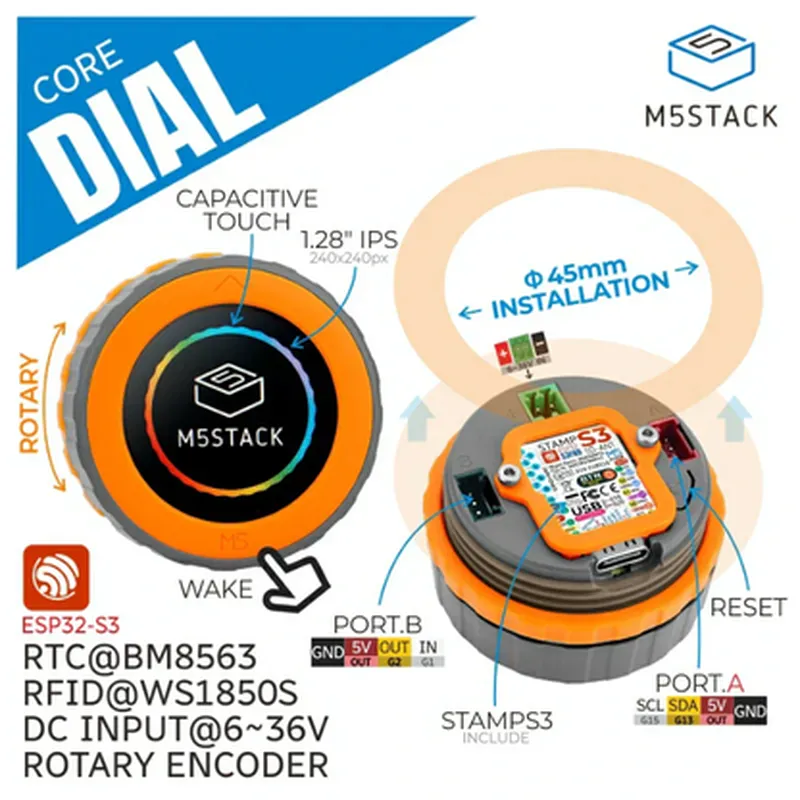
ESP32-S3
2.4 GHz
Wi-Fi, Bluetooth, BLE
1.28" Round, 240x240 pixels, Capacitive Touch
24 detent positions, High-Resolution
I2C, UART, SPI
Support for up to 16 GB microSD cards
Voltage Regulator, Battery Management System
10x GPIO pins
-20C to 80C
30 mm (Diameter) x 25 mm (Height)
Conclusion
The M5Stack Dial is a versatile and innovative IoT component that offers a unique blend of analog and digital interfaces. With its powerful ESP32-S3 microcontroller, high-resolution touch screen display, and precision rotary encoder, this component is ideal for a wide range of applications, from industrial automation to wearables and gaming.
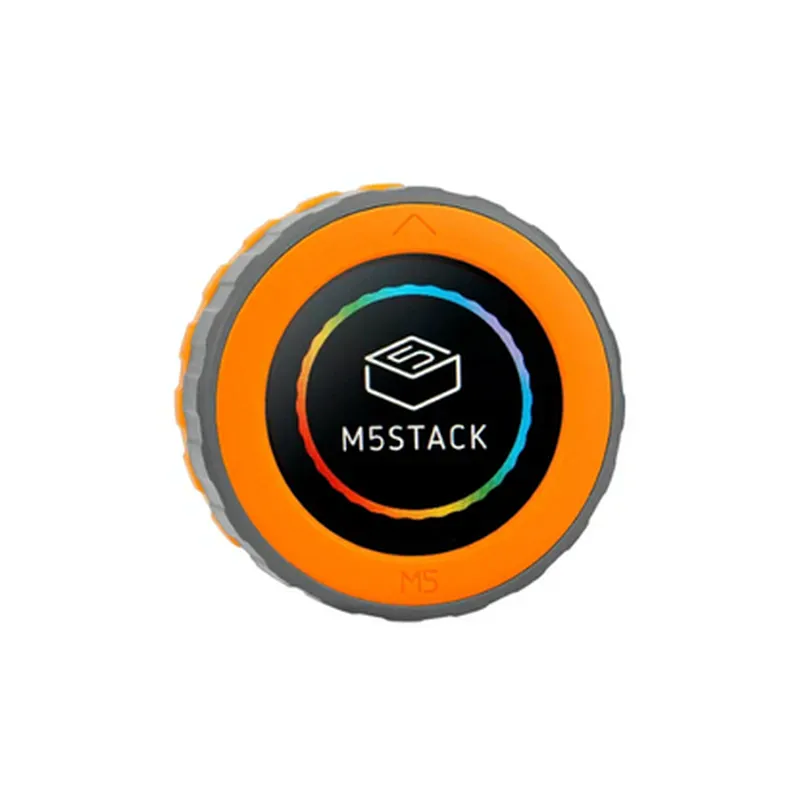
M5Stack Dial - ESP32-S3 Smart Rotary Knob with 1.28" Round Touch ScreenOverviewThe M5Stack Dial is a versatile IoT component that combines a rotary knob with a 1.28" round touch screen and an ESP32-S3 microcontroller. This component is ideal for a wide range of applications, including smart home automation, industrial control, and interactive prototyping. The M5Stack Dial offers a unique combination of analog and digital interfaces, making it an excellent choice for projects that require intuitive user input and visual feedback.Technical SpecificationsMicrocontroller: ESP32-S3
Rotary Knob: 24-integer detent, 30 rotation
Touch Screen: 1.28" round, 240x240 resolution, capacitive touch
Communication Interfaces: Wi-Fi, Bluetooth, UART, I2C, I2S, SPI
Power Supply: 5V DC, 500mA max
Dimensions: 54.2mm x 54.2mm x 24.5mmCode Examples### Example 1: Basic Rotary Knob and Touch Screen ControlThis example demonstrates how to read the rotary knob's position and use it to control the brightness of the touch screen.```c
#include <M5Dial.h>M5Dial dial;void setup() {
dial.begin();
}void loop() {
int knobPosition = dial.getKnobPosition();
int brightness = map(knobPosition, 0, 24, 0, 255);
dial.setScreenBrightness(brightness);
delay(10);
}
```### Example 2: Wi-Fi Remote Control using Rotary Knob and Touch ScreenThis example shows how to use the rotary knob and touch screen to control a remote device over Wi-Fi.```c
#include <M5Dial.h>
#include <WiFi.h>M5Dial dial;
WiFiClient client;const char ssid = "your_wifi_ssid";
const char password = "your_wifi_password";
const char remoteDeviceIP = "192.168.1.100";void setup() {
dial.begin();
WiFi.begin(ssid, password);
while (WiFi.status() != WL_CONNECTED) {
delay(1000);
Serial.println("Connecting to WiFi...");
}
Serial.println("Connected to WiFi");
client.setServer(remoteDeviceIP, 8080);
}void loop() {
int knobPosition = dial.getKnobPosition();
String command = "rotate=" + String(knobPosition);
client.print(command);
client.println();
delay(10);if (dial.getTouch()) {
command = "button=pressed";
client.print(command);
client.println();
delay(100);
}
}
```### Example 3: I2C Sensor Reading and Visualization on Touch ScreenThis example demonstrates how to use the M5Stack Dial to read data from an I2C sensor and display it on the touch screen.```c
#include <M5Dial.h>
#include <Wire.h>M5Dial dial;
Adafruit_BMP280 bmp;void setup() {
dial.begin();
Wire.begin();
if (!bmp.begin()) {
Serial.println("Failed to initialize BMP280 sensor");
}
}void loop() {
sensors_event_t event;
bmpTemperature(&event);
float temperature = event.temperature;dial.fillScreen(BLACK);
dial.setTextSize(2);
dial.setTextColor(WHITE);
dial.setCursor(10, 10);
dial.print("Temperature: ");
dial.print(temperature, 2);
dial.print("C");delay(1000);
}
```These code examples demonstrate the versatility and functionality of the M5Stack Dial. Whether you're building a smart home automation system, an industrial control panel, or a interactive prototype, this component is an excellent choice for your project.