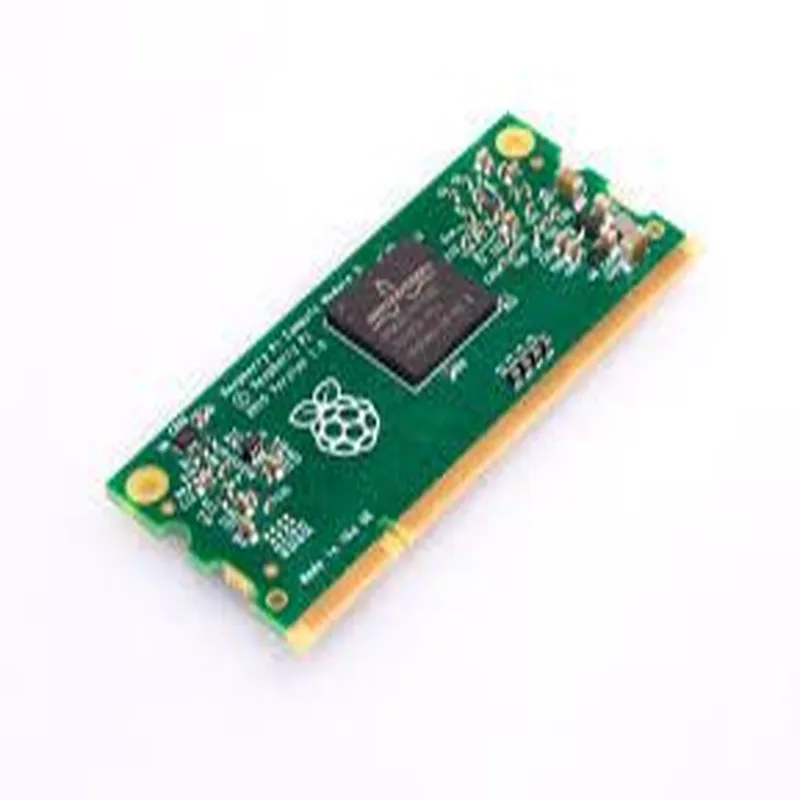
- Raspberry Pi Compute Module 3 LT (Lite) Pinout Documentation
- Overview
- The Raspberry Pi Compute Module 3 LT (Lite) is a system-on-module (SoM) designed for industrial and commercial applications. It features a 1.2GHz quad-core Cortex-A53 CPU, 1GB RAM, and 4GB eMMC flash memory. The module has a 200-pin SODIMM connector, which provides access to various interfaces, peripherals, and signals.
- Pinout Description
- The following section provides a detailed explanation of each pin on the Raspberry Pi Compute Module 3 LT (Lite).
- Power Pins
- Pin 1: VBAT - Battery input (typically 3.3V - 4.2V)
- Pin 2: VBAT_EN - Battery enable input (active high)
- Pin 3: 3V3 - 3.3V power output
- Pin 4: 1V8 - 1.8V power output
- Pin 5: GND - Ground
- Pin 6: GND - Ground
- Pin 7: GND - Ground
- Pin 8: GND - Ground
- GPIO Pins
- Pin 9: GPIO0 - General-purpose input/output pin
- Pin 10: GPIO1 - General-purpose input/output pin
- Pin 11: GPIO2 - General-purpose input/output pin
- Pin 12: GPIO3 - General-purpose input/output pin
- Pin 13: GPIO4 - General-purpose input/output pin
- Pin 14: GPIO5 - General-purpose input/output pin
- Pin 15: GPIO6 - General-purpose input/output pin
- Pin 16: GPIO7 - General-purpose input/output pin
- Pin 17: GPIO8 - General-purpose input/output pin
- Pin 18: GPIO9 - General-purpose input/output pin
- Pin 19: GPIO10 - General-purpose input/output pin
- Pin 20: GPIO11 - General-purpose input/output pin
- Pin 21: GPIO12 - General-purpose input/output pin
- Pin 22: GPIO13 - General-purpose input/output pin
- Pin 23: GPIO14 - General-purpose input/output pin
- Pin 24: GPIO15 - General-purpose input/output pin
- Pin 25: GPIO16 - General-purpose input/output pin
- Pin 26: GPIO17 - General-purpose input/output pin
- Pin 27: GPIO18 - General-purpose input/output pin
- Pin 28: GPIO19 - General-purpose input/output pin
- Pin 29: GPIO20 - General-purpose input/output pin
- Pin 30: GPIO21 - General-purpose input/output pin
- Pin 31: GPIO22 - General-purpose input/output pin
- Pin 32: GPIO23 - General-purpose input/output pin
- Pin 33: GPIO24 - General-purpose input/output pin
- Pin 34: GPIO25 - General-purpose input/output pin
- Pin 35: GPIO26 - General-purpose input/output pin
- Pin 36: GPIO27 - General-purpose input/output pin
- UART Pins
- Pin 37: UART0_TXD - UART transmit data
- Pin 38: UART0_RXD - UART receive data
- Pin 39: UART1_TXD - UART transmit data
- Pin 40: UART1_RXD - UART receive data
- I2C Pins
- Pin 41: I2C0_SDA - I2C data
- Pin 42: I2C0_SCL - I2C clock
- Pin 43: I2C1_SDA - I2C data
- Pin 44: I2C1_SCL - I2C clock
- SPI Pins
- Pin 45: SPI0_MOSI - SPI master out slave in
- Pin 46: SPI0_MISO - SPI master in slave out
- Pin 47: SPI0_SCLK - SPI clock
- Pin 48: SPI0_CE0 - SPI chip enable 0
- Pin 49: SPI0_CE1 - SPI chip enable 1
- Pin 50: SPI1_MOSI - SPI master out slave in
- Pin 51: SPI1_MISO - SPI master in slave out
- Pin 52: SPI1_SCLK - SPI clock
- Pin 53: SPI1_CE0 - SPI chip enable 0
- Pin 54: SPI1_CE1 - SPI chip enable 1
- HDMI and CEC Pins
- Pin 55: HDMI_HPD - HDMI hot plug detect
- Pin 56: CEC - Consumer Electronics Control
- PWM Pins
- Pin 57: PWM0 - Pulse width modulation output 0
- Pin 58: PWM1 - Pulse width modulation output 1
- Audio Pins
- Pin 59: AUD_CLK - Audio clock
- Pin 60: AUD_FRM - Audio frame synchronization
- Pin 61: AUD_DAC - Audio digital-to-analog converter
- Pin 62: AUD_DIN - Audio digital input
- Ethernet Pins
- Pin 63: ETH_MDC - Ethernet management data clock
- Pin 64: ETH_MDIO - Ethernet management data input/output
- Pin 65: ETH_RGMII_RXC - Ethernet reduced gigabit media-independent interface receive clock
- Pin 66: ETH_RGMII_RXD0 - Ethernet reduced gigabit media-independent interface receive data 0
- Pin 67: ETH_RGMII_RXD1 - Ethernet reduced gigabit media-independent interface receive data 1
- Pin 68: ETH_RGMII_RXD2 - Ethernet reduced gigabit media-independent interface receive data 2
- Pin 69: ETH_RGMII_RXD3 - Ethernet reduced gigabit media-independent interface receive data 3
- Pin 70: ETH_RGMII_TXC - Ethernet reduced gigabit media-independent interface transmit clock
- Pin 71: ETH_RGMII_TXD0 - Ethernet reduced gigabit media-independent interface transmit data 0
- Pin 72: ETH_RGMII_TXD1 - Ethernet reduced gigabit media-independent interface transmit data 1
- Pin 73: ETH_RGMII_TXD2 - Ethernet reduced gigabit media-independent interface transmit data 2
- Pin 74: ETH_RGMII_TXD3 - Ethernet reduced gigabit media-independent interface transmit data 3
- SD/MMC Pins
- Pin 75: SD_CLK - SD/MMC clock
- Pin 76: SD_CMD - SD/MMC command
- Pin 77: SD_DAT0 - SD/MMC data 0
- Pin 78: SD_DAT1 - SD/MMC data 1
- Pin 79: SD_DAT2 - SD/MMC data 2
- Pin 80: SD_DAT3 - SD/MMC data 3
- Power Management Pins
- Pin 81: PMIC_EN - Power management IC enable
- Pin 82: PMIC_INT - Power management IC interrupt
- Pin 83: PMIC_CLK - Power management IC clock
- Clock Pins
- Pin 84: CLK24MHZ - 24MHz clock output
- Pin 85: CLK32KHZ - 32kHz clock output
- JTAG Pins
- Pin 86: JTAG_TDI - JTAG test data in
- Pin 87: JTAG_TDO - JTAG test data out
- Pin 88: JTAG_TMS - JTAG test mode select
- Pin 89: JTAG_TCK - JTAG test clock
- Reserved Pins
- Pin 90-200: Reserved - Reserved pins, do not connect.
- Connecting the Pins
- To connect to the Raspberry Pi Compute Module 3 LT (Lite), you will need a 200-pin SODIMM connector and a compatible carrier board or custom PCB. Ensure that the pinout is compatible with your design and that you follow proper spacing and connection guidelines to avoid damage to the module or other components.
- Important Notes
- Make sure to follow the official Raspberry Pi documentation and guidelines for connecting to the Compute Module 3 LT (Lite).
- Use proper voltage levels and signal interfaces to avoid damage to the module or other components.
- Consult the datasheet and technical documentation for specific pin functions and restrictions.
- I hope this documentation helps you understand the pinout of the Raspberry Pi Compute Module 3 LT (Lite) and connect it correctly in your project.

