Stufin
Home Quick Cart Profile

Elecrow - Crowbits-Creator Kit Based on Arduino, 12-in-1 STEM Toy for Kids


Buy Now on Stufin

Component Name

Elecrow - Crowbits-Creator Kit Based on Arduino, 12-in-1 STEM Toy for Kids
Overview

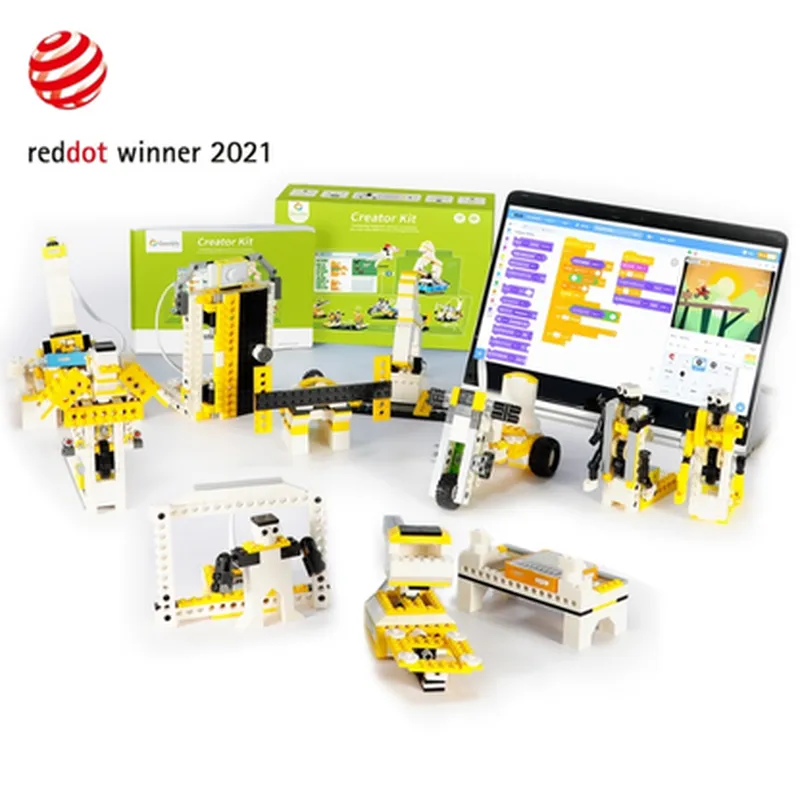
The Elecrow Crowbits-Creator Kit is a 12-in-1 STEM (Science, Technology, Engineering, and Math) toy designed for kids to learn and explore the world of programming, electronics, and robotics. Based on the popular Arduino platform, this kit provides a comprehensive and fun way for children to develop their skills in coding, problem-solving, and critical thinking.

Functionality

The Crowbits-Creator Kit is a modular, build-it-yourself system that allows kids to create various projects and devices using a combination of sensors, actuators, and microcontrollers. The kit includes 12 different modules, each with its own unique functionality, which can be connected and programmed using the Arduino Integrated Development Environment (IDE).

Key Features

  • Modular Design: The kit consists of 12 interchangeable modules, including sensors (light, sound, temperature, and ultrasonic), actuators (motors, buzzers, and LED lights), and microcontrollers (Arduino-based).
  • Arduino Compatibility: The Crowbits-Creator Kit is based on the Arduino platform, making it compatible with a wide range of Arduino boards and resources.
  • Easy to Use: The kit features a user-friendly, color-coded connection system, making it easy for kids to connect and build their projects without worrying about complex wiring.
  • STEM Education: The kit is designed to teach kids essential STEM concepts, including programming, electronics, and problem-solving skills.
  • Project-Based Learning: The kit includes a comprehensive guidebook with 12 project tutorials, covering topics such as robotics, home automation, and weather monitoring.
  • Expandability: The kit is highly expandable, allowing kids to add their own components and modules to create more complex projects.
  • Online Resources: Elecrow provides online resources, including tutorials, videos, and a community forum, to support kids in their learning journey.

Microcontroller

Arduino-based, 8-bit AVR microcontroller

Modules

12 interchangeable modules, including
+ SensorsLight, sound, temperature, and ultrasonic
+ ActuatorsMotors, buzzers, and LED lights
+ MicrocontrollersArduino-based

Connection System

Color-coded, modular connection system

Power Supply

USB-powered or battery-powered (batteries not included)

Compatibility

Compatible with Windows, macOS, and Linux operating systems

Target Audience

The Elecrow Crowbits-Creator Kit is designed for kids aged 8-14 who are interested in learning about programming, electronics, and robotics. It is also suitable for educators and parents who want to introduce their children to the world of STEM education.

Packing List

Crowbits-Creator Kit main board

12 interchangeable modules

USB cable

Power adapter (optional)

Guidebook with 12 project tutorials

Online resources (access to tutorials, videos, and community forum)

Pin Configuration

  • Elecrow Crowbits-Creator Kit Based on Arduino, 12-in-1 STEM Toy for Kids
  • Pinout Explanation
  • The Elecrow Crowbits-Creator Kit is an Arduino-based STEM toy designed for kids, offering a comprehensive introduction to the world of electronics and programming. The kit features a variety of sensors, modules, and components that can be connected to the Arduino board to create different projects. The following section explains the pinout of the Arduino board in the Crowbits-Creator Kit.
  • Digital Pins (0-13)
  • 1. D0 (RX): Receive pin for serial communication. It's used to receive data from other devices or modules.
  • 2. D1 (TX): Transmit pin for serial communication. It's used to send data to other devices or modules.
  • 3. D2: Digital input/output pin. Can be used as an input to read digital signals or as an output to control digital devices.
  • 4. D3: Digital input/output pin. Can be used as an input to read digital signals or as an output to control digital devices.
  • 5. D4: Digital input/output pin. Can be used as an input to read digital signals or as an output to control digital devices.
  • 6. D5: Digital input/output pin. Can be used as an input to read digital signals or as an output to control digital devices.
  • 7. D6: Digital input/output pin. Can be used as an input to read digital signals or as an output to control digital devices.
  • 8. D7: Digital input/output pin. Can be used as an input to read digital signals or as an output to control digital devices.
  • 9. D8: Digital input/output pin. Can be used as an input to read digital signals or as an output to control digital devices.
  • 10. D9: Digital input/output pin. Can be used as an input to read digital signals or as an output to control digital devices.
  • 11. D10: Digital input/output pin. Can be used as an input to read digital signals or as an output to control digital devices.
  • 12. D11: Digital input/output pin. Can be used as an input to read digital signals or as an output to control digital devices.
  • 13. D12: Digital input/output pin. Can be used as an input to read digital signals or as an output to control digital devices.
  • 14. D13 (L): Digital input/output pin. Can be used as an input to read digital signals or as an output to control digital devices. Also has an LED connected to it, which can be used as a status indicator.
  • Analog Pins (A0-A5)
  • 1. A0: Analog input pin. Can be used to read analog signals from sensors.
  • 2. A1: Analog input pin. Can be used to read analog signals from sensors.
  • 3. A2: Analog input pin. Can be used to read analog signals from sensors.
  • 4. A3: Analog input pin. Can be used to read analog signals from sensors.
  • 5. A4: Analog input pin. Can be used to read analog signals from sensors.
  • 6. A5: Analog input pin. Can be used to read analog signals from sensors.
  • Power Pins
  • 1. VIN: Input voltage pin. Can be used to power the Arduino board with an external power source.
  • 2. 3V3: 3.3V output pin. Can be used to power devices that require 3.3V.
  • 3. 5V: 5V output pin. Can be used to power devices that require 5V.
  • 4. GND: Ground pin. Used as a reference point for the circuit.
  • Other Pins
  • 1. RST: Reset pin. Can be used to reset the Arduino board.
  • 2. AREF: Analog reference pin. Used to set the reference voltage for analog inputs.
  • Connecting Pins
  • When connecting pins, make sure to follow these rules:
  • Use the correct voltage for each pin. For example, use 5V for digital pins and 3.3V for analog pins.
  • Use the correct polarity for each pin. For example, use the positive leg of an LED to the digital output pin and the negative leg to the ground pin.
  • Avoid connecting pins that have conflicting functions. For example, do not connect a digital output pin to an analog input pin.
  • Use a breadboard or a PCB to connect components and modules to the Arduino board. This will help keep the connections organized and prevent short circuits.
  • Example Connection
  • Here's an example connection for a simple LED circuit:
  • Connect the positive leg of the LED to digital pin D13 (L).
  • Connect the negative leg of the LED to the ground pin (GND).
  • Write a simple Arduino code to turn the LED on and off using pin D13.
  • Remember to always consult the datasheet and documentation for each component and module in the Crowbits-Creator Kit to ensure correct connections and usage.

Code Examples

Elecrow - Crowbits-Creator Kit Based on Arduino, 12-in-1 STEM Toy for Kids
Overview
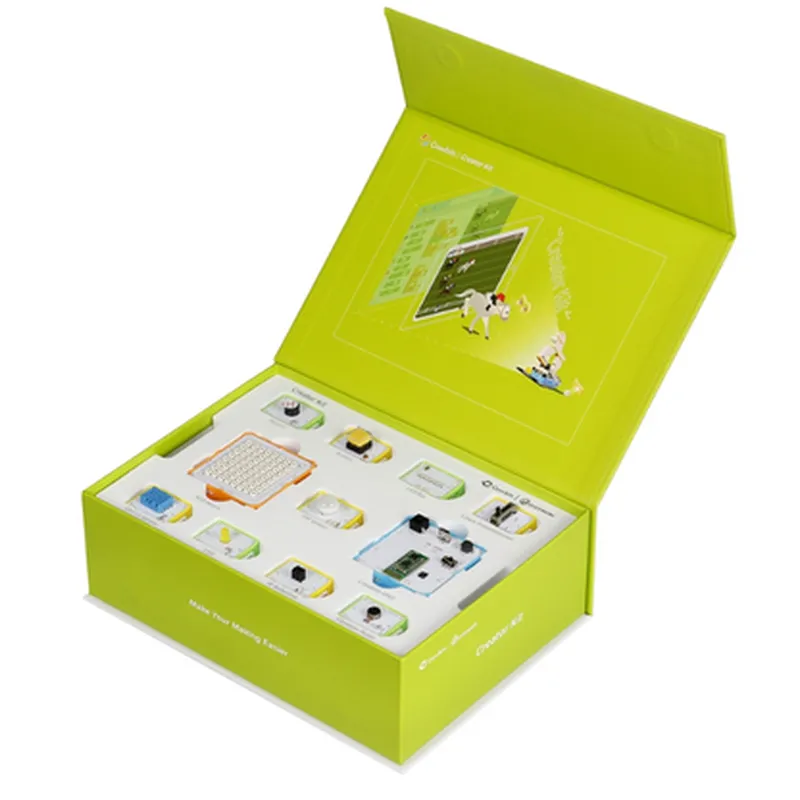
The Elecrow Crowbits-Creator Kit is a comprehensive STEM educational kit designed for kids to learn programming, electronics, and robotics using Arduino. This kit includes 12 interactive modules that can be combined to create various projects, making it an ideal platform for beginners to develop their skills in programming, electronics, and critical thinking.
Technical Specifications
Microcontroller: Arduino Board (based on ATmega328P)
 Operating Voltage: 5V
 Input Voltage: 7-12V
 12 Interactive Modules:
	+ LED Module
	+ Button Module
	+ Potentiometer Module
	+ buzzer Module
	+ RGB LED Module
	+ Joystick Module
	+ Ultrasonic Module
	+ Temperature and Humidity Module
	+ Light Sensor Module
	+ Sound Sensor Module
	+ Motor Module
 Compatible with Arduino IDE
Code Examples
### Example 1: Traffic Light Simulator using LED, Button, and Potentiometer Modules
This example demonstrates how to use the LED, Button, and Potentiometer modules to create a simple traffic light simulator.
Hardware Connections:
Connect the LED Module to digital pins 9, 10, and 11 (red, yellow, and green LEDs, respectively).
 Connect the Button Module to digital pin 2.
 Connect the Potentiometer Module to analog pin A0.
Code:
```c
const int redLed = 9;
const int yellowLed = 10;
const int greenLed = 11;
const int buttonPin = 2;
const int potPin = A0;
int buttonState = 0;
int potValue = 0;
void setup() {
  pinMode(redLed, OUTPUT);
  pinMode(yellowLed, OUTPUT);
  pinMode(greenLed, OUTPUT);
  pinMode(buttonPin, INPUT);
}
void loop() {
  buttonState = digitalRead(buttonPin);
  potValue = analogRead(potPin);
if (buttonState == HIGH) {
    // Simulate traffic light sequence
    digitalWrite(redLed, HIGH);
    delay(500);
    digitalWrite(redLed, LOW);
    digitalWrite(yellowLed, HIGH);
    delay(500);
    digitalWrite(yellowLed, LOW);
    digitalWrite(greenLed, HIGH);
    delay(500);
    digitalWrite(greenLed, LOW);
  } else {
    // Adjust brightness of LEDs based on potentiometer value
    int brightness = map(potValue, 0, 1023, 0, 255);
    analogWrite(redLed, brightness);
    analogWrite(yellowLed, brightness);
    analogWrite(greenLed, brightness);
  }
}
```
### Example 2: Obstacle Avoidance Robot using Ultrasonic and Motor Modules
This example demonstrates how to use the Ultrasonic and Motor modules to create a simple obstacle avoidance robot.
Hardware Connections:
Connect the Ultrasonic Module to digital pins 3 and 4 (Trig and Echo pins, respectively).
 Connect the Motor Module to digital pins 5 and 6 (Motor A and Motor B, respectively).
Code:
```c
const int trigPin = 3;
const int echoPin = 4;
const int motorAPin = 5;
const int motorBPin = 6;
long distance = 0;
void setup() {
  pinMode(trigPin, OUTPUT);
  pinMode(echoPin, INPUT);
  pinMode(motorAPin, OUTPUT);
  pinMode(motorBPin, OUTPUT);
}
void loop() {
  // Measure distance using Ultrasonic Module
  digitalWrite(trigPin, LOW);
  delayMicroseconds(2);
  digitalWrite(trigPin, HIGH);
  delayMicroseconds(10);
  digitalWrite(trigPin, LOW);
  distance = pulseIn(echoPin, HIGH) / 58.2;
// Avoid obstacle if distance < 20cm
  if (distance < 20) {
    // Reverse motor direction
    digitalWrite(motorAPin, LOW);
    digitalWrite(motorBPin, HIGH);
  } else {
    // Move forward
    digitalWrite(motorAPin, HIGH);
    digitalWrite(motorBPin, LOW);
  }
  delay(50);
}
```
These examples demonstrate the versatility of the Elecrow Crowbits-Creator Kit and its ability to be used in various IoT projects.