Stufin
Home Quick Cart Profile

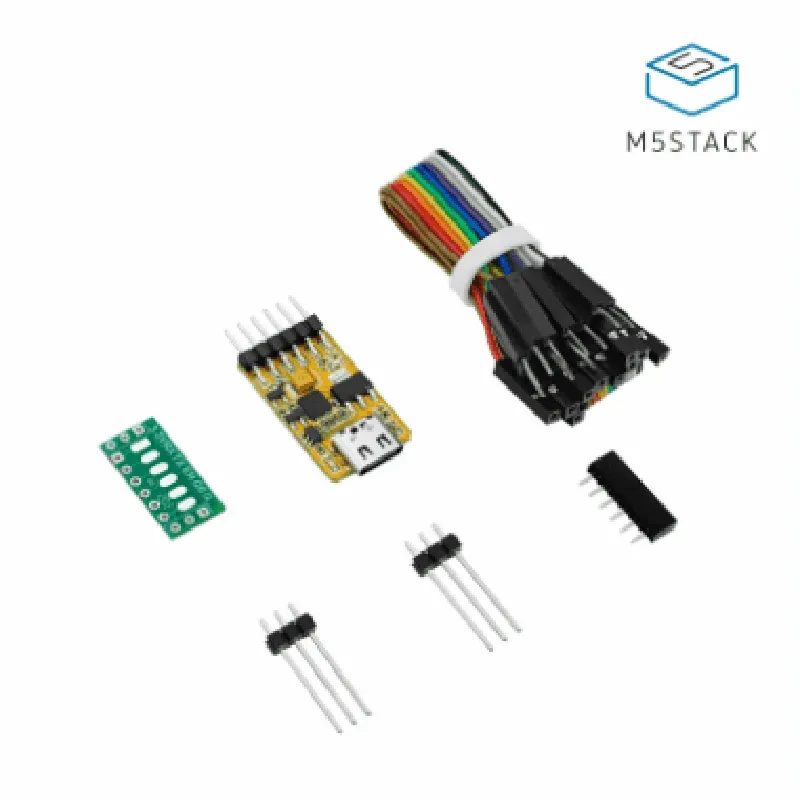
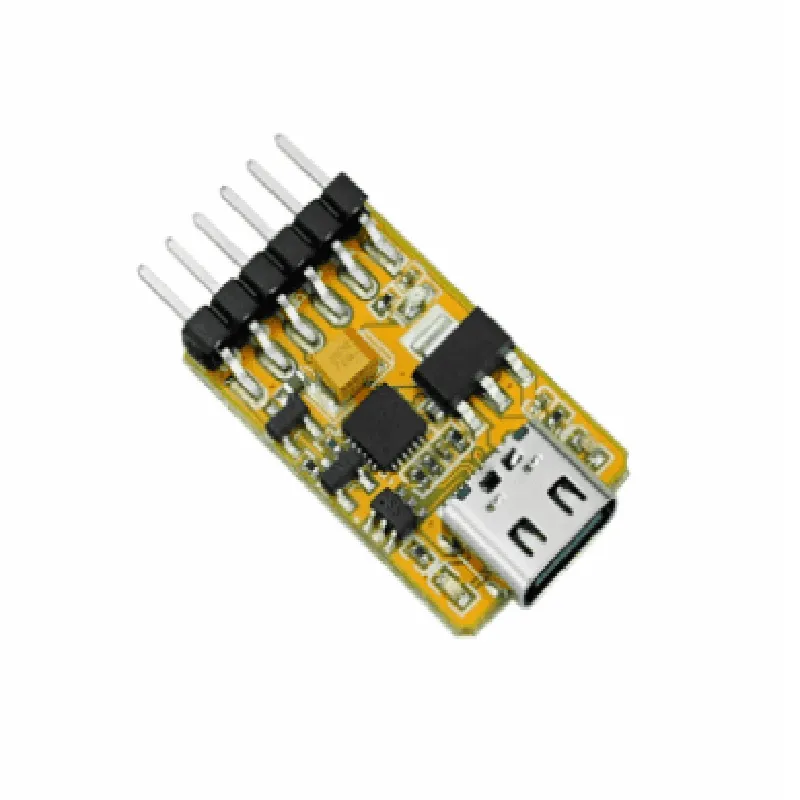
M5 Stack Esp32 downloader kit

Buy Now on Stufin

Microcontroller

ESP32 Dual-Core 32-bit LX6


Operating Frequency

80 MHz to 240 MHz

Flash Memory

4MB

SRAM

520KB

Wi-Fi802.11 b/g/n

Bluetooth

4.2

USB Interface

USB-C

Voltage Regulator

3.3V

GPIO Pins

Access to ESP32's GPIO pins

Dimensions

54mm x 22mm x 12mm

Weight

20g

Applications

  • Wireless Sensor Networks
  • Smart Home Automation
  • Robotics and Robotics Development
  • Wearable Devices
  • Smart Industrial Automation
The M5 Stack ESP32 Downloader Kit is suitable for a wide range of IoT projects, including

Conclusion

The M5 Stack ESP32 Downloader Kit is a powerful and versatile development board designed for IoT projects. With its compact design, flash and debug capability, and support for Arduino and microPython programming languages, this kit is an ideal choice for developers, hobbyists, and makers looking to create innovative IoT solutions.

Pin Configuration

  • M5 Stack ESP32 Downloader Kit Pinout Documentation
  • The M5 Stack ESP32 Downloader Kit is a powerful IoT development board that allows users to flash and test their ESP32-based projects. The kit comprises a compact PCB with a wealth of peripherals and interfaces. This documentation provides a detailed explanation of each pin on the M5 Stack ESP32 Downloader Kit, along with guidance on how to connect them.
  • Pinout Diagram
  • Before diving into the individual pin descriptions, here is a pinout diagram for reference:
  • ```
  • +---------------+
  • | USB |
  • | (Micro-USB) |
  • +---------------+
  • | 1 | GND | 2 |
  • | 3 | VCC | 4 |
  • | 5 | RX1 | 6 |
  • | 7 | TX1 | 8 |
  • | 9 | EN | 10 |
  • | 11 | IO0 | 12 |
  • | 13 | IO2 | 14 |
  • | 15 | IO4 | 16 |
  • | 17 | IO12 | 18 |
  • | 19 | IO13 | 20 |
  • | 21 | IO14 | 22 |
  • | 23 | IO15 | 24 |
  • | 25 | IO16 | 26 |
  • | 27 | IO17 | 28 |
  • +---------------+
  • | SCL | SDA |
  • | (I2C) |
  • +---------------+
  • | A0 | A1 |
  • | (Analog Inputs) |
  • +---------------+
  • ```
  • Pin Descriptions
  • Here is a detailed description of each pin on the M5 Stack ESP32 Downloader Kit:
  • Power Pins (1-4)
  • GND (1): Ground pin, connects to the negative terminal of the power source.
  • VCC (2): Power supply pin, connects to the positive terminal of the power source (3.3V or 5V).
  • VCC (3): Power supply pin, connects to the positive terminal of the power source (3.3V or 5V).
  • GND (4): Ground pin, connects to the negative terminal of the power source.
  • UART Pins (5-8)
  • RX1 (5): Received data pin, used for serial communication (UART).
  • TX1 (6): Transmitted data pin, used for serial communication (UART).
  • RX2 (7): Received data pin, used for serial communication (UART).
  • TX2 (8): Transmitted data pin, used for serial communication (UART).
  • Reset and Enable Pins (9-10)
  • EN (9): Enable pin, connects to the Enable pin of the ESP32 module.
  • RESET (10): Reset pin, connects to the Reset pin of the ESP32 module.
  • GPIO Pins (11-28)
  • IO0 (11): General-purpose input/output pin.
  • IO2 (13): General-purpose input/output pin.
  • IO4 (15): General-purpose input/output pin.
  • IO12 (17): General-purpose input/output pin.
  • IO13 (19): General-purpose input/output pin.
  • IO14 (21): General-purpose input/output pin.
  • IO15 (23): General-purpose input/output pin.
  • IO16 (25): General-purpose input/output pin.
  • IO17 (27): General-purpose input/output pin.
  • I2C Pins (29-30)
  • SCL (29): Serial clock pin, used for I2C communication.
  • SDA (30): Serial data pin, used for I2C communication.
  • Analog Input Pins (A0-A1)
  • A0 (A0): Analog input pin, can be used as a GPIO pin if not used for analog input.
  • A1 (A1): Analog input pin, can be used as a GPIO pin if not used for analog input.
  • Connecting the Pins
  • When connecting pins on the M5 Stack ESP32 Downloader Kit, ensure that you:
  • Use the correct polarity for power connections (VCC and GND).
  • Use the correct UART pin pair for serial communication (RX and TX).
  • Connect the Enable (EN) and Reset pins to the corresponding pins on the ESP32 module.
  • Use GPIO pins as required for your project, taking care not to overload the pins with excessive current.
  • Use I2C pins (SCL and SDA) for I2C communication, ensuring correct clock and data lines.
  • Use analog input pins (A0 and A1) for analog sensing or as GPIO pins if not used for analog input.
  • Remember to consult the datasheet and documentation for the specific ESP32 module used in the M5 Stack Downloader Kit for more information on pin usage and configuration.

Code Examples

M5 Stack ESP32 Downloader Kit Documentation
Overview
The M5 Stack ESP32 Downloader Kit is a compact, all-in-one solution for flashing and debugging ESP32-based microcontrollers. This kit is designed to provide an easy and efficient way to upload code to ESP32 modules, making it an ideal choice for IoT development, prototyping, and production.
Components
The M5 Stack ESP32 Downloader Kit includes:
1 x ESP32 Module ( xtensa lx6 dual-core 32-bit microprocessor)
 1 x USB-to-UART Bridge (CH340G)
 1 x 3.3V Power Supply
 1 x Download Button
 1 x Status LED
Connecting the Kit
To connect the M5 Stack ESP32 Downloader Kit to your computer:
1. Connect the micro-USB cable to the kit's USB port.
2. Connect the other end of the micro-USB cable to your computer.
Software Requirements
To use the M5 Stack ESP32 Downloader Kit, you will need:
A serial terminal software (e.g., Serial Monitor in Arduino IDE, PuTTY, or Tera Term)
 A programming software (e.g., Arduino IDE, ESP-IDF, or PlatformIO)
Code Examples
### Example 1: Blinking LED using Arduino IDE
In this example, we will use the Arduino IDE to flash a simple "Blink" sketch to the ESP32 module using the M5 Stack ESP32 Downloader Kit.
Hardware Requirements
M5 Stack ESP32 Downloader Kit
 Breadboard
 LED
 Resistor (1 k)
Code
```c
const int ledPin = 2;  // GPIO 2
void setup() {
  pinMode(ledPin, OUTPUT);
}
void loop() {
  digitalWrite(ledPin, HIGH);
  delay(1000);
  digitalWrite(ledPin, LOW);
  delay(1000);
}
```
Steps
1. Connect the LED to GPIO 2 on the ESP32 module through a breadboard and a 1 k resistor.
2. Open the Arduino IDE and select "ESP32 Dev Module" as the board.
3. Select the correct serial port (usually /dev/ttyUSB0 on Linux or COM3 on Windows).
4. Upload the code using the "Upload" button or press Ctrl+U.
5. Press the download button on the M5 Stack ESP32 Downloader Kit to start the upload process.
6. The LED should start blinking.
### Example 2: Wi-Fi Connection using ESP-IDF
In this example, we will use the ESP-IDF framework to connect the ESP32 module to a Wi-Fi network using the M5 Stack ESP32 Downloader Kit.
Hardware Requirements
M5 Stack ESP32 Downloader Kit
Code
```c
#include <WiFi.h>
const char ssid = "your_wifi_ssid";
const char password = "your_wifi_password";
void setup() {
  Serial.begin(115200);
  WiFi.begin(ssid, password);
  while (WiFi.status() != WL_CONNECTED) {
    delay(1000);
    Serial.println("Connecting to WiFi...");
  }
  Serial.println("Connected to WiFi");
  Serial.println("IP address: ");
  Serial.println(WiFi.localIP());
}
void loop() {
  delay(1000);
}
```
Steps
1. Open the ESP-IDF framework and create a new project.
2. Configure the project to use the ESP32 module.
3. Add the Wi-Fi library to the project.
4. Edit the code to include your Wi-Fi credentials.
5. Compile and upload the code using the ESP-IDF tools.
6. Press the download button on the M5 Stack ESP32 Downloader Kit to start the upload process.
7. The ESP32 module should connect to the Wi-Fi network and print the IP address to the serial terminal.
Please note that these examples are just a starting point, and you can modify the code to suit your specific use cases.