

Stufin
Home Quick Cart Profile

7in Raspberry Pi Display Enclosure

Buy Now on Stufin

Component Name

7in Raspberry Pi Display Enclosure

Overview

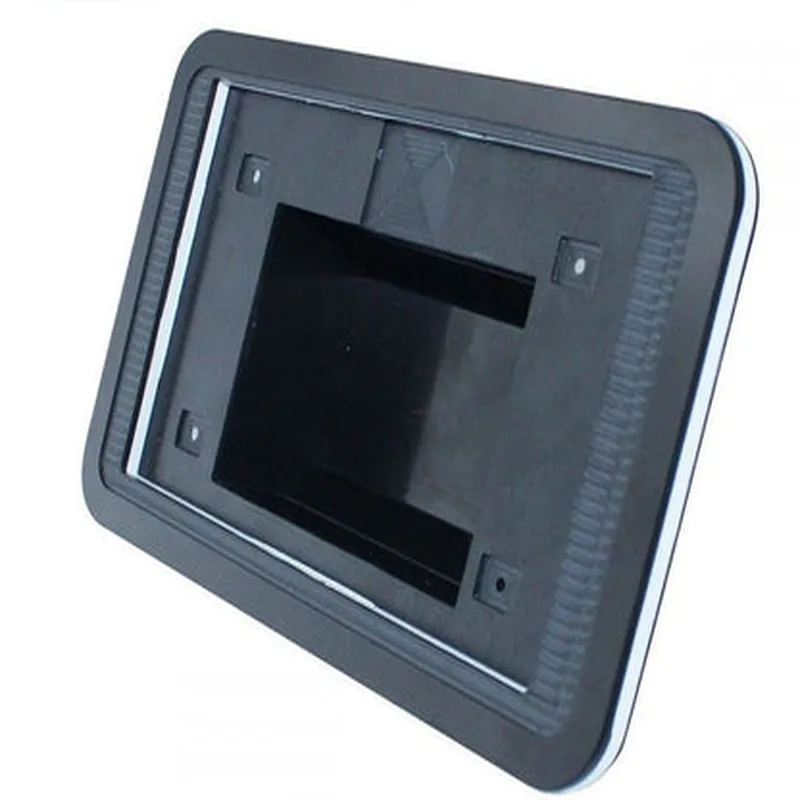
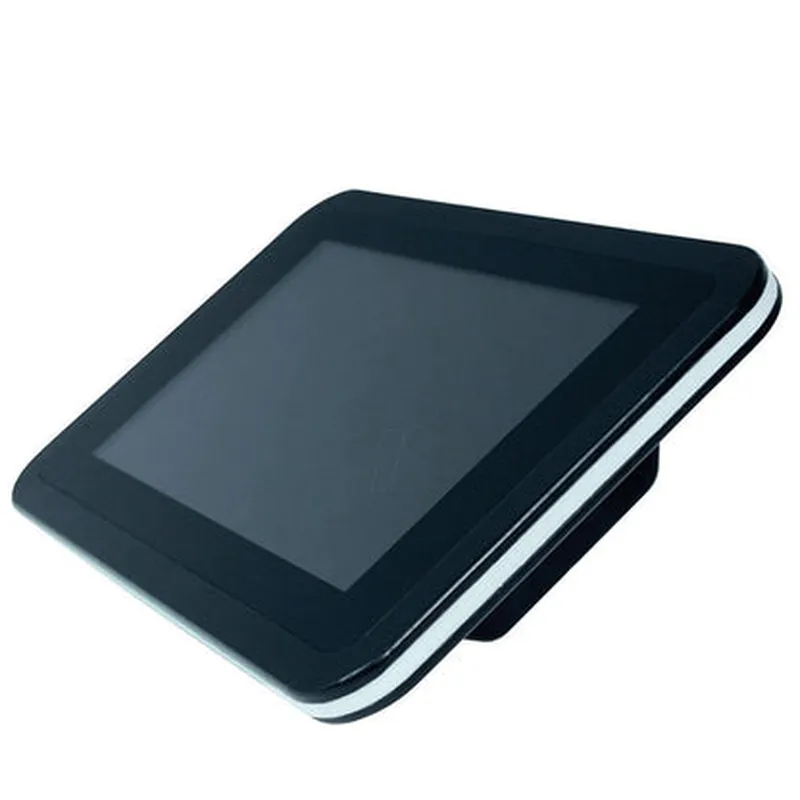
The 7in Raspberry Pi Display Enclosure is a compact, high-quality display module designed specifically for Raspberry Pi single-board computers. This enclosure provides a comprehensive solution for building interactive projects, prototyping, and proof-of-concepts, leveraging the capabilities of the Raspberry Pi.

Functionality

The 7in Raspberry Pi Display Enclosure serves as a housing for the Raspberry Pi board, providing a built-in 7-inch high-resolution display, and a robust mechanical structure. This module enables users to create a self-contained, portable, and fully functional device, suitable for a wide range of IoT applications.

Key Features

  • High-Resolution Display: The 7in display features a resolution of 1024x600 pixels, offering crisp and clear visuals, making it ideal for applications requiring a high-quality user interface.
  • Raspberry Pi Compatibility: The enclosure is specifically designed to accommodate Raspberry Pi boards, ensuring seamless integration and compatibility.
  • Compact Design: The module's compact size (approximately 185mm x 125mm x 35mm) makes it perfect for space-constrained projects, prototyping, and proof-of-concepts.
  • Robust Construction: The enclosure is built with a durable ABS plastic material, ensuring a sturdy and reliable housing for the Raspberry Pi and display components.
  • Easy Installation: The module features a simple and convenient installation process, with a snap-fit design for the Raspberry Pi board and display components.
  • GPIO Access: The enclosure provides access to the Raspberry Pi's GPIO pins, enabling users to connect peripherals, sensors, and other devices.
  • Power Management: The module can be powered via a micro-USB port, ensuring easy and convenient power supply management.
  • Mounting Options: The enclosure features mounting holes, allowing users to secure it to a surface or integrate it into a larger system.

Technical Specifications

Display

7-inch, 1024x600 pixels, 5-point capacitive touchscreen

Compatibility

Raspberry Pi 4, 3, 2, and 1

Material

ABS plastic

Dimensions

approximately 185mm x 125mm x 35mm

Weight

approximately 350g

Operating Temperature

0C to 50C

Storage Temperature

-20C to 80C

Power Supply

micro-USB, 5V, 2A

Applications

The 7in Raspberry Pi Display Enclosure is suitable for a wide range of applications, including

IoT projects and prototyping

Home automation systems

Industrial control and monitoring systems

Digital signage and kiosks

Robotics and autonomous systems

Educational and research projects

Conclusion

The 7in Raspberry Pi Display Enclosure is a versatile and powerful module that provides a comprehensive solution for building interactive projects and prototyping with Raspberry Pi. Its compact design, high-resolution display, and robust construction make it an ideal choice for a wide range of IoT applications.

Pin Configuration

  • 7in Raspberry Pi Display Enclosure Pinout Documentation
  • The 7in Raspberry Pi Display Enclosure is a compact and sleek housing for the Raspberry Pi mini-computer, designed to provide a high-quality display experience. This documentation explains the pinout of the enclosure's connector, which connects to the Raspberry Pi's GPIO header.
  • Pinout Structure:
  • The 7in Raspberry Pi Display Enclosure's connector has 26 pins, arranged in a 2x13 configuration. The pins are divided into four groups:
  • 1. Power and Ground
  • 2. Display Interface
  • 3. Button and LED
  • 4. GPIO Expansion
  • Pin-by-Pin Breakdown:
  • ### Power and Ground (Pins 1-4)
  • Pin 1: 5V Power (Red wire): Connects to the Raspberry Pi's 5V power pin (Pin 2 on the GPIO header)
  • Pin 2: Ground (Black wire): Connects to the Raspberry Pi's Ground pin (Pin 6 on the GPIO header)
  • Pin 3: 3.3V Power (Orange wire): Connects to the Raspberry Pi's 3.3V power pin (Pin 1 on the GPIO header)
  • Pin 4: Ground (Black wire): Connects to the Raspberry Pi's Ground pin (Pin 9 on the GPIO header)
  • ### Display Interface (Pins 5-14)
  • Pin 5: D0 (Digital Signal): Connects to the Raspberry Pi's GPIO pin 18 (SPI Clock)
  • Pin 6: D1 (Digital Signal): Connects to the Raspberry Pi's GPIO pin 23 (SPI MOSI)
  • Pin 7: D2 (Digital Signal): Connects to the Raspberry Pi's GPIO pin 24 (SPI MISO)
  • Pin 8: D3 (Digital Signal): Connects to the Raspberry Pi's GPIO pin 25 (SPI CS)
  • Pin 9: CLK (Clock Signal): Connects to the Raspberry Pi's GPIO pin 19 (Display Clock)
  • Pin 10: DE (Data Enable Signal): Connects to the Raspberry Pi's GPIO pin 22 (Display Data Enable)
  • Pin 11: VSYNC (Vertical Sync Signal): Connects to the Raspberry Pi's GPIO pin 20 (Display VSYNC)
  • Pin 12: HSYNC (Horizontal Sync Signal): Connects to the Raspberry Pi's GPIO pin 21 (Display HSYNC)
  • Pin 13: R0 (Red Channel Data): Connects to the Raspberry Pi's GPIO pin 15 (Display Red Channel)
  • Pin 14: R1 (Red Channel Data): Connects to the Raspberry Pi's GPIO pin 16 (Display Red Channel)
  • ### Button and LED (Pins 15-18)
  • Pin 15: BTN (Button Signal): Connects to the Raspberry Pi's GPIO pin 17 (Button Input)
  • Pin 16: LED-R (Red LED Signal): Connects to the Raspberry Pi's GPIO pin 13 (Red LED Output)
  • Pin 17: LED-G (Green LED Signal): Connects to the Raspberry Pi's GPIO pin 12 (Green LED Output)
  • Pin 18: LED-B (Blue LED Signal): Connects to the Raspberry Pi's GPIO pin 11 (Blue LED Output)
  • ### GPIO Expansion (Pins 19-26)
  • Pin 19: GPIO 5 (General Purpose I/O): Connects to the Raspberry Pi's GPIO pin 5
  • Pin 20: GPIO 6 (General Purpose I/O): Connects to the Raspberry Pi's GPIO pin 6
  • Pin 21: GPIO 13 (General Purpose I/O): Connects to the Raspberry Pi's GPIO pin 13
  • Pin 22: GPIO 19 (General Purpose I/O): Connects to the Raspberry Pi's GPIO pin 19
  • Pin 23: GPIO 26 (General Purpose I/O): Connects to the Raspberry Pi's GPIO pin 26
  • Pin 24: GPIO 18 (General Purpose I/O): Connects to the Raspberry Pi's GPIO pin 18
  • Pin 25: GPIO 23 (General Purpose I/O): Connects to the Raspberry Pi's GPIO pin 23
  • Pin 26: GPIO 24 (General Purpose I/O): Connects to the Raspberry Pi's GPIO pin 24
  • Connection Guidelines:
  • When connecting the 7in Raspberry Pi Display Enclosure to your Raspberry Pi, ensure that you match the pin numbers on the enclosure's connector with the corresponding pins on the Raspberry Pi's GPIO header. Follow proper wiring and connection techniques to avoid damage to the components.

Code Examples

7in Raspberry Pi Display Enclosure Documentation
Overview
The 7in Raspberry Pi Display Enclosure is a compact and durable housing designed specifically for the Raspberry Pi single-board computer. This enclosure is equipped with a 7-inch HDMI display, making it an ideal solution for IoT projects that require a visual interface. The enclosure provides a secure and protective environment for the Raspberry Pi, while the display allows for interactive user interfaces, monitoring, and feedback.
Hardware Components
7-inch HDMI display with 1024x600 resolution
 Raspberry Pi mounting system (compatible with Raspberry Pi 3, 3+, 4, and 4+ models)
 Aluminum alloy enclosure with durable powder coat finish
 HDMI cable and micro-USB cable for powering the display
 Screwdriver for assembling the enclosure
Software Requirements
Raspberry Pi OS (recommended)
 Python programming language (for examples)
Examples and Code
### Example 1: Basic Display Output using Python
In this example, we will demonstrate how to output a simple "Hello World" message on the 7in display using Python.
```python
import framebuffer
# Initialize the framebuffer
fb = framebuffer.FrameBuffer('/dev/fb0')
# Clear the screen
fb.clear_screen()
# Set the font and text color
fb.set_font('DejaVuSans-Bold', 24)
fb.set_text_color(255, 255, 255)
# Print the message
fb.print_text(10, 10, 'Hello World!')
# Update the screen
fb.update_screen()
```
This code initializes the framebuffer, clears the screen, sets the font and text color, and prints the "Hello World!" message at coordinates (10, 10).
### Example 2: Displaying Sensor Data using Python and Matplotlib
In this example, we will demonstrate how to display temperature and humidity data from a BME280 sensor on the 7in display using Python and Matplotlib.
```python
import matplotlib.pyplot as plt
import bme280
# Initialize the BME280 sensor
bme = bme280.BME280(i2c_dev="/dev/i2c-1")
# Get the current temperature and humidity readings
temp = bme.get_temperature()
humid = bme.get_humidity()
# Create a figure and axis objects
fig, ax = plt.subplots(1, 1, figsize=(7, 4))
# Plot the data
ax.plot([temp], label='Temperature (C)')
ax.plot([humid], label='Humidity (%)')
ax.set_title('Environmental Data')
ax.legend()
# Show the plot on the display
plt.show(block=False)
# Update the plot every 10 seconds
while True:
    temp = bme.get_temperature()
    humid = bme.get_humidity()
    ax.clear()
    ax.plot([temp], label='Temperature (C)')
    ax.plot([humid], label='Humidity (%)')
    ax.set_title('Environmental Data')
    ax.legend()
    plt.draw()
    plt.pause(10)
```
This code initializes the BME280 sensor, gets the current temperature and humidity readings, creates a plot using Matplotlib, and displays it on the 7in display. The plot is updated every 10 seconds with new sensor readings.
Additional Resources
Raspberry Pi OS documentation: <https://www.raspberrypi.org/documentation/>
 Python documentation: <https://docs.python.org/3/>
 Matplotlib documentation: <https://matplotlib.org/stable/index.html>
 BME280 sensor documentation: <https://datasheets.raspberrypi.org/sensors/bme280.pdf>