Stufin
Home Quick Cart Profile

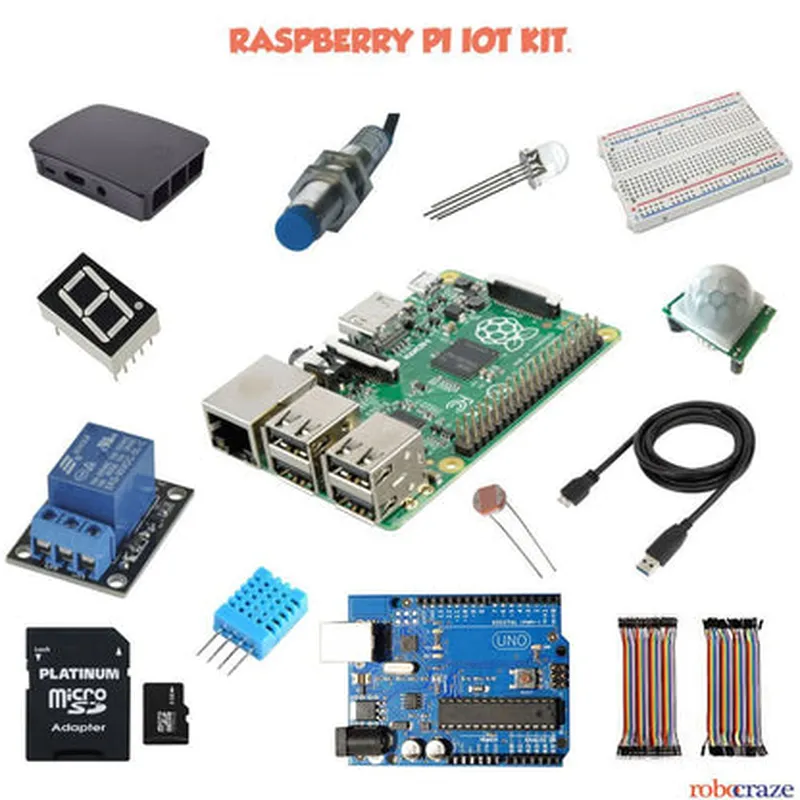
Raspberry Pi IOT Kit

Buy Now on Stufin

Raspberry Pi Board

+ ProcessorQuad-core Cortex-A53 CPU
+ RAM1GB
+ StorageMicroSD card slot (preloaded with Raspbian OS)
+ Wireless802.11n Wi-Fi, Bluetooth 4.0

Power Supply

+ Voltage5V
+ Current2.5A

Dimensions

+ Raspberry Pi Board85 x 56 mm
+ Breadboard160 x 55 mm

Getting Started

To get started with the Raspberry Pi IoT Kit, simply plug in the power supply, insert the microSD card, and connect to a Wi-Fi network. Then, access the Raspberry Pi's terminal using a SSH client or the built-in VNC server. From there, you can start exploring the Raspbian OS, Node-RED, and the various sensors and peripherals included in the kit.

Pin Configuration

  • Raspberry Pi IoT Kit Pinout Guide
  • The Raspberry Pi IoT Kit is a powerful and versatile single-board computer designed for Internet of Things (IoT) projects. The kit consists of a Raspberry Pi board, various sensors, and accessories. To utilize the kit's full potential, it's essential to understand the pinout of the Raspberry Pi board. Here's a detailed explanation of each pin, point by point:
  • GPIO Pins (General Purpose Input/Output)
  • The Raspberry Pi has 40 GPIO pins, which can be used for various purposes such as digital input/output, analog input, and special functions like I2C, SPI, and UART.
  • 1. GPIO 2 (SDA1):
  • Function: I2C Data (Serial Data Line)
  • Description: Used for I2C communication, which is a serial protocol for device communication.
  • 2. GPIO 3 (SCL1):
  • Function: I2C Clock (Serial Clock Line)
  • Description: Used for I2C communication, which is a serial protocol for device communication.
  • 3. GPIO 4 (GPIO 4):
  • Function: General Purpose Input/Output
  • Description: Can be used as a digital input or output for various applications.
  • 4. GPIO 5 (GPIO 5):
  • Function: General Purpose Input/Output
  • Description: Can be used as a digital input or output for various applications.
  • 5. GPIO 6 (GPIO 6):
  • Function: General Purpose Input/Output
  • Description: Can be used as a digital input or output for various applications.
  • 6. GPIO 7 (CE1):
  • Function: Chip Enable 1
  • Description: Used to enable or disable the SPI interface.
  • 7. GPIO 8 (CE0):
  • Function: Chip Enable 0
  • Description: Used to enable or disable the SPI interface.
  • 8. GPIO 9 (MISO):
  • Function: Master In, Slave Out (SPI)
  • Description: Used for SPI communication, which is a serial protocol for device communication.
  • 9. GPIO 10 (MOSI):
  • Function: Master Out, Slave In (SPI)
  • Description: Used for SPI communication, which is a serial protocol for device communication.
  • 10. GPIO 11 (SCLK):
  • Function: Serial Clock (SPI)
  • Description: Used for SPI communication, which is a serial protocol for device communication.
  • 11. GPIO 12 (GPIO 12):
  • Function: General Purpose Input/Output
  • Description: Can be used as a digital input or output for various applications.
  • 12. GPIO 13 (GPIO 13):
  • Function: General Purpose Input/Output
  • Description: Can be used as a digital input or output for various applications.
  • 13. GPIO 14 (TXD):
  • Function: Transmit Data (UART)
  • Description: Used for UART communication, which is a serial protocol for device communication.
  • 14. GPIO 15 (RXD):
  • Function: Receive Data (UART)
  • Description: Used for UART communication, which is a serial protocol for device communication.
  • 15. GPIO 16 (GPIO 16):
  • Function: General Purpose Input/Output
  • Description: Can be used as a digital input or output for various applications.
  • 16. GPIO 17 (GPIO 17):
  • Function: General Purpose Input/Output
  • Description: Can be used as a digital input or output for various applications.
  • 17. GPIO 18 (GPIO 18):
  • Function: General Purpose Input/Output
  • Description: Can be used as a digital input or output for various applications.
  • 18. GPIO 19 (GPIO 19):
  • Function: General Purpose Input/Output
  • Description: Can be used as a digital input or output for various applications.
  • 19. GPIO 20 (GPIO 20):
  • Function: General Purpose Input/Output
  • Description: Can be used as a digital input or output for various applications.
  • 20. GPIO 21 (GPIO 21):
  • Function: General Purpose Input/Output
  • Description: Can be used as a digital input or output for various applications.
  • 21. GPIO 22 (GPIO 22):
  • Function: General Purpose Input/Output
  • Description: Can be used as a digital input or output for various applications.
  • 22. GPIO 23 (GPIO 23):
  • Function: General Purpose Input/Output
  • Description: Can be used as a digital input or output for various applications.
  • 23. GPIO 24 (GPIO 24):
  • Function: General Purpose Input/Output
  • Description: Can be used as a digital input or output for various applications.
  • 24. GPIO 25 (GPIO 25):
  • Function: General Purpose Input/Output
  • Description: Can be used as a digital input or output for various applications.
  • 25. GPIO 26 (GPIO 26):
  • Function: General Purpose Input/Output
  • Description: Can be used as a digital input or output for various applications.
  • Power Pins
  • 26. 3.3V:
  • Function: 3.3V Power Supply
  • Description: Provides a stable 3.3V power supply for external components.
  • 27. 5V:
  • Function: 5V Power Supply
  • Description: Provides a stable 5V power supply for external components.
  • 28. GND:
  • Function: Ground
  • Description: Used as a common ground connection for external components.
  • Other Pins
  • 29. HDMI:
  • Function: HDMI Output
  • Description: Used for video output to a monitor or display.
  • 30. USB:
  • Function: USB Interface
  • Description: Used for connecting peripherals like keyboards, mice, and storage devices.
  • 31. Ethernet:
  • Function: Ethernet Interface
  • Description: Used for network connectivity.
  • 32. CSI:
  • Function: Camera Serial Interface
  • Description: Used for connecting cameras and other imaging devices.
  • 33. DSI:
  • Function: Display Serial Interface
  • Description: Used for connecting displays and other display devices.
  • Connecting the Pins
  • When connecting the pins, ensure you follow proper safety precautions and handle the Raspberry Pi board by the edges to avoid static damage.
  • Use jumper wires or breadboard-friendly connectors to connect the pins to external components.
  • Always double-check the pinout diagram to ensure correct connections.
  • Use a multimeter to verify the voltage levels and polarity before connecting power to the Raspberry Pi.
  • Be cautious when handling the Raspberry Pi board, as it can be damaged by static electricity or incorrect connections.
  • Remember to consult the official Raspberry Pi documentation and the datasheet for the specific components you are using in your project for more detailed information on pinout and connections.

Code Examples

Raspberry Pi IOT Kit Documentation
Overview
The Raspberry Pi IOT Kit is a comprehensive bundle of hardware components and software tools designed to facilitate the development of Internet of Things (IoT) projects. The kit includes a Raspberry Pi single-board computer, various sensors, and peripherals that enable users to create interactive and connected devices.
Hardware Components
Raspberry Pi (Model 4 or 3 B+)
 Breadboard
 Jumper wires
 Sensors (temperature, humidity, light, motion)
 LEDs
 Resistor pack
 Power supply
 microSD card
Software Tools
Raspbian OS (pre-installed on the microSD card)
 Python programming language
 IoT-specific libraries and frameworks (e.g., RPi.GPIO, Python-SMBus)
Code Examples
### Example 1: Temperature Sensor Reading
In this example, we'll use the temperature sensor to read the ambient temperature and display it on the terminal.
Hardware
Raspberry Pi
 Breadboard
 Temperature sensor (DS18B20)
 Jumper wires
Software
Raspbian OS
 Python 3.x
 RPi.GPIO library
Code
```python
import os
import time
import RPi.GPIO as GPIO
# Set up the temperature sensor
GPIO.setmode(GPIO.BCM)
temp_sensor_pin = 18
GPIO.setup(temp_sensor_pin, GPIO.IN)
while True:
    # Read the temperature sensor data
    temp_data = os.popen('cat /sys/bus/w1/devices/28-000006a27455/w1_slave').read()
    temp_c = float(temp_data.split('=')[1]) / 1000
    temp_f = (temp_c  9/5) + 32
# Print the temperature readings
    print(f'Temperature: {temp_c:.2f}C / {temp_f:.2f}F')
    time.sleep(1)
```
### Example 2: Home Automation with LED and Button
In this example, we'll create a simple home automation system that turns an LED on and off using a button press.
Hardware
Raspberry Pi
 Breadboard
 LED
 Button
 Resistor (1 k)
 Jumper wires
Software
Raspbian OS
 Python 3.x
 RPi.GPIO library
Code
```python
import RPi.GPIO as GPIO
import time
# Set up the GPIO pins
GPIO.setmode(GPIO.BCM)
led_pin = 17
button_pin = 23
GPIO.setup(led_pin, GPIO.OUT)
GPIO.setup(button_pin, GPIO.IN, pull_up_down=GPIO.PUD_UP)
while True:
    # Read the button state
    if GPIO.input(button_pin) == False:
        # Toggle the LED
        GPIO.output(led_pin, not GPIO.input(led_pin))
        time.sleep(0.5)
```
### Example 3: IoT-based Weather Station (Advanced)
In this example, we'll create an IoT-based weather station that collects temperature, humidity, and light intensity data and sends it to a cloud-based server using MQTT protocol.
Hardware
Raspberry Pi
 Breadboard
 Temperature sensor (DS18B20)
 Humidity sensor (DHT11)
 Light sensor (LDR)
 Wi-Fi module (optional)
 Jumper wires
Software
Raspbian OS
 Python 3.x
 RPi.GPIO library
 paho-mqtt library
Code
```python
import paho.mqtt.client as mqtt
import RPi.GPIO as GPIO
import time
# Set up the MQTT client
mqtt_client = mqtt.Client()
mqtt_client.connect('your_mqtt_broker_ip', 1883)
# Set up the sensors
temp_sensor_pin = 18
humi_sensor_pin = 4
light_sensor_pin = 17
GPIO.setup(temp_sensor_pin, GPIO.IN)
GPIO.setup(humi_sensor_pin, GPIO.IN)
GPIO.setup(light_sensor_pin, GPIO.IN)
while True:
    # Read the sensor data
    temp_c = read_temperature()
    humi_rh = read_humidity()
    lightIntensity = read_light_intensity()
# Create a JSON payload
    payload = {'temperature': temp_c, 'humidity': humi_rh, 'light_intensity': lightIntensity}
# Publish the data to the MQTT broker
    mqtt_client.publish('weather_station/data', json.dumps(payload))
    time.sleep(10)
```
Note: These examples are meant to demonstrate the basic usage of the Raspberry Pi IOT Kit and are not intended to be production-ready code. You should modify and expand on these examples to suit your specific project requirements.