

Stufin
Home Quick Cart Profile

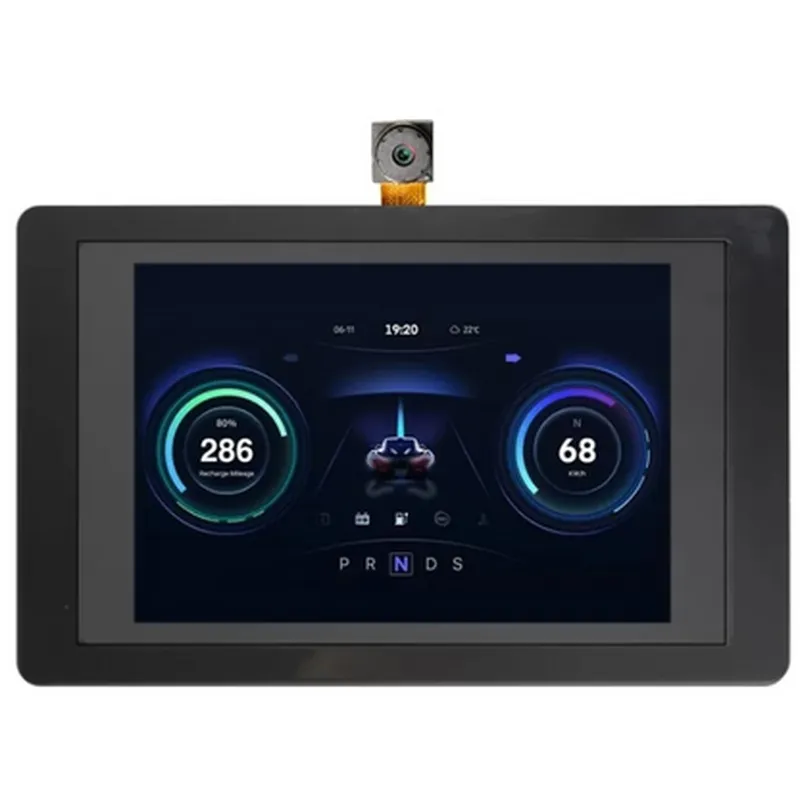
ELECROW 3.5" SPI TFT Touch Display with ESP32 Terminal & OV2640 Camera

Buy Now on Stufin

Operating Temperature

-20C to 70C

Storage Temperature

-40C to 85C

Power Supply

5V DC (recommended), 3.3V to 5.5V DC (tolerance)

Power Consumption

< 500mA (average), < 1A (peak)

Dimensions

95mm x 55mm x 15mm (L x W x H)

Ordering Information

The ELECROW 3.5" SPI TFT Touch Display with ESP32 Terminal & OV2640 Camera is available for purchase through authorized distributors and online marketplaces. Please contact the manufacturer or authorized distributors for pricing and availability information.

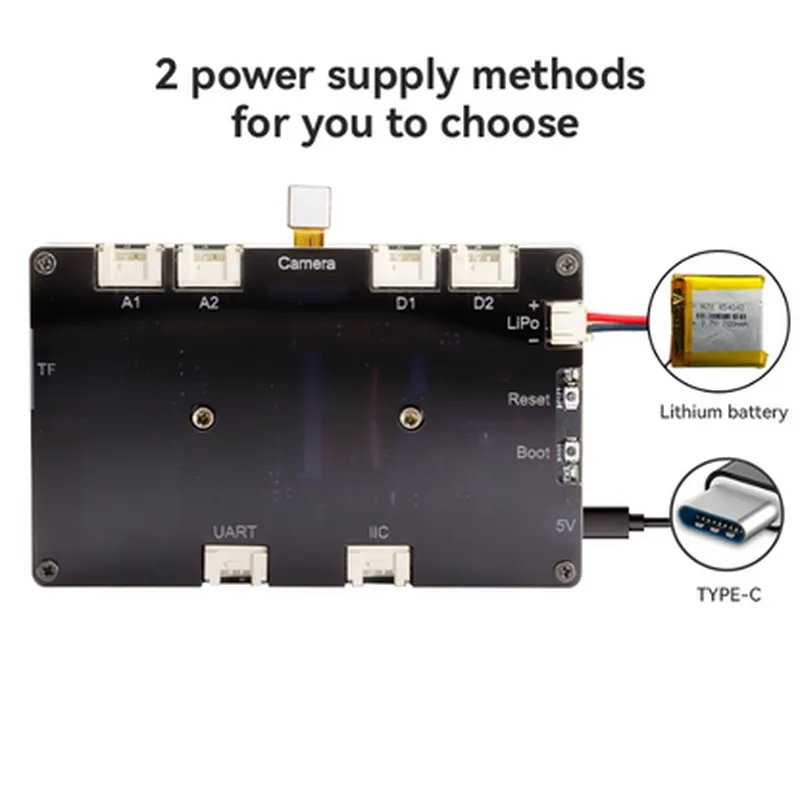
Pin Configuration

  • ELECROW 3.5" SPI TFT Touch Display with ESP32 Terminal & OV2640 Camera Pinout Guide
  • The ELECROW 3.5" SPI TFT Touch Display with ESP32 Terminal & OV2640 Camera is a versatile IoT component that combines a high-resolution touchscreen display, a powerful ESP32 microcontroller, and a compact OV2640 camera module. To help you effectively utilize this module, this pinout guide will detail each pin's function and provide a clear connection structure.
  • ESP32 Terminal Pins
  • 1. VIN (5V): Input voltage pin for the ESP32 microcontroller. Connect to a 5V power source.
  • 2. GND: Ground pin for the ESP32 microcontroller. Connect to ground.
  • 3. EN (Enable): Enable pin for the ESP32 microcontroller. Pull high to enable the chip.
  • 4. IO0 (GPIO0): General-purpose input/output pin. Can be used for various functions such as button input, LED output, or communication protocols like I2C/SPI.
  • 5. IO1 (GPIO1): General-purpose input/output pin. Can be used for various functions such as button input, LED output, or communication protocols like I2C/SPI.
  • 6. IO2 (GPIO2): General-purpose input/output pin. Can be used for various functions such as button input, LED output, or communication protocols like I2C/SPI.
  • 7. IO3 (GPIO3): General-purpose input/output pin. Can be used for various functions such as button input, LED output, or communication protocols like I2C/SPI.
  • 8. IO4 (GPIO4): General-purpose input/output pin. Can be used for various functions such as button input, LED output, or communication protocols like I2C/SPI.
  • 9. IO5 (GPIO5): General-purpose input/output pin. Can be used for various functions such as button input, LED output, or communication protocols like I2C/SPI.
  • 10. IO12 (GPIO12): General-purpose input/output pin. Can be used for various functions such as button input, LED output, or communication protocols like I2C/SPI.
  • 11. IO13 (GPIO13): General-purpose input/output pin. Can be used for various functions such as button input, LED output, or communication protocols like I2C/SPI.
  • 12. IO14 (GPIO14): General-purpose input/output pin. Can be used for various functions such as button input, LED output, or communication protocols like I2C/SPI.
  • 13. IO15 (GPIO15): General-purpose input/output pin. Can be used for various functions such as button input, LED output, or communication protocols like I2C/SPI.
  • 14. IO18 (GPIO18): General-purpose input/output pin. Can be used for various functions such as button input, LED output, or communication protocols like I2C/SPI.
  • 15. IO19 (GPIO19): General-purpose input/output pin. Can be used for various functions such as button input, LED output, or communication protocols like I2C/SPI.
  • 16. IO21 (GPIO21): General-purpose input/output pin. Can be used for various functions such as button input, LED output, or communication protocols like I2C/SPI.
  • 17. IO22 (GPIO22): General-purpose input/output pin. Can be used for various functions such as button input, LED output, or communication protocols like I2C/SPI.
  • 18. IO23 (GPIO23): General-purpose input/output pin. Can be used for various functions such as button input, LED output, or communication protocols like I2C/SPI.
  • SPI TFT Display Pins
  • 1. SCK (SPI Clock): SPI clock signal for the TFT display. Connect to the SPI clock pin of your microcontroller.
  • 2. MOSI (SPI Master Out Slave In): SPI data output pin for the TFT display. Connect to the SPI MOSI pin of your microcontroller.
  • 3. MISO (SPI Master In Slave Out): SPI data input pin for the TFT display. Connect to the SPI MISO pin of your microcontroller.
  • 4. DC (Data/Command): Data/command selection pin for the TFT display. Connect to a digital output pin of your microcontroller.
  • 5. RST (Reset): Reset pin for the TFT display. Connect to a digital output pin of your microcontroller.
  • 6. CS (Chip Select): Chip select pin for the TFT display. Connect to a digital output pin of your microcontroller.
  • OV2640 Camera Module Pins
  • 1. PWR_DOWN (Power Down): Power down control pin for the OV2640 camera module. Connect to a digital output pin of your microcontroller.
  • 2. RESET (Reset): Reset pin for the OV2640 camera module. Connect to a digital output pin of your microcontroller.
  • 3. SIOC (SCI Output Clock): SCI (Serial Camera Interface) output clock pin for the OV2640 camera module. Connect to a digital output pin of your microcontroller.
  • 4. SIOD (SCI Output Data): SCI output data pin for the OV2640 camera module. Connect to a digital input pin of your microcontroller.
  • 5. VSYNC (Vertical Sync): Vertical sync pin for the OV2640 camera module. Connect to a digital input pin of your microcontroller.
  • 6. HREF (Horizontal Reference): Horizontal reference pin for the OV2640 camera module. Connect to a digital input pin of your microcontroller.
  • 7. PCLK (Pixel Clock): Pixel clock pin for the OV2640 camera module. Connect to a digital input pin of your microcontroller.
  • Touch Panel Pins
  • 1. TP_INT (Touch Panel Interrupt): Touch panel interrupt pin. Connect to a digital input pin of your microcontroller.
  • 2. TP_SCL (Touch Panel SCL): Touch panel I2C clock pin. Connect to the I2C clock pin of your microcontroller.
  • 3. TP_SDA (Touch Panel SDA): Touch panel I2C data pin. Connect to the I2C data pin of your microcontroller.
  • Connection Structure:
  • To connect the ELECROW 3.5" SPI TFT Touch Display with ESP32 Terminal & OV2640 Camera, follow this general structure:
  • Connect the ESP32 terminal pins to your microcontroller or development board:
  • + VIN to 5V power source
  • + GND to ground
  • + EN to digital output pin (if necessary)
  • + IO0-23 to digital input/output pins (depending on your project requirements)
  • Connect the SPI TFT display pins to your microcontroller or development board:
  • + SCK to SPI clock pin
  • + MOSI to SPI MOSI pin
  • + MISO to SPI MISO pin
  • + DC to digital output pin
  • + RST to digital output pin
  • + CS to digital output pin
  • Connect the OV2640 camera module pins to your microcontroller or development board:
  • + PWR_DOWN to digital output pin
  • + RESET to digital output pin
  • + SIOC to digital output pin
  • + SIOD to digital input pin
  • + VSYNC to digital input pin
  • + HREF to digital input pin
  • + PCLK to digital input pin
  • Connect the touch panel pins to your microcontroller or development board:
  • + TP_INT to digital input pin
  • + TP_SCL to I2C clock pin
  • + TP_SDA to I2C data pin
  • Remember to consult the datasheets and documentation for your specific microcontroller or development board for more detailed information on how to connect and utilize the ELECROW 3.5" SPI TFT Touch Display with ESP32 Terminal & OV2640 Camera.

Code Examples

Component Overview
The ELECROW 3.5" SPI TFT Touch Display with ESP32 Terminal & OV2640 Camera is a versatile IoT component that integrates a vibrant 3.5" SPI TFT display, an ESP32 microcontroller Terminal, and an OV2640 camera module. This compact component is ideal for developing interactive and visually appealing IoT projects, such as smart home devices, industrial control panels, and robotics applications.
Technical Specifications
Display:
	+ 3.5" SPI TFT LCD with 320x480 resolution
	+ 16-bit color depth, 65K colors
	+ Supports SPI communication
 ESP32 Terminal:
	+ Dual-core 32-bit LX6 microprocessor
	+ Wi-Fi and Bluetooth 4.2 capabilities
	+ 520KB SRAM, 4MB Flash memory
 OV2640 Camera:
	+ 2-megapixel CMOS image sensor
	+ Supports VGA, CIF, and QVGA resolutions
	+ Built-in JPEG compression
 Power and Interfaces:
	+ Operating voltage: 3.3V
	+ Supports SPI, I2C, UART, and GPIO interfaces
	+ Micro-USB programming interface
Code Examples
### Example 1: Displaying an Image on the TFT Display using ESP32
In this example, we'll demonstrate how to display a bitmap image on the TFT display using the ESP32 microcontroller.
Hardware Connections:
Connect the TFT display to the ESP32 as follows:
	+ TFT_CS (Chip Select) to ESP32's GPIO 22
	+ TFT_CLK (Clock) to ESP32's GPIO 18
	+ TFT_MOSI (Master Out Slave In) to ESP32's GPIO 23
	+ TFT_RST (Reset) to ESP32's GPIO 21
 Connect the OV2640 camera module to the ESP32 as follows:
	+ Camera PWDN (Power Down) to ESP32's GPIO 32
	+ Camera RESET to ESP32's GPIO 33
	+ Camera SCL (Clock) to ESP32's GPIO 14
	+ Camera SDA (Data) to ESP32's GPIO 15
Software:
Install the TFT_eSPI library for the ESP32 using the Arduino IDE.
 Create a new Arduino project and add the following code:
```c
#include <TFT_eSPI.h>
#include <SPI.h>
TFT_eSPI tft = TFT_eSPI(); // Create a TFT_eSPI object
void setup() {
  Serial.begin(115200);
  tft.begin(); // Initialize the TFT display
}
void loop() {
  tft.fillScreen(TFT_BLACK); // Clear the screen with black color
  tft.setRotation(1); // Set the rotation to 90 degrees
// Load a bitmap image from the SD card (not included in this example)
  tft.drawImage(0, 0, 320, 480, image_data);
delay(1000);
}
```
Note: Replace `image_data` with the actual bitmap image data stored in a character array or loaded from an SD card.
### Example 2: Capturing and Displaying a Camera Image using ESP32
In this example, we'll demonstrate how to capture an image using the OV2640 camera module and display it on the TFT display using the ESP32 microcontroller.
Hardware Connections:
Connect the OV2640 camera module to the ESP32 as follows:
	+ Camera PWDN (Power Down) to ESP32's GPIO 32
	+ Camera RESET to ESP32's GPIO 33
	+ Camera SCL (Clock) to ESP32's GPIO 14
	+ Camera SDA (Data) to ESP32's GPIO 15
 Connect the TFT display to the ESP32 as follows:
	+ TFT_CS (Chip Select) to ESP32's GPIO 22
	+ TFT_CLK (Clock) to ESP32's GPIO 18
	+ TFT_MOSI (Master Out Slave In) to ESP32's GPIO 23
	+ TFT_RST (Reset) to ESP32's GPIO 21
Software:
Install the OV2640 camera library for the ESP32 using the Arduino IDE.
 Create a new Arduino project and add the following code:
```c
#include <OV2640.h>
#include <TFT_eSPI.h>
OV2640 cam; // Create an OV2640 camera object
TFT_eSPI tft = TFT_eSPI(); // Create a TFT_eSPI object
void setup() {
  Serial.begin(115200);
  cam.init(); // Initialize the camera module
  tft.begin(); // Initialize the TFT display
}
void loop() {
  cam.capture(); // Capture an image using the camera module
  uint16_t image_data = cam.getImageData(); // Get the captured image data
tft.fillScreen(TFT_BLACK); // Clear the screen with black color
  tft.setRotation(1); // Set the rotation to 90 degrees
// Display the captured image on the TFT display
  tft.pushImage(0, 0, 320, 240, image_data);
delay(1000);
}
```
Note: The `getImageData()` function returns a pointer to the captured image data, which is then displayed on the TFT display using the `pushImage()` function.
These examples demonstrate the basic functionality of the ELECROW 3.5" SPI TFT Touch Display with ESP32 Terminal & OV2640 Camera component. You can expand on these examples to develop more complex IoT projects that leverage the capabilities of this versatile component.