3 Pin Push-in Conductor


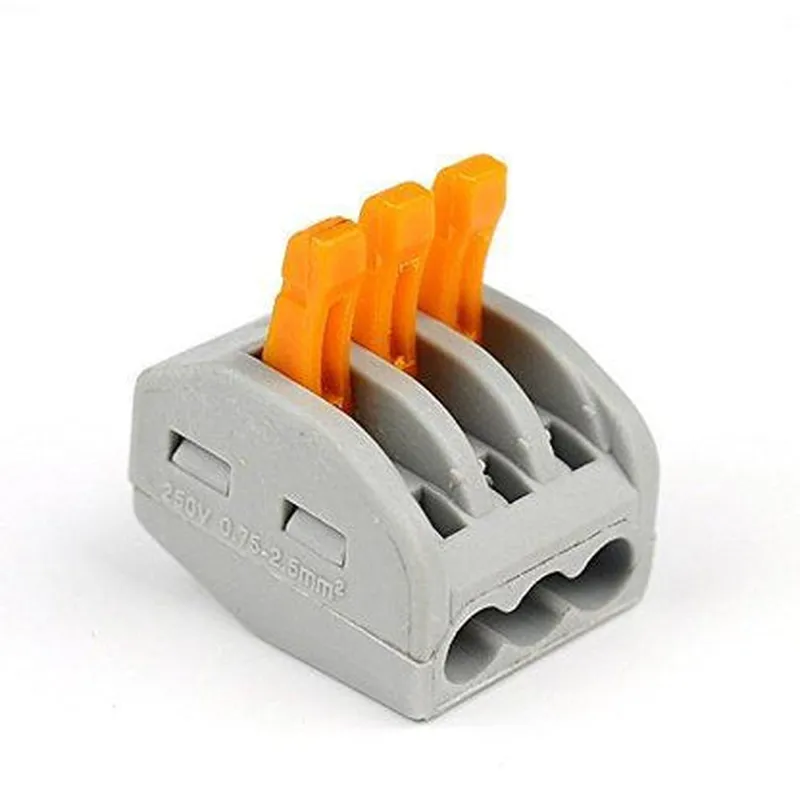
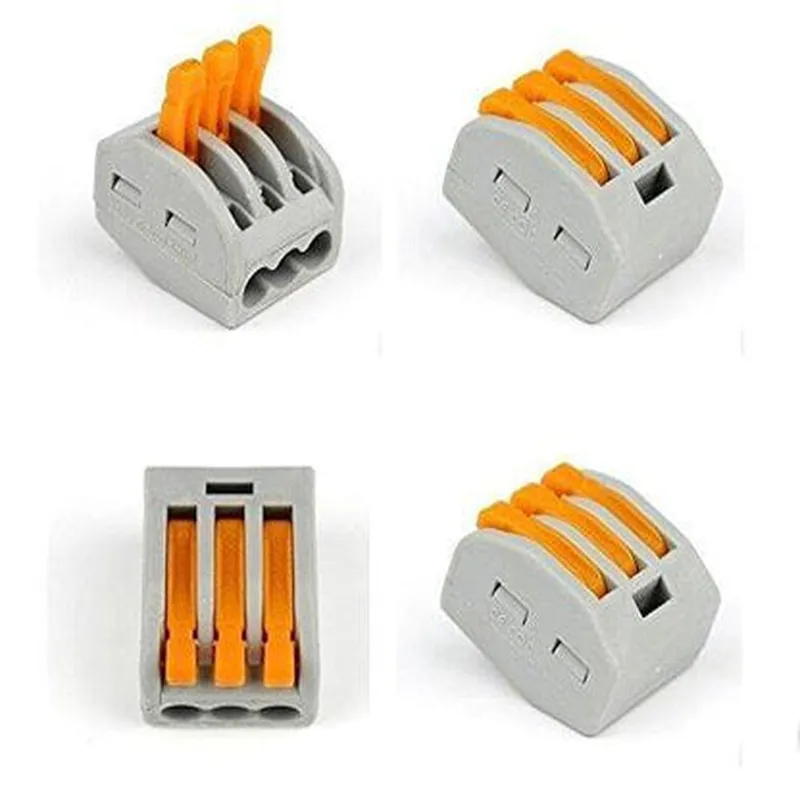
3 Pin Push-in Conductor
The 3 Pin Push-in Conductor is a type of electronic component used to establish a secure and reliable connection between wires and a printed circuit board (PCB). It is a compact, versatile, and widely used connector designed for various IoT applications, including smart home devices, industrial automation, and wearable electronics.
The primary function of the 3 Pin Push-in Conductor is to provide a convenient and efficient way to connect and disconnect wires from a PCB. It allows for easy wire termination and ensures a secure, gas-tight connection that can withstand various environmental conditions.
| The 3 Pin Push-in Conductor is commonly used in various IoT applications, including |
Smart home devices (e.g., smart thermostats, security systems)
Industrial automation systems (e.g., sensors, actuators)
Wearable electronics (e.g., fitness trackers, smartwatches)
IoT modules (e.g., Wi-Fi, Bluetooth)
Robotics and automation systems
Overall, the 3 Pin Push-in Conductor is a reliable, compact, and easy-to-use component that provides a secure and efficient connection between wires and PCBs in various IoT applications.
3 Pin Push in Conductor DocumentationOverviewThe 3 Pin Push in Conductor is a type of electrical connector commonly used in IoT projects to simplify connections between devices. It consists of three pins that can be easily pushed into a corresponding socket or PCB header, providing a secure and reliable connection.PinoutThe 3 Pin Push in Conductor has the following pinout:| Pin | Function |
| --- | --- |
| 1 | Signal or Power |
| 2 | Signal or Power |
| 3 | Signal or Power |Code ExamplesHere are three code examples demonstrating how to use the 3 Pin Push in Conductor in various contexts:Example 1: Connecting a Sensor to a MicrocontrollerIn this example, we'll connect a temperature sensor to an Arduino board using the 3 Pin Push in Conductor.```cpp
// Pin connections:
// 3 Pin Push in Conductor: VCC - GND - SDA
// Arduino: 5V - GND - A0#include <Arduino.h>const int tempSensorPin = A0; // Temperature sensor connected to A0void setup() {
Serial.begin(9600);
}void loop() {
int tempReading = analogRead(tempSensorPin);
float temperature = (tempReading 5.0 / 1024.0 - 0.5) 100.0;
Serial.print("Temperature: ");
Serial.print(temperature);
Serial.println(" C");
delay(1000);
}
```Example 2: Powering an LED Strip with a Raspberry PiIn this example, we'll use the 3 Pin Push in Conductor to power an LED strip connected to a Raspberry Pi.```python
# Pin connections:
# 3 Pin Push in Conductor: 5V - GND - GND
# Raspberry Pi: 5V - GND - GNDimport RPi.GPIO as GPIOGPIO.setmode(GPIO.BCM)led_strip_power_pin = 17
GPIO.setup(led_strip_power_pin, GPIO.OUT)try:
while True:
GPIO.output(led_strip_power_pin, GPIO.HIGH) # Turn on LED strip
print("LED strip on")
time.sleep(2)
GPIO.output(led_strip_power_pin, GPIO.LOW) # Turn off LED strip
print("LED strip off")
time.sleep(2)
except KeyboardInterrupt:
GPIO.cleanup()
```Example 3: Connecting a Motor to an ESP32 BoardIn this example, we'll use the 3 Pin Push in Conductor to control a motor connected to an ESP32 board.```cpp
// Pin connections:
// 3 Pin Push in Conductor: GND - VCC - SIG
// ESP32: GND - 3.3V - GPIO23#include <WiFi.h>const int motorControlPin = 23; // Motor control pin connected to GPIO23void setup() {
Serial.begin(115200);
pinMode(motorControlPin, OUTPUT);
}void loop() {
digitalWrite(motorControlPin, HIGH); // Turn on motor
Serial.println("Motor on");
delay(2000);
digitalWrite(motorControlPin, LOW); // Turn off motor
Serial.println("Motor off");
delay(2000);
}
```Additional NotesMake sure to match the voltage and current ratings of the 3 Pin Push in Conductor with the devices being connected.
Use proper wire gauges and insulation to prevent electrical shock and damage.
Consult the datasheets and documentation for specific devices being connected to ensure compatibility and proper usage.