

Stufin
Home Quick Cart Profile

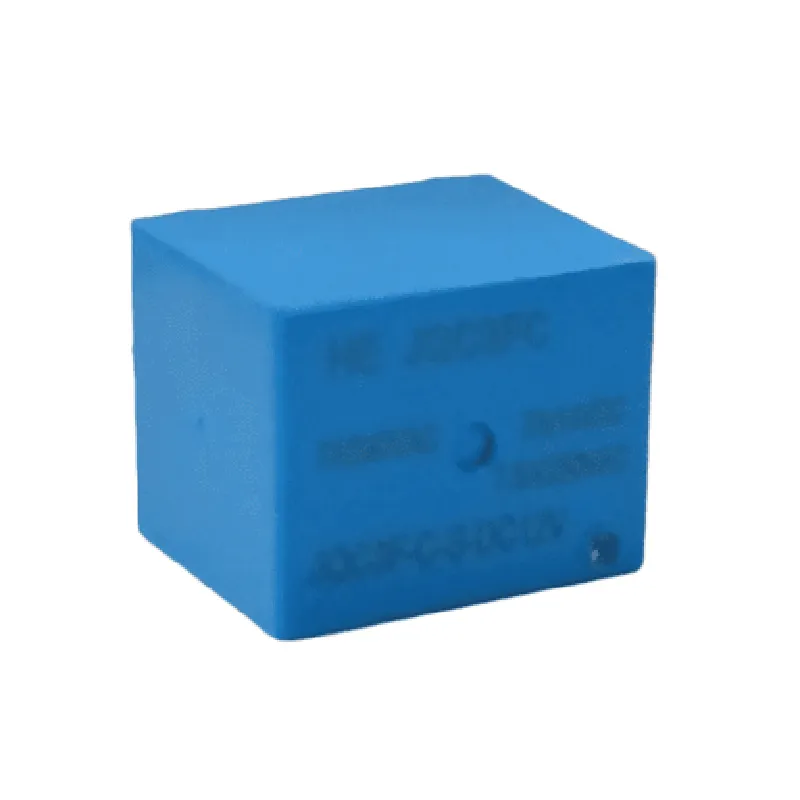
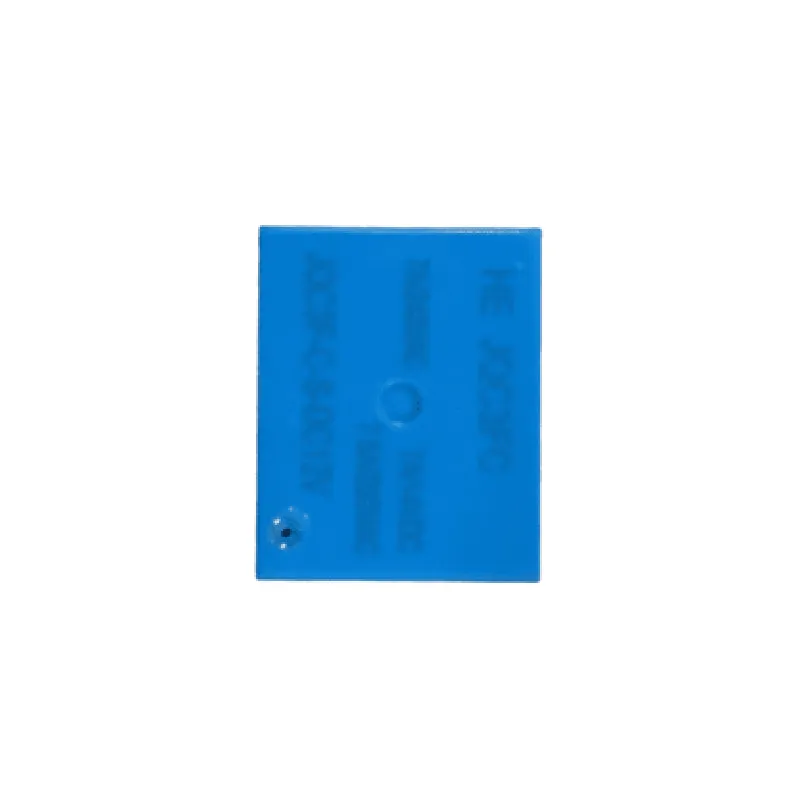
12V Relay Cube

Buy Now on Stufin

Component Name

12V Relay Cube

Overview

The 12V Relay Cube is a compact, electronic device that enables the control of high-power devices or appliances using low-power signals from microcontrollers, sensors, or other electronic circuits. It is a versatile and widely used component in Internet of Things (IoT) projects, robotics, and automation systems.

Functionality

The 12V Relay Cube contains four SPDT (Single Pole Double Throw) relays, each capable of switching high-power loads. The relays are controlled by four low-power input signals, which can be provided by a microcontroller, sensor, or other electronic circuit. When a low-power signal is applied to the input, the corresponding relay switches, allowing the high-power load to be turned on or off.

Key Features

  • Voltage: The relay cube operates on a 12V DC power supply, which is suitable for most IoT projects and automation systems.
  • Relay Type: The component features four SPDT (Single Pole Double Throw) relays, each with a normally open (NO) and normally closed (NC) contact.
  • Contact Ratings: Each relay can handle high-power loads up to 10A at 250V AC or 10A at 30V DC, making it suitable for controlling a wide range of devices.
  • Input Interface: The relay cube has four low-power input terminals, compatible with standard digital logic levels (0-5V).
  • Indicator LEDs: Four built-in LEDs indicate the relay status, providing visual feedback for each channel.
  • Compact Design: The relay cube is designed to be compact and lightweight, making it ideal for use in space-constrained projects.
  • Mounting Options: The component features four screw holes for secure mounting on a PCB, breadboard, or other surfaces.
  • Operating Temperature: The relay cube operates reliably over a wide temperature range of -40C to 85C, making it suitable for use in various environments.
  • Isolation: The relay cube provides electrical isolation between the low-power input signals and the high-power relay outputs, ensuring safe and reliable operation.
  • Certifications: The component meets relevant safety and regulatory standards, including RoHS and CE compliance.

Applications

The 12V Relay Cube is widely used in various IoT applications, including

Home automation systems

Robotics and robotic arms

Industrial control systems

Smart energy management systems

Security systems

Lighting control systems

Conclusion

The 12V Relay Cube is a versatile and reliable component that enables the control of high-power devices using low-power signals. Its compact design, high-power handling capabilities, and ease of use make it an ideal component for a wide range of IoT projects and applications.

Pin Configuration

  • 12V Relay Cube Documentation
  • Overview
  • The 12V Relay Cube is a compact, high-quality relay module designed for various IoT applications. It features four SPDT (Single Pole Double Throw) relays, allowing you to control four separate devices or circuits. The module operates on a 12V power supply and has a rugged, compact design, making it suitable for a wide range of projects.
  • Pinouts and Description
  • The 12V Relay Cube has a total of 17 pins, divided into three rows. Here's a detailed description of each pin:
  • Row 1: Power and Control Pins
  • 1. VCC (12V): This pin provides the 12V power supply to the relay module. Connect this pin to a 12V DC power source.
  • 2. GND: This pin is the ground connection for the relay module. Connect this pin to the ground of your power supply or circuit.
  • 3. IN1: This pin is the input control pin for Relay 1. When connected to a high logic level (e.g., 5V), the relay will be activated (normally open contact will close).
  • 4. IN2: This pin is the input control pin for Relay 2. When connected to a high logic level (e.g., 5V), the relay will be activated (normally open contact will close).
  • 5. IN3: This pin is the input control pin for Relay 3. When connected to a high logic level (e.g., 5V), the relay will be activated (normally open contact will close).
  • 6. IN4: This pin is the input control pin for Relay 4. When connected to a high logic level (e.g., 5V), the relay will be activated (normally open contact will close).
  • Row 2: Relay Output Pins
  • 7. NO1 (Normally Open 1): This pin is the normally open contact for Relay 1. When the relay is activated, this pin will be connected to the COM1 pin.
  • 8. COM1 (Common 1): This pin is the common contact for Relay 1. It is connected to the NC1 pin when the relay is not activated.
  • 9. NC1 (Normally Closed 1): This pin is the normally closed contact for Relay 1. When the relay is not activated, this pin will be connected to the COM1 pin.
  • 10. NO2 (Normally Open 2): This pin is the normally open contact for Relay 2. When the relay is activated, this pin will be connected to the COM2 pin.
  • 11. COM2 (Common 2): This pin is the common contact for Relay 2. It is connected to the NC2 pin when the relay is not activated.
  • 12. NC2 (Normally Closed 2): This pin is the normally closed contact for Relay 2. When the relay is not activated, this pin will be connected to the COM2 pin.
  • Row 3: Relay Output Pins (continued)
  • 13. NO3 (Normally Open 3): This pin is the normally open contact for Relay 3. When the relay is activated, this pin will be connected to the COM3 pin.
  • 14. COM3 (Common 3): This pin is the common contact for Relay 3. It is connected to the NC3 pin when the relay is not activated.
  • 15. NC3 (Normally Closed 3): This pin is the normally closed contact for Relay 3. When the relay is not activated, this pin will be connected to the COM3 pin.
  • 16. NO4 (Normally Open 4): This pin is the normally open contact for Relay 4. When the relay is activated, this pin will be connected to the COM4 pin.
  • 17. COM4 (Common 4): This pin is the common contact for Relay 4. It is connected to the NC4 pin when the relay is not activated.
  • Connection Structure
  • To connect the pins, follow this structure:
  • Connect the VCC pin to a 12V DC power source.
  • Connect the GND pin to the ground of your power supply or circuit.
  • Connect each IN pin (IN1, IN2, IN3, IN4) to a digital output pin of your microcontroller or control device. A high logic level (e.g., 5V) will activate the corresponding relay.
  • Connect the COM pin (COM1, COM2, COM3, COM4) to the device or circuit you want to control.
  • Connect the NO pin (NO1, NO2, NO3, NO4) to the load or device that will be controlled when the relay is activated.
  • Connect the NC pin (NC1, NC2, NC3, NC4) to the load or device that will be connected when the relay is not activated.
  • Example Connection:
  • Connect VCC to a 12V DC power source.
  • Connect GND to the ground of your power supply or circuit.
  • Connect IN1 to a digital output pin of your microcontroller (e.g., Arduino's digital pin 2).
  • Connect COM1 to a lamp or LED.
  • Connect NO1 to the positive terminal of the lamp or LED.
  • Connect NC1 to the negative terminal of the lamp or LED.
  • When the microcontroller outputs a high logic level (e.g., 5V) on digital pin 2, the relay will be activated, connecting the COM1 pin to the NO1 pin, turning on the lamp or LED.

Code Examples

12V Relay Cube Documentation
Overview
The 12V Relay Cube is a modular, compact, and easy-to-use relay module designed for IoT projects. It provides a convenient way to control AC or DC loads, such as lights, motors, and solenoids, using a microcontroller or other low-voltage devices. The relay cube operates on a 12V power supply and can switch loads up to 10A.
Pinout
The 12V Relay Cube has the following pinout:
VCC: 12V power supply
 GND: Ground
 IN: Input signal (logic level)
 NC ( Normally Closed ): Normally closed terminal
 NO ( Normally Open ): Normally open terminal
 COM (Common): Common terminal
Example 1: Controlling a DC Fan with Arduino
In this example, we will use the 12V Relay Cube to control a DC fan using an Arduino board.
Hardware Requirements:
12V Relay Cube
 Arduino Board (e.g., Arduino Uno)
 DC Fan (12V)
 Jumper wires
 Breadboard
Code:
```cpp
const int relayPin = 2; // Choose a digital pin on the Arduino board
void setup() {
  pinMode(relayPin, OUTPUT);
}
void loop() {
  digitalWrite(relayPin, HIGH); // Turn the fan ON
  delay(5000);
  digitalWrite(relayPin, LOW); // Turn the fan OFF
  delay(5000);
}
```
Explanation:
1. Connect the 12V power supply to the VCC pin of the relay cube.
2. Connect the GND pin of the relay cube to the GND pin of the Arduino board.
3. Connect the IN pin of the relay cube to a digital pin on the Arduino board (e.g., pin 2).
4. Connect the COM pin of the relay cube to one terminal of the DC fan.
5. Connect the other terminal of the DC fan to the 12V power supply.
6. Upload the code to the Arduino board.
7. The DC fan will turn ON and OFF every 5 seconds.
Example 2: Controlling an AC Load with Raspberry Pi
In this example, we will use the 12V Relay Cube to control an AC load, such as a lamp, using a Raspberry Pi.
Hardware Requirements:
12V Relay Cube
 Raspberry Pi
 AC Load (e.g., lamp)
 Jumper wires
 Breadboard
 12V power supply
Code:
```python
import RPi.GPIO as GPIO
import time
GPIO.setmode(GPIO.BCM)
relay_pin = 17 # Choose a GPIO pin on the Raspberry Pi
GPIO.setup(relay_pin, GPIO.OUT)
while True:
    GPIO.output(relay_pin, GPIO.HIGH) # Turn the lamp ON
    time.sleep(5)
    GPIO.output(relay_pin, GPIO.LOW) # Turn the lamp OFF
    time.sleep(5)
```
Explanation:
1. Connect the 12V power supply to the VCC pin of the relay cube.
2. Connect the GND pin of the relay cube to the GND pin of the Raspberry Pi.
3. Connect the IN pin of the relay cube to a GPIO pin on the Raspberry Pi (e.g., pin 17).
4. Connect the COM pin of the relay cube to one terminal of the AC load.
5. Connect the other terminal of the AC load to the AC power source.
6. Install the RPi.GPIO library and upload the code to the Raspberry Pi.
7. The AC load will turn ON and OFF every 5 seconds.
Remember to always use proper safety precautions when working with high-voltage AC loads.