Stufin
Home Quick Cart Profile

STM32F103C6T6A Board


Buy Now on Stufin

Component Name

STM32F103C6T6A Board
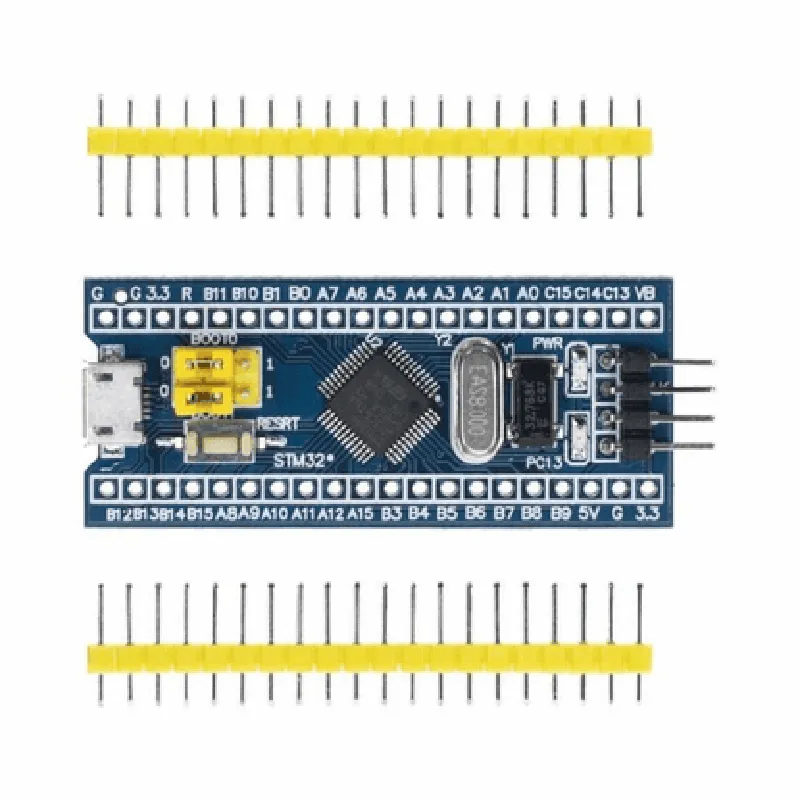
Overview

The STM32F103C6T6A Board is a microcontroller board based on the STM32F103C6T6A microcontroller unit (MCU) from STMicroelectronics. It is a popular choice for various applications, including IoT projects, robotics, and embedded systems.
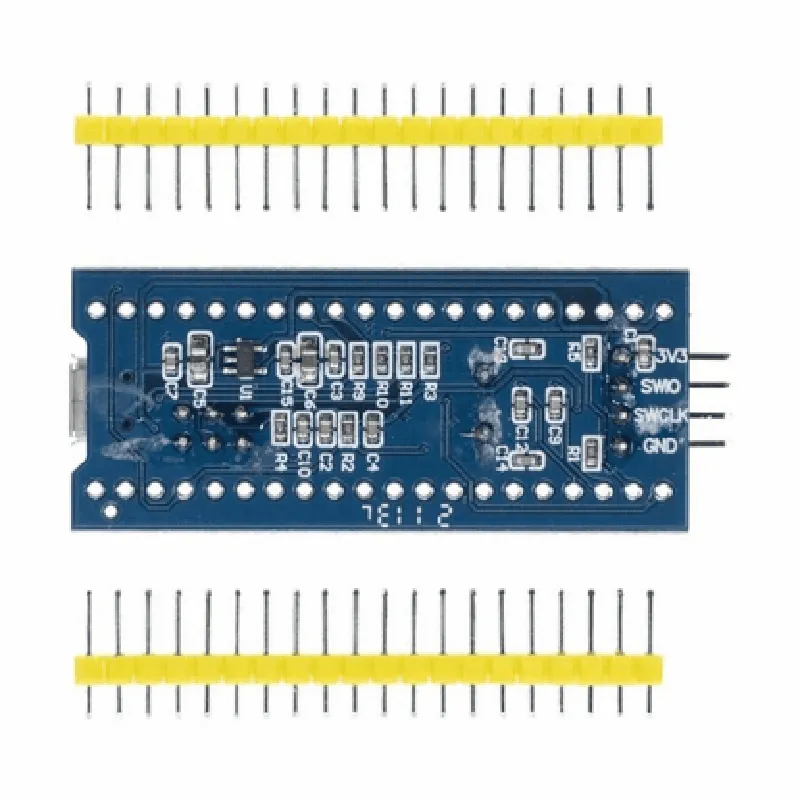
Microcontroller Unit (MCU)

The STM32F103C6T6A MCU is a 32-bit ARM Cortex-M3 core-based microcontroller. It operates at a frequency of up to 72 MHz and features a flash memory of 32 KB, a RAM of 10 KB, and a ROM of 8 KB.

Key Features

### Performance

32-bit ARM Cortex-M3 core

Operating frequency

up to 72 MHz

Flash memory

32 KB

RAM

10 KB

ROM

8 KB

### Digital Peripherals

15 timers (including 2 advanced-control timers, 1 general-purpose timer, and 1 basic timer)

2 watchdog timers

2 Inter-Integrated Circuit (I2C) interfaces

3 Universal Synchronous/Asynchronous Receiver-Transmitter (USART) interfaces

2 Universal Asynchronous Receiver-Transmitter (UART) interfaces

1 Serial Peripheral Interface (SPI) interface

1 Controller Area Network (CAN) interface

1 USB interface (Full-speed, 12 Mbps)

### Analog Peripherals

12-bit Analog-to-Digital Converter (ADC) with 16 channels

2 12-bit Digital-to-Analog Converters (DAC)

### Others

Power supply

2.0 V to 3.6 V

Operating temperature range

-40C to 105C

Support for JTAG and SWD debugging interfaces

### Board Features

Onboard crystal oscillator (8 MHz)

Power LED indicator

Reset button

USB connector for programming and communication

Breadboard-friendly headers for easy connection to peripheral modules

### Software Support

Compatible with ARM Keil Vision, IAR Embedded Workbench, and GCC-based IDEs

Supports mBed, Zephyr, and other popular IoT development platforms

Applications

The STM32F103C6T6A Board is suitable for a wide range of applications, including

IoT devices and gateways

Robotics and automation systems

Industrial control and monitoring systems

Medical devices and wearables

Consumer electronics and appliances

Conclusion

The STM32F103C6T6A Board is a powerful and feature-rich microcontroller board, ideal for developing complex IoT projects and embedded systems. Its low power consumption, high performance, and extensive peripheral set make it a popular choice among developers and engineers.

Pin Configuration

  • STM32F103C6T6A Board Pinout Documentation
  • The STM32F103C6T6A is a popular microcontroller board based on the STM32F103C6T6A microcontroller from STMicroelectronics. This documentation provides a detailed explanation of each pin on the board, their functions, and how to connect them.
  • Pin Structure:
  • The STM32F103C6T6A board has a total of 48 pins, divided into several categories:
  • Digital I/O Pins: 37 pins (PA0-PA15, PB0-PB15, PC0-PC15)
  • Analog Pins: 15 pins (PA0-PA5, PB0-PB9, PC0-PC5)
  • Power Pins: 5 pins (VCC, GND, 3V3, 5V, VIN)
  • Special Function Pins: 5 pins (BOOT0, BOOT1, USART1_TX, USART1_RX, USART2_TX)
  • Pinout Explanation:
  • Here's a detailed explanation of each pin, including their functions and how to connect them:
  • Digital I/O Pins:
  • 1. PA0: Digital I/O pin. Can be used as a general-purpose input/output pin.
  • Connection: Connect to a digital device, such as a LED, switch, or sensor.
  • 2. PA1: Digital I/O pin. Can be used as a general-purpose input/output pin.
  • Connection: Connect to a digital device, such as a LED, switch, or sensor.
  • 3. PA2: Digital I/O pin. Can be used as a general-purpose input/output pin.
  • Connection: Connect to a digital device, such as a LED, switch, or sensor.
  • 4. PA3: Digital I/O pin. Can be used as a general-purpose input/output pin.
  • Connection: Connect to a digital device, such as a LED, switch, or sensor.
  • 5. PA4: Digital I/O pin. Can be used as a general-purpose input/output pin.
  • Connection: Connect to a digital device, such as a LED, switch, or sensor.
  • 6. PA5: Digital I/O pin. Can be used as a general-purpose input/output pin.
  • Connection: Connect to a digital device, such as a LED, switch, or sensor.
  • 7. PA6: Digital I/O pin. Can be used as a general-purpose input/output pin.
  • Connection: Connect to a digital device, such as a LED, switch, or sensor.
  • 8. PA7: Digital I/O pin. Can be used as a general-purpose input/output pin.
  • Connection: Connect to a digital device, such as a LED, switch, or sensor.
  • 9. PA8: Digital I/O pin. Can be used as a general-purpose input/output pin.
  • Connection: Connect to a digital device, such as a LED, switch, or sensor.
  • 10. PA9: Digital I/O pin. Can be used as a general-purpose input/output pin.
  • Connection: Connect to a digital device, such as a LED, switch, or sensor.
  • 11. PA10: Digital I/O pin. Can be used as a general-purpose input/output pin.
  • Connection: Connect to a digital device, such as a LED, switch, or sensor.
  • 12. PA11: Digital I/O pin. Can be used as a general-purpose input/output pin.
  • Connection: Connect to a digital device, such as a LED, switch, or sensor.
  • 13. PA12: Digital I/O pin. Can be used as a general-purpose input/output pin.
  • Connection: Connect to a digital device, such as a LED, switch, or sensor.
  • 14. PA13: Digital I/O pin. Can be used as a general-purpose input/output pin.
  • Connection: Connect to a digital device, such as a LED, switch, or sensor.
  • 15. PA14: Digital I/O pin. Can be used as a general-purpose input/output pin.
  • Connection: Connect to a digital device, such as a LED, switch, or sensor.
  • 16. PA15: Digital I/O pin. Can be used as a general-purpose input/output pin.
  • Connection: Connect to a digital device, such as a LED, switch, or sensor.
  • 17. PB0: Digital I/O pin. Can be used as a general-purpose input/output pin.
  • Connection: Connect to a digital device, such as a LED, switch, or sensor.
  • 18. PB1: Digital I/O pin. Can be used as a general-purpose input/output pin.
  • Connection: Connect to a digital device, such as a LED, switch, or sensor.
  • 19. PB2: Digital I/O pin. Can be used as a general-purpose input/output pin.
  • Connection: Connect to a digital device, such as a LED, switch, or sensor.
  • 20. PB3: Digital I/O pin. Can be used as a general-purpose input/output pin.
  • Connection: Connect to a digital device, such as a LED, switch, or sensor.
  • 21. PB4: Digital I/O pin. Can be used as a general-purpose input/output pin.
  • Connection: Connect to a digital device, such as a LED, switch, or sensor.
  • 22. PB5: Digital I/O pin. Can be used as a general-purpose input/output pin.
  • Connection: Connect to a digital device, such as a LED, switch, or sensor.
  • 23. PB6: Digital I/O pin. Can be used as a general-purpose input/output pin.
  • Connection: Connect to a digital device, such as a LED, switch, or sensor.
  • 24. PB7: Digital I/O pin. Can be used as a general-purpose input/output pin.
  • Connection: Connect to a digital device, such as a LED, switch, or sensor.
  • 25. PB8: Digital I/O pin. Can be used as a general-purpose input/output pin.
  • Connection: Connect to a digital device, such as a LED, switch, or sensor.
  • 26. PB9: Digital I/O pin. Can be used as a general-purpose input/output pin.
  • Connection: Connect to a digital device, such as a LED, switch, or sensor.
  • 27. PB10: Digital I/O pin. Can be used as a general-purpose input/output pin.
  • Connection: Connect to a digital device, such as a LED, switch, or sensor.
  • 28. PB11: Digital I/O pin. Can be used as a general-purpose input/output pin.
  • Connection: Connect to a digital device, such as a LED, switch, or sensor.
  • 29. PB12: Digital I/O pin. Can be used as a general-purpose input/output pin.
  • Connection: Connect to a digital device, such as a LED, switch, or sensor.
  • 30. PB13: Digital I/O pin. Can be used as a general-purpose input/output pin.
  • Connection: Connect to a digital device, such as a LED, switch, or sensor.
  • 31. PB14: Digital I/O pin. Can be used as a general-purpose input/output pin.
  • Connection: Connect to a digital device, such as a LED, switch, or sensor.
  • 32. PB15: Digital I/O pin. Can be used as a general-purpose input/output pin.
  • Connection: Connect to a digital device, such as a LED, switch, or sensor.
  • 33. PC0: Digital I/O pin. Can be used as a general-purpose input/output pin.
  • Connection: Connect to a digital device, such as a LED, switch, or sensor.
  • 34. PC1: Digital I/O pin. Can be used as a general-purpose input/output pin.
  • Connection: Connect to a digital device, such as a LED, switch, or sensor.
  • 35. PC2: Digital I/O pin. Can be used as a general-purpose input/output pin.
  • Connection: Connect to a digital device, such as a LED, switch, or sensor.
  • 36. PC3: Digital I/O pin. Can be used as a general-purpose input/output pin.
  • Connection: Connect to a digital device, such as a LED, switch, or sensor.
  • 37. PC4: Digital I/O pin. Can be used as a general-purpose input/output pin.
  • Connection: Connect to a digital device, such as a LED, switch, or sensor.
  • 38. PC5: Digital I/O pin. Can be used as a general-purpose input/output pin.
  • Connection: Connect to a digital device, such as a LED, switch, or sensor.
  • Analog Pins:
  • 1. PA0: Analog input pin. Can be used to read analog signals from sensors or devices.
  • Connection: Connect to an analog device, such as a potentiometer or a temperature sensor.
  • 2. PA1: Analog input pin. Can be used to read analog signals from sensors or devices.
  • Connection: Connect to an analog device, such as a potentiometer or a temperature sensor.
  • 3. PA2: Analog input pin. Can be used to read analog signals from sensors or devices.
  • Connection: Connect to an analog device, such as a potentiometer or a temperature sensor.
  • 4. PA3: Analog input pin. Can be used to read analog signals from sensors or devices.
  • Connection: Connect to an analog device, such as a potentiometer or a temperature sensor.
  • 5. PA4: Analog input pin. Can be used to read analog signals from sensors or devices.
  • Connection: Connect to an analog device, such as a potentiometer or a temperature sensor.
  • 6. PA5: Analog input pin. Can be used to read analog signals from sensors or devices.
  • Connection: Connect to an analog device, such as a potentiometer or a temperature sensor.
  • 7. PB0: Analog input pin. Can be used to read analog signals from sensors or devices.
  • Connection: Connect to an analog device, such as a potentiometer or a temperature sensor.
  • 8. PB1: Analog input pin. Can be used to read analog signals from sensors or devices.
  • Connection: Connect to an analog device, such as a potentiometer or a temperature sensor.
  • 9. PC0: Analog input pin. Can be used to read analog signals from sensors or devices.
  • Connection: Connect to an analog device, such as a potentiometer or a temperature sensor.
  • 10. PC1: Analog input pin. Can be used to read analog signals from sensors or devices.
  • Connection: Connect to an analog device, such as a potentiometer or a temperature sensor.
  • 11. PC2: Analog input pin. Can be used to read analog signals from sensors or devices.
  • Connection: Connect to an analog device, such as a potentiometer or a temperature sensor.
  • 12. PC3: Analog input pin. Can be used to read analog signals from sensors or devices.
  • Connection: Connect to an analog device, such as a potentiometer or a temperature sensor.
  • 13. PC4: Analog input pin. Can be used to read analog signals from sensors or devices.
  • Connection: Connect to an analog device, such as a potentiometer or a temperature sensor.
  • 14. PC5: Analog input pin. Can be used to read analog signals from sensors or devices.
  • Connection: Connect to an analog device, such as a potentiometer or a temperature sensor.
  • Power Pins:
  • 1. VCC: Power supply pin. Connect to a 3.3V or 5V power source.
  • Connection: Connect to a power source, such as a battery or a wall adapter.
  • 2. GND: Ground pin. Connect to the ground of the power source.
  • Connection: Connect to the ground of the power source.
  • 3. 3V3: 3.3V power supply pin. Connect to a 3.3V power source.
  • Connection: Connect to a 3.3V power source, such as a voltage regulator.
  • 4. 5V: 5V power supply pin. Connect to a 5V power source.
  • Connection: Connect to a 5V power source, such as a voltage regulator.
  • 5. VIN: Input voltage pin. Connect to a power source, such as a battery or a wall adapter.
  • Connection: Connect to a power source, such as a battery or a wall adapter.
  • Special Function Pins:
  • 1. BOOT0: Boot mode pin. Used to select the boot mode of the microcontroller.
  • Connection: Connect to a pull-up resistor and a switch to select the boot mode.
  • 2. BOOT1: Boot mode pin. Used to select the boot mode of the microcontroller.
  • Connection: Connect to a pull-up resistor and a switch to select the boot mode.
  • 3. USART1_TX: USART1 transmit pin. Used for serial communication.
  • Connection: Connect to a serial communication device, such as a UART or a USB-to-serial converter.
  • 4. USART1_RX: USART1 receive pin. Used for serial communication.
  • Connection: Connect to a serial communication device, such as a UART or a USB-to-serial converter.
  • 5. USART2_TX: USART2 transmit pin. Used for serial communication.
  • Connection: Connect to a serial communication device, such as a UART or a USB-to-serial converter.
  • Important Notes:
  • Make sure to connect the power pins (VCC, GND, 3V3, 5V, and VIN) correctly to a power source and a ground.
  • Use pull-up or pull-down resistors as necessary for digital I/O pins.
  • Use voltage regulators or voltage dividers as necessary for analog input pins.
  • Refer to the STM32F103C6T6A datasheet and application notes for more information on pin usage and configuration.
  • By following this pinout documentation, you can correctly connect the STM32F103C6T6A board to various devices and develop your IoT projects.

Code Examples

STM32F103C6T6A Board Documentation
Overview
The STM32F103C6T6A is a microcontroller board based on the STM32F103C6T6 microprocessor from STMicroelectronics. It is a 32-bit ARM Cortex-M3 processor with 32KB of flash memory and 10KB of SRAM. The board is widely used in various IoT projects due to its low cost, high performance, and ease of use.
Features
32-bit ARM Cortex-M3 processor
 32KB of flash memory
 10KB of SRAM
 12-bit ADC with 16 channels
 2 x 12-bit DAC
 3 x USART
 2 x SPI
 2 x I2C
 1 x CAN
 1 x USB
 37 GPIO pins
Hardware Requirements
STM32F103C6T6A board
 USB cable
 Breadboard and jumper wires (for connecting external components)
Software Requirements
Keil Vision IDE (or alternative development environment)
 STM32F1 HAL library
Example 1: Blinking LED using GPIO
In this example, we will use the STM32F103C6T6A board to blink an LED connected to pin PA5.
Code
```c
#include "stm32f1xx_hal.h"
#define LED_PIN GPIO_PIN_5
#define LED_GPIO_PORT GPIOA
int main(void)
{
    HAL_Init();
// Initialize LED pin as output
    GPIO_InitTypeDef GPIO_InitStruct;
    GPIO_InitStruct.Pin = LED_PIN;
    GPIO_InitStruct.Mode = GPIO_MODE_OUTPUT;
    GPIO_InitStruct.Pull = GPIO_NOPULL;
    GPIO_InitStruct.Speed = GPIO_SPEED_FREQ_LOW;
    HAL_GPIO_Init(LED_GPIO_PORT, &GPIO_InitStruct);
while (1)
    {
        // Set LED pin high
        HAL_GPIO_WritePin(LED_GPIO_PORT, LED_PIN, GPIO_PIN_SET);
// Delay for 500ms
        HAL_Delay(500);
// Set LED pin low
        HAL_GPIO_WritePin(LED_GPIO_PORT, LED_PIN, GPIO_PIN_RESET);
// Delay for 500ms
        HAL_Delay(500);
    }
}
```
Example 2: Communicating with an LCD Display using SPI
In this example, we will use the STM32F103C6T6A board to communicate with an LCD display using the SPI protocol.
Code
```c
#include "stm32f1xx_hal.h"
#include "spi.h"
#define LCD_CS_PIN GPIO_PIN_4
#define LCD_RST_PIN GPIO_PIN_3
#define LCD_SPI_PORT SPI1
SPI_HandleTypeDef hspi1;
int main(void)
{
    HAL_Init();
// Initialize SPI peripheral
    hspi1.Instance = LCD_SPI_PORT;
    hspi1.Init.Mode = SPI_MODE_MASTER;
    hspi1.Init.Direction = SPI_DIRECTION_2LINES;
    hspi1.Init.DataSize = SPI_DATASIZE_8BIT;
    hspi1.Init.CLK_Polarity = SPI_POLARITY_LOW;
    hspi1.Init.CLK_Phase = SPI_PHASE_1EDGE;
    hspi1.Init.NSS = SPI_NSS_SOFT;
    if (HAL_SPI_Init(&hspi1) != HAL_OK)
    {
        Error_Handler();
    }
// Initialize LCD pins
    GPIO_InitTypeDef GPIO_InitStruct;
    GPIO_InitStruct.Pin = LCD_CS_PIN;
    GPIO_InitStruct.Mode = GPIO_MODE_OUTPUT;
    GPIO_InitStruct.Pull = GPIO_NOPULL;
    GPIO_InitStruct.Speed = GPIO_SPEED_FREQ_LOW;
    HAL_GPIO_Init(GPIOA, &GPIO_InitStruct);
GPIO_InitStruct.Pin = LCD_RST_PIN;
    GPIO_InitStruct.Mode = GPIO_MODE_OUTPUT;
    GPIO_InitStruct.Pull = GPIO_NOPULL;
    GPIO_InitStruct.Speed = GPIO_SPEED_FREQ_LOW;
    HAL_GPIO_Init(GPIOA, &GPIO_InitStruct);
// Send data to LCD display
    uint8_t data[] = {0x01, 0x02, 0x03, 0x04};
    HAL_SPI_Transmit(&hspi1, data, 4, 100);
while (1)
    {
        // Send data to LCD display periodically
        HAL_SPI_Transmit(&hspi1, data, 4, 100);
        HAL_Delay(1000);
    }
}
```
Example 3: Reading Data from an ADC using DMA
In this example, we will use the STM32F103C6T6A board to read data from an ADC using the DMA (Direct Memory Access) peripheral.
Code
```c
#include "stm32f1xx_hal.h"
#include "dma.h"
#define ADC_PIN GPIO_PIN_0
#define ADC_CHANNEL ADC_Channel_0
#define DMA_STREAM DMA1_Stream0
DMA_HandleTypeDef hdma_adc;
int main(void)
{
    HAL_Init();
// Initialize ADC peripheral
    ADC_HandleTypeDef hadc;
    hadc.Instance = ADC1;
    hadc.Init.ClockPrescaler = ADC_CLOCK_SYNC_PCLK_DIV2;
    hadc.Init.Resolution = ADC_RESOLUTION_12BIT;
    hadc.Init.ScanConvMode = ENABLE;
    hadc.Init.EOC_Selection = ADC_EOC_SEQ_CONV;
    hadc.Init.ContinuousConvMode = ENABLE;
    hadc.Init.NbrOfConversion = 1;
    hadc.Init.DiscontinuousConvMode = DISABLE;
    hadc.Init.NbrOfDiscConversion = 0;
    if (HAL_ADC_Init(&hadc) != HAL_OK)
    {
        Error_Handler();
    }
// Initialize DMA channel
    hdma_adc.Instance = DMA_STREAM;
    hdma_adc.Init.Request = DMA_REQUEST_ADC1;
    hdma_adc.Init.Direction = DMA_MEMORY_TO_PERIPH;
    hdma_adc.Init.PeriphInc = DMA_PINC_DISABLE;
    hdma_adc.Init.MemInc = DMA_MINC_ENABLE;
    hdma_adc.Init.PeriphDataAlignment = DMA_PDATAALIGN_HALFWORD;
    hdma_adc.Init.MemDataAlignment = DMA_MDATAALIGN_HALFWORD;
    hdma_adc.Init.Mode = DMA_CIRCULAR;
    hdma_adc.Init.NbData = 1;
    if (HAL_DMA_Init(&hdma_adc) != HAL_OK)
    {
        Error_Handler();
    }
// Start ADC conversion and DMA transfer
    HAL_ADC_Start_DMA(&hadc, (uint32_t)adc_data, 1);
while (1)
    {
        // Process ADC data
        // ...
    }
}
```
Note: These examples are for illustration purposes only and may require modifications to work with your specific hardware setup. Additionally, error handling and other necessary functions should be added to ensure reliable operation.