Stufin
Home Quick Cart Profile

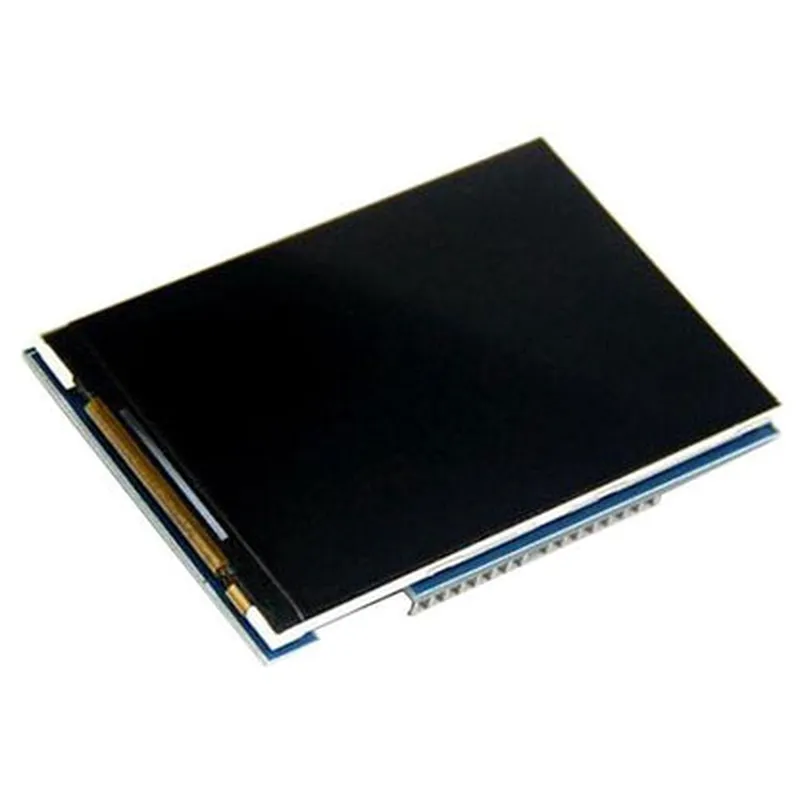
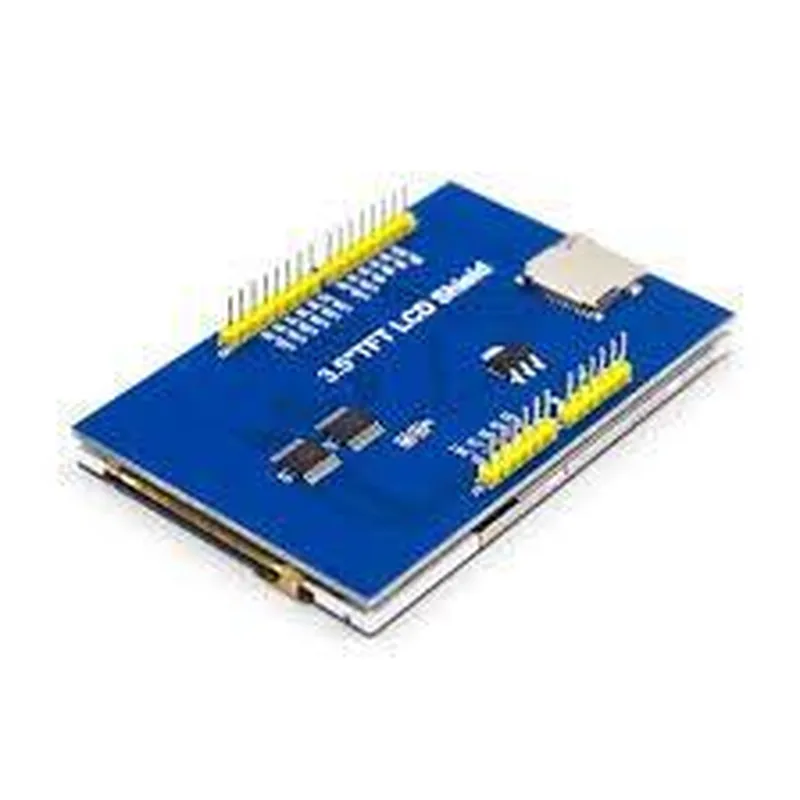
3.5 TFT LCD Display without Touch for Arduino

Buy Now on Stufin

Component Documentation

3.5 TFT LCD Display without Touch for Arduino

Overview

The 3.5 TFT LCD Display without Touch for Arduino is a compact and high-resolution liquid crystal display (LCD) module designed specifically for use with Arduino boards. This display module is an ideal solution for IoT projects, robotics, and other applications where a high-quality display is required.

Functionality

The 3.5 TFT LCD Display without Touch for Arduino is a graphic LCD module that provides a 3.5-inch diagonal screen with a resolution of 320x480 pixels. It is capable of displaying a wide range of colors, graphics, and texts, making it suitable for a variety of applications, including

Displaying sensor data and readings

Creating user interfaces for IoT projects

Showing images and videos

Displaying menus and navigation systems

The display module communicates with the Arduino board through a SPI (Serial Peripheral Interface) interface, which allows for easy integration and control of the display.

Key Features

Display Specifications

+ Diagonal Size3.5 inches
+ Resolution320x480 pixels
+ Aspect Ratio4:3
+ Display TypeTFT (Thin-Film Transistor) LCD
+ BacklightBuilt-in, white LED backlight

Interface

+ Communication InterfaceSPI (Serial Peripheral Interface)
+ Data Bus4-bit or 16-bit mode

Power Supply

+ Operating Voltage5V
+ Power Consumption180mA (typical)

Mechanical Specifications

+ Module Size56.8 x 43.8 mm
+ Thickness2.8 mm
+ Weight25g

Operating Temperature

+ Operating Temperature Range-20C to 70C
+ Storage Temperature Range-30C to 80C

Software Support

+ Compatible with Arduino boards (e.g., Uno, Mega, Due)

+ Sample libraries and code examples available for easy integration

Additional Information

The display module does not have touch functionality, making it suitable for applications where touch input is not required.

The module has a built-in backlight, which can be controlled through the SPI interface to adjust the brightness level.

The display module is RoHS-compliant and meets CE and FCC standards.

Conclusion

The 3.5 TFT LCD Display without Touch for Arduino is a high-quality, compact, and versatile display module that provides an excellent solution for IoT projects and other applications requiring a high-resolution display. Its ease of integration, low power consumption, and durable design make it an ideal choice for a wide range of applications.

Pin Configuration

  • 3.5 TFT LCD Display without Touch for Arduino - Pin Description and Connection Guide
  • The 3.5 TFT LCD Display without Touch for Arduino is a popular display module used in various IoT and robotics projects. It features a 3.5-inch TFT LCD display with a resolution of 320x480 pixels, making it suitable for displaying text, images, and videos. This module does not have a touch interface, but it can be easily connected to Arduino boards for displaying data and information.
  • Pin Description:
  • The 3.5 TFT LCD Display without Touch for Arduino has a total of 15 pins, which are listed below:
  • 1. VCC: Power supply pin, connects to the 5V pin on the Arduino board.
  • 2. GND: Ground pin, connects to the GND pin on the Arduino board.
  • 3. SCL: Serial Clock pin, connects to the SCL pin on the Arduino board (usually SCL is the same as Analog Clock pin).
  • 4. SDA: Serial Data pin, connects to the SDA pin on the Arduino board (usually SDA is the same as Analog Data pin).
  • 5. RST: Reset pin, connects to a digital pin on the Arduino board (e.g., D4).
  • 6. D/CX (or DC): Data/Command pin, connects to a digital pin on the Arduino board (e.g., D5).
  • 7. CS: Chip Select pin, connects to a digital pin on the Arduino board (e.g., D6).
  • 8. SDI (or MOSI): Serial Data In pin, connects to the MOSI pin on the Arduino board (usually Digital Pin 11).
  • 9. SCLK (or SCK): Serial Clock pin, connects to the SCK pin on the Arduino board (usually Digital Pin 13).
  • 10. LED+: Backlight Positive pin, connects to a positive voltage source (e.g., 5V) or a transistor to control the backlight.
  • 11. LED-: Backlight Negative pin, connects to a negative voltage source (e.g., GND).
  • 12. DB0: Data Bus 0 pin, not used in this display module.
  • 13. DB1: Data Bus 1 pin, not used in this display module.
  • 14. DB2: Data Bus 2 pin, not used in this display module.
  • 15. DB3: Data Bus 3 pin, not used in this display module.
  • Connection Guide:
  • To connect the 3.5 TFT LCD Display without Touch for Arduino to an Arduino board, follow these steps:
  • Connect VCC to the 5V pin on the Arduino board.
  • Connect GND to the GND pin on the Arduino board.
  • Connect SCL to the SCL pin on the Arduino board (usually Analog Clock pin).
  • Connect SDA to the SDA pin on the Arduino board (usually Analog Data pin).
  • Connect RST to a digital pin on the Arduino board (e.g., D4).
  • Connect D/CX (or DC) to a digital pin on the Arduino board (e.g., D5).
  • Connect CS to a digital pin on the Arduino board (e.g., D6).
  • Connect SDI (or MOSI) to the MOSI pin on the Arduino board (usually Digital Pin 11).
  • Connect SCLK (or SCK) to the SCK pin on the Arduino board (usually Digital Pin 13).
  • Connect LED+ to a positive voltage source (e.g., 5V) or a transistor to control the backlight.
  • Connect LED- to a negative voltage source (e.g., GND).
  • Note: Make sure to use suitable breadboard jumper wires or FFC (Flexible Flat Cable) to connect the display module to the Arduino board. Also, ensure that the display module is properly mounted and secured to prevent damage.
  • By following this pin description and connection guide, you can successfully connect the 3.5 TFT LCD Display without Touch for Arduino to your Arduino board and start developing your IoT project.

Code Examples

3.5 TFT LCD Display without Touch for Arduino
Overview
The 3.5 TFT LCD Display without Touch for Arduino is a compact and lightweight display module designed for use with Arduino boards. This module features a 3.5-inch TFT LCD screen with a resolution of 480x320 pixels, making it suitable for a wide range of IoT projects that require a visual interface.
Key Features
3.5-inch TFT LCD screen with 480x320 resolution
 Compatible with Arduino boards
 No touch functionality
 Supports 16-bit and 18-bit color depth
 Operating voltage: 5V
 Interface: 16-bit parallel interface
Hardware Connection
To connect the 3.5 TFT LCD Display to an Arduino board, follow these steps:
1. Connect the VCC pin of the display module to the 5V pin on the Arduino board.
2. Connect the GND pin of the display module to the GND pin on the Arduino board.
3. Connect the D0-D15 pins of the display module to digital pins 0-15 on the Arduino board.
Software Library
To use the 3.5 TFT LCD Display with Arduino, you'll need to install the TFT LCD library. You can download the library from the Arduino Library page or install it directly from the Arduino IDE.
Code Examples
Here are a few code examples to get you started with using the 3.5 TFT LCD Display with Arduino:
Example 1: Displaying Text and Images
This example demonstrates how to display text and images on the 3.5 TFT LCD Display using the TFT LCD library.
```c++
#include <TFT.h>
TFT TFTscreen = TFT();
void setup() {
  TFTscreen.begin();
  TFTscreen.background(255, 255, 255); // Set background color to white
}
void loop() {
  TFTscreen.text("Hello, World!", 10, 10); // Display text at (10, 10)
  TFTscreen.image(50, 50, "image.bmp"); // Display image at (50, 50)
  delay(1000);
}
```
Example 2: Creating a Simple GUI
This example demonstrates how to create a simple GUI using the 3.5 TFT LCD Display and the TFT LCD library.
```c++
#include <TFT.h>
TFT TFTscreen = TFT();
void setup() {
  TFTscreen.begin();
  TFTscreen.background(255, 255, 255); // Set background color to white
}
void loop() {
  TFTscreen.fillRectangle(10, 10, 100, 30, TFT_BLUE); // Draw a blue button at (10, 10)
  TFTscreen.text("Button 1", 20, 20); // Display text on the button
  TFTscreen.fillRectangle(150, 10, 100, 30, TFT_RED); // Draw a red button at (150, 10)
  TFTscreen.text("Button 2", 160, 20); // Display text on the button
  delay(1000);
}
```
Troubleshooting Tips
Make sure the display module is properly powered and connected to the Arduino board.
 Check the pin connections and ensure they are correct.
 If the display remains blank, try adjusting the brightness or contrast settings.
 If you encounter issues with the TFT LCD library, check the library version and ensure it is compatible with your Arduino board.
Remember to consult the datasheet and documentation provided with the 3.5 TFT LCD Display module for more detailed information on its features, specifications, and usage.