3.5in TFT LCD Shield for Arduino


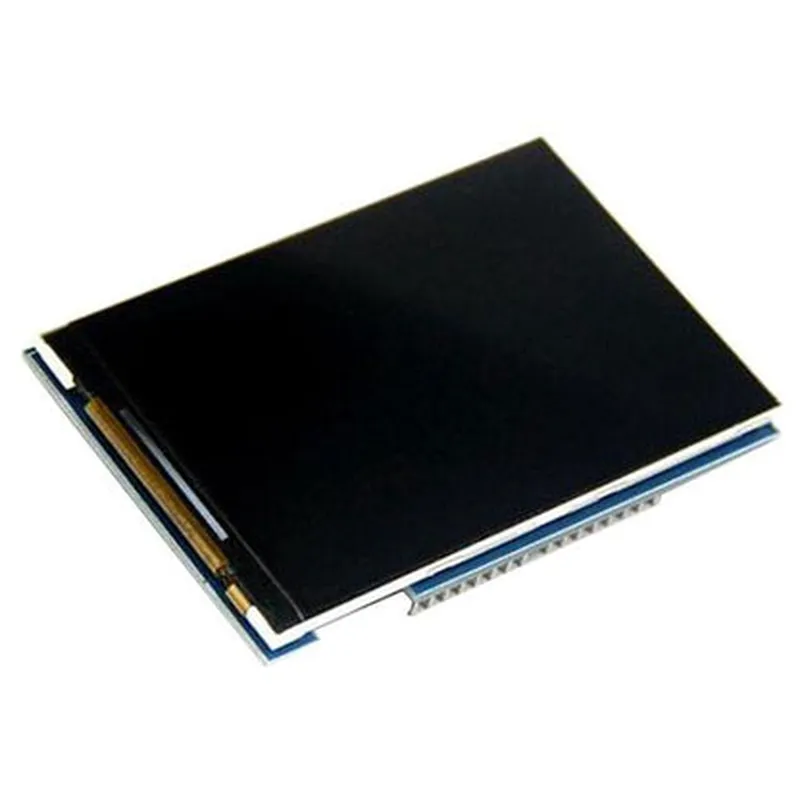
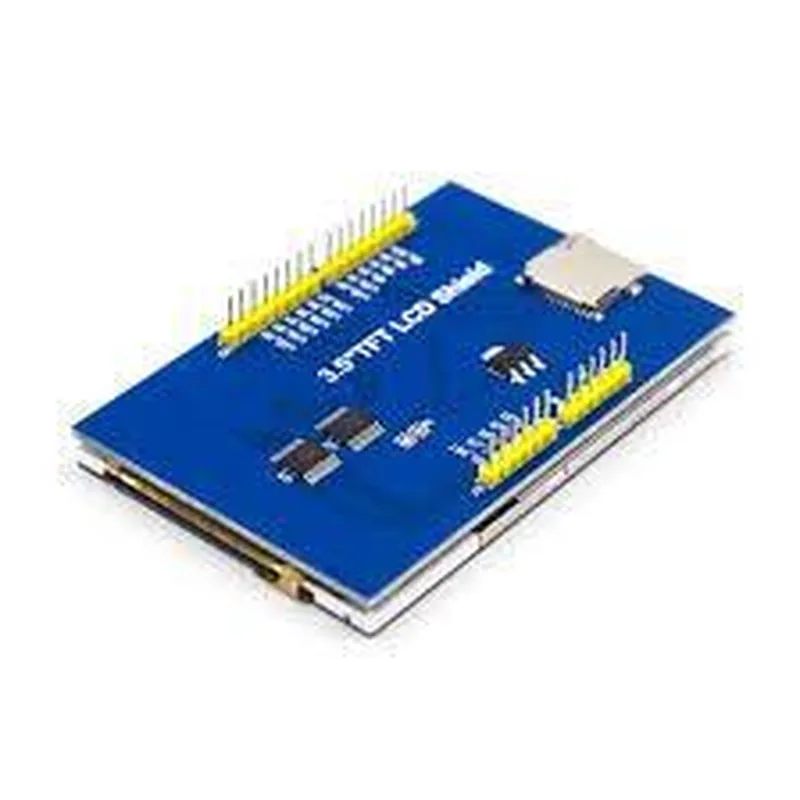
3.5in TFT LCD Shield for Arduino
The 3.5in TFT LCD Shield for Arduino is a versatile and compact display module designed specifically for use with Arduino boards. This shield provides a high-quality, 3.5-inch TFT LCD display with a resolution of 320x480 pixels, making it an ideal solution for a wide range of IoT projects.
| The 3.5in TFT LCD Shield for Arduino is designed to provide a user-friendly interface for Arduino-based projects. It allows users to create interactive displays, visualizations, and user interfaces for their projects, such as |
3.5 inches
320x480 pixels
TFT LCD
16-bit
5-wire resistive
Supports up to 2GB SD cards
Arduino-compatible shield interface
Low power consumption (mA)
-20C to 70C
-30C to 80C
| The shield connects to the Arduino board using the standard shield interface, with the following pinouts |
D0-D13
A0-A5
5V, GND
The 3.5in TFT LCD Shield for Arduino is a versatile and easy-to-use display module that provides a high-quality user interface for Arduino-based IoT projects. Its compact design, low power consumption, and comprehensive library make it an ideal solution for a wide range of applications.
3.5in TFT LCD Shield for Arduino DocumentationOverviewThe 3.5in TFT LCD Shield for Arduino is a versatile display module designed specifically for Arduino boards. This shield features a 3.5-inch TFT LCD display with a resolution of 320x480 pixels, making it ideal for a wide range of IoT projects that require a graphical user interface. The shield is compatible with most Arduino boards, including the Uno, Duemilanove, and Mega.Hardware Features3.5-inch TFT LCD display with 320x480 pixels resolution
16-bit color depth
Support for Arduino Uno, Duemilanove, and Mega boards
SD card slot for storing images and data
5-pin touch screen interface
5V power supplySoftware InstallationTo use the 3.5in TFT LCD Shield with your Arduino board, you'll need to install the following libraries:`SPI` library (built-in with Arduino IDE)
`TFT` library (download and install from the Arduino Library section)
`SD` library (built-in with Arduino IDE)Code Examples### Example 1: Displaying a Simple ImageIn this example, we'll demonstrate how to display a simple image on the TFT LCD screen using the SD card slot.```c++
#include <SPI.h>
#include <TFT.h>
#include <SD.h>#define SD_CS 5 // SD card chip select pin
#define TFT_CS 10 // TFT LCD chip select pin
#define TFT_RST 9 // TFT LCD reset pinTFT tft = TFT(TFT_CS, TFT_RST);void setup() {
// Initialize the SD card
pinMode(SD_CS, OUTPUT);
digitalWrite(SD_CS, HIGH);
SD.begin(SD_CS);// Initialize the TFT LCD
tft.begin();
tft.fillScreen(BLACK);// Load the image from the SD card
File imageFile = SD.open("image.bmp");
if (!imageFile) {
Serial.println("Error: unable to open image file");
return;
}// Display the image on the TFT LCD
tft.drawImage(imageFile, 0, 0);
imageFile.close();
}void loop() {
// Nothing to do here, the image is already displayed
}
```### Example 2: Creating a Simple GUI with Touch InputIn this example, we'll demonstrate how to create a simple GUI with touch input using the 5-pin touch screen interface.```c++
#include <SPI.h>
#include <TFT.h>
#include <TouchScreen.h>#define TFT_CS 10 // TFT LCD chip select pin
#define TFT_RST 9 // TFT LCD reset pin
#define YP A3 // Touch screen Y+ pin
#define XM A2 // Touch screen X- pin
#define XP 7 // Touch screen X+ pin
#define YM 6 // Touch screen Y- pinTFT tft = TFT(TFT_CS, TFT_RST);
TouchScreen ts = TouchScreen(XP, YP, XM, YM);void setup() {
// Initialize the TFT LCD
  tft.begin();
  tft.fillScreen(BLACK);
// Draw a simple GUI with two buttons
tft.drawRect(50, 50, 100, 50, WHITE);
tft.drawString("Button 1", 60, 60, WHITE);
tft.drawRect(150, 50, 100, 50, WHITE);
tft.drawString("Button 2", 160, 60, WHITE);
}void loop() {
// Read touch screen input
TSPoint tp = ts.getPoint();
pinMode(XM, OUTPUT);
pinMode(YP, OUTPUT);if (tp.z > 50) {
// Button 1 pressed
if (tp.x > 50 && tp.x < 150 && tp.y > 50 && tp.y < 100) {
Serial.println("Button 1 pressed");
}
// Button 2 pressed
else if (tp.x > 150 && tp.x < 250 && tp.y > 50 && tp.y < 100) {
Serial.println("Button 2 pressed");
}
}
}
```### Example 3: Displaying Sensor Data in Real-TimeIn this example, we'll demonstrate how to display sensor data in real-time on the TFT LCD screen using an Arduino sensor library.```c++
#include <SPI.h>
#include <TFT.h>
#include <DHT.h>#define DHT_PIN 2 // DHT11 temperature and humidity sensor pin
#define TFT_CS 10 // TFT LCD chip select pin
#define TFT_RST 9 // TFT LCD reset pinDHT dht(DHT_PIN, DHT11);
TFT tft = TFT(TFT_CS, TFT_RST);void setup() {
// Initialize the TFT LCD
tft.begin();
tft.fillScreen(BLACK);// Initialize the DHT sensor
dht.begin();
}void loop() {
// Read temperature and humidity data from the DHT sensor
float temperature = dht.readTemperature();
float humidity = dht.readHumidity();// Display the sensor data on the TFT LCD
tft.setCursor(10, 10);
tft.setTextColor(WHITE);
tft.setTextSize(2);
tft.print("Temperature: ");
tft.print(temperature);
tft.println(" C");tft.setCursor(10, 30);
tft.print("Humidity: ");
tft.print(humidity);
tft.println(" %");delay(1000);
}
```These examples demonstrate the versatility of the 3.5in TFT LCD Shield for Arduino, from displaying simple images to creating complex GUIs with touch input and real-time sensor data visualization.