Stufin
Home Quick Cart Profile

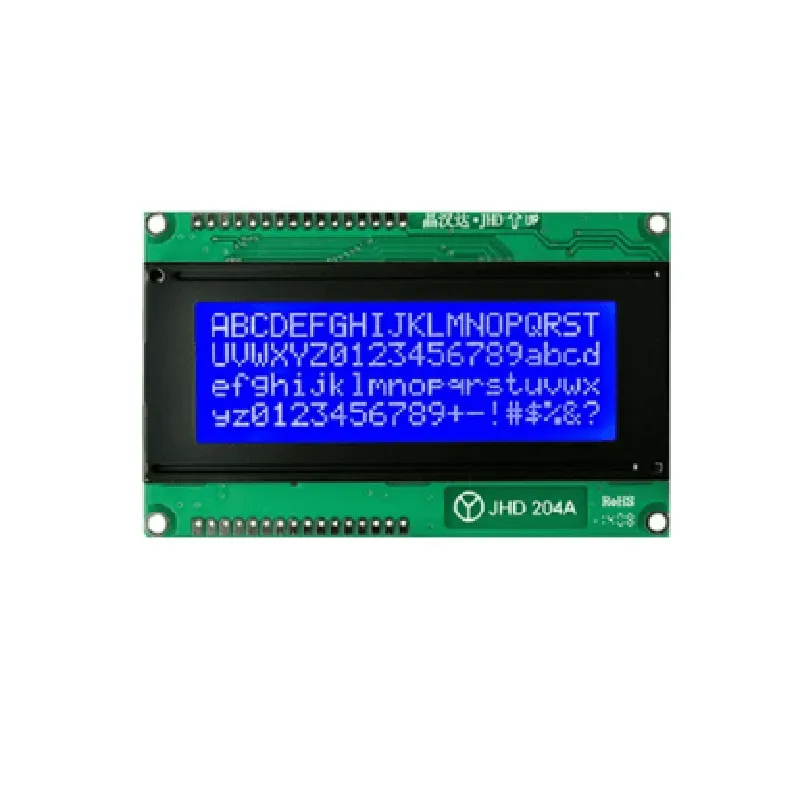
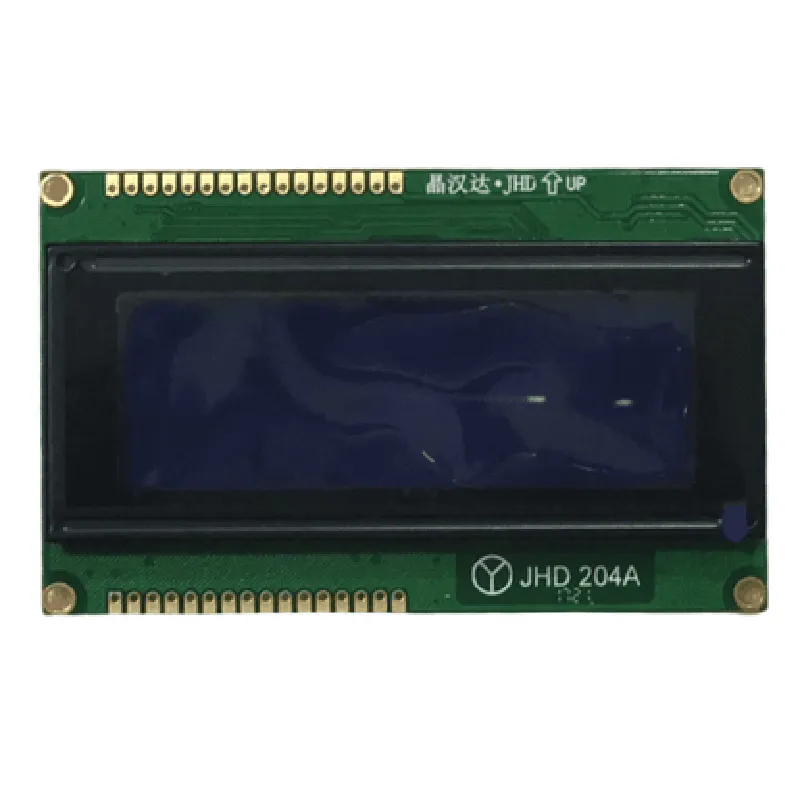
Original JHD 20x4 character LCD Display with Blue Backlight

Buy Now on Stufin

Component Overview

Original JHD 20x4 character LCD Display with Blue Backlight

Introduction

The Original JHD 20x4 character LCD Display with Blue Backlight is a versatile and widely used display module in the realm of Internet of Things (IoT) and embedded systems. This component is designed to provide a human-machine interface (HMI) for various applications, allowing users to interact with devices and systems in a visual and intuitive manner.

Functionality

The JHD 20x4 LCD Display is a character-based display, capable of showing alphanumeric characters, symbols, and graphics. It is a passive device, meaning it requires an external controller or microcontroller to operate. The display module receives data from the controller and displays it on the screen according to the instructions received.

Key Features

### Display Characteristics

Display Type

20x4 character LCD Display (20 characters per line, 4 lines)

Display Mode

STN (Super-Twist Nematic)

Viewing Angle

60 (Horizontal), 40 (Vertical)

Operating Temperature

-20C to 70C

Storage Temperature

-30C to 80C

### Backlight Characteristics

Backlight Color

Blue

Backlight Type

LED (Light Emitting Diode)

Backlight Brightness

Adjustable (via external resistor)

### Interface Characteristics

Interface Type

Parallel (8-bit)

Command Set

HD44780 compatible

Data Bus

8-bit

Clock Frequency

Up to 1 MHz

### Physical Characteristics

Module Size

98.5 mm (L) x 60.5 mm (W) x 14.5 mm (H)

Mounting Type

Pin-header (Single In-Line, SIL)

Weight

Approximately 50 grams

### Electrical Characteristics

Operating Voltage

5V (10%)

Power Consumption

Typical 120 mA (without backlight), 250 mA (with backlight)

Storage Voltage

-30V to 30V (non-operating)

### Other Features

Display Contrast

Adjustable (via external variable resistor)

Baud Rate

Up to 9600 bps (bits per second)

Supports

English, Japanese, and other languages (upon request)

Applications

The Original JHD 20x4 character LCD Display with Blue Backlight is suitable for a wide range of applications, including

Industrial automation and control systems

Medical devices and equipment

Consumer electronics and appliances

Internet of Things (IoT) devices and sensors

Robotics and robotic systems

HVAC (Heating, Ventilation, and Air Conditioning) systems

Conclusion

The Original JHD 20x4 character LCD Display with Blue Backlight is a reliable and versatile display module, offering a range of features and customization options. Its compatibility with various microcontrollers and systems makes it an ideal choice for a variety of applications, from simple to complex designs.

Pin Configuration

  • Original JHD 20x4 Character LCD Display with Blue Backlight Pinout Guide
  • The Original JHD 20x4 character LCD display with blue backlight is a popular IoT component used for displaying text and characters in various applications. Here is a detailed explanation of each pin and how to connect them:
  • Pin Description:
  • The LCD display has a total of 16 pins, which can be divided into three categories: Power Supply, Control Signals, and Data Lines.
  • Power Supply Pins:
  • 1. VCC (Pin 1): This pin is connected to the positive power supply (typically 5V) to power the LCD display.
  • 2. GND (Pin 2): This pin is connected to the ground (0V) to complete the power supply circuit.
  • Control Signals Pins:
  • 3. V0 (Pin 3): This pin is used to adjust the display contrast. It should be connected to a variable resistor (potentiometer) or a fixed resistor to set the desired contrast level.
  • 4. RS (Pin 4): This pin is the Register Select pin, used to select the type of data being sent to the LCD display (instruction or data). Logic High (H) selects data, while Logic Low (L) selects instructions.
  • 5. RW (Pin 5): This pin is the Read/Write pin, used to determine the direction of data transfer. Logic High (H) indicates a read operation, while Logic Low (L) indicates a write operation.
  • 6. EN (Pin 6): This pin is the Enable pin, used to initiate data transfer. A High-to-Low transition on this pin enables data transfer.
  • Data Lines Pins:
  • 7. D0 (Pin 7): This pin is the least significant bit (LSB) of the 8-bit data bus.
  • 8. D1 (Pin 8): This pin is the second bit of the 8-bit data bus.
  • 9. D2 (Pin 9): This pin is the third bit of the 8-bit data bus.
  • 10. D3 (Pin 10): This pin is the fourth bit of the 8-bit data bus.
  • 11. D4 (Pin 11): This pin is the fifth bit of the 8-bit data bus.
  • 12. D5 (Pin 12): This pin is the sixth bit of the 8-bit data bus.
  • 13. D6 (Pin 13): This pin is the seventh bit of the 8-bit data bus.
  • 14. D7 (Pin 14): This pin is the most significant bit (MSB) of the 8-bit data bus.
  • Backlight Control Pins:
  • 15. A (Pin 15): This pin is connected to the anode of the backlight LED.
  • 16. K (Pin 16): This pin is connected to the cathode of the backlight LED.
  • Connection Structure:
  • To connect the pins, follow this structure:
  • Power Supply:
  • + VCC (Pin 1) to 5V power supply
  • + GND (Pin 2) to ground (0V)
  • Control Signals:
  • + V0 (Pin 3) to a variable resistor (potentiometer) or a fixed resistor
  • + RS (Pin 4) to the microcontroller's register select pin
  • + RW (Pin 5) to the microcontroller's read/write pin
  • + EN (Pin 6) to the microcontroller's enable pin
  • Data Lines:
  • + D0 (Pin 7) to the microcontroller's data bus (LSB)
  • + D1 (Pin 8) to the microcontroller's data bus
  • + D2 (Pin 9) to the microcontroller's data bus
  • + D3 (Pin 10) to the microcontroller's data bus
  • + D4 (Pin 11) to the microcontroller's data bus
  • + D5 (Pin 12) to the microcontroller's data bus
  • + D6 (Pin 13) to the microcontroller's data bus
  • + D7 (Pin 14) to the microcontroller's data bus (MSB)
  • Backlight Control:
  • + A (Pin 15) to the anode of the backlight LED
  • + K (Pin 16) to the cathode of the backlight LED
  • Note: Make sure to check the datasheet of the microcontroller and the LCD display module for specific connection details and pin configurations.

Code Examples

Component Documentation: Original JHD 20x4 character LCD Display with Blue Backlight
Overview
The Original JHD 20x4 character LCD Display with Blue Backlight is a popular and widely-used liquid crystal display module suitable for various IoT applications. This display features a 20x4 character format, meaning it can display up to 20 characters per line and has 4 lines in total. The display also comes with a blue backlight, making it suitable for use in low-light environments.
Pinout and Connections
The display module has a standard 16-pin interface, with the following pinout:
| Pin | Function |
| --- | --- |
| 1 | VSS (Ground) |
| 2 | VCC (Power Supply) |
| 3 | VE (Contrast Adjustment) |
| 4 | RS (Register Select) |
| 5 | R/W (Read/Write) |
| 6 | EN (Enable) |
| 7 | D0 (Data Bit 0) |
| 8 | D1 (Data Bit 1) |
| 9 | D2 (Data Bit 2) |
| 10 | D3 (Data Bit 3) |
| 11 | D4 (Data Bit 4) |
| 12 | D5 (Data Bit 5) |
| 13 | D6 (Data Bit 6) |
| 14 | D7 (Data Bit 7) |
| 15, 16 | Backlight Anode and Cathode |
Code Examples
### Example 1: Basic LCD Display using Arduino
```c++
#include <LiquidCrystal.h>
#define LCD_RS 12
#define LCD_EN 11
#define LCD_D4 5
#define LCD_D5 4
#define LCD_D6 3
#define LCD_D7 2
LiquidCrystal_I2C lcd(LCD_RS, LCD_EN, LCD_D4, LCD_D5, LCD_D6, LCD_D7);
void setup() {
  lcd.begin(20, 4); // Initialize LCD with 20x4 characters
  lcd.setCursor(0, 0); // Set cursor to first row, first column
  lcd.print("Hello, World!");
}
void loop() {
  // Do nothing, just display the message
}
```
In this example, we connect the LCD display to an Arduino board, and use the `LiquidCrystal_I2C` library to interact with the display. We initialize the display with a 20x4 character format, set the cursor to the first row and first column, and display the message "Hello, World!".
### Example 2: LCD Display with Raspberry Pi using Python
```python
import RPi.GPIO as GPIO
import time
GPIO.setmode(GPIO.BCM)
LCD_RS = 17
LCD_EN = 23
LCD_D4 = 24
LCD_D5 = 25
LCD_D6 = 8
LCD_D7 = 7
GPIO.setup(LCD_RS, GPIO.OUT)
GPIO.setup(LCD_EN, GPIO.OUT)
GPIO.setup(LCD_D4, GPIO.OUT)
GPIO.setup(LCD_D5, GPIO.OUT)
GPIO.setup(LCD_D6, GPIO.OUT)
GPIO.setup(LCD_D7, GPIO.OUT)
def lcd_init():
  GPIO.output(LCD_RS, 0) # Reset LCD
  GPIO.output(LCD_EN, 1)
  time.sleep(0.01)
  GPIO.output(LCD_EN, 0)
  time.sleep(0.01)
  GPIO.output(LCD_RS, 1) # Set LCD to command mode
def lcd_send_command(cmd):
  GPIO.output(LCD_D4, (cmd >> 4) & 1)
  GPIO.output(LCD_D5, (cmd >> 5) & 1)
  GPIO.output(LCD_D6, (cmd >> 6) & 1)
  GPIO.output(LCD_D7, (cmd >> 7) & 1)
  GPIO.output(LCD_EN, 1)
  time.sleep(0.01)
  GPIO.output(LCD_EN, 0)
  time.sleep(0.01)
def lcd_send_data(data):
  GPIO.output(LCD_D4, (data >> 0) & 1)
  GPIO.output(LCD_D5, (data >> 1) & 1)
  GPIO.output(LCD_D6, (data >> 2) & 1)
  GPIO.output(LCD_D7, (data >> 3) & 1)
  GPIO.output(LCD_EN, 1)
  time.sleep(0.01)
  GPIO.output(LCD_EN, 0)
  time.sleep(0.01)
lcd_init()
lcd_send_command(0x28) # Set LCD to 20x4 mode
lcd_send_command(0x0C) # Turn on display, cursor off
lcd_send_command(0x01) # Clear display
lcd_send_data(ord('H'))
lcd_send_data(ord('e'))
lcd_send_data(ord('l'))
lcd_send_data(ord('o'))
lcd_send_data(ord(','))
while True:
  # Do nothing, just display the message
  pass
```
In this example, we connect the LCD display to a Raspberry Pi using the RPi.GPIO library. We define functions to initialize the LCD, send commands, and send data to the display. We then use these functions to set the LCD to a 20x4 mode, turn on the display, and display the message "Hello,".
Note: These examples are just a starting point, and you may need to modify them to fit your specific use case. Additionally, make sure to adjust the pin connections and initialization routines according to your specific setup.