Stufin
Home Quick Cart Profile

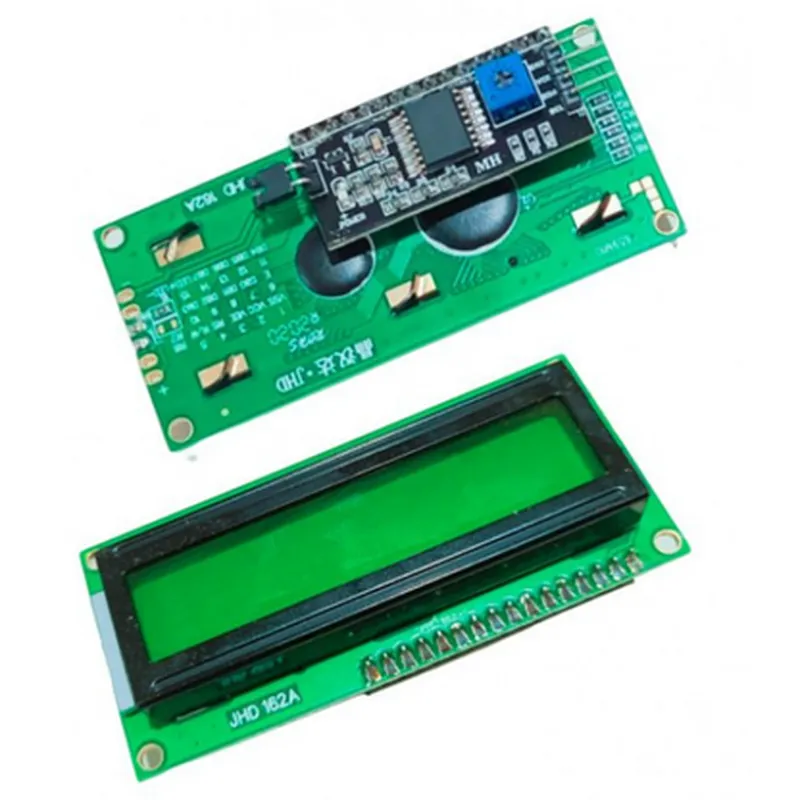
16x2 Green LCD with Soldered I2C/IIC Interface

Buy Now on Stufin

Component Name

16x2 Green LCD with Soldered I2C/IIC Interface

Overview

The 16x2 Green LCD with Soldered I2C/IIC Interface is a compact and versatile liquid crystal display module designed for a wide range of applications in the Internet of Things (IoT), robotics, and embedded systems. This component offers a convenient and easy-to-use interface for displaying alphanumeric characters, symbols, and graphics, making it an ideal choice for developers, engineers, and hobbyists.

Functionality

The primary function of this LCD module is to display data sent from a microcontroller or other digital devices via the I2C (Inter-Integrated Circuit) or IIC (I-squared-C) serial communication protocol. The module's 16x2 character display allows for showing two lines of text, with each line accommodating up to 16 characters. The display's green backlight enhances visibility, making it suitable for use in various lighting conditions.

Key Features

  • Display Characteristics:

Display Type

STN (Super-Twist Nematic) LCD

Resolution

16 characters x 2 lines

Character Size

5x8 dots

Viewing Angle

60 ( typical )

Operating Temperature

-20C to 70C

  • I2C/IIC Interface:

Communication Protocol

I2C (100 kHz) and IIC (400 kHz) compatible

Address Selection

7-bit addressing, allowing up to 128 devices on the same bus

Data Transfer Rate

Up to 400 kHz

  • Soldered Interface:

The I2C/IIC interface is soldered to the LCD module, eliminating the need for additional wiring or connector installation

The soldered connections ensure a secure and reliable connection to the microcontroller or other devices

  • Power Supply:

Operating Voltage

5V (typical)

Power Consumption

5mA (typical)

  • Physical Characteristics:

Module Size

80x36 mm (3.15x1.42 inches)

Thickness

12 mm (0.47 inches)

Weight

approximately 30 grams

  • Additional Features:

Built-in 5x7 character generator for easy font creation

Support for both English and Japanese character sets

Compatible with most microcontrollers and single-board computers

Applications

The 16x2 Green LCD with Soldered I2C/IIC Interface is suitable for a wide range of applications, including

IoT projects

Robotics and automation systems

Embedded systems and microcontroller projects

Industrial control systems

Medical devices and equipment

Consumer electronics and appliances

Conclusion

The 16x2 Green LCD with Soldered I2C/IIC Interface is a versatile and convenient display module ideal for various applications requiring a reliable and easy-to-use interface. Its compact size, low power consumption, and built-in character generator make it an attractive choice for developers and engineers working on IoT, robotics, and embedded systems projects.

Pin Configuration

  • 16x2 Green LCD with Soldered I2C/IIC Interface
  • Pin Configuration:
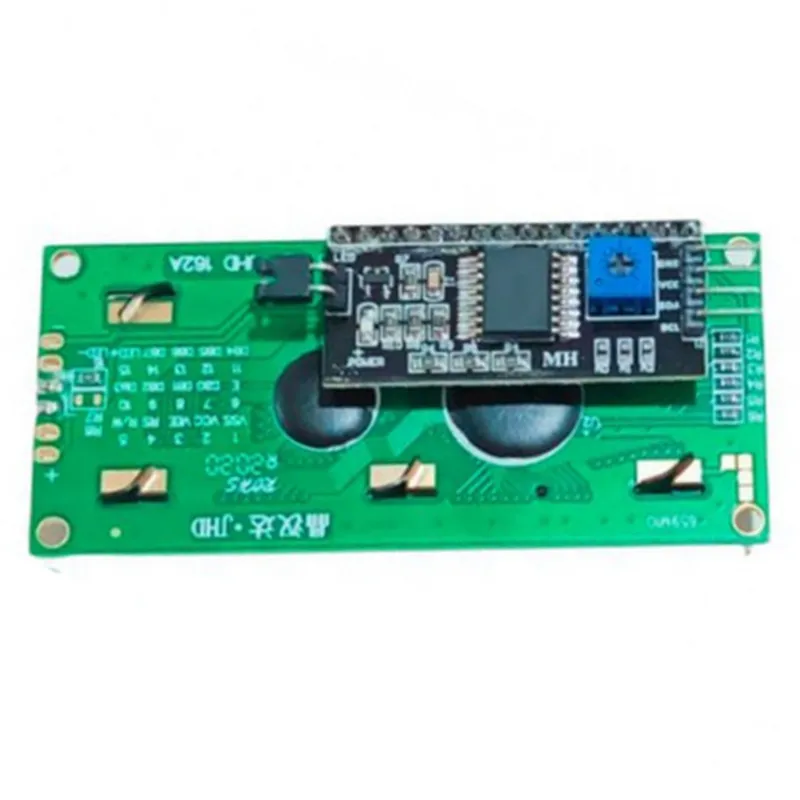
  • The 16x2 Green LCD with Soldered I2C/IIC Interface has a total of 4 pins, which are labeled as follows:
  • Pin 1: VCC
  • Function: Power supply pin
  • Description: This pin is used to provide a power supply of 5V to the LCD module.
  • Connection: Connect this pin to a 5V power source.
  • Pin 2: GND
  • Function: Ground pin
  • Description: This pin is used to provide a ground connection to the LCD module.
  • Connection: Connect this pin to a ground connection (GND) on your microcontroller or development board.
  • Pin 3: SDA (Serial Data)
  • Function: I2C data pin
  • Description: This pin is used to transmit data between the microcontroller and the LCD module via the I2C protocol.
  • Connection: Connect this pin to the SDA pin on your microcontroller or development board.
  • Pin 4: SCL (Serial Clock)
  • Function: I2C clock pin
  • Description: This pin is used to provide a clock signal for the I2C protocol, allowing the microcontroller and LCD module to synchronize data transmission.
  • Connection: Connect this pin to the SCL pin on your microcontroller or development board.
  • Connection Structure:
  • To connect the 16x2 Green LCD with Soldered I2C/IIC Interface to your microcontroller or development board, follow the structure below:
  • VCC (Pin 1) -> 5V Power Supply
  • GND (Pin 2) -> GND on microcontroller or development board
  • SDA (Pin 3) -> SDA on microcontroller or development board
  • SCL (Pin 4) -> SCL on microcontroller or development board
  • Important Notes:
  • Make sure to use a suitable level shifter or voltage regulator if your microcontroller or development board operates at a voltage different from 5V.
  • Use a suitable I2C library or protocol implementation on your microcontroller or development board to communicate with the LCD module.
  • Follow the I2C protocol specifications to ensure proper communication between the microcontroller and the LCD module.
  • Refer to the datasheet of your microcontroller or development board for specific pin assignments and connection guidelines.

Code Examples

16x2 Green LCD with Soldered I2C/IIC Interface Documentation
Overview
The 16x2 Green LCD with Soldered I2C/IIC Interface is a compact and versatile liquid crystal display module designed for use in a wide range of IoT applications. This module features a 16-character x 2-line display with a bright green backlight, making it suitable for both indoor and outdoor use. The soldered I2C/IIC interface allows for easy connection to microcontrollers and other devices, enabling swift integration into various projects.
Technical Specifications
Display Type: ST7066U 16x2 Character LCD
 Backlight: Green LED
 Interface: I2C/IIC (soldered)
 Operating Voltage: 5V
 Operating Current: 10mA (typical)
 Dimensions: 80x36mm
Code Examples
### Example 1: Basic LCD Initialization and Text Display using Arduino
This example demonstrates how to initialize the LCD and display a simple message using an Arduino board.
```c
#include <Wire.h>
#include <LiquidCrystal_I2C.h>
// Define the LCD I2C address (may vary depending on the module)
#define LCD_I2C_ADDRESS 0x27
// Initialize the LCD
LiquidCrystal_I2C lcd(LCD_I2C_ADDRESS, 16, 2);
void setup() {
  // Initialize the LCD
  lcd.init();
  lcd.backlight();
  lcd.setCursor(0, 0);
  lcd.print("Hello, world!");
}
void loop() {
  // Do nothing, the message will remain displayed
}
```
### Example 2: Displaying Sensor Data on the LCD using Raspberry Pi (Python)
This example shows how to connect the LCD to a Raspberry Pi and display sensor data using Python. In this example, we'll use a DHT11 temperature and humidity sensor.
```python
import RPi.GPIO as GPIO
import time
import Adafruit_DHT
import smbus
# Define the LCD I2C address
LCD_I2C_ADDRESS = 0x27
# Initialize the I2C bus
bus = smbus.SMBus(1)
# Define the LCD commands
LCD_CLEARDISPLAY = 0x01
LCD_RETURNHOME = 0x02
LCD_SETDDRamADDR = 0x80
# Initialize the LCD
def lcd_init():
    bus.write_byte(LCD_I2C_ADDRESS, LCD_CLEARDISPLAY)
    bus.write_byte(LCD_I2C_ADDRESS, LCD_RETURNHOME)
# Set the LCD cursor position
def lcd_set_cursor(row, col):
    bus.write_byte(LCD_I2C_ADDRESS, LCD_SETDDRamADDR + row  0x40 + col)
# Print a string on the LCD
def lcd_print(string):
    for char in string:
        bus.write_byte(LCD_I2C_ADDRESS, ord(char))
# Initialize the sensor
dht_sensor = Adafruit_DHT.DHT11
while True:
    # Read sensor data
    humidity, temperature = Adafruit_DHT.read(dht_sensor, 4)
# Clear the LCD
    lcd_init()
# Set the cursor to the first row
    lcd_set_cursor(0, 0)
# Print the temperature
    lcd_print("Temp: {:.1f}C".format(temperature))
# Set the cursor to the second row
    lcd_set_cursor(1, 0)
# Print the humidity
    lcd_print("Humidity: {:.1f}%".format(humidity))
# Wait 1 second before updating the display again
    time.sleep(1)
```
### Example 3: Scrolling Marquee Text using ESP32 (C++)
This example demonstrates how to create a scrolling marquee text effect on the LCD using an ESP32 board.
```c
#include <Wire.h>
#include <LiquidCrystal_I2C.h>
// Define the LCD I2C address
#define LCD_I2C_ADDRESS 0x27
// Initialize the LCD
LiquidCrystal_I2C lcd(LCD_I2C_ADDRESS, 16, 2);
void setup() {
  // Initialize the LCD
  lcd.init();
  lcd.backlight();
}
void loop() {
  // Set the cursor to the first row
  lcd.setCursor(0, 0);
// Define the marquee text
  char marquee_text[] = "Hello, world! This is a long message that will scroll.";
// Set the scrolling speed (higher values = faster scrolling)
  int scroll_speed = 500;
// Scroll the marquee text
  for (int i = 0; i < strlen(marquee_text); i++) {
    // Clear the LCD
    lcd.clear();
// Print the marquee text, starting from the current position
    lcd.print(marquee_text + i);
// Wait for the scrolling speed
    delay(scroll_speed);
// Move the cursor to the next position
    lcd.setCursor(0, 0);
  }
}
```
Note: These examples are for illustrative purposes only and may require adjustments to work with your specific setup. Ensure you have the necessary libraries and dependencies installed before attempting to run the code.