

Stufin
Home Quick Cart Profile

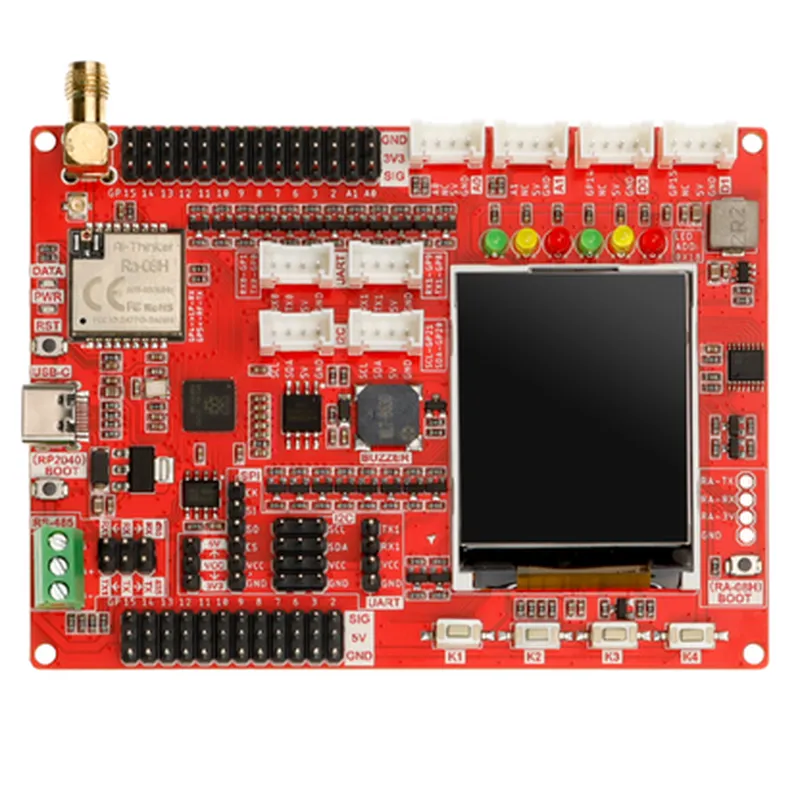
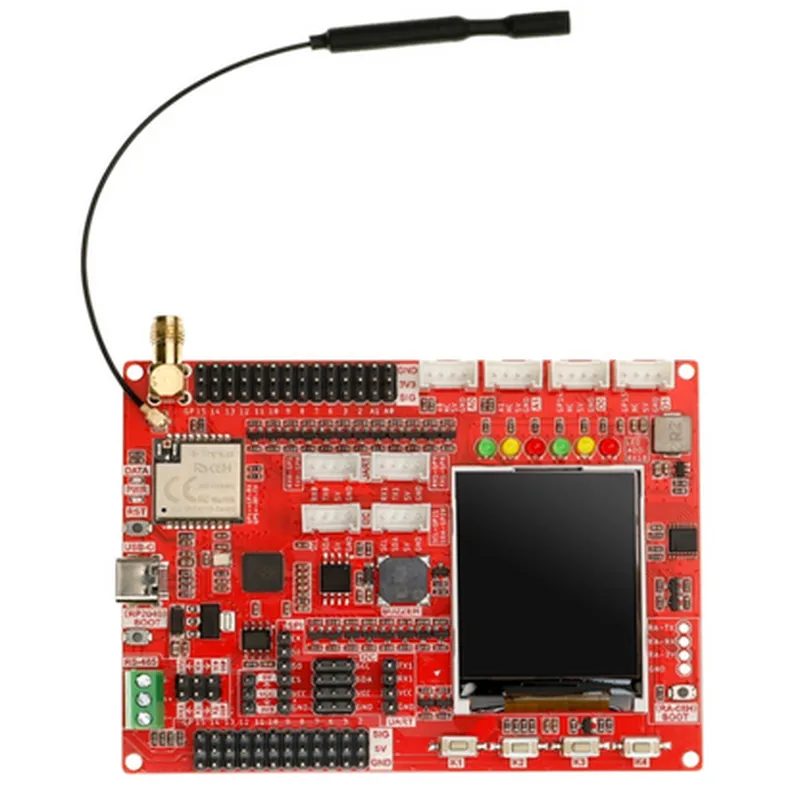
Elecrow LoRaWAN RA-08H Development Board Integrated RP2040 with 1.8 LCD for Long Range Communication (868Mhz/915Mhz

Buy Now on Stufin

Maximum transmission power

20 dBm

Receive sensitivity

-137 dBm

  • 1.8 LCD Display:

Resolution

128x160 pixels

Supports 16-bit color depth

Built-in backlight for low-power consumption

  • Power Management:

Supports battery-powered operation

Onboard voltage regulator for efficient power management

  • Connectivity and Interfaces:
Low-power consumption< 100mA (typical)

2x 20-pin GPIO headers for peripheral connections

1x Micro-USB port for programming and debugging

1x U.FL antenna connector for LoRaWAN communication

  • Operating Conditions:

Operating temperature

-20C to 85C (-4F to 185F)

Storage temperature

-40C to 125C (-40F to 257F)

Applications

  • Industrial Automation: Remote monitoring and control of industrial equipment
  • Environmental Monitoring: Wireless sensor networks for air quality, weather, and water quality monitoring
  • Smart City Infrastructure: Wireless communication for smart city applications, such as traffic management and waste management
  • Agricultural Monitoring: Wireless sensor networks for soil moisture, temperature, and crop monitoring
  • Healthcare: Wireless health monitoring systems for remote patient monitoring and telemedicine applications.
The Elecrow LoRaWAN RA-08H Development Board is suitable for a wide range of IoT applications, including

Pin Configuration

  • Elecrow LoRaWAN RA-08H Development Board Pinout Guide
  • The Elecrow LoRaWAN RA-08H Development Board is a feature-rich board that integrates the RP2040 microcontroller with a 1.8" LCD display, making it an ideal choice for long-range communication projects. This guide provides a comprehensive explanation of each pin on the board, along with connection guidelines.
  • Pinout Structure:
  • The RA-08H Development Board has a total of 40 pins, arranged in two rows of 20 pins each. The pins are labeled on the top and bottom of the board, with the top row labeled as `J1` and the bottom row labeled as `J2`.
  • Pin Description:
  • Here's a detailed explanation of each pin, point by point:
  • J1 (Top Row):
  • 1. GND: Ground pin, connected to the system ground.
  • 2. VBAT: Battery voltage input pin, connected to the battery or power source.
  • 3. 3V3: 3.3V power output pin, regulated from the battery or power source.
  • 4. RST: Reset pin, active low. Pulling this pin low will reset the RP2040 microcontroller.
  • 5. GP0: General-purpose input/output pin, can be used as a digital input or output.
  • 6. GP1: General-purpose input/output pin, can be used as a digital input or output.
  • 7. GP2: General-purpose input/output pin, can be used as a digital input or output.
  • 8. GP3: General-purpose input/output pin, can be used as a digital input or output.
  • 9. GP4: General-purpose input/output pin, can be used as a digital input or output.
  • 10. GP5: General-purpose input/output pin, can be used as a digital input or output.
  • 11. GP6: General-purpose input/output pin, can be used as a digital input or output.
  • 12. GP7: General-purpose input/output pin, can be used as a digital input or output.
  • 13. GP8: General-purpose input/output pin, can be used as a digital input or output.
  • 14. GP9: General-purpose input/output pin, can be used as a digital input or output.
  • 15. GP10: General-purpose input/output pin, can be used as a digital input or output.
  • 16. GP11: General-purpose input/output pin, can be used as a digital input or output.
  • 17. GP12: General-purpose input/output pin, can be used as a digital input or output.
  • 18. GP13: General-purpose input/output pin, can be used as a digital input or output.
  • 19. GP14: General-purpose input/output pin, can be used as a digital input or output.
  • 20. GP15: General-purpose input/output pin, can be used as a digital input or output.
  • J2 (Bottom Row):
  • 1. LCD_CLK: LCD clock signal pin, connected to the LCD display.
  • 2. LCD_MOSI: LCD master-out-slave-in pin, connected to the LCD display.
  • 3. LCD_DC: LCD data/command pin, connected to the LCD display.
  • 4. LCD_RST: LCD reset pin, connected to the LCD display.
  • 5. LED: Onboard LED, connected to GP25.
  • 6. LORA_SCK: LoRa clock signal pin, connected to the LoRa module.
  • 7. LORA_MOSI: LoRa master-out-slave-in pin, connected to the LoRa module.
  • 8. LORA_MISO: LoRa master-in-slave-out pin, connected to the LoRa module.
  • 9. LORA_CS: LoRa chip select pin, connected to the LoRa module.
  • 10. LORA_RST: LoRa reset pin, connected to the LoRa module.
  • 11. LORA_IRQ: LoRa interrupt pin, connected to the LoRa module.
  • 12. UART_TX: UART transmission pin, connected to the RP2040's UART interface.
  • 13. UART_RX: UART reception pin, connected to the RP2040's UART interface.
  • 14. I2C_SDA: I2C data pin, connected to the RP2040's I2C interface.
  • 15. I2C_SCL: I2C clock pin, connected to the RP2040's I2C interface.
  • 16. SPI_CS: SPI chip select pin, connected to the RP2040's SPI interface.
  • 17. SPI_CLK: SPI clock signal pin, connected to the RP2040's SPI interface.
  • 18. SPI_MOSI: SPI master-out-slave-in pin, connected to the RP2040's SPI interface.
  • 19. SPI_MISO: SPI master-in-slave-out pin, connected to the RP2040's SPI interface.
  • 20. ADC: Analog-to-digital converter pin, connected to the RP2040's ADC interface.
  • Connection Guidelines:
  • When connecting peripherals or modules to the RA-08H Development Board, ensure the following:
  • Always refer to the pinout diagram to avoid incorrect connections.
  • Use suitable jumper wires or connectors to connect peripherals to the board.
  • Be cautious when handling the board and components to prevent damage or electrical shock.
  • Ensure that power is turned off before making any connections.
  • Follow proper breadboarding or PCB design practices when building projects with this board.
  • By following this pinout guide and connection guidelines, you can successfully integrate the Elecrow LoRaWAN RA-08H Development Board into your IoT projects and harness its capabilities for long-range communication applications.

Code Examples

Elecrow LoRaWAN RA-08H Development Board Integrated RP2040 with 1.8  LCD
Overview
The Elecrow LoRaWAN RA-08H Development Board is a highly integrated board that combines the Raspberry Pi RP2040 microcontroller with a 1.8-inch LCD display and a LoRaWAN transceiver operating at 868MHz or 915MHz frequencies. This board is ideal for IoT projects that require long-range communication, display capabilities, and microcontroller-based processing.
Key Features
Raspberry Pi RP2040 microcontroller
 1.8-inch LCD display with 128x160 resolution
 LoRaWAN transceiver (868MHz or 915MHz)
 Supports LoRaWAN Class A and Class C
 UART, SPI, I2C, and I2S interfaces
 Micro-USB interface for programming and debugging
 Powered by USB or external power source
Hardware Components
Elecrow LoRaWAN RA-08H Development Board
 Micro-USB cable
 Power source (optional)
 Antenna (optional)
Software Requirements
Raspberry Pi Pico SDK
 LoRaWAN library (optional)
 C/C++ programming language
Code Examples
### Example 1: LoRaWAN Sending and Receiving Data
This example demonstrates how to use the Elecrow LoRaWAN RA-08H Development Board to send and receive data using LoRaWAN protocol.
```c
#include "lora.h"
#define LORA_FREQ 868E6 // Frequency in Hz (868MHz or 915MHz)
int main() {
    // Initialize LoRaWAN module
    lora_init(LORA_FREQ);
// Set LoRaWAN device address and keys
    lora_set_dev_addr("01020304");
    lora_set_nws_key("0102030405060708");
    lora_set_apps_key("0102030405060708");
// Send a message using LoRaWAN
    char message[] = "Hello, LoRaWAN!";
    lora_send(message, sizeof(message));
// Receive a message using LoRaWAN
    char receive_buffer[256];
    int received_size = lora_receive(receive_buffer, sizeof(receive_buffer));
    if (received_size > 0) {
        printf("Received message: %s
", receive_buffer);
    }
return 0;
}
```
### Example 2: Displaying Sensor Data on LCD
This example demonstrates how to use the Elecrow LoRaWAN RA-08H Development Board to display sensor data on the 1.8-inch LCD display.
```c
#include "lcd.h"
#include "sensor.h"
int main() {
    // Initialize LCD display
    lcd_init();
// Initialize sensor (e.g., temperature sensor)
    sensor_init();
while (1) {
        // Read sensor data
        int temperature = sensor_read();
// Display sensor data on LCD
        char buffer[16];
        sprintf(buffer, "Temp: %dC", temperature);
        lcd_display_string(0, 0, buffer);
// Wait for a short period of time before updating again
        delay(1000);
    }
return 0;
}
```
Notes
Make sure to modify the LoRaWAN frequency and device address according to your specific setup.
 In Example 2, replace the `sensor_init()` and `sensor_read()` functions with your own implementation for reading sensor data.
 These examples are for illustration purposes only and may require modifications to work with your specific use case.
Troubleshooting
Ensure that the micro-USB cable is properly connected and the board is powered.
 Check the LoRaWAN frequency and device address settings.
 Verify that the LCD display is properly initialized and configured.
Resources
Elecrow LoRaWAN RA-08H Development Board datasheet
 Raspberry Pi Pico SDK documentation
 LoRaWAN library documentation (optional)
I hope this documentation helps! Let me know if you have any questions or need further clarification.