Stufin
Home Quick Cart Profile

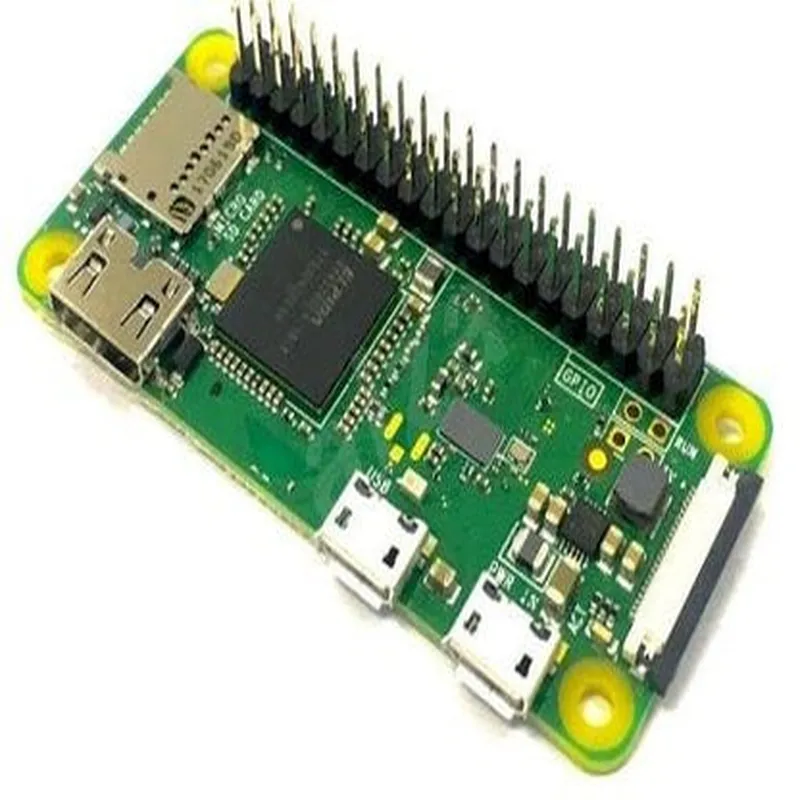
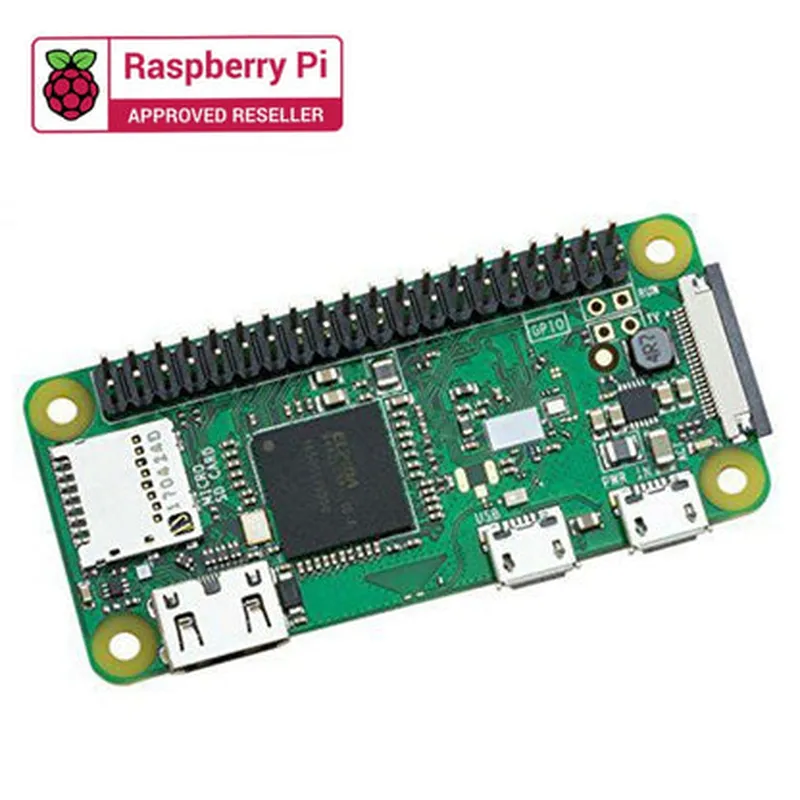
Raspberry Pi Zero WH with Pre-Soldered Header

Buy Now on Stufin

CPU

Broadcom BCM2835 SoC, 1GHz single-core CPU


RAM

512MB

Storage

MicroSD card slot

Wireless Connectivity

802.11 b/g/n Wi-Fi, Bluetooth 4.0

GPIO Header

40-pin, pre-soldered

Video

1080p30 H.264 video encoding and decoding

Power Consumption

Approximately 0.5W

Dimensions

65mm x 30mm

Weight

9g

Operating Temperature

0C to 50C

Conclusion

The Raspberry Pi Zero WH with Pre-Soldered Header is a powerful, compact, and affordable computing solution for a wide range of applications. Its small size, low power consumption, and wireless connectivity make it an ideal choice for IoT projects, robotics, home automation, and more. With its ease of use and extensive community support, the Raspberry Pi Zero WH is an excellent platform for both technical professionals and informed hobbyists.

Pin Configuration

  • Raspberry Pi Zero WH with Pre-Soldered Header Pinout Guide
  • The Raspberry Pi Zero WH with Pre-Soldered Header is a compact and powerful single-board computer designed for IoT and embedded systems projects. This guide provides a comprehensive overview of the pins on the Raspberry Pi Zero WH, explaining each pin's function and how to connect them.
  • GPIO Pins (40-Pin Header)
  • The Raspberry Pi Zero WH has a 40-pin GPIO header, which is pre-soldered for ease of use. The pins are divided into several sections, including power, ground, GPIO, I2C, SPI, UART, and HDMI.
  • Pin 1-2: Power (5V and 3.3V)
  • Pin 1: 5V Power Input
  • + Used to power the Raspberry Pi Zero WH board
  • + Can be connected to a 5V power source, such as a USB port or a battery
  • Pin 2: 3.3V Power Input
  • + Used to power the Raspberry Pi Zero WH board
  • + Can be connected to a 3.3V power source, such as a battery or a regulated power supply
  • Pin 3-4: Ground
  • Pin 3: Ground
  • + Used as a reference point for the circuit
  • + Connect to ground on your breadboard or PCB
  • Pin 4: Ground
  • + Used as a reference point for the circuit
  • + Connect to ground on your breadboard or PCB
  • Pin 5-8: GPIO (General Purpose Input/Output)
  • Pin 5: GPIO 17
  • + Can be used as an input or output
  • + Can be configured as a PWM (Pulse Width Modulation) output
  • Pin 6: GPIO 23
  • + Can be used as an input or output
  • + Can be configured as a PWM output
  • Pin 7: GPIO 24
  • + Can be used as an input or output
  • + Can be configured as a PWM output
  • Pin 8: GPIO 25
  • + Can be used as an input or output
  • + Can be configured as a PWM output
  • Pin 9-14: I2C (Inter-Integrated Circuit)
  • Pin 9: I2C SCL (Serial Clock)
  • + Used for I2C communication
  • + Connect to I2C devices, such as sensors or displays
  • Pin 10: I2C SDA (Serial Data)
  • + Used for I2C communication
  • + Connect to I2C devices, such as sensors or displays
  • Pin 11: GPIO 18
  • + Can be used as an input or output
  • + Can be configured as a PWM output
  • Pin 12: GPIO 12
  • + Can be used as an input or output
  • + Can be configured as a PWM output
  • Pin 13: GPIO 13
  • + Can be used as an input or output
  • + Can be configured as a PWM output
  • Pin 14: GPIO 19
  • + Can be used as an input or output
  • + Can be configured as a PWM output
  • Pin 15-18: SPI (Serial Peripheral Interface)
  • Pin 15: SPI MOSI (Master Out Slave In)
  • + Used for SPI communication
  • + Connect to SPI devices, such as sensors or displays
  • Pin 16: SPI MISO (Master In Slave Out)
  • + Used for SPI communication
  • + Connect to SPI devices, such as sensors or displays
  • Pin 17: SPI SCK (Serial Clock)
  • + Used for SPI communication
  • + Connect to SPI devices, such as sensors or displays
  • Pin 18: SPI CE (Chip Enable)
  • + Used for SPI communication
  • + Connect to SPI devices, such as sensors or displays
  • Pin 19-24: UART (Universal Asynchronous Receiver-Transmitter)
  • Pin 19: UART TX (Transmit)
  • + Used for serial communication
  • + Connect to a serial device, such as a GPS module or a serial console
  • Pin 20: UART RX (Receive)
  • + Used for serial communication
  • + Connect to a serial device, such as a GPS module or a serial console
  • Pin 21: GPIO 15
  • + Can be used as an input or output
  • + Can be configured as a PWM output
  • Pin 22: GPIO 16
  • + Can be used as an input or output
  • + Can be configured as a PWM output
  • Pin 23: GPIO 26
  • + Can be used as an input or output
  • + Can be configured as a PWM output
  • Pin 24: GPIO 14
  • + Can be used as an input or output
  • + Can be configured as a PWM output
  • Pin 25-30: HDMI and Power
  • Pin 25: HDMI Hotplug Detect
  • + Used to detect the presence of an HDMI device
  • + Connect to an HDMI device, such as a monitor or display
  • Pin 26: HDMI CEC (Consumer Electronics Control)
  • + Used for HDMI communication
  • + Connect to an HDMI device, such as a monitor or display
  • Pin 27: 3.3V Power Input
  • + Used to power the Raspberry Pi Zero WH board
  • + Can be connected to a 3.3V power source, such as a battery or a regulated power supply
  • Pin 28: 5V Power Input
  • + Used to power the Raspberry Pi Zero WH board
  • + Can be connected to a 5V power source, such as a USB port or a battery
  • Pin 29: GPIO 5
  • + Can be used as an input or output
  • + Can be configured as a PWM output
  • Pin 30: GPIO 6
  • + Can be used as an input or output
  • + Can be configured as a PWM output
  • Pin 31-40: GPIO and Power
  • Pin 31: GPIO 28
  • + Can be used as an input or output
  • + Can be configured as a PWM output
  • Pin 32: GPIO 29
  • + Can be used as an input or output
  • + Can be configured as a PWM output
  • Pin 33: GPIO 30
  • + Can be used as an input or output
  • + Can be configured as a PWM output
  • Pin 34: GND (Ground)
  • + Used as a reference point for the circuit
  • + Connect to ground on your breadboard or PCB
  • Pin 35: GPIO 27
  • + Can be used as an input or output
  • + Can be configured as a PWM output
  • Pin 36: GPIO 22
  • + Can be used as an input or output
  • + Can be configured as a PWM output
  • Pin 37: GPIO 23
  • + Can be used as an input or output
  • + Can be configured as a PWM output
  • Pin 38: GPIO 24
  • + Can be used as an input or output
  • + Can be configured as a PWM output
  • Pin 39: GPIO 25
  • + Can be used as an input or output
  • + Can be configured as a PWM output
  • Pin 40: GND (Ground)
  • + Used as a reference point for the circuit
  • + Connect to ground on your breadboard or PCB
  • Connecting the Pins
  • When connecting the pins on the Raspberry Pi Zero WH, make sure to:
  • Use a breadboard or PCB with a compatible pinout
  • Connect power pins (5V and 3.3V) to a suitable power source
  • Connect ground pins (GND) to a common ground point on your breadboard or PCB
  • Connect GPIO pins to sensors, actuators, or other devices according to your project requirements
  • Use jumper wires or breadboard-friendly connectors to connect the pins
  • Consult the Raspberry Pi Zero WH datasheet and documentation for specific pin usage guidelines and restrictions
  • Remember to handle the Raspberry Pi Zero WH with care, as the pins are sensitive and can be damaged easily. Always double-check your connections and ensure you are using the correct pins for your project.

Code Examples

Raspberry Pi Zero WH with Pre-Soldered Header
The Raspberry Pi Zero WH is a tiny, low-cost, and highly capable single-board computer (SBC) that is ideal for IoT projects, robotics, and embedded systems. The pre-soldered header on this variant makes it easy to connect peripherals andExpansion boards.
Technical Specifications:
Processor: Broadcom BCM2835, quad-core Cortex-A7 CPU
 RAM: 512 MB
 Storage: MicroSD card slot
 Networking: 802.11 b/g/n wireless LAN, Bluetooth 4.0
 GPIO: 40-pin header (pre-soldered)
 Operating System: Raspberry Pi OS (based on Linux)
Code Examples:
### Example 1: Blinking LED using Python
This example demonstrates how to use the Raspberry Pi Zero WH's GPIO pins to control an LED.
Hardware Requirements:
Raspberry Pi Zero WH
 Breadboard
 LED
 220 resistor
 Jumper wires
Software Requirements:
Raspberry Pi OS
 Python 3.x
Code:
```python
import RPi.GPIO as GPIO
import time
# Set up GPIO mode
GPIO.setmode(GPIO.BCM)
# Set up LED pin as output
led_pin = 17
GPIO.setup(led_pin, GPIO.OUT)
try:
    while True:
        # Turn LED on
        GPIO.output(led_pin, GPIO.HIGH)
        time.sleep(1)
        # Turn LED off
        GPIO.output(led_pin, GPIO.LOW)
        time.sleep(1)
except KeyboardInterrupt:
    # Clean up GPIO on exit
    GPIO.cleanup()
```
Explanation:
In this example, we use the RPi.GPIO library to control the LED connected to GPIO pin 17. We set up the pin as an output and use a while loop to toggle the LED on and off.
### Example 2: Reading Temperature and Humidity using DHT11 Sensor and Python
This example demonstrates how to use the Raspberry Pi Zero WH to read temperature and humidity data from a DHT11 sensor.
Hardware Requirements:
Raspberry Pi Zero WH
 DHT11 sensor
 Breadboard
 Jumper wires
Software Requirements:
Raspberry Pi OS
 Python 3.x
 DHT11 library (install using `pip install dht11`)
Code:
```python
import dht11
# Initialize DHT11 sensor on GPIO pin 4
dht_sensor = dht11.DHT11(pin=4)
try:
    while True:
        # Read temperature and humidity data
        result = dht_sensor.read()
        if result.is_valid():
            print(f"Temperature: {result.temperature}C")
            print(f"Humidity: {result.humidity}%")
        else:
            print("Error: Failed to read data from sensor")
        time.sleep(2)
except KeyboardInterrupt:
    pass
```
Explanation:
In this example, we use the DHT11 library to read temperature and humidity data from the DHT11 sensor connected to GPIO pin 4. We create a DHT11 object, specify the pin, and use the `read()` method to retrieve the data. We then print the temperature and humidity values to the console.
These examples demonstrate the versatility and ease of use of the Raspberry Pi Zero WH with pre-soldered header. With its compact size and low cost, this board is ideal for a wide range of IoT applications.