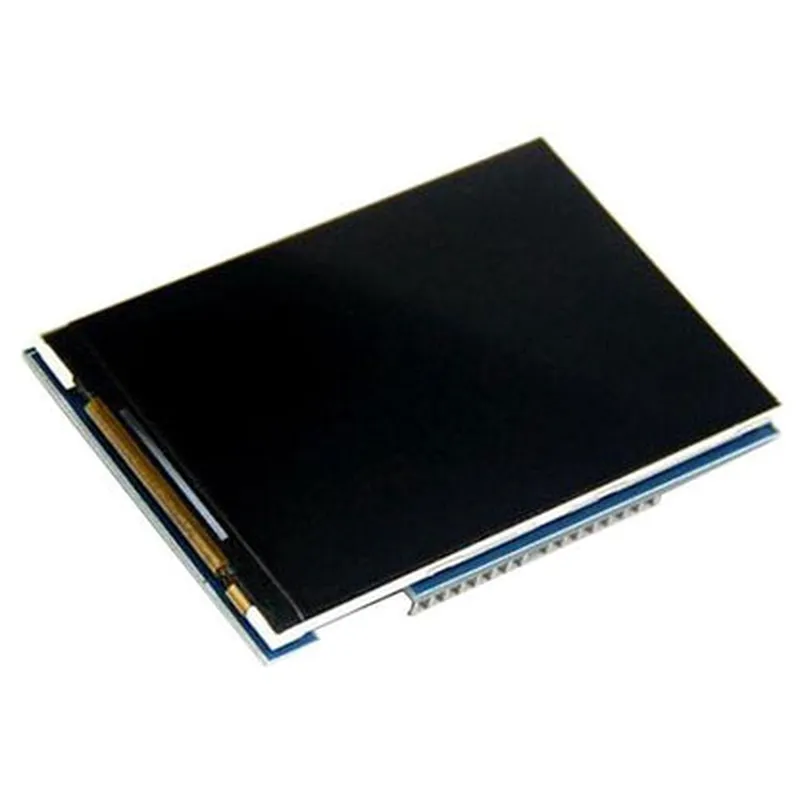
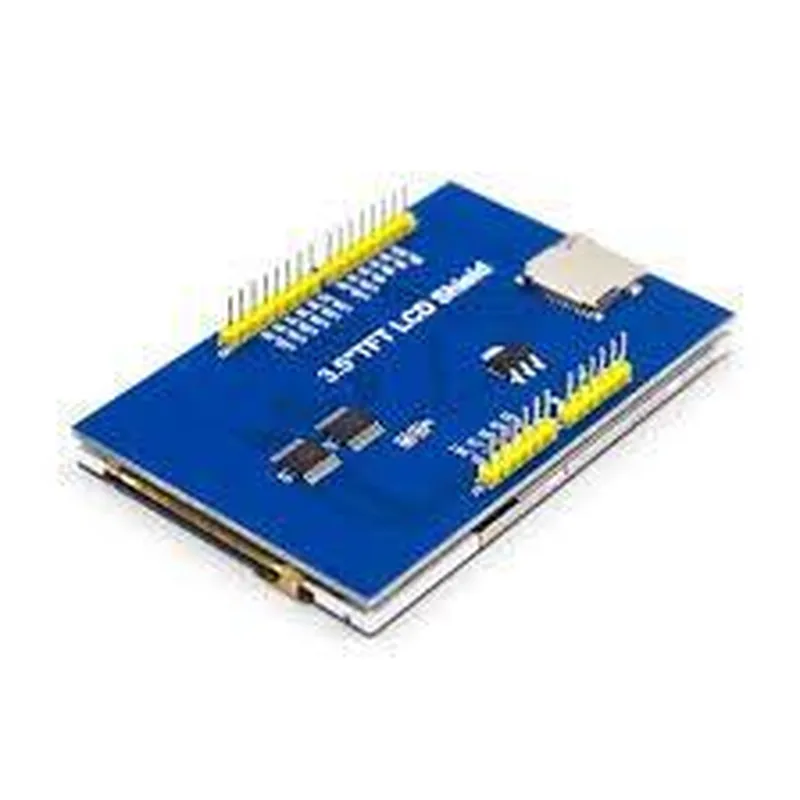
3.5 TFT LCD Display without Touch for Arduino
The 3.5 TFT LCD Display without Touch for Arduino is a compact and lightweight display module designed for use with Arduino boards. This module features a 3.5-inch TFT LCD screen with a resolution of 480x320 pixels, making it suitable for a wide range of IoT projects that require a visual interface.
3.5-inch TFT LCD screen with 480x320 resolution
 Compatible with Arduino boards
 No touch functionality
 Supports 16-bit and 18-bit color depth
 Operating voltage: 5V
 Interface: 16-bit parallel interface
To connect the 3.5 TFT LCD Display to an Arduino board, follow these steps:
1. Connect the VCC pin of the display module to the 5V pin on the Arduino board.
2. Connect the GND pin of the display module to the GND pin on the Arduino board.
3. Connect the D0-D15 pins of the display module to digital pins 0-15 on the Arduino board.
To use the 3.5 TFT LCD Display with Arduino, you'll need to install the TFT LCD library. You can download the library from the Arduino Library page or install it directly from the Arduino IDE.
Here are a few code examples to get you started with using the 3.5 TFT LCD Display with Arduino:
Example 1: Displaying Text and Images
This example demonstrates how to display text and images on the 3.5 TFT LCD Display using the TFT LCD library.
```c++
#include <TFT.h>
void setup() {
  TFTscreen.begin();
  TFTscreen.background(255, 255, 255); // Set background color to white
}
void loop() {
  TFTscreen.text("Hello, World!", 10, 10); // Display text at (10, 10)
  TFTscreen.image(50, 50, "image.bmp"); // Display image at (50, 50)
  delay(1000);
}
```
Example 2: Creating a Simple GUI
This example demonstrates how to create a simple GUI using the 3.5 TFT LCD Display and the TFT LCD library.
```c++
#include <TFT.h>
void setup() {
  TFTscreen.begin();
  TFTscreen.background(255, 255, 255); // Set background color to white
}
void loop() {
  TFTscreen.fillRectangle(10, 10, 100, 30, TFT_BLUE); // Draw a blue button at (10, 10)
  TFTscreen.text("Button 1", 20, 20); // Display text on the button
  TFTscreen.fillRectangle(150, 10, 100, 30, TFT_RED); // Draw a red button at (150, 10)
  TFTscreen.text("Button 2", 160, 20); // Display text on the button
  delay(1000);
}
```
Troubleshooting Tips
Make sure the display module is properly powered and connected to the Arduino board.
 Check the pin connections and ensure they are correct.
 If the display remains blank, try adjusting the brightness or contrast settings.
 If you encounter issues with the TFT LCD library, check the library version and ensure it is compatible with your Arduino board.
Remember to consult the datasheet and documentation provided with the 3.5 TFT LCD Display module for more detailed information on its features, specifications, and usage.