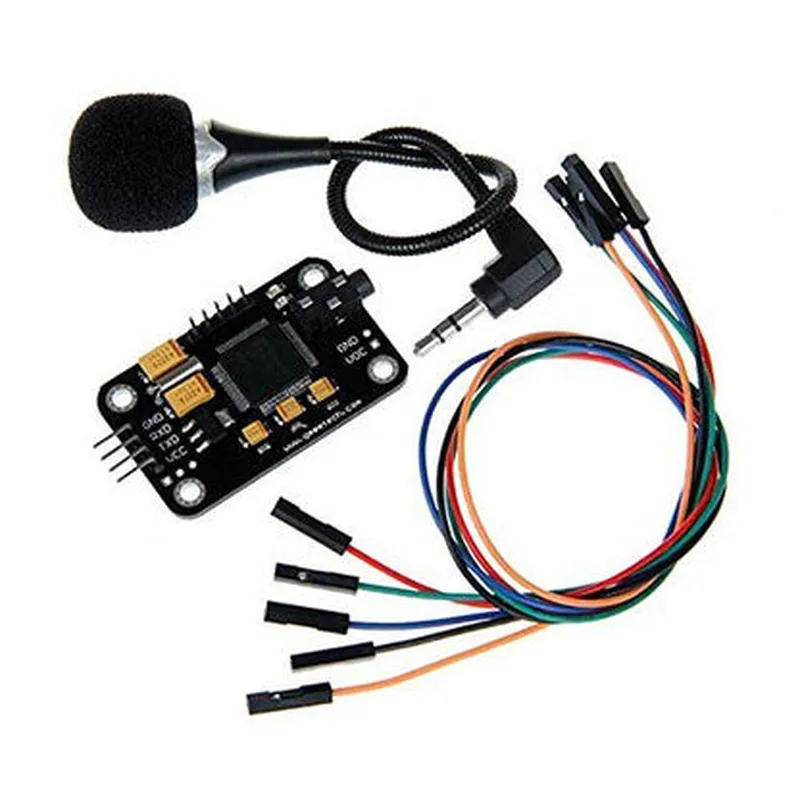
Speech Recognition Module Documentation
The Speech Recognition Module is a powerful IoT component that enables devices to recognize and interpret human speech. This module uses advanced algorithms and machine learning techniques to identify spoken words and phrases, allowing devices to respond to voice commands, transcribe spoken content, and more.
Technical Specifications:
Compatible with various microcontrollers and development boards
 Supports multiple speech recognition engines, including Google Cloud Speech-to-Text and Microsoft Azure Speech Services
 High accuracy and robustness in noisy environments
 Adjustable speech recognition threshold and sensitivity
 Supports multiple languages and dialects
### Example 1: Basic Speech Recognition using Arduino and Google Cloud Speech-to-Text
This example demonstrates how to use the Speech Recognition Module with an Arduino board and Google Cloud Speech-to-Text to recognize spoken words and print them to the serial console.
```cpp
#include <WiFi.h>
#include < SpeechRecognition.h>
// Replace with your Google Cloud Speech-to-Text API credentials
const char apiKey = "YOUR_API_KEY";
const char apiSecret = "YOUR_API_SECRET";
void setup() {
  Serial.begin(9600);
  WiFi.begin("your_wifi_ssid", "your_wifi_password");
  while (WiFi.status() != WL_CONNECTED) {
    delay(1000);
    Serial.println("Connecting to WiFi...");
  }
  Serial.println("Connected to WiFi");
  sr.begin(apiKey, apiSecret);
}
void loop() {
  int confidence = sr.recognize();
  if (confidence > 0) {
    String transcript = sr.getTranscript();
    Serial.println("Recognized speech: " + transcript);
  } else {
    Serial.println("No speech recognized");
  }
  delay(1000);
}
```
### Example 2: Voice-Controlled LED Lighting using Raspberry Pi and Microsoft Azure Speech Services
This example demonstrates how to use the Speech Recognition Module with a Raspberry Pi and Microsoft Azure Speech Services to control an LED light strip using voice commands.
```python
import speech_recognition as sr
import RPi.GPIO as GPIO
# Replace with your Microsoft Azure Speech Services API credentials
subscription_key = "YOUR_SUBSCRIPTION_KEY"
region = "westus"
# Initialize GPIO library for LED control
GPIO.setmode(GPIO.BCM)
GPIO.setup(17, GPIO.OUT)
# Initialize speech recognition module
sr = SpeechRecognition(subscription_key, region)
while True:
    text = sr.recognize()
    if text:
        if "turn on" in text.lower():
            GPIO.output(17, GPIO.HIGH)
            print("LED turned on")
        elif "turn off" in text.lower():
            GPIO.output(17, GPIO.LOW)
            print("LED turned off")
    else:
        print("No speech recognized")
```
These code examples demonstrate the basic functionality of the Speech Recognition Module and its integration with popular development platforms. By leveraging the module's advanced speech recognition capabilities, developers can create innovative voice-controlled IoT applications that enhance user experiences and improve device interactions.